
Almost every vendor, from email gateway companies to developers
of threat intelligence platforms, is positioning themselves as an
XDR player. But unfortunately, the noise around XDR makes it harder
for buyers to find solutions that might be right for them or, more
importantly, avoid ones that don’t meet their needs.
Stellar Cyber delivers an Open XDR solution that allows
organizations to use whatever security tools they desire in their
security stack, feeding alerts and logs into Stellar Cyber. Stellar
Cyber’s “Open” approach means their platform can work with any
product. As a result, a security team can make changes without
wondering if the Stellar Cyber Open XDR platform will still
work.
Stellar Cyber address the needs of lean enterprise security
teams by providing capabilities typically found in NG-SIEM, NDR,
and SOAR products in their Open XDR platform, managed by a single
license. This consolidation enables customers to eliminate security
stack complexity.
Stellar Cyber services customers in all major industries, with
customers across Europe, Asia, Australia, Japan, South Korea, and
Africa, providing security for over 3 million assets. In addition,
Stellar Cyber claims after deployment, users see up to 20x faster
mean time to respond (MTTR), a bold claim.
Responding to an Incident from the Home
page
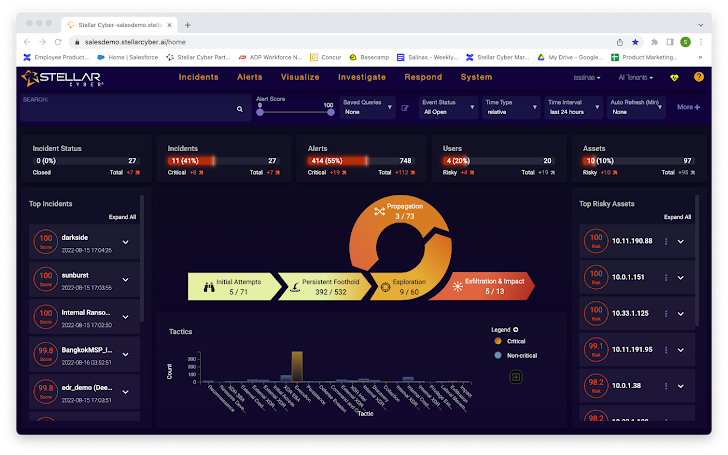
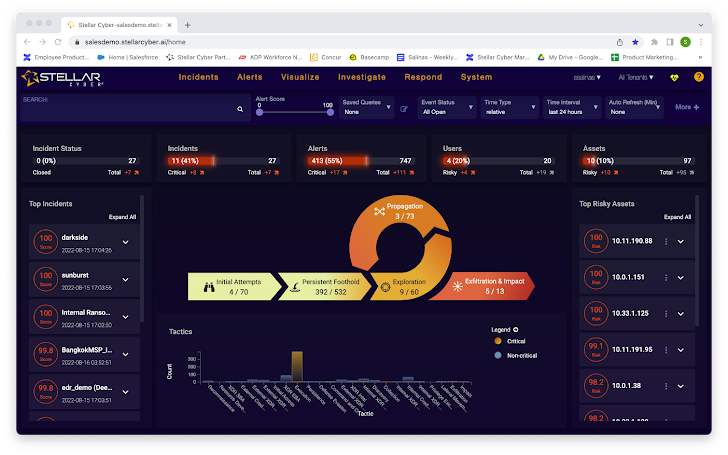
When logging into Stellar Cyber, the initial screen is the
analyst home screen, showing stats such as top incidents and
riskiest assets. An interesting piece on this screen is what
Stellar Cyber calls the Open XDR Kill Chain. Clicking on any
segment of the kill chain, such as “Initial Attempts,” shows
threats associated with that portion of the attack chain.
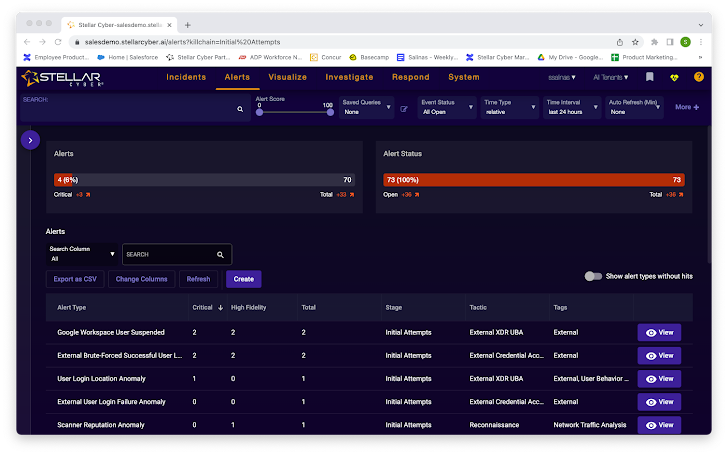
For example, the user can see these alerts with the stage
“Initial Attempts” set by Stellar Cyber automatically. The user can
see more information about the alert by clicking on “View” on any
of the alerts. Then, scrolling down the screen, the user can click
the “more info” hyperlink to see more information about the
selected alert.
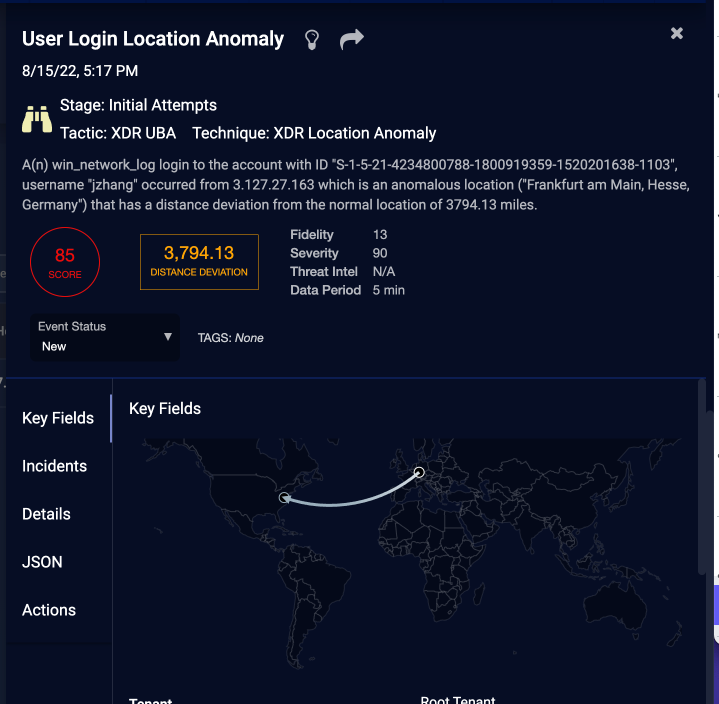
Here a user can read about the incident, review the details, and
see the raw data behind this incident and the JSON, which is
copiable to a clipboard if necessary. In addition, by clicking the
“Actions” button, the user can see other powerful platform
features.
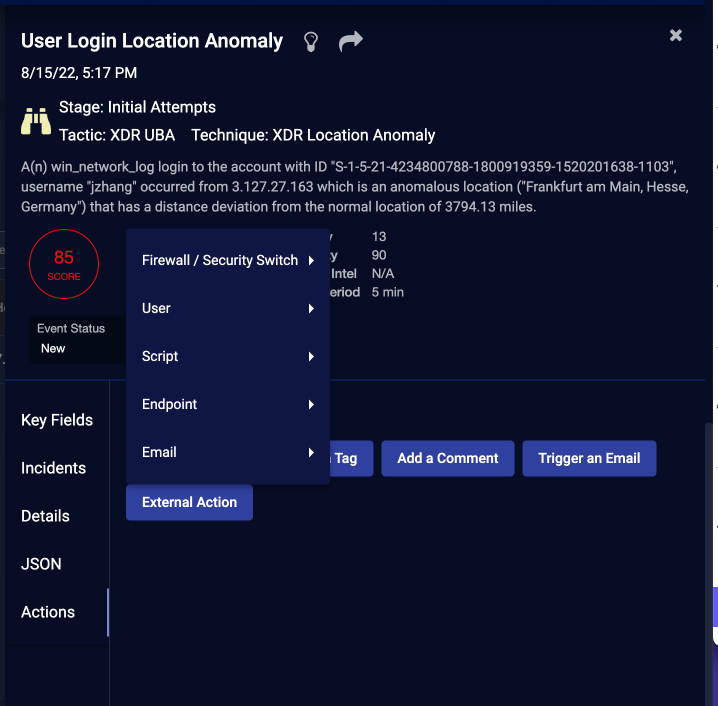
The user can take response actions from this screen, such as
“add a filter, trigger an email, or take external action. Clicking
on external action shows an additional picklist. The user can click
on Endpoint to see the action options from contain host to shutdown
host.
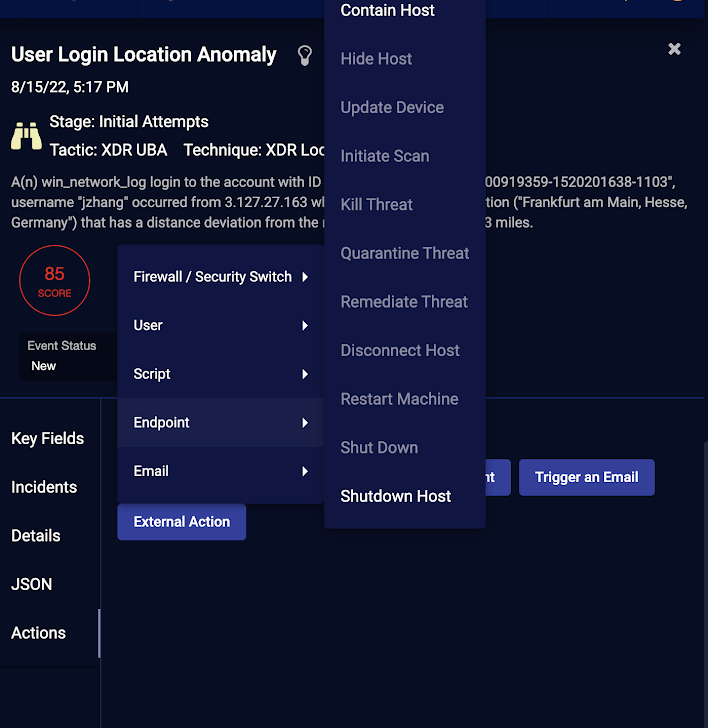
When clicking on an action, like contain host, a configuration
dialog displays where the user can select the connector to use, the
target of the action, and any other options required to initiate
the action chosen. In summary, security analysts, especially junior
ones, will find this workflow very useful in that they can a)
quickly review details of an incident from the home screen, b) see
even more details by going further into the data, and c) take a
remediation action from this screen without writing any scripts or
code.
The enterprise can help onboard new analysts by having them work
on this view to familiarize them with the platform, handling
low-priority incidents so other analysts can work on the more
critical incidents.
Exploring Incidents
Instead of clicking on the Open XDR Kill Chain, if the user
clicks “Incidents,” the screen below is shown.
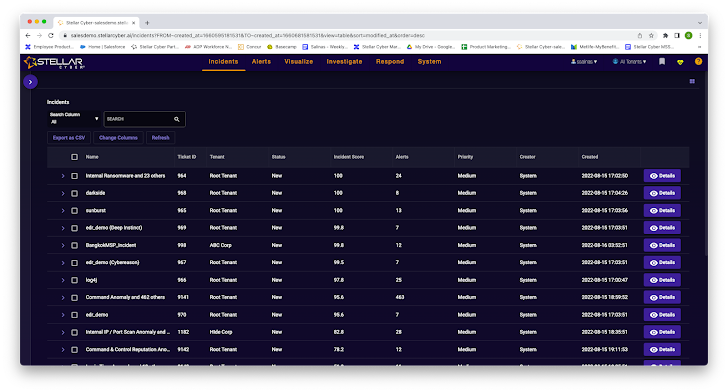
When the user clicks on the carrot in the blue circle, a
filtering list enables a user to hone in on a specific type of
incident. The user can go directly to the details button to see
what is in this detail view.
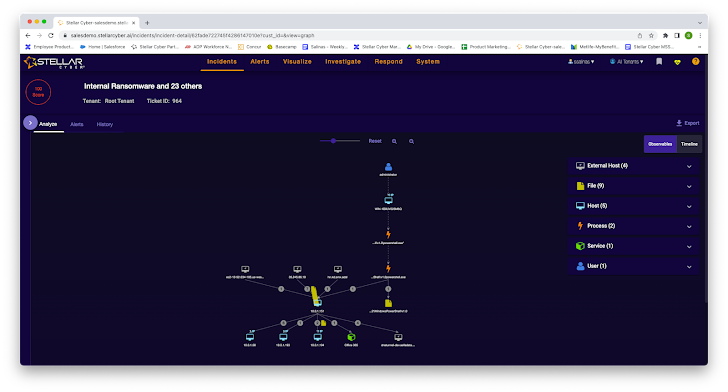
The user can see how this incident occurred and propagated
across multiple assets. Further, the user can automatically see the
files, processes, users, and services associated with the incident.
So, for example, the user could switch to the timeline view to get
a readable history of this incident.
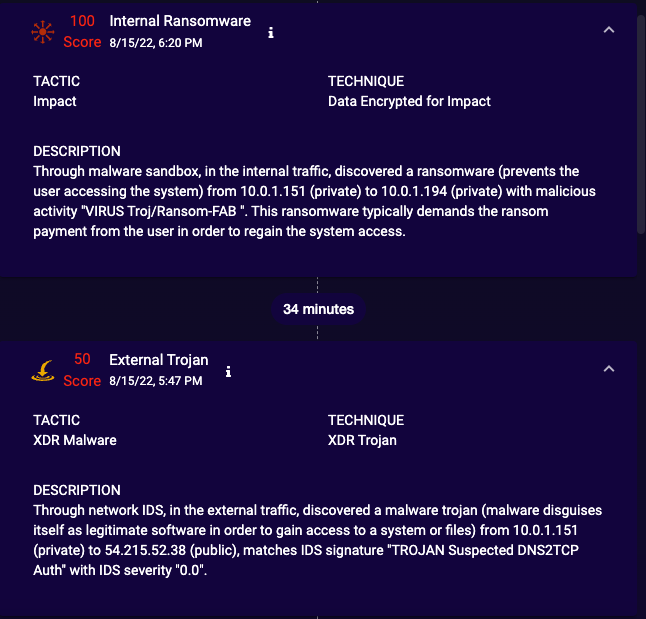
And click the small “i” to get to the detail screen shown
previously.
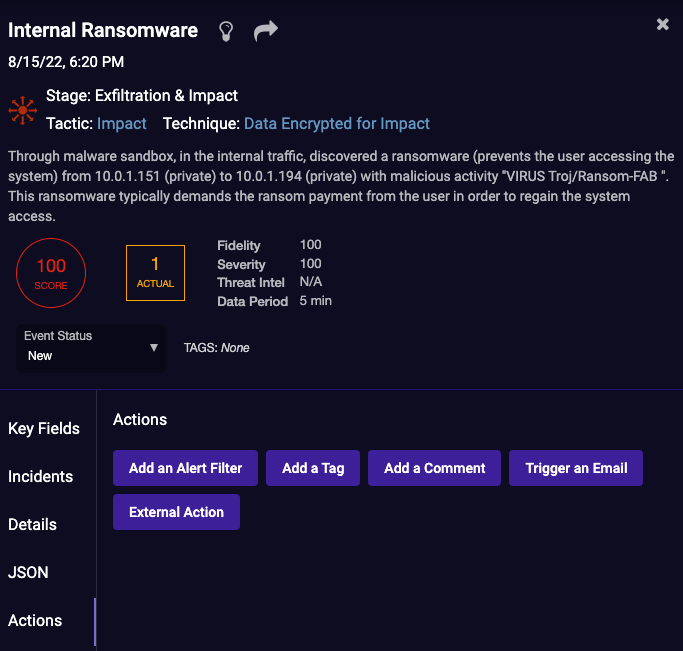
In summary, analysts who are used to working from a list of
alerts may like to start their investigations from the incidents
page. This view is also beneficial as it automatically shows all
alerts associated with this incident in a single view.
Threat Hunting in Stellar Cyber
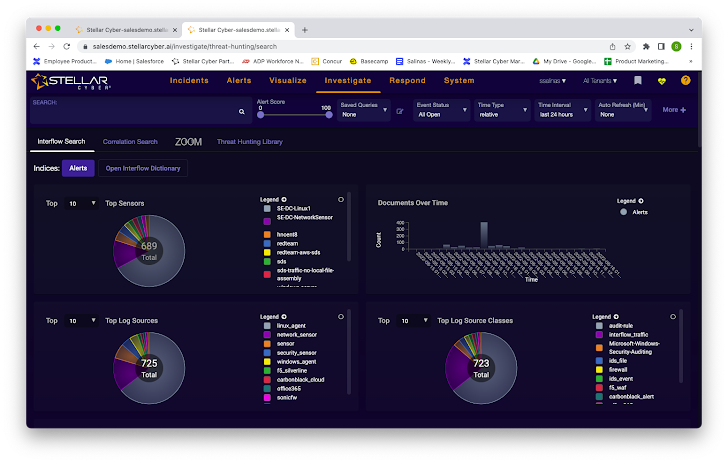
Users can initiate a threat hunt from the screen above. The
stats on the screen change dynamically by typing in a term, such as
“login,” in the search dialog. Then, scrolling down the screen,
users can see a list of alerts filtered based on the search
term.
Users can create a “correlation search” under the search dialog
box.
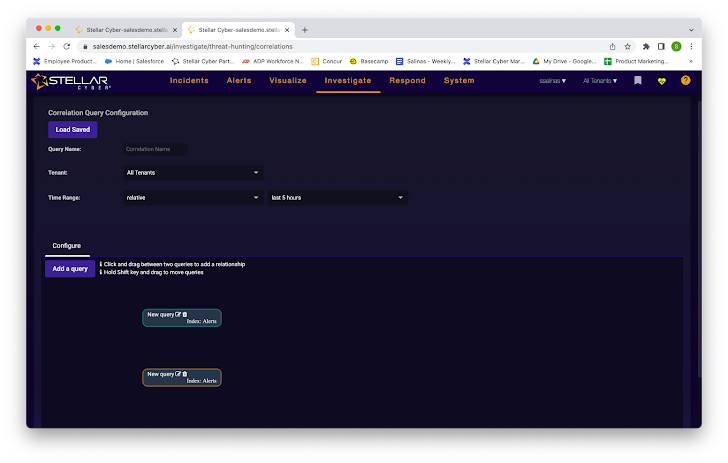
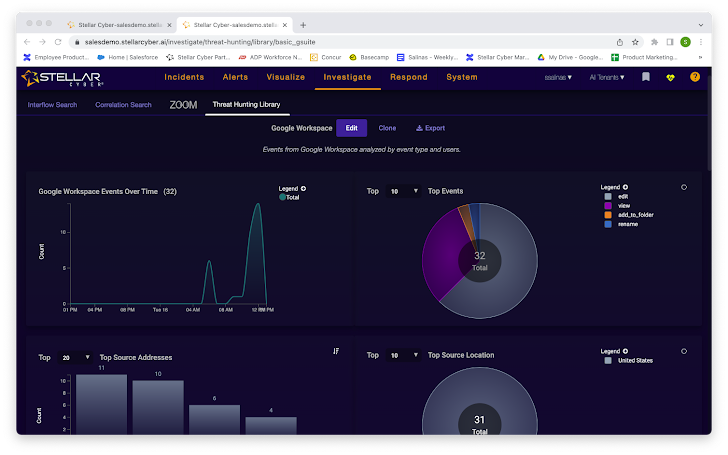
Users can load a saved query or add a new query. Clicking the
add query, the user can see this query builder. This builder
enables a search across the Stellar Cyber datastores for threats
that went unnoticed. Here the user can also access the threat
hunting library.
Finally, the user can create response actions that automatically
execute if the query returns matches.
In summary, Stellar Cyber offers a simple threat-hunting
platform that doesn’t require users to build their own ELK stack or
be a power scripter. This feature is an easy way to add a
threat-hunting element to a security team without hiring a senior
threat hunter.
Conclusion
Stellar Cyber is a solid security operations platform with many
features that could help a security team improve productivity. If
in the market for a new SecOps platform and open to adopting (in
whole or part) a new approach to security, it is worth looking at
what Stellar Cyber offers. To learn more about Stellar Cyber, try
the 5-minute product tour[1].
References
- ^
5-minute
product tour (stellarcyber.ai)
Read more https://thehackernews.com/2022/09/product-review-stellar-cyber-open-xdr.html