Installation of the PostgreSQL database is the first step to
move one step ahead towards the open source world of the database.
pgAdmin and PostgreSQL are both interconnected with each other by
the core system of which is installed inside the machine.
PostgreSQL database is an open-source and
object-relational database system. PostgreSQL has a graphical user
interface (GUI) admin control for the database management[1]
named pgAdmin. pgAdmin is a
design and management interface for the PostgreSQL database. Simple
database, datasheets, and operations can be done with pgAdmin by
interacting with the local filesystem[2]
of the database allowed by the user.
PostgreSQL
Database
Structured Query Language (SQL) is a programming language
that is used to analyze, manage, and maintain a database. SQL can
do join, union, insert between two or more databases. Some database
engines are used to do the database program. They are Oracle,
MySQL, Microsoft SQL Server, PostgreSQL, MongoDB, IBM DB2,
etc.
Among the above database engines (DB engine), PostgreSQL
is the most user-friendly and open source based free database
engine. PostgreSQL is also simply known as Postgres. Postgres is a
free Relational Database Management System (RDBS), which can be
used to maintain a variety of workloads. Postgres can handle single
machines to data warehouses or Web services with many concurrent
users.
In this post, we are going to learn how to install
PostgreSQL and pgAdmin in Ubuntu as well as in all other Linux
distributions.
Step 1: Installation of PostgreSQL
Database
PostgreSQL[3]
database is an open-source application. So it is available on the
web, which is free to use. No subscription fee is charged to
purchase PostgreSQL. In Linux, PostgreSQL can be installed with the
apt packaging system. So, to install the PostgreSQL
database, the following command lines will be run in the
terminal.
sudo apt-get update
sudo apt install postgresql postgresql-contrib
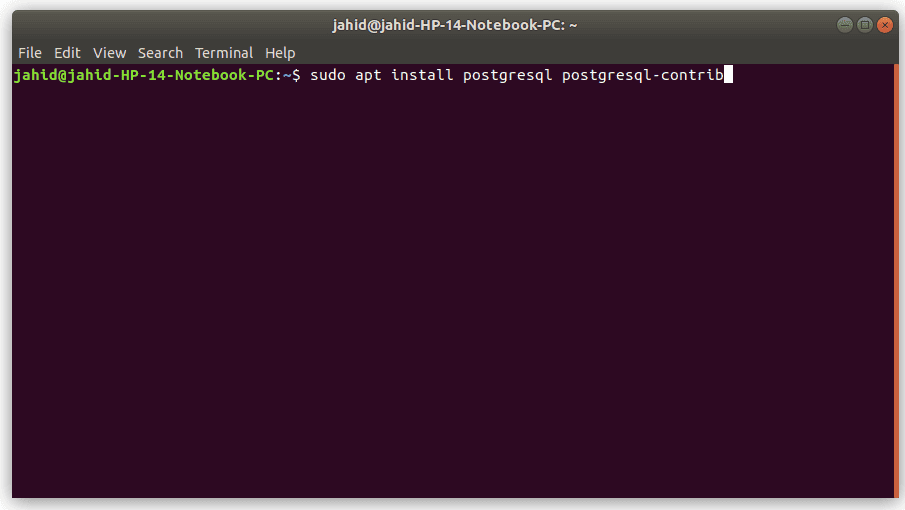
Here at the end of the second line of the command, you can
see that there is a contrib, which means that as you are using
Postgres for the first time, this will download and install all the
additional required files in your system. Once your
terminal is in action, you will see a progress bar below in your
terminal, showing how many percentages of installation are
done.
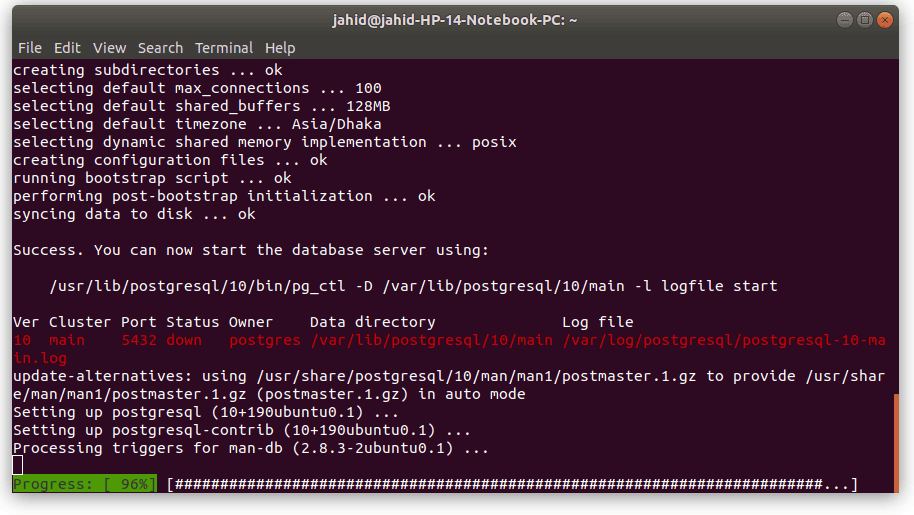
So now, PostgreSQL is installed successfully inside your
machine or system.
Step 2: Installation of pgAdmin
for PostgreSQL
As it is mentioned earlier that pgAdmin is the control
unit of PostgreSQL, so pgAdmin must have been installed properly to
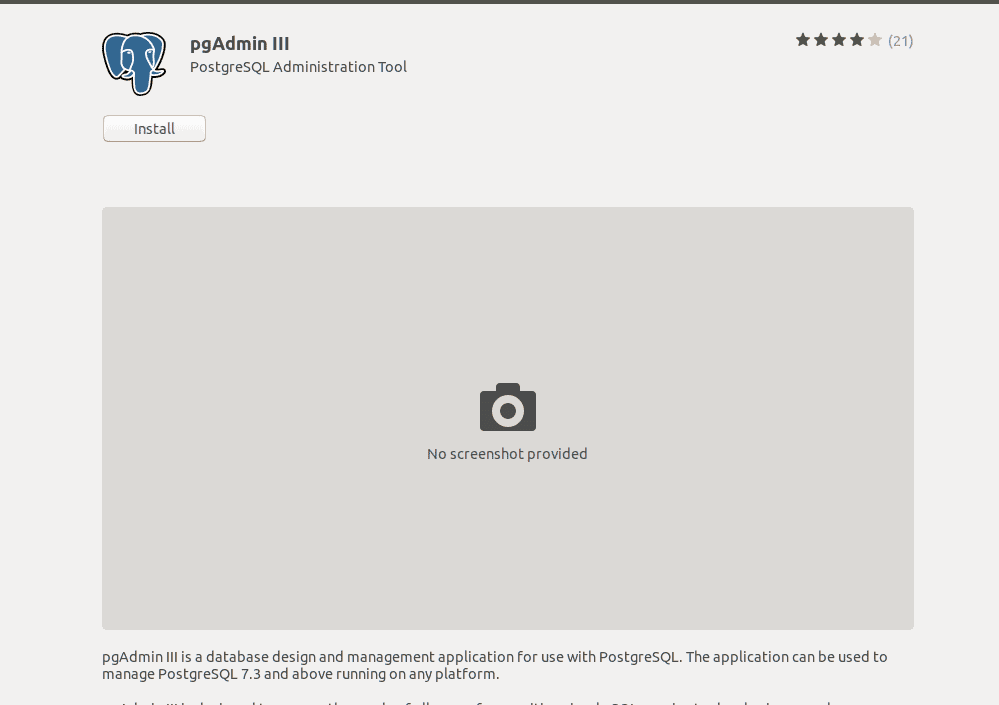
run the database engine. The pgAdmin3 is already
available in Ubuntu Software Store[4]. You just need to type
and search pgAdmin inside the software store. You will find
pgAdmin3 there, and there you go, install it with your system
administrative password.
Step 3: Changing the Master
Password of pgAdmin3
In the PostgreSQL database, pgAdmin always comes with
prelocked with a master password for the purpose of data encryption
and the safety of the database. To use pgAdmin3 inside
PostgreSQL, you have to change the master password of pgAdmin3. For
that, at this stage of the installation process, you have to open
the terminal in your system and type the following command lines in
the terminal given below. This terminal commands will reach you
towards the stage of changing the password of pgAdmin in
PostgreSQL.
sudo -u postgres psql postgres
\password postgres
Now you have to assign your new password and type one more
time for security purposes. There you go, Now you have
full control over your database engine.
Creating a New Database in
PostgreSQL
After the installation process is done, it is time to
create a new database and test it. Before we start, let me tell you
that PostgreSQL works with the interface of a web browser[5]. So when you create your
database in pgAdmin and you may see the output opening in your web
browser. Now open pgAdmin3, and you will find a
New Server button right in the upper row. Click on
‘Add Server’ it will show you a dialog box. This box is
the setting function for your database server.
The settings will be as given
below:
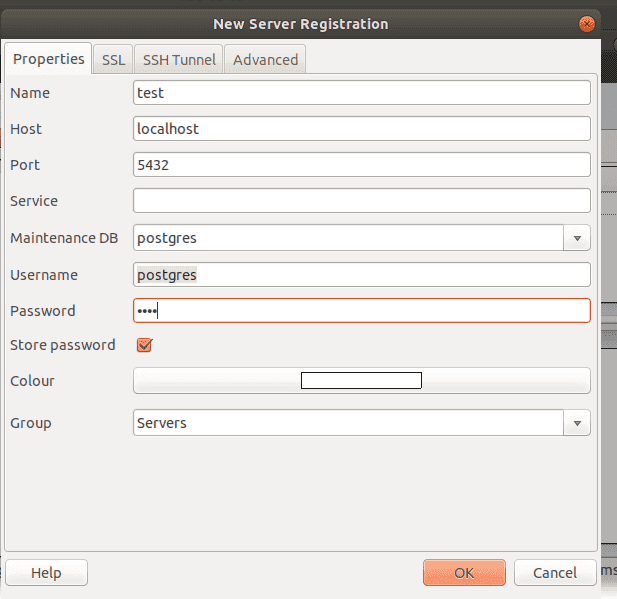
Name: Name of your database
Host: localhost
Port: 5432
Maintenance DB: postgres
Username: postgres
Password: Password that you have changed earlier with terminal.
Group: Servers
If everything is done, click Ok, it will open a new pop-up
window ensuring that you have changed the pgAdmin3 password, click
Ok again.
Here you are almost done, your IDE[6]
is ready to be programmed now. To open the SQL IDE, just click on
the SQL button. It will open another window where you will be able
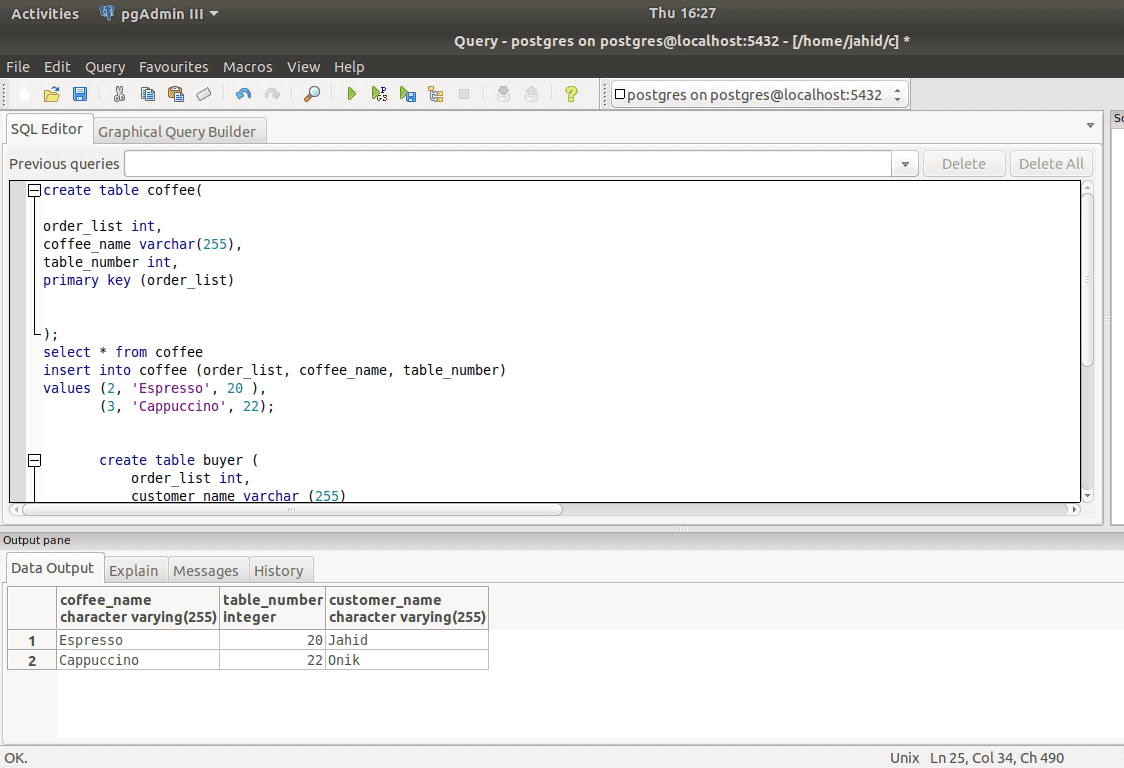
to write your first program. Here for explanation
purpose, I have written a simple SQL program of coffee name with
order table using join command.
Enjoy your free and open source database engine,
PostgreSQL pgAdmin.
Finishing Touch
Here you are at the very ending of this post. In this post, we
have discussed the installation process of the PostgreSQL database
and pgAdmin in Linux. As a relational database management system,
the PostgreSQL database is the most popular and reliable
nowadays.
If you have anything to ask related to this post, please feel
free to type in the comment section. And don’t forget to share this
tutorial with your friends in your social network.
References
- ^
Top 15
Best Database Management Systems for Linux in 2020
(www.ubuntupit.com) - ^
Everything You Need To Know About the
Linux File System (www.ubuntupit.com) - ^
PostgreSQL
(www.postgresql.org) - ^
Best
Linux Software: Our Editorial List of Essential Linux Apps
(www.ubuntupit.com) - ^
13 Best
Ubuntu Web Browsers: Which One is Right for You?
(www.ubuntupit.com) - ^
Best
Linux Code Editor: Top 10 Reviewed and Compared
(www.ubuntupit.com)
Read more https://www.ubuntupit.com/how-to-install-postgresql-database-and-pgadmin-on-linux/