We use Internet-enabled devices in every aspect of our lives
today—to find information, shop, bank, do homework, play games, and
keep in touch with friends and family. As a result, our devices
contain much personal information about us.
Also, any great device will get a little clunky and slow over
time and the Mac is no exception, and the whole “Macs don’t get
viruses” claim is a myth. Malware for Macs has increased over the
years, and today’s Macs are being plagued by adware, scareware, and
other potentially unwanted programs as well.
If you are worried about your Macbook’s performance and
security, including unwanted software, ransomware, or phishing
emails, CleanMyMac X software[1]
has you covered.
CleanMyMac is all-in-all software to optimize your Mac’s
performance and security. It clears out clutter and removes
megatons of junk so your computer can run faster, just like it did
on day one.
The tool is designed to replace several optimization apps for
Mac and can be anything you want it to be, including but not
limited to a performance monitor, macOS cleaner, and a malware
remover.
This blog takes a deeper into CleanMyMac software, its features,
and its benefits.
CleanMyMac X Features
In most cases, temporary files left behind by apps and software
are the main reasons your Mac runs out of space resulting in poor
performance.
CleanMyMac provides a wide range of cleanup tools to guarantee
you never have to worry about cleaning unneeded files, like
outdated caches, broken downloads, or logs manually ever again.
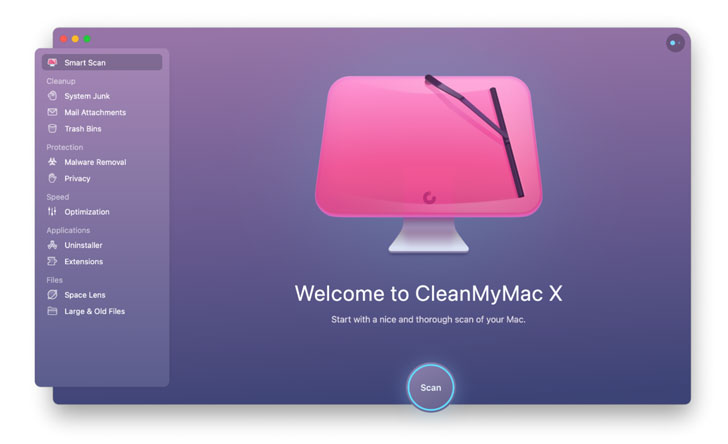
The tool comes with several services and features, which we have
listed down for you.
A Dashboard Drop-Down
The app’s drop-down menu is located on your Mac’s dashboard,
making it easy to access and check the status overview of your
device. The menu provides a list of all your hard drives, including
details about the space occupied and available on them. Other tabs
on the drop-down list show the available RAM, battery, CPU usage,
network speeds, and the content of the trashbin:
CPU usage: This feature lets you know about the
stress on the processor from all applications running in the
background. You will get an option to close the unnecessary
applications to free the processor so your Mac can run more
smoothly.
Battery tab: The battery tab allows you to get
a view of all the applications running in the background and the
amount of power each consumer
Dropbox: If you are leveraging a Dropbox,
CleanMyMac’s drop-down status overview lets you know the space
available on your cloud storage in real-time. The latest version of
the app comes with a new tab called Protection that provides a
“Real-time malware monitor” functionality in the drop-down
menu.
CleanMyMac X Security and Protection Features
CleanMyMac[2]
undoubtedly relieves you of security worries thanks to unmatched
features offered in its Protection package. The following are a few
features that can help optimize the security of your device:
- Protection tab: You can tab the “Scan” button
in the Protection tab to check for suspicious activity in your
newly installed applications. If you turn this feature on,
CleanMyMac X can help neutralize any threat that could come with
the new software you are installing. - Malware removal: There is no doubt that
viruses and other malware can be a headache to Apple users.
CleanMyMac comes with an in-built Mac Malware Removal tool that
scans your device and emails for malware. It will automatically
notify you if it finds any threat before removing it. This is a
notable feature that you won’t find in other Mac cleaning tools in
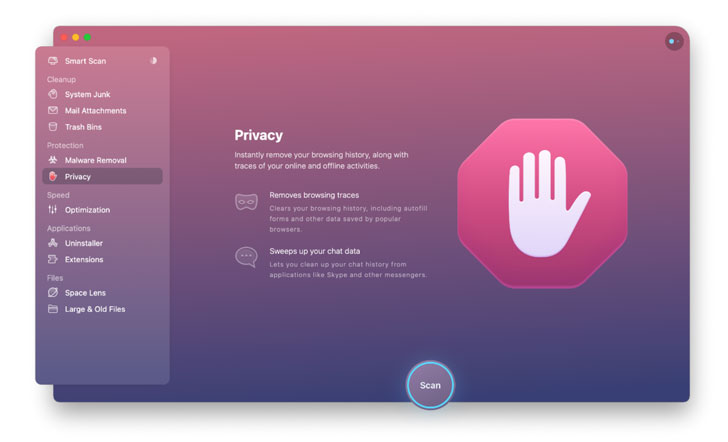
the same category. - Privacy: CleanMyMac’s Privacy optimization
software helps you scan your Mac for all possible privacy
vulnerability issues. The feature lets you know the specific
instances where your identity and data could be compromised in
real-time, including browsing history, browser cookies, and more.
It will clean up all these files, so you improve your privacy and
speed up the performance of your system.
CleanMyMac X Clean-up Features
CleanMyMac undoubtedly helps get rid of files that you don’t
need and which often fill your limited drive space. Let’s take a
look at some of the ways the app helps free your Mac from all the
junk so you can optimize the performance of your device.
Specifically, we focus our review on the flowing cleanup features:
system junk, photo junk, mail attachments, iTunes junk, and trash
bins.
System Junk Cleanup Functionality
The app comes with a System Junk cleanup functionality designed
to remove all files and other junk left behind by apps and
operating systems that you could have installed on your device.
Once you remove these files, you will get more space and an
optimized experience. The following is a summary of how the feature
works:
Step 1: The functionality requests permission
to access your drive. Once you grant complete access and hit Scan,
CleanMyMac will automatically scan the spaces occupied by temporary
files and applications and provide an overview of their details.
For example, it lets you know all the background applications that
are holding back the performance of your Mac. A smart cleanup scan
also provides an overview of any potential threats that could be
looming inside your device.
Step 2: After scanning, you hit Run, and the
CleanMyMac gives you an option to save your work and quit some of
the applications you still need to use. If you ignore this prompt,
the applications will likely crash, and you could lose all the
unsaved data or changes.
Step 3: Once the CleanMyMac runs, it performs a
comprehensive junk file cleanup. It automatically removes all
malicious files, closes the background app consuming memory, and
slows down your device.
Step 4: Once it completes the runs, the
CleanMyMac feature will provide a new system status report
indicating the amount of space that has been freed, the number of
malicious files and data removed, and all the background tasks shut
down.
Photo Junk Feature
If you use your Mac to edit your photos, there is a high chance
mountains of temporary files have piled up to eat up massive
storage space. CleanMyMac comes with a photo junk feature that lets
you know all temporary photos and thumbnails taking up space in
your Mac so you can delete them.
Mail Attachments Feature
Regardless of their size, all types of mail attachments can use
massive storage space if not deleted routinely. The mail
attachments feature provides a great headstart to clear files that
are no longer important. All it takes is to hit the Scan button,
and the functionality will clear all the mail attachments in
seconds.
iTunes Junk
iTunes is one of the main culprits taking a large bite of your
storage. The app takes and stores all types of libraries to ensure
faster access to music and videos. What most Mac users don’t know
is that the iTunes app is not only built to play music and stream
videos. It is optimized to store multiple backups for all your
other Apple devices. The iTunes Junk feature provided by
CleanMyMac, lets you know the amount of space occupied by cache
files and the backup. You can hit “Scan,” and the app will delete
all cache files and back up.
Trash Bin Feature
The trash bin cleanup feature saves you the frustration of
manually deleting the files in the trash bin. It gives you a second
chance to confirm your choices before deciding to delete your files
permanently. Once you hit the “Scan” button, you will be provided
with the exact space occupied by the files in your trash bin. You
can then click on the “Clean” feature to delete the files
permanently.
CleanMyMac X Review –The Verdict
If you are a Mac user who wants your device to be as good as new
at all times, CleanMyMac is the ideal tool for you.
CleanMyMac[3]
is a handy tool that allows you to quickly free up space on your
Mac and enhance device security. It automatically locates all junk
in all corners of your Mac to achieve optimized performance.
The Protection tools fight off malware, phishing, ransomware,
and all other forms of threats specific to macOS. Once it detects
the threats, the app deletes them right away before it becomes a
major security breach.
References
- ^
CleanMyMac X software
(macpaw.app) - ^
CleanMyMac
(macpaw.app) - ^
CleanMyMac
(macpaw.app)
Read more https://thehackernews.com/2021/11/cleanmymac-x-performance-and-security.html