Plex is the media platform of your own where you can set up your
personal media server with your all
favorite Movies and TV Shows. Once you have installed the Plex
client on your Linux system, you will be able to access the media
server from anywhere in the world. It is really very much easy and
simple to install the Plex media server on the Linux machine. As
most of the servers run on the Ubuntu Apache server configuration,
so we can say that the Plex media server will really run smoothly
on Linux or Linux-based machines. [1]
One thing that attracts me very much about the Plex media server
is, when you finally get your Plex installed on your Ubuntu Linux
system, it will gather all the media files by categories and will
display to you like a movie theater. You can even access the Plex
files when you are offline. There is a download on the remote
device option in the Plex server. The key features of the Plex
server are noted down for you to make a better understanding. In
this post, we are going to learn how to install Plex on Linux
machine.

- Own Media Server
- Cloud Storage Sync
- Local Tv Setup
- Sync with Mobile Devices
- Clean and Neat UI
- CPU and Bandwith Control
- Doesn’t Kill Much Power
Step 1: Get the Plex Installer
File for Linux
Plex media server is available on the official website of Plex
TV. You just need to download and install the file with your Linux
software installer. If you are a Debian or Ubuntu Linux user, you
will find the .deb package file on the website. Once
the .deb package, you can either install the Plex
through the Ubuntu Software installer or, you can also run the
Debian package install command in the terminal.
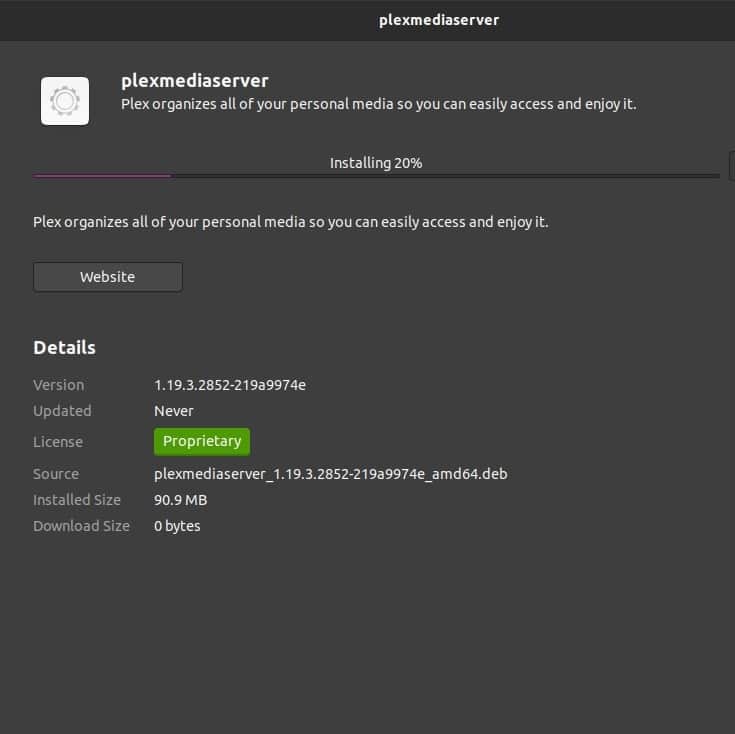
Sometimes, the Debian/Ubuntu software installer won’t work for
some technical or ungodly reasons, in that case, you can always use
your Linux terminal shell.
$ sudo dpkg -i plexmediaserver_1.19.3.2852-219a9974e_amd64.deb
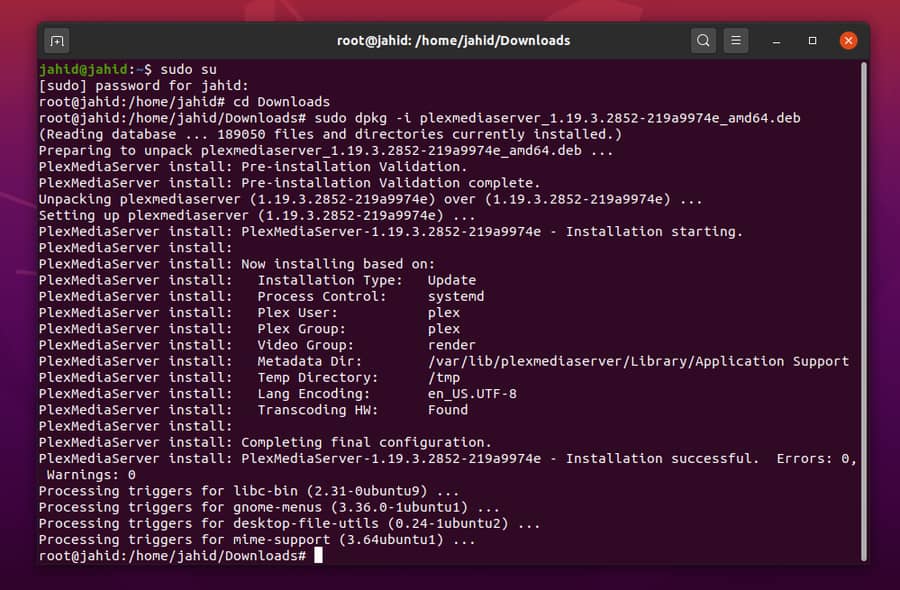
If you are using the Fedora, CentOS, or the SUSE Linux
distributions, you need to download the .rpm package
file from the dropdown download menu. Then you can follow the
terminal command line to install the .rpm package on
your Linux machine.
$ sudo yum install plexmediaserver-1.19.4.2902-69560ce1e.i686.rpm
Step 2: Choosing a Plex
Plan
Here comes the part where you have to choose a plan for your
Plex server account. You can choose among the monthly, yearly, and
lifetime packages. If you just want to give the Plex a shot, I’ll
suggest you take the monthly package, which is also the most
popular Plex package. And, if you are already done with trailing
and understanding the Plex mechanism, I will suggest you the yearly
package to get subscribed. Later, you will decide on all your own
whether you want to buy the lifetime package or not.

Step 3: Setting Up the Plex Media
Server on Linux
After installing the Plex server inside your Linux machine, now
it’s time to configure the Plex media with your personal or
business credentials. To reach the setting page of Plex, you need
to open your web browser and type the localhost address following
by the port 32400. That’s the default port for the Plex.
http://localhost:32400/web/index.html
http://127.0.0.1:32400/web/index.html
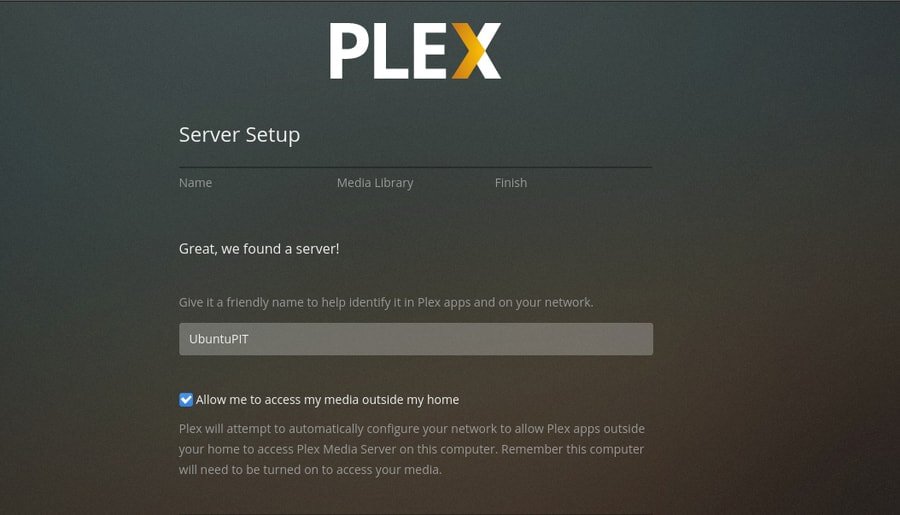
After creating a new Plex account, you can now set up your Media
Library for Movie, Drama, or Music. After the basic configurations
are done, you can now jump to your server file allocation section.
Don’t forget to check the Allow me to access my media outside my
home if you want to load your server out of your own network.
Step 4: Setting Up Authorized
Devices for Plex
As you’re using the Linux, I am sure you have much concern about
your server security. You can check which devices are currently
logged in or were logged in earlier into your Plex server. You can
authorize, remove, and modify the permissions of your devices. From
the Plex settings, you can also set the sharing settings. There you
can limit or grand the user access request.
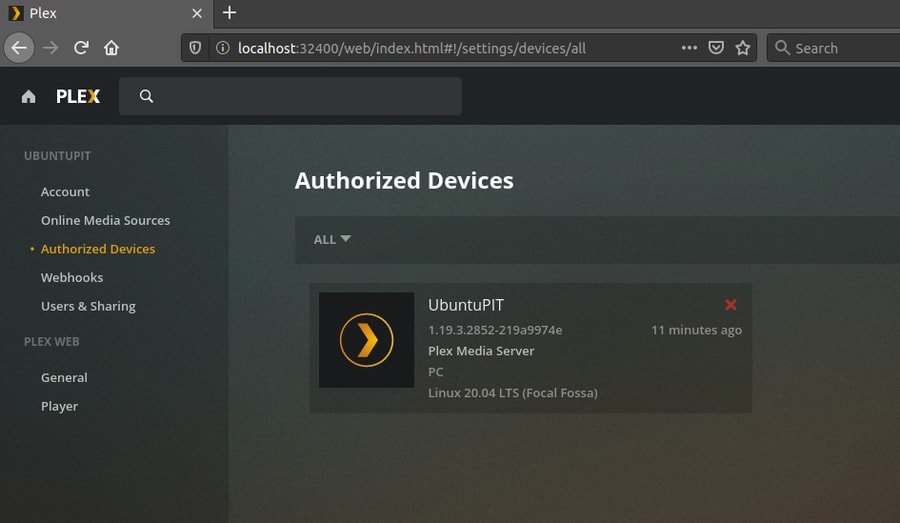
Under the Plex Web settings, you can control the media player
section. You will be able to modify the player screen, interface,
and add/remove subtitles.
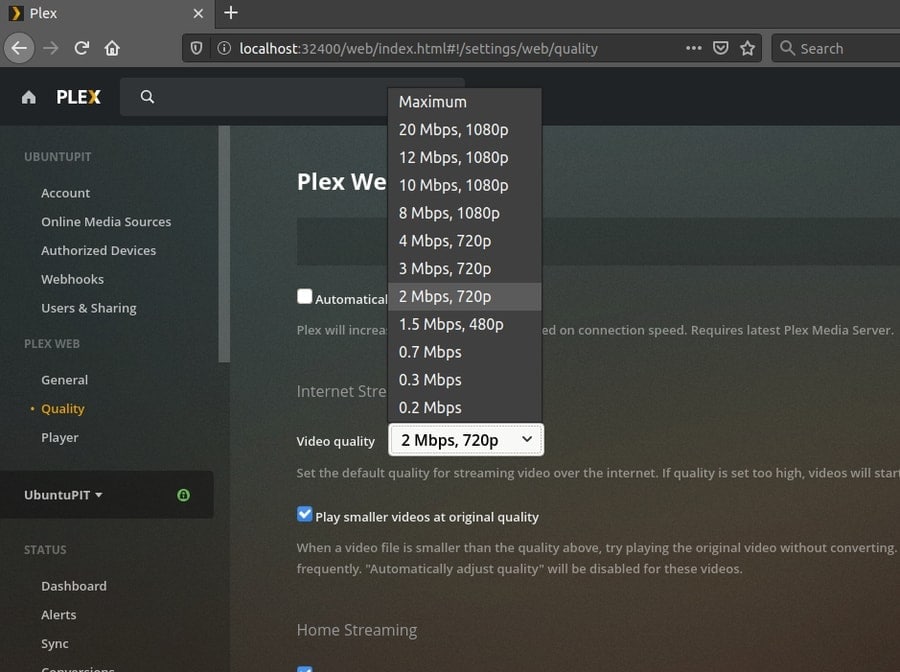
Step 5: Control Bandwidth for Plex
from Linux
Installing a media server might be very much enjoyable and
adventurous, but after a while, you will get realizing that the
media server consumes a lot of your bandwidth. Yes, no worries, if
you are having a limited bandwidth connection or having any
playback issues due to bandwidth crisis, you can always control and
limit the bandwidth for your Plex server. Once the Plex server is
installed on your Linux machine, under the Plex Web settings,
you’ll find the dropdown menu of Plex bandwidth control, just
choose and save your preferred settings.
Step 6: Plex Pass for Premium
Features
Plex pass is the premium feature of Plex Server, with the Plex
Pass feature you can sync all your mobile devices and record TV
shows through your Plex Server. Plex Pass also gives you the right
to apply the parental controls, if you need it. The Plex Pass can
also give you a better viewing option of photos with dynamic
styles, getting a clear and customized music system and, gives you
the environment of the cinema hall while watching movies.
You might be thinking about what more the Plex Pass can do? If
you are kin and curious about who is watching what, then you must
get the Plex Pass. It gives you the full authority to see the user
dashboard where you can monitor what is going on both in front-end
and back-end of your Plex Server.

Step 7: Firewall Settings for the
Plex Server
This is the most important settings for a server that usually
people forget to configure. Because usually, the Linux firewall[3]
doesn’t create any abstraction to reach your Plex
Server. But it might be an issue when you want to get global
access. So, be mindful and careful while you are configuring the
Plex Server on Linux. Don’t forget to grand the firewall
access.
$ sudo ufw enable
$ sudo ufw status
$ sudo ufw allow from 127.0.0.1:32400
Uninstalling the Plex Server from
Linux Machine
I’m sure once you have done installing and configuring the Plex
Media Server, you will going to love the server. But in case you
need to do a start over, you might have to remove/uninstall the
Plex server from your Linux machine. To emove the Plex server from
Linux machines, firstly, close all tabs and applications running of
the Plex from your machine. Then run the following terminal
commands lines in your Linux machine. The remove the following
directories.
For Debian/Ubuntu Linux Machines:
$ dpkg -r plexmediaserver
/var/lib/plexmediaserver/Library/Application Support/Plex Media Server/
For Fedora, CentOS, or the SUSE Linux
distributions:
$ rpm -e plexmediaserver
/var/lib/plexmediaserver/
Now you need to delete the Plex Server user account from your
Linux machine.
$ userdel plex
Final Thoughts
In this post, I have gone through a brief but efficient process
of how to install and configure the Plex media server on the Linux
system. I’ve also discussed a few primary Plex configurations. Once
you have completely done things set up with your Plex server on
your Linux system, you can also get your Android media app of Plex from Playstore
for better controlling the server. [4]
If you are a fan of the Plex server, let us know which feature
of Plex attracts you more. And if you are a new Plex user, you are
also encouraged to write your experience of using the Plex server
on your Linux machine. Also, do share this post on your social
media.
References
- ^
13 Best
Linux Media Server Software for Making Your Own Home Theater PC
(www.ubuntupit.com) - ^
Download
Plex for Linux (www.plex.tv) - ^
The 15+
Linux Firewall Software For Protecting Your Linux System
(www.ubuntupit.com) - ^
Top 20
Best Android TV Apps To Enjoy The Big Screen
(www.ubuntupit.com)
Read more https://www.ubuntupit.com/how-to-install-plex-media-server-on-linux-a-tutorial-for-newbie/