Linux Mint is an excellent community-driven Linux distro based
on Ubuntu. It is very popular among beginners because Linux Mint is
very easy to use. Though it has Debian in its core, the user
interface is quite modern and beautiful. It is mostly because of
its default desktop environment Cinnamon. This open-source desktop environment can be
used on other Linux distributions. Cinnamon is almost similar to
Xfce and GNOME 2 because of its conservative design model. But
since its release in 2011, it has got huge coverage because of its
ease-of-use. The active developer community of Cinnamon is
relentlessly developing amazing Cinnamon themes for the mass users.
These Linux Mint themes can change your desktop and create such a
gorgeous look. [1]
Best Cinnamon Themes for
Linux
As Cinnamon is an open-source platform, creative developers have
a huge scope for creating themes for this desktop environment. For
this reason, there are more than a thousand themes available[2] for it. It’s very
difficult to try out each and every theme to feed your eyes. This
is why we have made a list of 15 best Cinnamon themes for your
Linux desktop. We know that everyone’s taste is different. So, on
this list, you will find different types of themes. Some will suit
the best for the office workers while others will be liked by the
young generation.
1. McOS
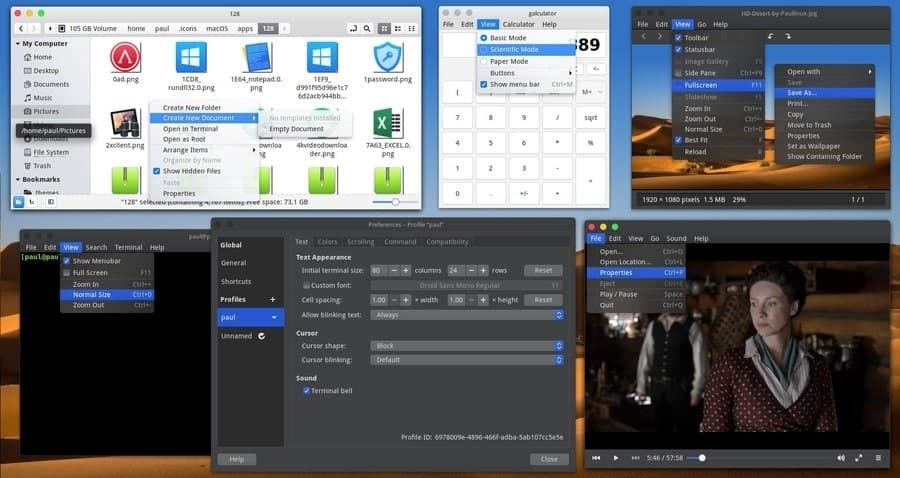
This is a specially designed Cinnamon theme looking like Apple’s
macOS for Linux users. The latest version 2.0 is a reengineering of
macOS Mojave. This Linux Mint theme was developed with Manjaro
Cinnamon, but it is totally compatible with any distribution of
Linux. The default Nemo file manager has been tweaked a bit
in this theme so that it looks like macOS Finder. Some media apps
automatically get dark mode with this theme so that they get
blended with the rest of the user interface. You can also manually
enable a dark theme for specific apps. [3]
2. CBlack
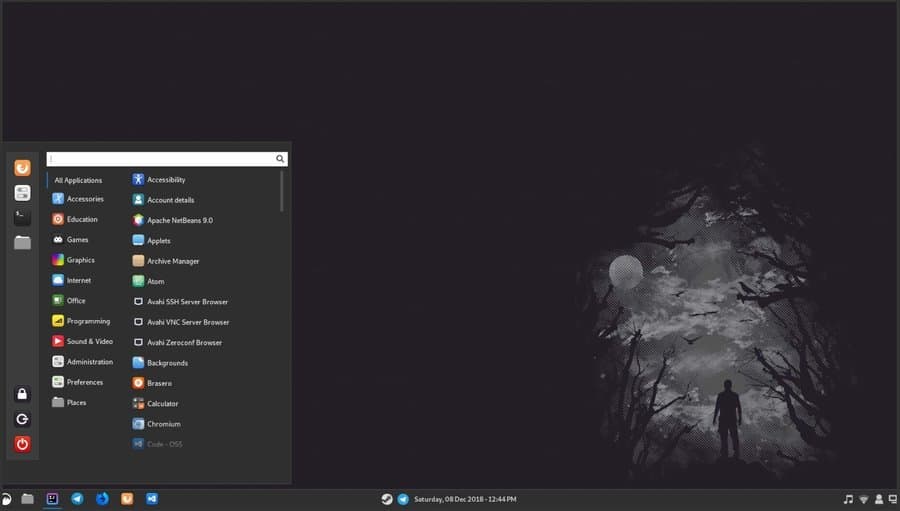
CBlack is a completely dark theme for the Dark Mode Squad. It is
probably the most popular dark Cinnamon theme until now. It
includes an extra Linux Mint theme for gtk and gtk+. Users can
easily change the transparency of the panels by altering some
values in the code. The icons of the preinstalled apps become dark
in accordance with the theme. This theme changes the color of the
progress bar, switch, and background tooltips. It also changes the
pop-up menu and input box styles.
3. KissKool
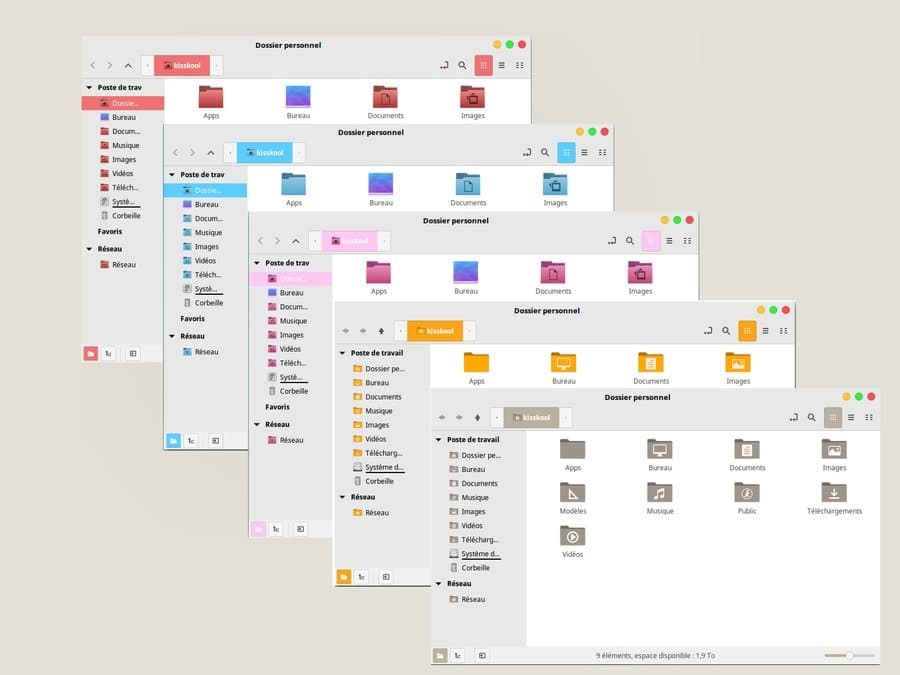
KissKool is a modern and elegant Linux Mint theme. It is a very
popular theme for the Cinnamon desktop environment. There are five
different variants of this theme available for download. The Deluxe
Blue, Deluxe California, Deluxe Pink, Red Light, and Sepia, all
variants are widely used by artsy Linux users. The design is highly
inspired by the material user interface. The colors are bold and
classy. The colors and typefaces are used in such a way that it
doesn’t strain your eyes. This light theme will easily suit
anyone’s minimalist desktop setup.
4. Windows Flat
Linux has such amazing distros[7]
and flexibility that no one wants to go back to Windows. But there
are definitely some people who miss the user interface of Windows
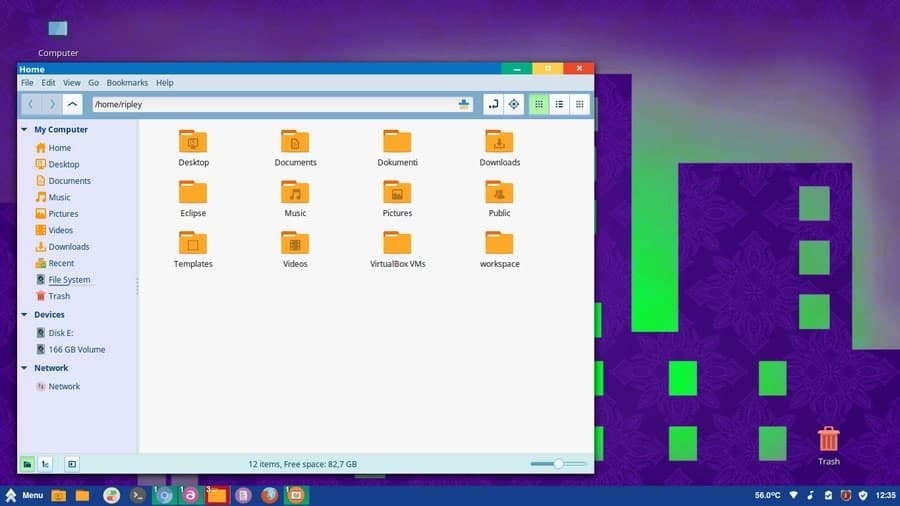
OS. This Cinnamon theme is for them. Though this tool will not give
you the complete vanilla Windows 10 look, it will bring the flat
vibe of Microsoft’s flagship software. After installing this theme,
your desktop will look like a cross-breed of Windows and Linux[8]. The title bar buttons
have a touch of bold and bright colors. On the other hand, the
taskbar has a flat look to it so that it resembles almost a Windows
desktop.
5. Cinnamox Kashmir
Blue
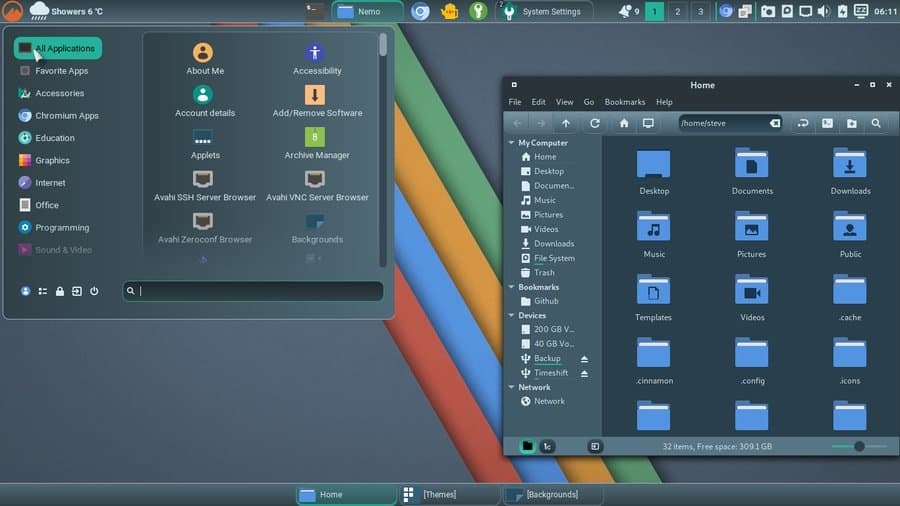
This is a great theme with a blue color scheme. The color
gradients are used in such a way that it will definitely soothe
your mind. This is one of the very few Linux Mint themes that
include several interactive Bash scripts so that the users can
easily tweak the characteristics. You can change the font size
according to your screen resolution and comfortability.
This is really an excellent feature. The panel transparency is
also controllable via altering codes. Many aspects of the panel
styling are customizable according to the choice of the user. You
can even create your own version of Cinnamox by using the
open-source repository.
6. Arquetype
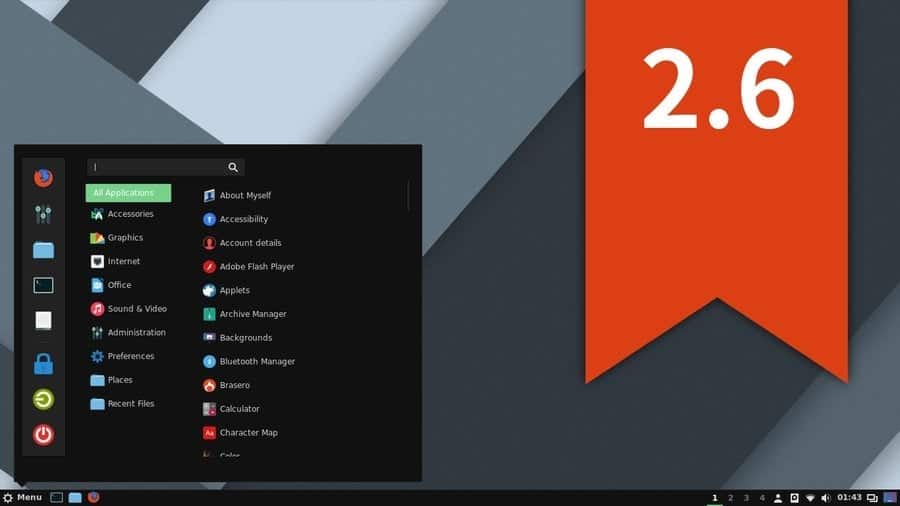
This is a very popular Linux Mint theme. This theme is highly
optimized for the Cinnamon desktop environment. The backgrounds of
this theme are pitch black. The taskbar and other elements provide
a flat look to the entire system. The icons are tweaked so that
they can blend with this material design language. Arquetype is not
a heavy theme that will completely change the look and feel of your
desktop, but you can definitely give it a shot if you want to have
a clean and minimal setup.
7. Adapta Colorpack
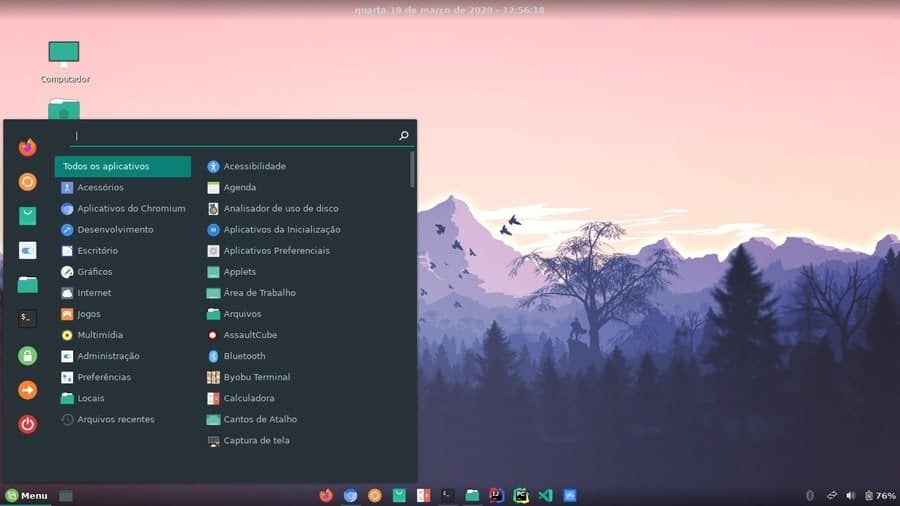
It is an unofficial fork of one of the most popular base-theme Adapta[12]. It fixes some missing
things from the vanilla version of Adapta. It is highly inspired by
popular Adapta fork Adapta Colorpack from Ivankra. This theme has a
lot of customization features than other Linux Mint themes that
will change the entire look of your desktop.
It features 19 unique accent colors to choose from, including
red, green, blue, pink, etc. Each color variant has six different
flavors, such as light, dark, compact, dark compact, and light
window decorations. Roboto or Noto Sans suits best with this theme,
but you can use any of your favorite typefaces.
8. MGSE Unity
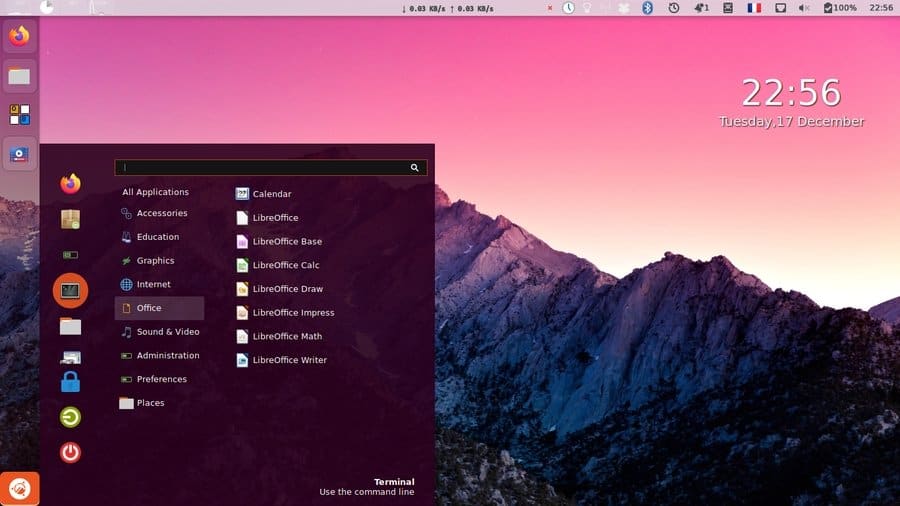
This is one of the very popular Unity inspired Cinnamon themes.
This theme has a pink tint on the entire user interface. The accent
color is orange just to bring the default Unity vibe. The windows
and panels in this theme are transparent with a frosted glass look.
Anyone looking for a minimal setup will love this theme. This is
not for those who want complete control over every aspect of a
theme. But if you are the one who has changed distro recently and
want to get back the Ubuntu feel, then this is yours.
9. McMojave
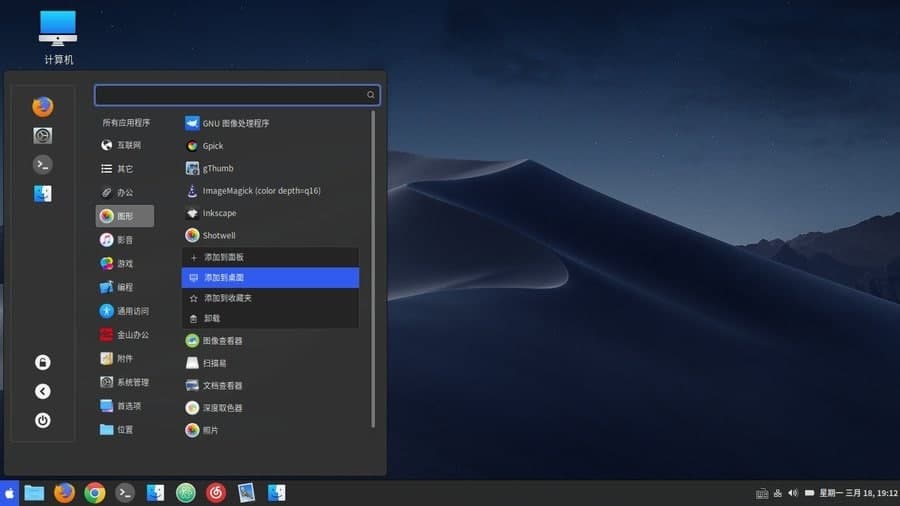
Most of the Linux users install themes to get Apple’s Mac-like
look and feel. It is one of the most polished macOS Mojave inspired
Cinnamon themes available out there. This will not completely
replicate the Mac look on your desktop. Some tweaks here and there
will make it look even more gorgeous than the Mojave.
The default icons are replaced with the icons from iOS and Mac.
There is a small Apple button on the taskbar which looks beautiful
in a silly way. Users can have light or dark mode according to
their choice. There are four different variants of this Cinnamon
theme, such as Dark, Light, Dark Solid, and Light Solid.
10. Canopy Light
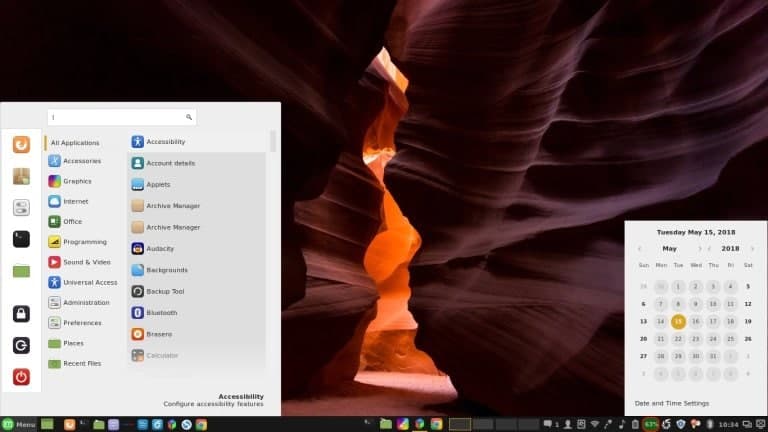
This is a simple and lightweight theme for the Cinnamon desktop
environment. It is a direct fork of the Popular Mint-Y base-theme.
It has four different flavors available for download. They are
Blue, Silver, Golden, and Green. Each flavor has an optional dark
mode. You have to choose the variant and download that accordingly.
The icons are flat and elegant. The windows and panels have a 3D
pop in its design. Canopy light uses Cherry Swash, Sans, Sans-Serif
typefaces.
11. Cinnamox Rhino
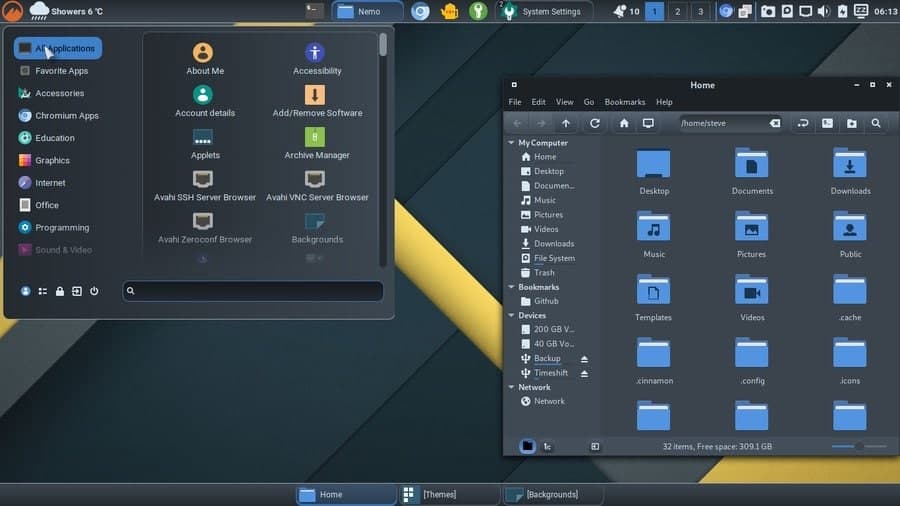
Cinnamox Rhino is a popular variant of the Cinnamox parent
there. It has six other flavors named Aubergine, Gold Spice,
Kashmir Blue, Heather, Rosso Cursa, and Willow Grove. Cinnamox
Rhino features a deep grey color scheme and light text. It has
interactive Bash scripts to make more customizations and
tweaks.
It is actually an official fork of the Oomox theme from the same
author. You can change the font size according to the display size
and resolution. The theme panel transparency and stylings are also
customizable. Users can even make their own versions of the
Cinnamox theme using the Github repository.
12. Zorin OS Red
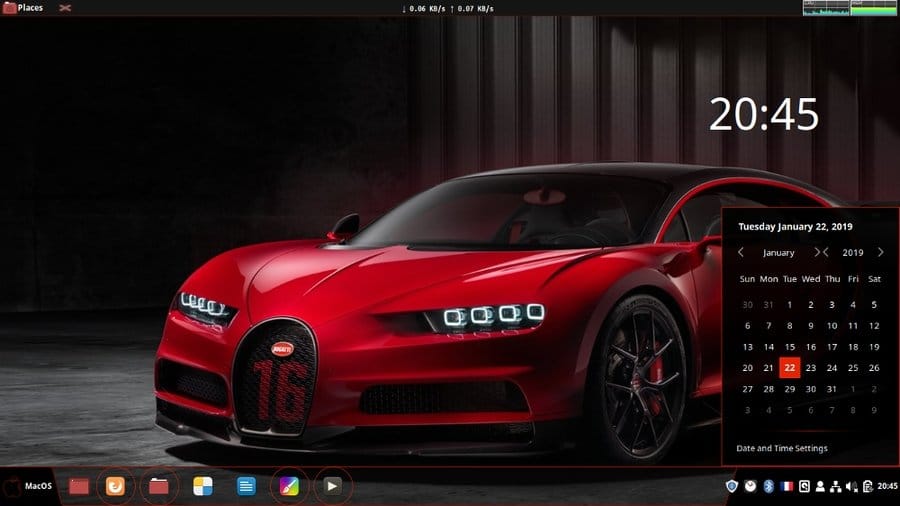
This is a gorgeous Cinnamon theme that almost looks like the
modern Zorin OS[18]. It is compatible even
with the latest version of Linux Mint with Cinnamon desktop
installed. The entire UI is pitch black with red accents. If you
set it up with some red and black wallpapers, it will look dope.
The icons of the preinstalled apps are customized to suit this
theme. But you can always install a custom icon pack to soothe your
eyes. This simple and elegant looking theme is very popular among
the coders.
13. Silk
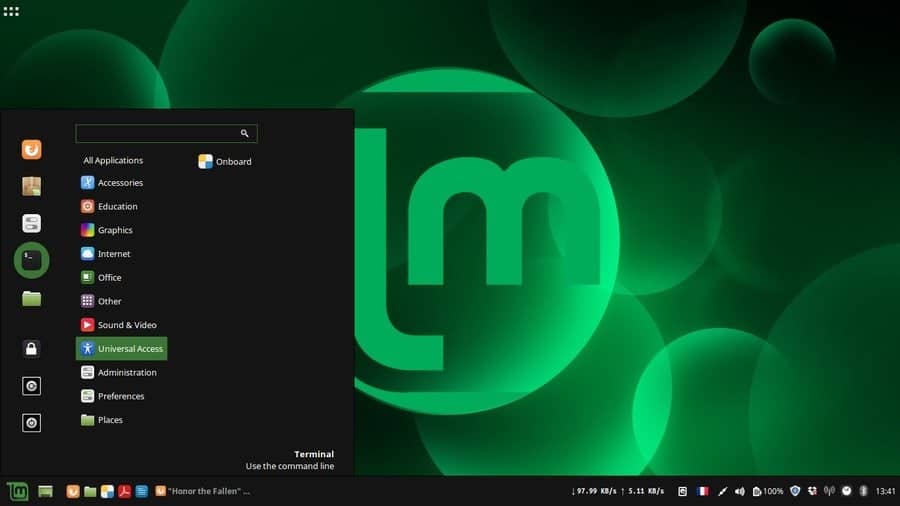
Silk is a flat dark theme for Linux Mint[20]. It has a beautiful
bright green accent to it, which blends nicely with the classic
Mint color. The user interface is quite simple yet aesthetically
pleasant. The start menu button is actually a Linux Mint logo. If
you set it up with a green techy wallpaper and custom icon pack, it
will bring a fresh vibe. The power and lock buttons have a dark and
flat design. The taskbar of this theme is not extraordinary. But
you can use custom widgets to make it even more gorgeous.
14. YouTube
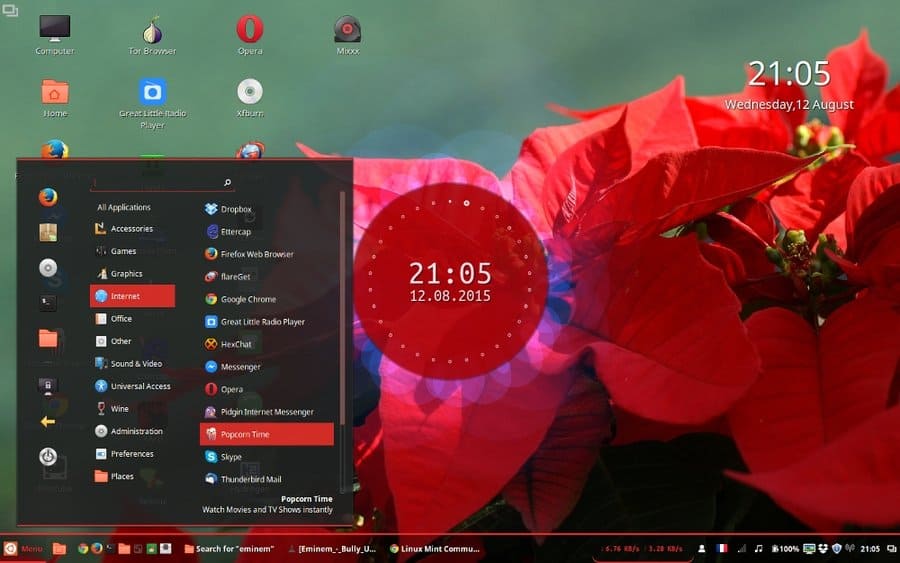
Never be confused with the video-sharing site! This is a very
interesting theme, just like its name. It will bring the YouTube
ambiance onto your Linux desktop. From the taskbar to the
application windows, each and every panel is transparent in this
theme. There is a red accent painted over the transparent
panels.
The taskbar has a bold red borderline to distinguish itself from
the desktop area. Don’t expect some Google inspired icons in this
theme. The icons are kept simple and minimal. But the overall
appearance of this theme is so good that you will bound to love it
anyway.
15. BlueSky
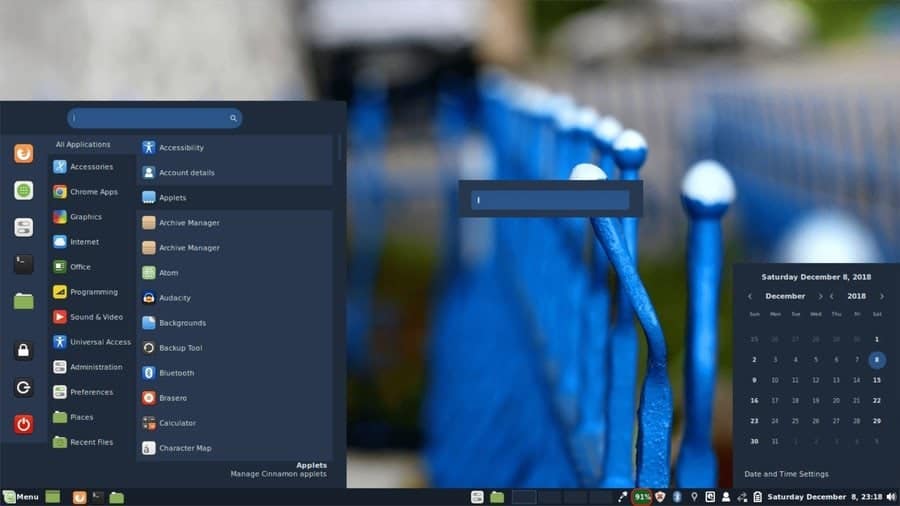
BlueSky is one of the most elegant Linux Mint themes available
out there. The color combination is soothing and classy. Users of
all ages tend to like this theme. This Cinnamon theme is based on
Arc, which is one of the most popular base-theme. BlueSky has dark
and light mode from which the users can choose their style.
The stylings can be tweaked by going to the settings menu. It
inherits all the useful features and customizations from its
parent. For the launcher icons, it uses the White Pixel icon pack.
This flat theme can be your next choice for your desktop.
How To Customize the Look of
Cinnamon
Since Linux Mint is a lightweight distribution of Linux, many
people have a common misconception that Mint’s default desktop
manager, which is Cinnamon, doesn’t offer a beautiful user
interface. Well, it’s partially true in case of the stock or
vanilla look. But as you can see on the above list that Cinnamon
offers a huge library of beautiful and modern looking themes for
your desktop.
You can easily install those themes and get a unique and
gorgeous look. Sometimes the downloaded packages of Cinnamon themes
for Linux aren’t enough for customization. If you want granular
control over your desktop, you should always change almost every
element of the desktop environment because the Cinnamon desktop
environment offers great flexibility customizing its default
look.
Changing the
Wallpaper
Changing the wallpaper is very basic but undoubtedly the most
effective way of customization. You can download free HD and 4K
wallpapers of different styles from the internet. If you custom
searches on Google about it, you can even get wallpapers that match
the color scheme of your theme. A little knowledge about
photography and GIMP can help you to bypass this downloading thing
and make your own wallpaper.
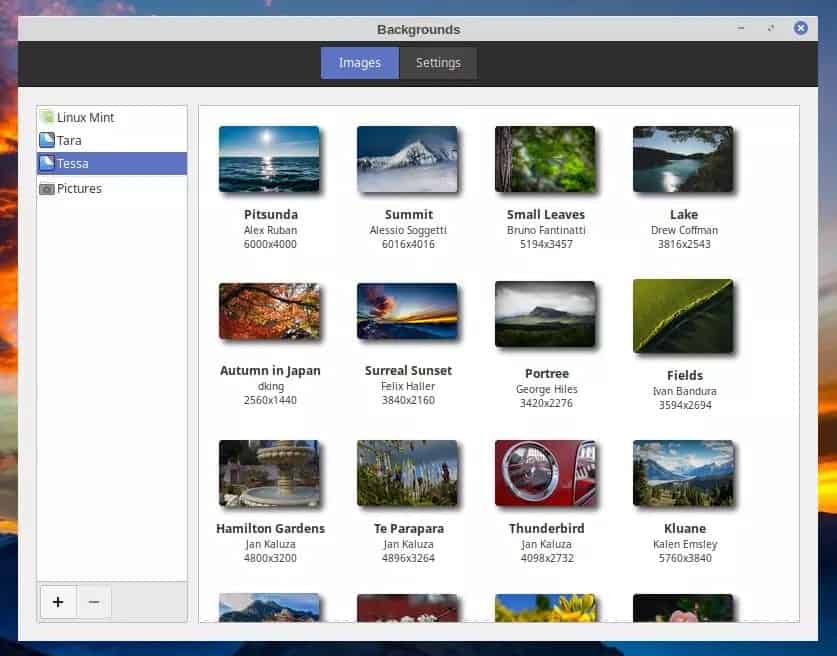
To change the existing wallpaper of your desktop, right-click on
the desktop and then select the Change Desktop
Background option from the drop-down menu. It will open a
window, and from here you can add new wallpapers from your
computer’s storage. The Settings tab will be
very useful if you want to change the behavior of your new
wallpaper. Just tinker around a bit with this to find the best
settings.
Editing the Panel
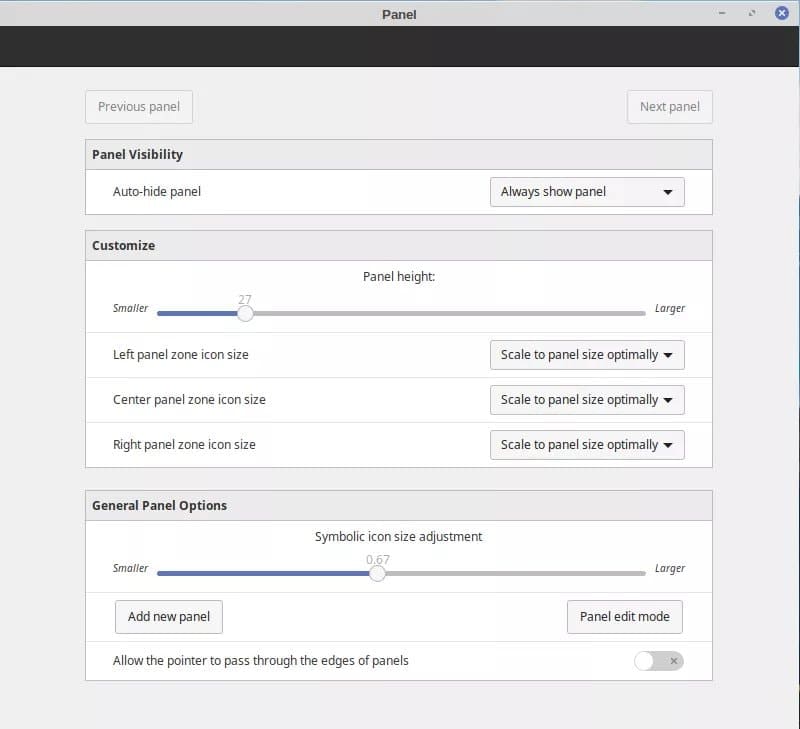
Some Windows kinda people prefer it calling the taskbar. Anyway,
the Cinnamon desktop offers great flexibility customizing the
panel. To change the panel settings, you have to right-click on the
existing panel and select Panel Settings option
from the menu.
Now a new window will open with a lot of customization features.
From here, you can change the panel height, behavior, icons, and
even add new panels. This customization will not only change the
look and feel of your desktop but also boost your workflow.
Adding the Desklets
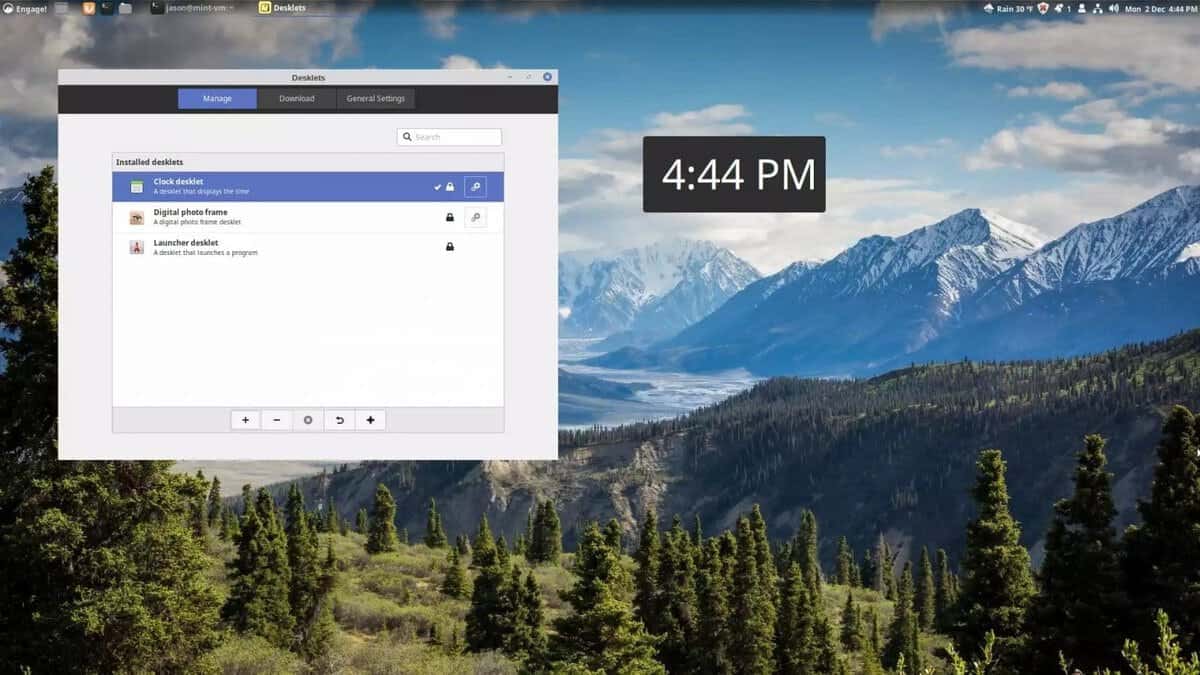
Desklets are useful desktop widgets to quickly view different
things like time, date, temperature, computer resources, etc. But
the most important aspect of these desklets is the ability to
beautify your desktop in an aesthetic way.
There are some desklets preinstalled with the Cinnamon desktop
environment while you have the option to download other desklets
from the internet. To add a desklet in Cinnamon, you have to
right-click on the desktop and select Add Desklets
option. The Settings tab will even help you with changing the
behavior of the desklets.
Tweaking the Login
Screen
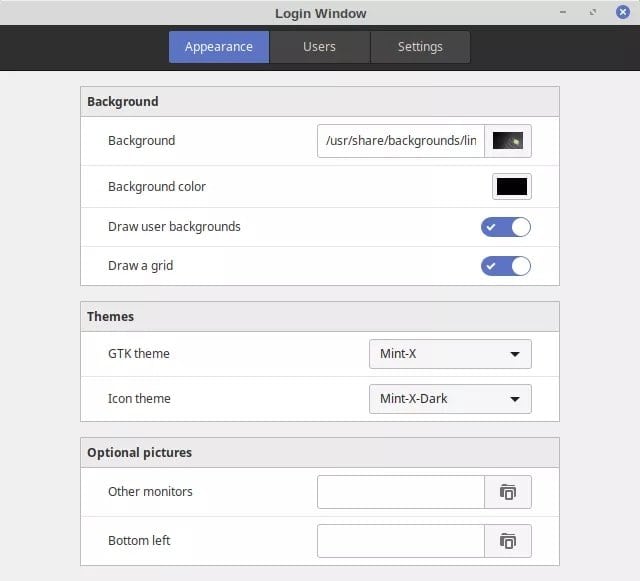
This thing is not customized by most of the Cinnamon themes
users. But believe me, by customizing the login screen of your
desktop, you can easily bring a very own type of look into your
computer. Though the login screen is not a thing to use for hours
of hours, anyone seeing you logging into your computer may get
surprised by this customization.
To customize the login screen, just go to the menu and then
enter into the Administration category. Now click
on the Login Window option; a new window will
open. The pop-up window will let you change the different
parameters of your login screen.
Final Thoughts
The above mentioned Linux Mint themes are both beautiful and
classy. The most important fact is that all of the above themes are
recently updated. I think if you try out these 15 Cinnamon themes,
you will get your desired daily driver. All the themes are
open-source, and this is why you can tweak them if you want
granular control over your desktop. As I said earlier, every
person’s taste is different. So you can suggest your favorite
Cinnamon themes below so that others can try that out.
References
- ^
Best
Linux Desktop Environment: 15 Reviewed and Compared
(www.ubuntupit.com) - ^
Top 35
Best Ubuntu Themes That Will Blow Your Mind
(www.ubuntupit.com) - ^
Linux
File Manager: Top 20 Reviewed for Linux Users
(www.ubuntupit.com) - ^
Download
(github.com) - ^
Download
(github.com) - ^
Download
(www.cinnamon-look.org) - ^
Best
Linux Distro: Top 10 Recommendation To Boost Up Your Linux
Experience (www.ubuntupit.com) - ^
Linux or
Windows: 25 Things You Must Know While Choosing The Best
Platform (www.ubuntupit.com) - ^
Download
(www.cinnamon-look.org) - ^
Download
(github.com) - ^
Download
(www.cinnamon-look.org) - ^
How to
Install Adapta KDE Theme on Ubuntu KDE Plasma
(www.ubuntupit.com) - ^
Download
(www.cinnamon-look.org) - ^
Download
(www.cinnamon-look.org) - ^
Download
(www.cinnamon-look.org) - ^
Download
(www.cinnamon-look.org) - ^
Download
(www.cinnamon-look.org) - ^
Everything You Need To Know About
Linux Zorin OS (www.ubuntupit.com) - ^
Download
(www.cinnamon-look.org) - ^
Everything You Need To Know About
Linux Mint 19 “Tara” (www.ubuntupit.com) - ^
Download
(www.pling.com) - ^
Download
(www.cinnamon-look.org) - ^
Download
(www.cinnamon-look.org)
Read more https://www.ubuntupit.com/best-cinnamon-themes-for-linux/