NetBeans, when the name first crosses your mind, you think of an
IDE with so many features that are any developer’s heaven. It is a
cross-platform IDE[1]
developed to build Web, Desktop and Mobile applications
dynamically. It is used widely by developers for its integrated
features and top-notch development environment. Basically, NetBeans
is coded in Java and runs almost in every existing operating system
that supports Java Virtual Machine (JVM), including Solaris, Mac
OS, Linux. Components known as modules are Used by NetBeans to
ensure a dynamic software development environment. Today we will be
talking about installing NetBeans on Ubuntu System.
Important Features
NetBeans provides some powerful and unique features that allow
developers to choose it more often compared to other IDE’s
available. They are –
- It is an integrated and Open source cross-platform IDE.
- It has a built-in powerful GUI builder, profiling, and
debugging tools[2]. - It has dynamic language support (PHP, JAVA, C/C++, and the list
goes on and on). - Offers a community of developers for support along with
built-in NetBeans Developer Support Package. - Built-in visual tools for generating skeleton codes (allowing
developers to develop an application without writing a single line
of code).
Now comes the installation part. There are several ways to do
it. We are discussing three ways of the installation below.
1. Installing NetBeans on Ubuntu Using
apt
There are some prerequisites for installing NetBeans. A desktop
with a minimum of 2 GB RAM. JDK8 is required to install NetBeans
8.0.2 (JDK9 is not compatible).
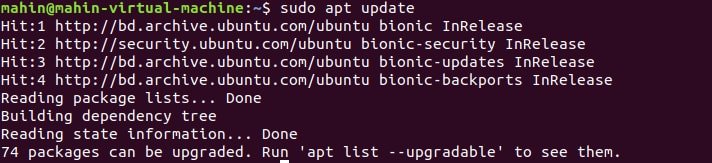
- Run the following command to install Oracle Java (JDK) 8 to
your system and update the repository database package.
$ sudo add-apt-repository ppa:webupd8team/java PPA
$ sudo apt-get update
- After updating the repository database package search for
Oracle Java 8 packages and install it.
$ apt-cache search oracle-java8
$ sudo apt-get install oracle-java8-installer
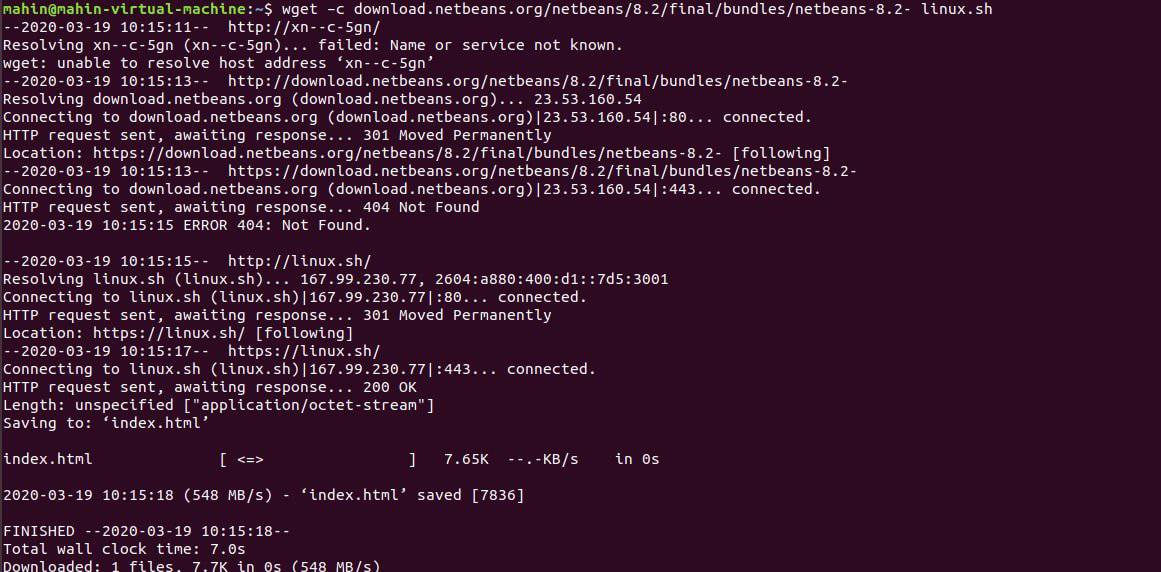
- Now the system is ready for installing NetBeans IDE in Ubuntu
System. Either you can browse the NetBeans IDE download[3]
page to download the latest installer script, or you can simply run
the command below:
$ wget –c http://download.netbeans.org/netbeans/8.2/final/bundles/netbeans-8.2- linux.sh
- After downloading the required file, go to the file directory
and simply run the below command to make the installer script
executable and start installing NetBeans IDE:
$ cd downloads
$ chmod +x netbeans-8.2-linux.sh $ ./netbeans-8.2-linux.sh
After running the installer script, just go through the
installation wizard to finish your setup. And there you have it.
You have successfully installed NetBeans IDE in your Ubuntu system
Using apt.
2. Installing NetBeans on Ubuntu Using
Snap
Snaps are applications package[4]
containing all the dependencies to run in Linux Environment. Ubuntu
16.04, Ubuntu 18.04 LTS, Ubuntu 18.10, and Ubuntu 19.04, these
versions have Snap installed by default. Ubuntu 14.04 LTS and
Ubuntu 15.10 and the other versions of Ubuntu that don’t have Snap
installed by default either you can install Snap from Ubuntu
Software Center by searching for snapd or You can install it by
simply running the bellow command in the terminal.
$ sudo apt update
$ sudo apt install snapd

After Running the command log out and log in again in your
system or restart your system to ensure Snap’s paths are updated
correctly. After Restarting your system, just run the following
command in your terminal to install NetBeans in your system
$ sudo snap install netbeans --classic

3. Installing
NetBeans on Ubuntu Using
Flatpak
Flatpak is another application package, just like a snap.
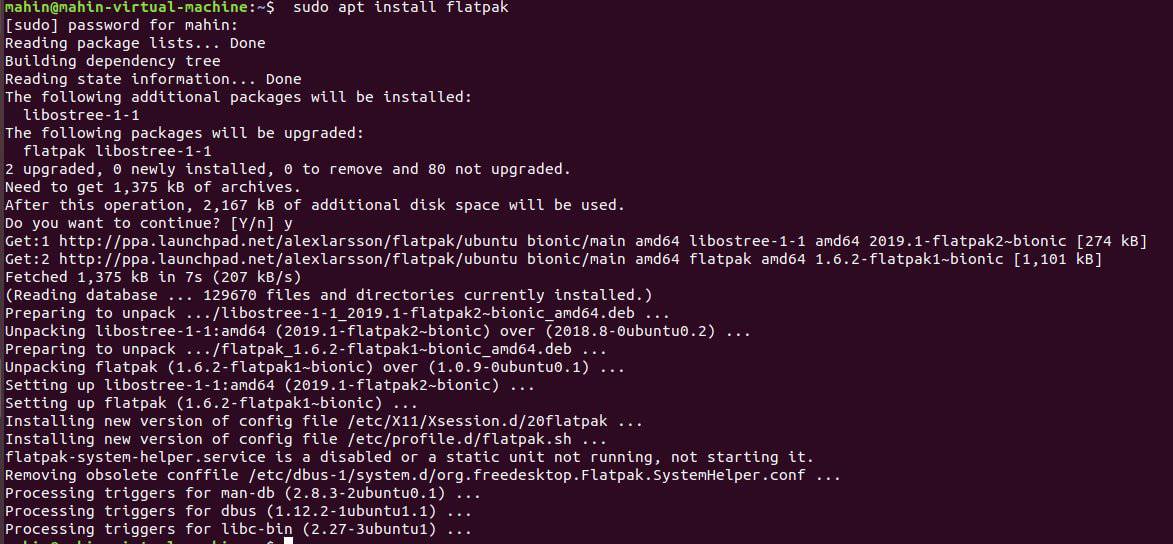
Flatpak is supported by default in Ubuntu 18.04, but you can verify
it by running the below command.
$ sudo apt install flatpak
However, to install Flatpak in the earlier version of Ubuntu
(Ubuntu 16.04), follow the below instructions.
- Flatpak is installed as a part of the desktop bundle. To make
sure the desktop bundle is
Installed before installing the flatpak app, run the below command
in the terminal:
$ sudo swupd bundle-list | grep desktop
- To install the desktop bundle, run the below command:
$ sudo swupd bundle-add desktop
- To add the flatpak app run the below command:
$ flatpak remote-add --if-not-exists flathub https://dl.flathub.org/repo/flathub.flatpakrepo
$ flatpak install flathub org.apache.netbeans
- To run the flatpack App :
$ flatpak run org.apache.netbeans
All the commands stated above are case sensitive and subject to
a matter of change with the release of a newer version of NetBeans
IDE as well as Ubuntu versions. So check the instructions carefully
as well as the versions before starting the installation and check
your system’s compatibility with the IDE version.
Finally, Insight
NetBeans is one of the powerful IDE’s that allows any
developer to work relentlessly without worrying about compatibility
issues. Having no compatibility issue, it is gaining its popularity
among the developers with its wide range of features. That all
about installing NetBeans in the Ubuntu system. Any queries
feel free to drop your comment in the comment section and do share
this post in your social media. Thank you very much. Stay tuned
with us.
References
- ^
Best
Linux Code Editor: Top 10 Reviewed and Compared
(www.ubuntupit.com) - ^
The 20
Best Linux Debuggers for Modern Software Engineers
(www.ubuntupit.com) - ^
NetBeans IDE download
(netbeans.org) - ^
How To
Install Software in Ubuntu Linux: A Complete Guide for Newbie
(www.ubuntupit.com)
Read more https://www.ubuntupit.com/how-to-install-netbeans-on-ubuntu-system/