The mv command is used to move and/or rename files in Linux and BSD distributions. System
administrators regularly use mv to perform operations on the Linux
filesystem. Do not worry if you’re a starting user with little or
no knowledge over this command. Today, we have prepared this guide
to provide you all the information you need regarding the mv
utility. You will learn the various functions associated with this
command and gain the necessary experience by executing the example
commands demonstrated below. Luckily for you, mv is one of the most
basic Linux terminal commands and quite
easy to master. [1][2]
Essential Example of Linux mv
Command
Since mv offers only a handful of command-line parameters, it is
very straightforward to learn. However, mv is also very robust,
and, when used smartly, can perform complex file operations. So
check out the below commands and see how we can use mv in our
day-to-day computing.
1. Move Files
Directly
At its simple usage, mv copies the source file into the
destination directory and removes the source from its previous
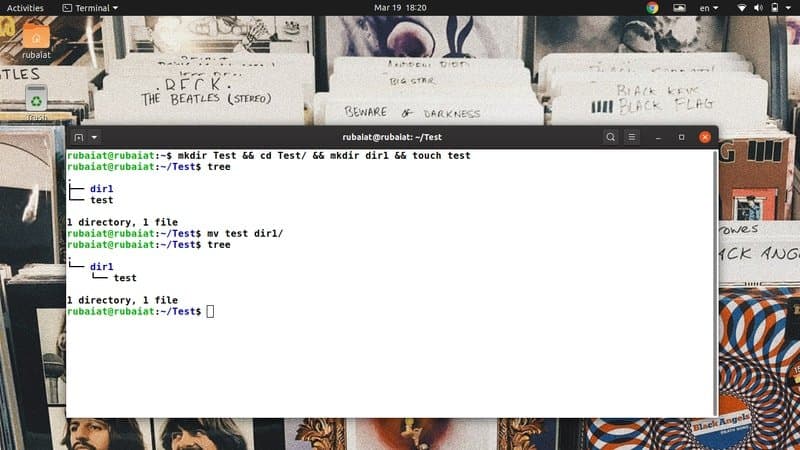
location. For illustration, we have created a simple directory
called Test, which contains a directory named
dir1 and a text file called test. You can create
them easily using the following commands.
$ mkdir Test && cd Test/ && mkdir dir1 && touch test
$ tree
$ mv test dir1/
First, we’ve created the files & directories and then used the
tree command to visualize the filesystem hierarchy. The final
command is the operation we’re interested in. It moves the file
test to the dir1 directory. So the first argument
of mv is the source, and the second is the destination. You can
re-use tree to display the new hierarchy.
2. Rename Files
The syntax for moving and renaming files is the same. But, we
need to provide the new name in place of the destination. In simple
terms, when you use mv on two files residing on the same Linux
filesystem, it will result in a file rename operation.
$ cd dir1
$ mv test TEST
Now simply go back to the parent directory and issue the tree
command again. This will verify that you have no file called test
in this filesystem. You should see the file that there is a new
file called TEST.
3. Prevent Overwriting
Files
By default, mv will overwrite any files that have the same name
in the destination directory. You can verify this by using the
below commands.
$ cp TEST dir1
$ mv TEST dir1/TEST
$ tree
However, we can easily prevent such overwriting using the
-n option, as demonstrated in the below
example.
$ cp dir1/TEST .
$ mv -n TEST dir1/TEST
$ tree
Now we can see that our filesystem contains both files. The
-n option also has a long-form called
–no-clobber. Try them both if you want to remember
them for some time.
4. Enable Interactive Mode when
Overwriting Files
You can also set the interactive mode in mv, which results in a
prompt asking if you want to overwrite the destination file or not.
Although useful for starting users, it’s a no brainer that this
will halt your automation scripts.
$ mv -i TEST dir1/TEST
mv: overwrite 'dir1/TEST'?
Simply type y or n in the above prompt to enable/disable file
overwriting. You may also use the alternative long-form
–interactive in place of -i.
5. Create Backups before
Overwriting Files
It is always a good idea to create backups before performing large-scale
file operations[3]. Starting Linux users
often overwrite their files unwillingly. Luckily, mv allows us to
back up our destination files quite easily. Take a quick look at
the below illustration to see how this works.
$ mv --backup TEST dir1/TEST
$ tree
The output of the tree command shows that the source file has
been moved successfully, and there is an additional file called
TEST~ in the destination directory. It is the backup of
the earlier file. Always use this option when you’re unsure of the
exact destination directory or associated files.
6. Set Custom Suffix for Backup
Files
As we have seen already, mv uses the ~ symbol
as its default backup suffix. However, we can change this to
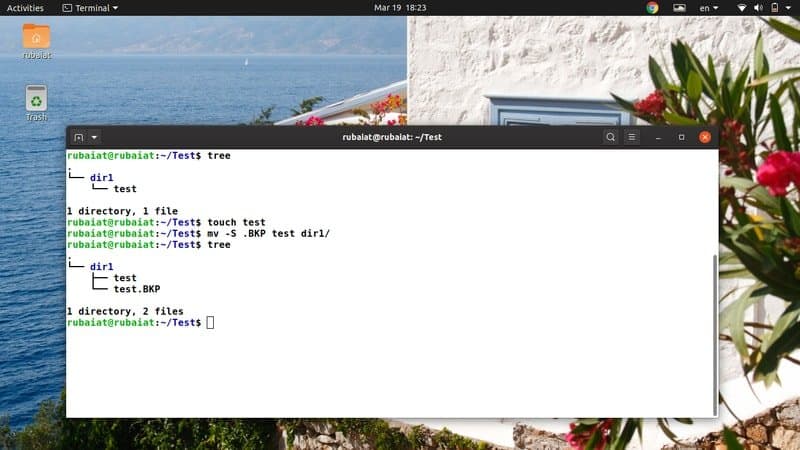
anything else using the -S option. The below
example demonstrates this using a new backup suffix
.BKP.
$ mv -S .BKP TEST dir1
$ mv --suffix=.BKP TEST dir1
You can also use the –suffix option in place of
-S if you want. Setting customized suffixes for
our backup files makes it easier to identify them and have a better understanding of the Linux
filesystem[4].
7. Update Destination
File
The Linux mv command allows us to update destination files based
on their availability and timestamp. In this case, the move
operation will be successful only if the source file is newer than
the destination file or if the destination file is missing
altogether.
$ rm -ri *
$ mkdir dir1 && touch test dir1/test
$ mv -u test dir1/
First, we deleted all contents of Test/ and then
re-created them again. I did this, so both the test files are
created at the same time and, therefore, are the same. Now when I
try to move test into dir1, the move failed and
exited silently. This happened since mv found them to be the same
and deduced that no update is required.
8. Configure SELinux Security
Context to Default
The SELinux security context[5] labels CPU resources in
systems where it is enabled. It uses this information to identify
if a given resource is accessible by a specific user or not. You
can easily set the SELinux context to the default by using the
-Z option, as demonstrated below.
$ touch new         # create another file for testing
$ mv -Z new dir1/
$ mv --context new dir1/
$ ls -Z dir1/
Here, mv uses the default SELinux context of your system when
moving the file name new to its new destination. You can verify
this by using the last command shown above.
9. Enable Verbose
Output
Like many traditional Linux terminal commands, the mv command
also allows us to display verbose output of its operations. It is
especially helpful for beginners or when you are transferring lots of files[6] from one filesystem to
another.
$ mv -v dir1/new .

$ mv --verbose dir1/new .
renamed 'dir1/new' -> './new'
The above commands are equivalent and transfer the file
dir1/new to our Test folder. Note that the period
‘.‘ symbol refers to the present directory in
Unix-like operating systems. These commands should provide a brief
explanation of the underlying file operation.
10. Enable Target
Directory
Sometimes, mv can find it hard to map the source files to the
destination directory as the user intends. It can happen if mv
fails to deduce whether the target is a destination directory or a
file. Luckily, we can easily tell mv whether the destination
argument is supposed to be a directory or a file by using the
-t option of mv.
$ mv -t dir1/new/ new
$ mv --target-directory=dir1/new/ new
When you issue the above command, mv relocates the file called
new from the Test directory to the
Test/dir1/new directory. Notice that we are passing the
destination directory before the source argument. It is mandatory
since -t pinpoints the destination target.
11. Disable Target
Directory
The mv utility also allows us to disable the target destination
altogether. This is useful when you want to make sure that your
destination arguments are treated as normal Linux files. Like the
above example, this command also has both a short and a
long-form.
$ mv dir1/new/new .
$ mv -T new dir1/new/
$ mv --no-target-directory new dir1/new/
So, mv will treat the destination as a regular file when we use
the -T or –no-target-directory
option.
12. Enable Force
Overwriting
Although modern implementations of the Linux mv command don’t
prompt before overwriting today, mv still offers a handy option to
enable force overwriting. You can use this option to make sure your
Linux shell scripts are backward
compatible and don’t break on systems with a different mv
implementation. [7]
$ mv -f test dir1/test
$ mv --force test dir1/test
Both of the above commands are equivalent and perform the move
operation without asking the user for confirmation. So your
automation scripts would not break down because of mv.
13. Remove Trailing
Slashes
When you use auto-completion in Linux terminals[8], it also adds a trailing
slash after each directory. It may pose problems during file
movements. So the developers of mv also created a handy option that
will remove these trailing slashes for you.
$ mv --strip-trailing-slashes dir1/new/ .
The –strip-trailing-slashes option tells mv to
remove any trailing slashes present in the SOURCE arguments. It can
be very useful in certain scenarios, so you should familiarize
yourself with this option.
14. Move Multiple
Files
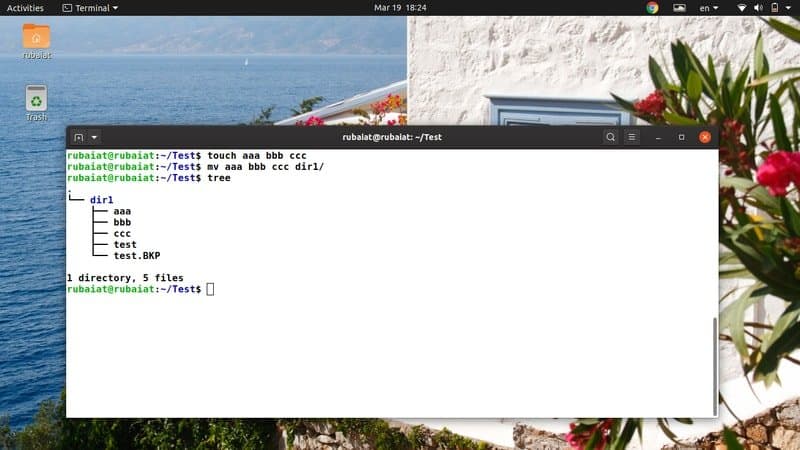
Linux users can use mv for easily moving a large number of files
at the same time. The following command demonstrates how to move
more than one file together using mv.
$ touch aaa bbb ccc
$ mv aaa bbb ccc dir1/
We can also move files and directories together. In this case,
mv interprets the last argument as the destination folder. You can
also utilize the -t option to specify the target
destination.
15. Move Files Using
Wildcards
The Linux mv command does not support regular expressions.
However, you can still use some wildcard characters to perform some
basic pattern matching[9]. Take a quick look at
the below example to see how we can use wildcards with mv.
$ touch aaa.mp3 bbb.mp3 ccc.mp3
$ mv *.mp3 dir1/ # moves all mp3 files
$ touch AAA BBB CCC
$ mv [[:upper:]]* dir1   # moves all files that has uppercase names
$ mv *[[:lower:]] dir1 # moves all files that has lowercase names
There are a few more wildcards supported by mv. Although not
very extensive, they help during routine file processing
operations.
16. Display Progress
Bar
Normally, the mv command performs its operations within a
reasonable timeframe. However, it can take relatively longer when
you are moving very large documents. Users may even thing that the
system has hanged if it takes too long. We can avoid this problem
by forcing mv to display a progress bar that keeps the user
informed.
$ mv dir1/*.mp3 . & progress -mp $!
This command will move all mp3 files from dir1/ to the
Test directory and will show a practical progress meter.
We are using the Linux package ‘progress‘ for this. You
can install this using the below command.
$ sudo apt install progress
17. Move Files Using Brace
Expansion
The Linux command shell allows users to generate literal
combinations using a method called brace expansion. Although many
people tend to complicate this, in practice, it’s pretty simple.
Take a close look at the following examples to learn how brace
expansion works in Linux and other Unix-like
systems[10].
$ rm new && touch new.txt new.pdf new.html
$ mv new.{pdf,txt,html} dir1/new/ # brace expansion
So any file called new that has .pdf/.txt/.html extensions will
be moved to the destination directory. Since we’re generating the
filename literals from our brace, we call this operation brace
expansion.
18. Move Files Based on
Size
File processing involves a lot of move operations, and large
files tend to take a significant amount of CPU time. So, many
admins back up their documents based on their size. We show readers
how to move files based on their size using the mv and find
commands.
$ find . -type f -size +1G -exec mv "{}" large_files/ \;
The above command will move all files greater than 1GB from the
current working directory to large_files. You can simply
change the value of the size parameter to customize your move
operation.
19. Move Files Based on
Modification Date
The modification date is another common criterion used when
backing up system data. You can find all files that are older than
a specific amount of time using the following command.
$ find . -mtime +90 -exec mv "{}" old_files/ \;
This command will move all files that are more than 3 months (90
days) old into a new directory called old_files. The
notable thing here is that the provided argument is in days.
20. Rename Multiple
Files
By default, the mv utility can not rename multiple files at the
same time. However, we can still use other tools like find
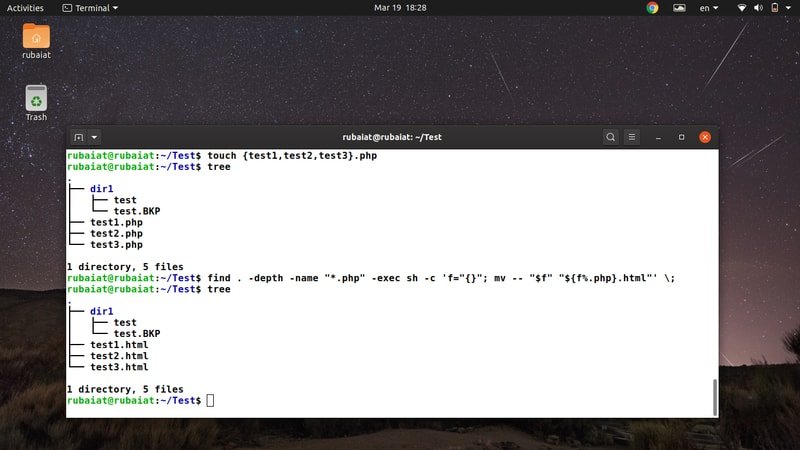
alongside mv for such advanced file operations. The below command
will rename all .php files to .html files.
$ touch {test1,test2,test3}.php
$ find . -depth -name "*.php" -exec sh -c 'f="{}"; mv -- "$f" "${f%.php}.html"' \;
This command will rename each .php file to .html file using mv,
and the exec switch of the Linux find command[11].
21. Locate Binary Information of
Linux mv Command
We can find out where the mv command is located using the Linux
“which” command. It prints the name of the paths or links that
handle a specific command, like mv.
$ which mv
/usr/bin/mv
You can also use the “whereis” command in Linux to display
additional information like the location of the mv binary and all
associated manual files, as shown below.
$ whereis mv
mv: /usr/bin/mv /usr/share/man/man1/mv.1.gz
22. Display Version
Information
The version information of Linux terminal commands allows us to
find the specific release of a package. We can easily view this
version information for mv, as demonstrated in the below
example.
$ mv --version
It will print out the release information for the mv package
installed in your system alongside some other information. This
information includes the name of any dependencies and people who
authored mv.
23. Display Help
Page
The help page contains summarized information of all available
options for the mv utility. It is a handy way of remembering hardly
used options.
$ mv --help
Since mv supports only a few command-line arguments, it is
relatively easier to memorize them. Luckily, you can always consult
the help page for quick information on any particular option.
24. Display Man Page
Contrary to the summarized information provided by help, the man
page offers a lot more detailed insight. Refer to the below command
whenever you want to understand an option or a specific usage in
extra detail.
$ man mv
It should display a detailed guide explaining all the different
options available to mv. You should always go through the man page
before trying any commands that modify the filesystem.
25. Check Alias
Many Linux distribution uses pre-configured aliases to enforce
standard command-line options for packages. You can easily check if
mv is an alias to something using the below command.
$ alias | grep -iw mv
$ type mv
However, the last command will not work if your Linux system has
hashed the mv command.
Ending Thoughts
Linux mv command allows us to perform many file operations like
moving files, renaming them, creating backups, and so on. Although
it allows only a limited number of options, we can combine mv with
many Linux terminal commands like the find command and create more
complex command combinations. We have outlined the 25 best examples
of mv in everyday computing. Some of them are pure basic, whereas
others can be helpful when solving more dynamic problems.
Hopefully, we have delivered the essential insights you were
looking for. Post your thoughts in the comment section and let us
know if you have any questions.
References
- ^
Linux
and BSD distributions (www.ubuntupit.com) - ^
basic
Linux terminal commands (www.ubuntupit.com) - ^
create
backups before performing large-scale file operations
(www.ubuntupit.com) - ^
a better
understanding of the Linux filesystem
(www.ubuntupit.com) - ^
SELinux security context
(selinuxproject.org) - ^
transferring lots of files
(www.ubuntupit.com) - ^
Linux
shell scripts (www.ubuntupit.com) - ^
Linux
terminals (www.ubuntupit.com) - ^
basic
pattern matching (www.ubuntupit.com) - ^
Linux
and other Unix-like systems
(www.ubuntupit.com) - ^
the
Linux find command (www.ubuntupit.com)
Read more https://www.ubuntupit.com/practical-mv-command-in-linux-for-everyday-users/