Docker is an open-source platform for Linux system
administrators and developers where you can build and run programs
using a distributed Linux system. The working mechanism of Docker
is using it as a container. After the installation process of
Docker is done on your Linux, You will find that you can choose and
manage the required system and start working with your desired
settings. In Linux, Docker containers[1]
can be used in Laptop systems, and even on Cloud systems[2]. In a word, the Docker
container itself is a Linux host server.
Nowadays, the Docker concept is the most desired server
technology. Installation of Docker is like that get opening of a
new hassle-free step to software development. Docker can create an
identical instance of applications inside the same operating
system, which is called a container. People usually
mismatch Docker with Virtual Machine.
Virtual machines always have their kernel of the operating
system where Docker Containers share the kernel of the server host.
The virtual machine uses the hardware of use, which makes the
system heavy and takes time to load, where Docker doesn’t use
physical hardware. It saves settings and systems inside the docker
cloud. Docker was first released in 2013. From then it’s demand
graph was always high.
Docker and Docker
Container

Dockers can be used from different locations through the
web. Once the docker container is installed inside your system, you
can change the preset settings according to your application, and
you can access the container from anywhere on the web. This
actually reduces a lot of headache of developers.
It has been seen that after developing an application, it
requires to be tested. But in some cases, the developer’s hardware
can pass the test, but the problem comes when it doesn’t work on
the client system. Bugs can be found during testing on different
hardware. To reduce this problem, the Docker container comes into
play.
Docker container allows developers to build, run, and test
software inside the docker container with the settings you provide.
It will maintain the same system configuration you chose. In this
post, we are going to see how to install Docker on Linux and how to
use Docker containers.
If you are using any broken Docker application first, you
have to remove the old or broken version of the Docker from your
system. Then you have to start the initialization of installing
Docker. In the Linux Debian package, the installer is available in
the Linux repository.
To uninstall the old version of Docker, use the following
command line in your terminal.
sudo apt-get remove docker docker-engine docker.io containerd runc
Then you need to update your system. Use the apt update
command for updating.
sudo apt-get update
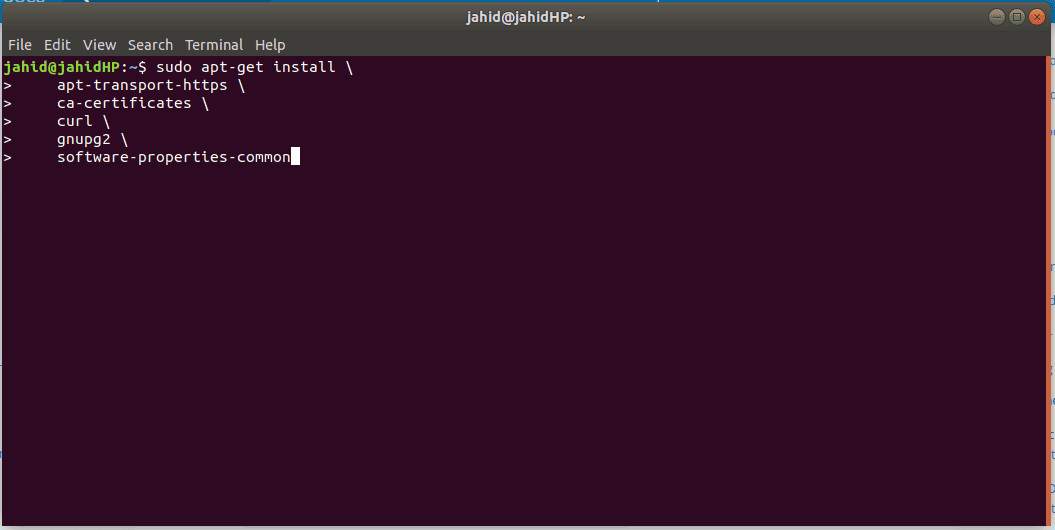
After that, we will be installing the Docker community
edition (as it is free) in our Linux system.
sudo apt-get install \
apt-transport-https \
ca-certificates \
curl \
gnupg2 \
software-properties-common
While installing Docker through the
repository, if you find any error or problem, you can use the
following command to get rid of errors.
sudo dpkg --configure -a /
This command will try aging, installing the repository of
Debian packages. Besides this, if you’re using a
development branch of Linux which has not yet released the Long
Term Support (LTS) or stable version, you may get errors too. Try
installing inside a stable Linux version. An error message was
shown while installing Docker on Ubuntu 20.04[3]
(development branch).
Installing the GNU Privacy
Guard
Now we have to add a GNU Privacy Guard inside the system
through terminal. This will allow Docker to integrate with other
software. To add the GNU Privacy Guard use the following command
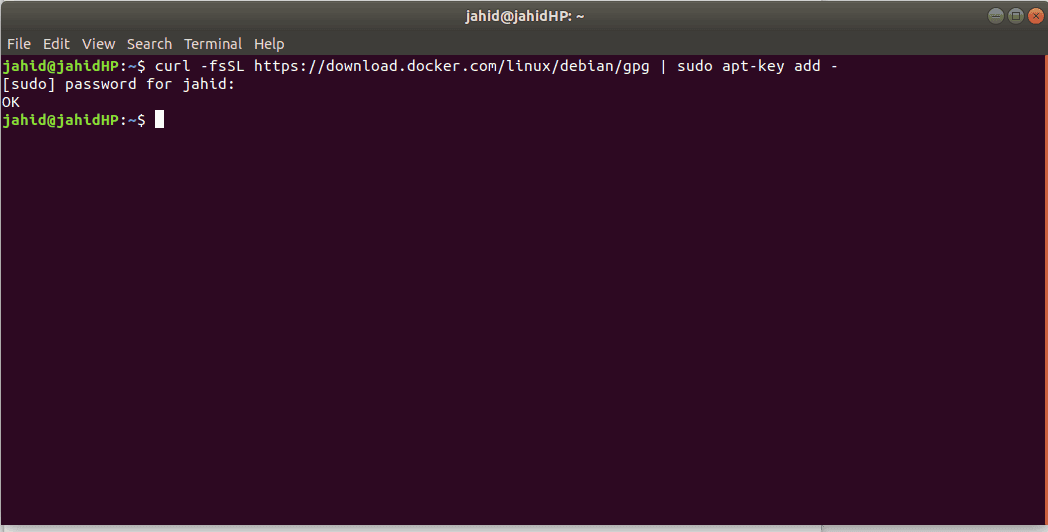
line in the terminal.
curl -fsSL https://download.docker.com/linux/debian/gpg | sudo apt-key add -
After the process is done, you will get an Ok
message on your terminal.
Verifying the GNU Privacy
Guard
After installing the GNU Privacy Guard, it’s time to
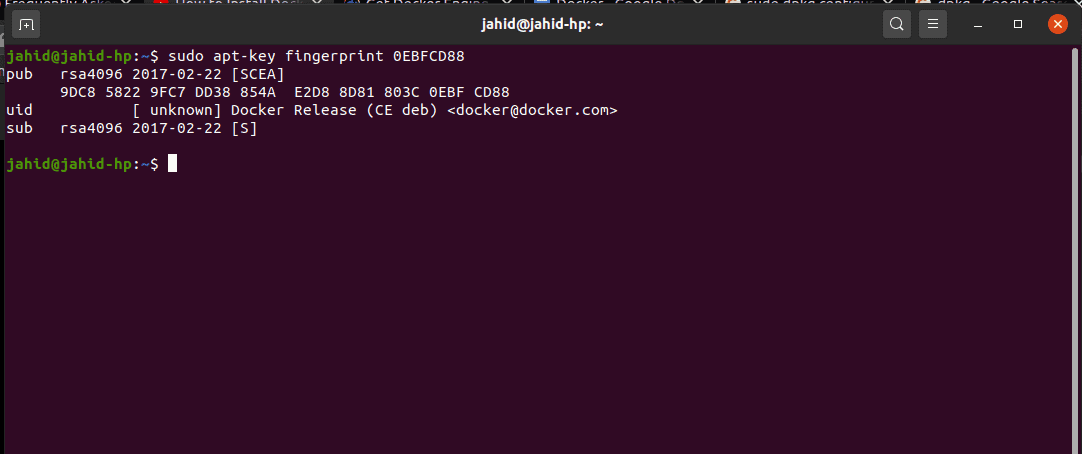
verify the product with the fingerprint. To verify the product, all
you need is to run the following command line in the terminal. You
will get a message in your terminal, including the publisher id,
User Id, and extensions. The terminal message will show something
like this shown in the picture below.
sudo apt-key fingerprint 0EBFCD88
Installing the Stable Release of
Docker
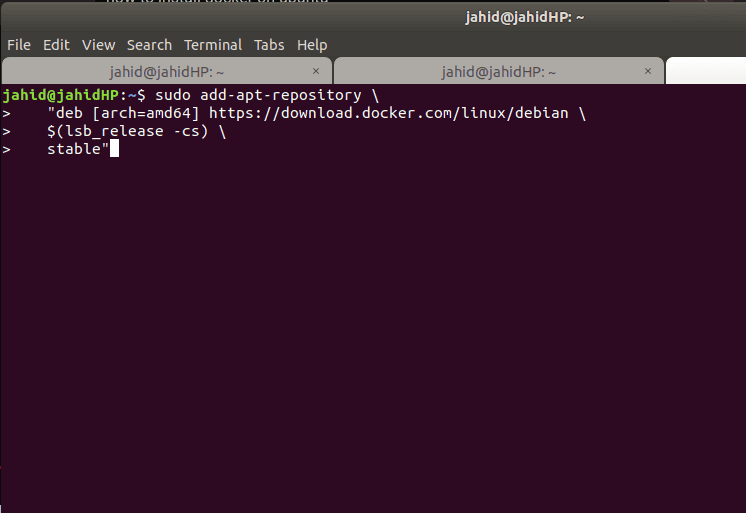
To get the stable version of Docker, follow the command
line in your terminal given below.
- For x86_64 / amd64 machine use this line
commands:
sudo add-apt-repository \
   "deb [arch=amd64] https://download.docker.com/linux/debian \
   $(lsb_release -cs) \
stable"
- For armhf machine use this line commands:
sudo add-apt-repository \
   "deb [arch=armhf] https://download.docker.com/linux/debian \
  $(lsb_release -cs) \
 stable"
- For arm64 machine use this line commands:
sudo add-apt-repository \
 "deb [arch=arm64] https://download.docker.com/linux/debian \
 $(lsb_release -cs) \
  stable"
Installation of Docker
Engine
Docker engine is the user engine, where the user can
authorize his container part. Docker engine works with server host
and client host. To install the Docker engine first, you need to
update the apt of your Linux. For that, use the apt-update
command from the terminal.
sudo apt-get update
After that, here we will be installing the latest and stable
available version of Docker engine in the system from the Linux
repository. The terminal is right here.
sudo apt-get install docker-ce docker-ce-cli containerd.io
If you want to install any other older version of Docker engine,
you can follow this terminal command below. All you need to do is
just replace the <VERSION_STRING> withe your
desired version.
$ sudo apt-get install docker-ce=<VERSION_STRING> docker-ce-cli=<VERSION_STRING> containerd.io
Alternative Installation of Docker
in Linux
Previously we have seen how to install Docker in Linux from
the repository with terminal line command. If you
think that installing from the terminal is a bit difficult for you,
there is a .deb package list available on the official Docker
website. You can get the bionic stable binary download from their
official website.
You just need to locate the download path and follow the command
below to install Docker in your Linux. Here dpkg or
Debian package will be installed
from your download path.
sudo dpkg -i /path/to/package.deb
Using Docker in
Linux
Till this, I hope you have successfully installed Docker in your
Linux system. I must say, you really deserve a thumbs up for doing
all the stuff. Now let’s take a look back at what we have installed
so far! At the very beginning, we will be checking the Let’s check
the version and status of Docker. Including this command, I will
show some very useful Docker command that you should
know. And some gist will also be provided in a nutshell. [5]
1. Checking Docker
Version
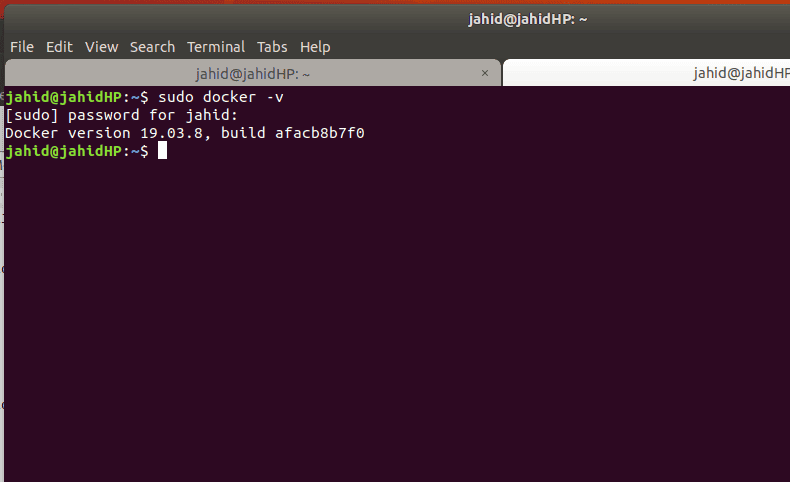
To check the current version of your Docker, open terminal and
type the command in terminal. There are two working commands
available for checking the Docker version[6]. You can use either of
them.
sudo docker -v
docker --version
2. Checking Docker
Status
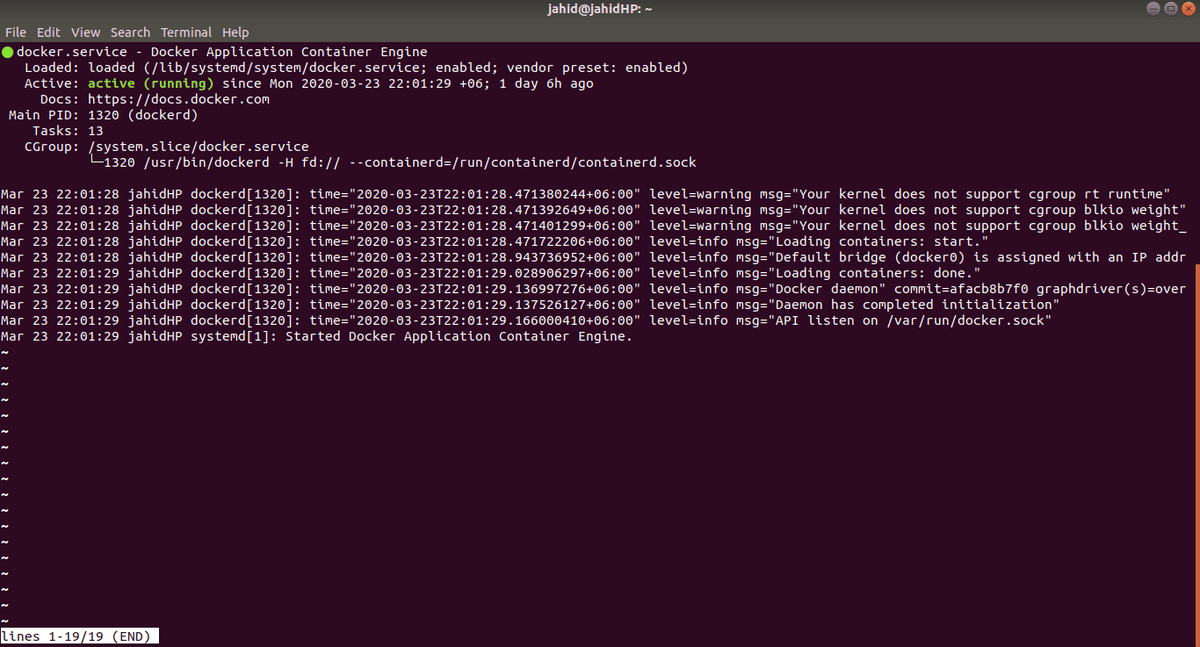
After checking the Docker version, you also check the Docker
Status. In Docker status, you will find the Docker application
container engine version, vendor, running status, etc.
To check the Docker status perform the following command in
terminal.
sudo systemctl status docker
3. Saying ‘Hello World’ in
Docker
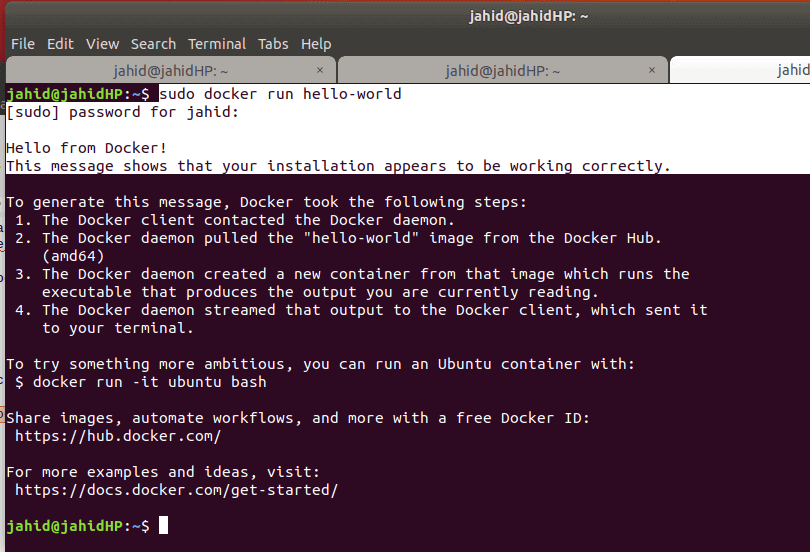
Now it’s time to say Hello to the world through Docker! If
you’re a programmer or developer, you must know the feeling of
saying ‘Hello World’ in any language. So, let’s say Hello word in
Docker. Usually, hello world in Docker is very easy and simple. To
to do so, open terminal and type:
sudo docker run hello-world
Final Thoughts
Docker container is the most desired platform among software
developers and programmers. Most Linux users use Docker a lot! It
really helps them to set up the environment easily and quickly. As
Docker container doesn’t eat system hardware, so it works really
very fast. And of course with Linux, Docker works very smoothly.
Docker maintains the highest level of privacy to its users, so
there is no doubt that your data will be leaked form Docker.
Moreover, for data encryption, Docker uses the GNU privacy
guard.
So, if you are a Docker user, tell us what the purpose of your
using Docker is and how much do you feel comfortable with Docker.
You can comment below if you had faced any problem while installing
Docker in your Linux system. Don’t forget to share this tutorial
with your friends in the social network.
References
- ^
50
Frequently Asked Docker Interview Questions and Answers
(www.ubuntupit.com) - ^
The 25
Best Cloud Computing Companies and Platforms in 2020
(www.ubuntupit.com) - ^
Overview
of Ubuntu 20.04 LTS Focal Fossa and How To Upgrade
(www.ubuntupit.com) - ^
Docker
Binary Download (download.docker.com) - ^
40
Important Docker Commands for Software Developers
(www.ubuntupit.com) - ^
the
Docker version (docs.docker.com)
Read more https://www.ubuntupit.com/how-to-install-and-use-docker-in-your-linux-system/