Most of the virtual world is powered by Linux today. Admins and
network owners like to take control of their web presence by
utilizing Linux to its fullest extent. If you are a starting Linux
user looking to hone your system administration skills to the next
level, learn these 40 Linux server commands mentioned below. Our
team of veteran sysadmins has curated this guide for facilitating
your learning experience. Most of these commands are pretty basic,
but if used carefully, they will help you manage and monitor your Linux servers much more
effectively. [1]
Simple but Practical Linux Server
Commands
Most of the commands mentioned in this guide should be familiar
to experienced users since they’re pretty basic. We have outlined
why they’re important to beginners and how you could benefit from
these server commands. Additionally, this guide will also be
helpful to seasoned sysadmins looking for practical references
regarding common Linux server commands.
1. uptime
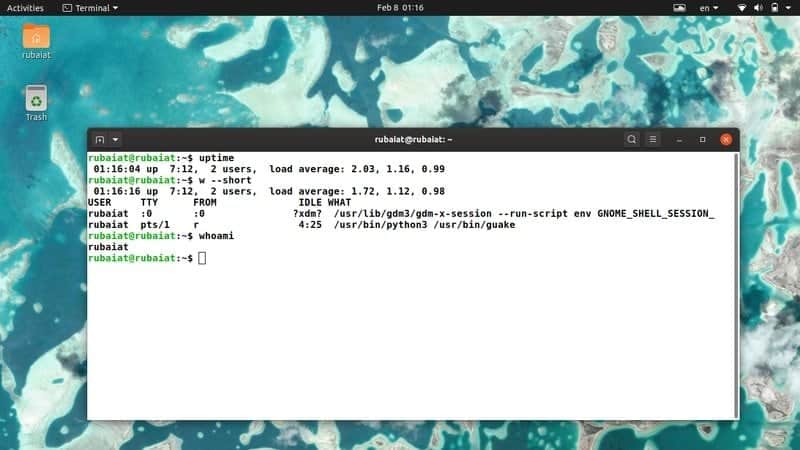
The uptime command is a very simple Linux command that tells us
the running time of our system. You can utilize this Linux command
to log in to remote servers and see for how long the system is
running. Additionally, the uptime command also displays the load
average of the remote system and the number of users currently
logged in.
# uptime
# uptime -p
You can use some additional flags to format your output
differently. The -p flag tells the system uptime
in an easily readable format.
2. w
The w command is another handy but practical server command that
displays all the users logged in a system and their activities.
Admins can use this command to see users and their processes
alongside the load average. It also shows information regarding the
remote hosts, login time, idle time, name of the tty, and so
on.
# w
# w --short
# w --ip-addr
You can also use additional flags, as shown above. The
–short or -s option displays a
shortlist omitting CPU time and login information. Use
–ip-addr or -i to print out the
IP of the remote hosts.
3. who
You can also use the “who” command to display information about
remote users. Unlike w, who doesn’t show what the users are doing
though. However, who allows a lot of additional options that enable
us to get more information effortlessly.
# who
# who -b
# who -d
# who --ips
Simply running the who command gives us the names of the users
alongside tty name and time. Use the -b or
–boot flag to print when the system was booted,
-d or –dead to show the dead
processes, and –ips to print out the IP of the
remote hosts instead of their username.
4. users
Users is one of the most simple server commands for printing
only the remote usernames. This is one of the simplest Linux commands for beginners and takes
almost no extra options. [2]
# users
# users --version
# users --help
The –version and –help options
are the only options you can use.
5. whoami
The whoami command is very similar to the users command. This is
one of the most popular Linux commands among beginners, and it
tells who you have logged in as. It essentially just prints out the
effective user id.
# whoami
# whoami --version
# whoami --help
As with users, whoami only supports the above two options as its
argument.
6. less
The less command is another simple but extremely robust command
for Linux sysadmins. It is one of the most versatile Linux commands
in the arsenal of seasoned admins due to its sheer amount of
features. The main objective of using less is to view files quickly
and scroll through them using the page ups and downs.
# less /var/log/custom.log
Since less supports a variety of options and formats, we suggest
you see the man and help pages for understanding this command in
more detail.
7. more
The more command also allows you to scroll through massive files
very quickly. You can use this command to view the contents of a
file one screenful at a time. Although more offers some useful
command-line options, it’s not as powerful as the less command.
# more /var/log/custom.log
# more --help
# man more
You can consult the help page for quickly finding all the
available options. Check the manual page if you want detailed
information on this command.
8. tail
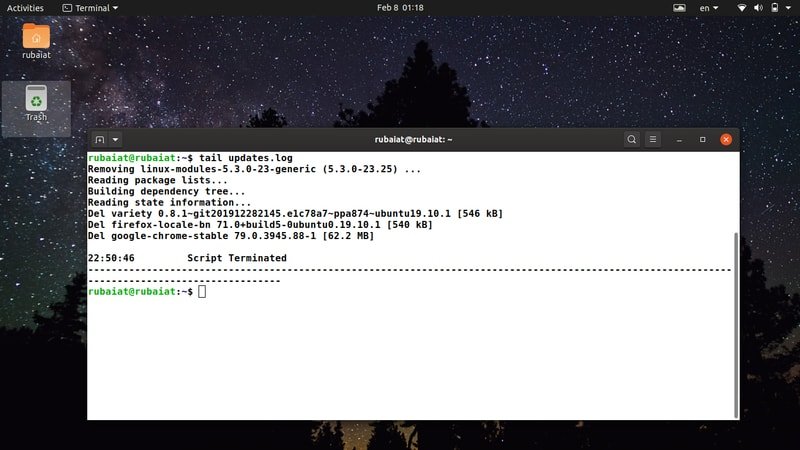
The tail command is one of the most useful tools for
debugging[3] through log files very
fast. This Linux command simply displays the last portions of a
file, which are more likely to contain the errors in case of log
files. If you’re a sysadmin looking for quick troubleshooting, the
tail can be very useful.
# tail /var/log/custom.log
# tail -f /var/log/custom.log
Adding the -f option enables admins to follow
their logs as they’re written. Consult the man page for a detailed
overview of the tail command.
9. curl
The curl utility is one of the most powerful Linux server
commands for transferring files via the web. It’s a widely used
software for network admins due to its plethora of simple but
useful features. The curl command can take many optional arguments
that allow it to perform very complex tasks.
# curl example.com/file.txt
# curl example.com/file[1-100].txt
# curl --help
Since curl commands are very versatile, it’s impossible to
discuss them in this guide. Please check our guide on Linux curl commands[4] if you want to master
curl.
10. wget
The wget package is widely used for retrieving files over the
web and is one of the two de-facto tools for downloading files on Linux. If you are a
server admin looking to sharpen your Linux skills, learning this
command is a must for you. [5]
# wget example.com/file.txt
# wget -c example.com/file.txt
Since wget offers plenty of additional command-line options, you
should first check out their man page to understand the workings of
the options available at your disposal.
11. scp
The scp command is used for transferring files between remote
Linux hosts securely. It stands for Secure Copy and
enables admins to share files among different hosts in a network
very easily. Additionally, scp allows some compelling features like
the ability to manage ssh access, using secure ciphers, and so
on.
# scp user@remote_host:file.txt /local/documents/
This command downloads the text file from the remote host to the
local machine. You can also use scp to copy files from your local
machine to remote hosts and from one remote host to multiple remote
machines.
12. rsync
The rsync is another exceptional utility for transferring remote files.
It is a modern-day replacement for the rcp tool and allows admins
to synchronize files easily between source and destinations. The
rsync tool is extremely fast and flexible, making it an ideal
choice for server admins. [6]
# rsync -t *.html new-server:public_html/
This command transfers all HTML files from the local machine to
the remote host called new-server. Please check out the
man page of rsync to find out all the available options offered by
this tool.
13. sftp
You should already be familiar with the ftp command. It allows
admins to transfer files using the File Transfer Protocol.
The sftp command is an upgrade of the ftp command, which
facilitates file transfers over the secure shell connection.
# sftp admin@XX.XX.XX.XX
The sftp command provides an interactive console for
transferring files securely using. Simply type a question mark (?)
in this console to view all available options. We also suggest you
check their manual for a detailed understanding of the sftp
command.
14. ssh
The ssh command in Linux allows admins to manage remote hosts
over the secure shell protocol. It is, without any doubt, one of
the most used Linux server commands. As a server administrator, you
are obliged to be proficient with the ssh command.
# ssh user@host
# man ssh
Since the ssh command exposes a lot of additional arguments to
server admins, it is better to consult the manual before starting
to use this command.
15. ping
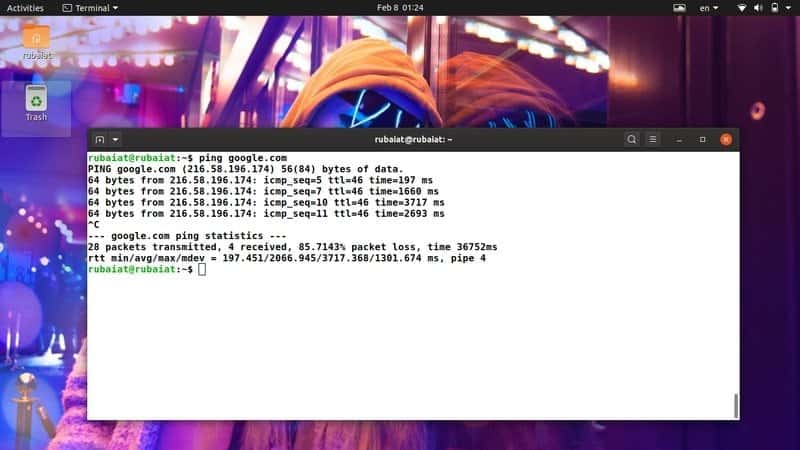
The ping command is a simple but extremely useful command for
network admins. It allows admins to easily test the connection
between local and remote machines on a network. Although ping is
very simple to use, it can often save precious time during network
troubleshoots.
# ping google.com
# ping yoursite.com
# ping -c 3 example.com
You can use ping to test both IPv4 and IPv6 connections. Check
out the manual page to discover all command-line options available
to ping.
16. whois
The whois command allows Linux admins to search for contents in
publicly available WHOIS databases. It is often used for finding
sensitive information about a remote host. You can easily get
valuable information regarding domain names and IPs using the whois
command.
# whois google.com
# man whois
Since whois displays a huge amount of information, admins
usually filter
out the information using tools like grep[7]. Overall, whois is a
versatile command useful for server admins due to its practical use
cases.
17. dig
The dig command provides similar functionalities to the whois
command. You can use it to find domain-specific information from a
Linux machine. In fact, the name dig stands for Domain
Information Groper.
# dig example.com
You will get much useful information such as the IP address,
query time, and error codes when running this command.
18. nslookup
This command can be used for querying DNS servers and grab
essential information regarding remote servers. Linux server admins
often use the nslookup command for getting host-specific
information from Domain Name Servers(DNS). Take a look at
the below command to find out how this works.
# nslookup google.com
Although seemingly very simple, nslookup is one of the most
widely used commands for many admins. Moreover, nslookup allows
admins to use the tool in an interactive mode.
19. netstat
The netstat command is a compelling Linux tool that enables
admins to view all active TCP connections, socket states, routing
tables, and many more. If you are a server admin responsible for
maintaining large-scale IT infrastructure, the netstat command can
be extremely useful for you.
# netstat
# netstat -l
# netstat -a | more
Since netstat offers many useful options and arguments, it is
better to check out the manual before you start using this
tool.
20. traceroute
The traceroute command in Linux allows us to display the routes
our packets take before reaching a remote destination. This is a
handy but useful server command, which makes it easy to determine
routing faults and design firewalls.
# traceroute google.com
# traceroute example.com
This is a legacy Linux command for checking out network hops and
distances effectively.
21. tcpdump
The tcpdump command is certainly one of the most useful Linux
server commands for network troubleshooting. It is a superb
networking tool which displays the TCP/IP packets transmitted and
received by your system. It is also extremely important from a
security point of view.
# tcpdump
# tcpdump -c 15
# tcpdump --help
By default, tcpdump captures the packets continuously. You can
tell it to only capture a certain number of packets by using the
-c option. It has many more options for enabling
admins to perform a variety of tasks.
22. ifconfig
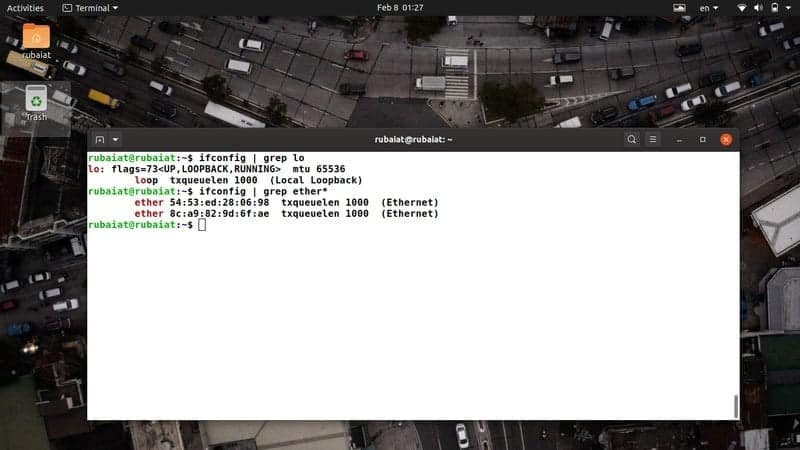
The ifconfig tool is a widely used tool for ‘interface
configuration.’ It allows admins to view their network
interfaces and assign, add, delete, or control interface
parameters. Since configuring the network interfaces is a huge deal
for server admins, this is an essential command for IT
personnel.
# ifconfig
# ifconfig | grep inet
# man ifconfig
The ifconfig command offers several options and usage, which are
impossible to discuss in this guide. Please refer to our
guide on Linux ifconfig commands[8]
if you are interested to know more.
23. iwconfig
The iwconfig command is very similar to ifconfig, except the
fact that it is only for configuring wireless interfaces. Linux
admins can use this tool for managing and controlling wireless
interface parameters like the SSID, transmission rate, mode, and so
on.
# iwconfig
# iwconfig --help
# man iwconfig
Check the help page to get a summary of all available options.
The man page will help you understand these options in more
detail.
24. iptables
The iptables utility is one of the most powerful Linux server
commands for network admins. It allows them to restrict or block
IPs and is used to protect servers from various malicious attacks.
The iptables utility needs an in-depth discussion, which is way
beyond the scope of this guide. So, we suggest readers see our
guide on common Linux iptables rules[9].
# iptables -L
# iptables --help
# man iptables
The first command will display all currently active rules. You
can also check out the help page or the manual for a detailed
overview of iptables.
25. sestatus
The sestatus command allows us to view our SELinux
status directly from the command line. It is a simple but handy
little command useful for checking whether your server is rightly
protected by SELinux or not.
# sestatus
# man sestatus
Network admins can easily find essential information regarding
SELinux, such as the current mode, SELinuxfs mount point, name of
the active policy, and so on.
26. sendmail
The sendmail software is widely used for delivering emails to
and from remote machines. You can easily send emails from your
terminal using this handy server command. Admins can also check out
whether their email communications are working as intended or not
using sendmail.
# echo "Subject: New" | sendmail alias@address.com < mail.txt
This command will send the contents of the mail.txt
file to the specified address.
27. mailstats
The mailstats command is used for displaying the email
statistics for Linux
email servers[10]. Admins can easily get
a quick overview of their email communications using this simple
terminal command. The below examples demonstrate the workings of
this command.
# mailstats -p
# mailstats -f FILE
This command works by using the sendmail statistics module by
default. You can override this and specify custom data using the
-f flag, as shown in the second command.
28. ip
The ip command is arguably one of the most useful Linux server
commands for modern sysadmins. It provides a compelling way to
manage network devices, tunnels, routing, and many more. Moreover,
the ip command exposes a lot of sub-commands aimed at tackling
different networking issues.
# ip addr
# ip link
# ip addr add 192.168.1.XXX/24 dev eth0
The first command displays the active IP addresses, and the
second one shows the network interfaces. The last command is used
for adding IPs to specific interfaces.
29. nload
The nload program is simple and easy to use Linux software that
allows admins to monitor the incoming and outgoing network traffics
for their servers. We really like this command due to its excellent
visualization features, which provide essential insight on server
usage in real-time.
# nload
# nload devices wlp1s0
# nload --help
Simply running nload provides traffic information for all
available network interfaces. The second command narrows down this
to only the wireless interfaces.
30. dstat
The dstat utility is another excellent command-line tool for
monitoring the performance of your Linux servers. It allows admins
to easily view their server status, usages, and other
resource-related information. It is developed as a modern-day
replacement of the vmstat, netstat, and ifstat tools.
# dstat
# dstat -c --top-cpu --top-mem
# dstat --help
# man dstat
Overall, the dstat command can be really beneficial to admins
who are managing large-scale IT infrastructures and Linux
servers.
31. dhclient
The dhclient command invokes the Linux Dynamic Host
Configuration Protocol (DHCP) Client and allows admins to
monitor the IP address, subnet, gateway, and other information
related to the DNS server. You should be familiar with this command
if you are maintaining large-scale servers.
# dhclient eth0
# man dhclient
This tool also permits admins to release currently assigned IPs
of an interface and obtain new ones. Consult the man page of
dhclient to learn how this command works in more detail.
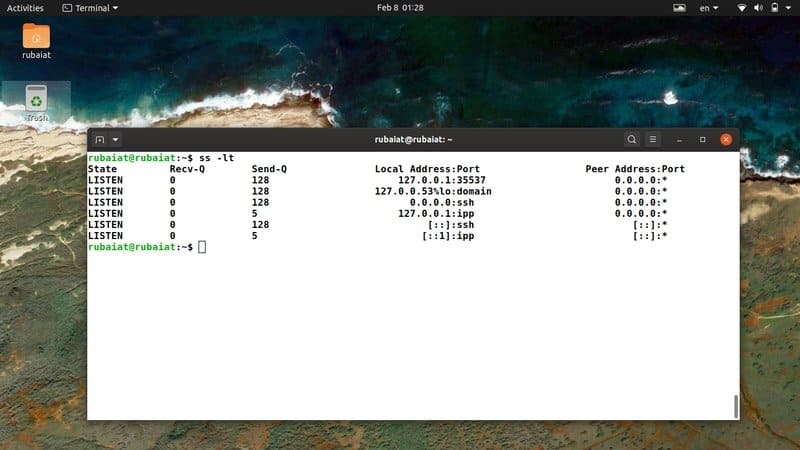
32. ss
The ss utility provides socket statistics and allows admins to
monitor their server traffic more precisely. Admins usually use
this Linux command for getting a detailed visualization of their
network statistics. So, it can be an excellent option for network
admins looking for suitable socket dumping tools.
# ss
# ss -lt
# ss -p
# ss --help
The ss command offers many additional options that allow it to
perform advanced tasks. You can check out the help page to find a
summary of all available options. Head to the manual if you are
looking for further explanation.
33. mtr
The mtr utility combines the features of the ping command and
traceroute command into a single program. It is one of the most
used Linux server commands for investigating packet connections,
and thus you should be familiar with mtr.
# mtr
# mtr --report
# man mtr
The –report option stops automatically after
analyzing ten packets and creates a report based on its analysis.
You can easily. Additionally, mtr exposes many more extra options
for tackling different types of operations. The manual page
provides an in-depth discussion regarding these options.
34. free
The free command provides a simple but useful way of checking
the available and occupied memory of your Linux server. It is a
compelling tool for admins since analyzing the memory space is
essential for the maintenance of your server computers.
# free
# free -m
# man free
The free command is very versatile and offers a number of
additional options. You can use these options to format the memory
usage output as required. Take a look at the man page for a
detailed overview.
35. df
The df command is the de-facto Linux tool for monitoring disk
space information. It is a commonly used command which yields
sensitive information regarding memory usage. The df command can be
used in a variety of situations, so it is hard to discuss all of
them in a single paragraph.
# df -a
# df -h
# df -T
# man df
We have already covered the Linux
df command in detail[11] and suggest readers
check that guide if looking for an in-depth introduction.
36. htop
The htop utility is a mesmerizing tool for monitoring the CPU
usage of your Linux server effortlessly. It is a modern-day upgrade
for the legacy top program. Moreover, htop[12] is straightforward to
use, so even starting admins can leverage this tool.
# htop
# htop --help
You can easily find all currently running system processes and
their CPU usage through this Linux command. Take a look at the help
page for a summary of all available options offered by htop.
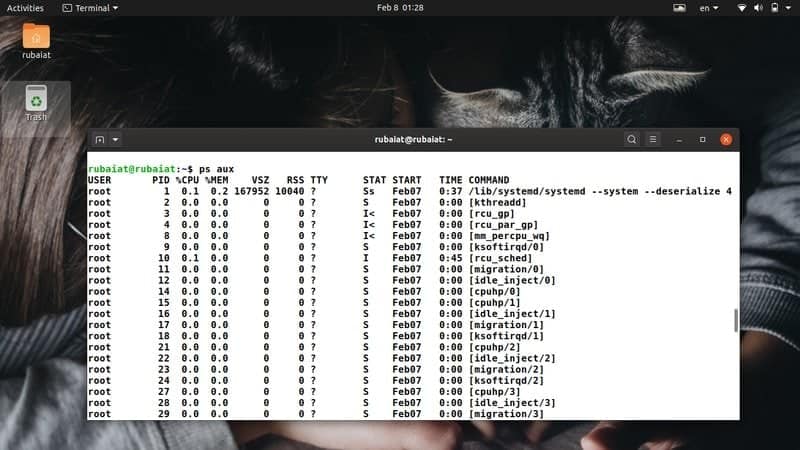
37. ps
The ps command displays information about system processes and
can be extremely beneficial when troubleshooting server problems.
It is another versatile command that has significant importance in
the maintenance of large IT infrastructures and Linux servers.
# ps
# ps -ef
# ps -eM
# man ps
The ps command is one of our favorite Linux terminal commands
due to its simple but practical usage. We encourage readers to
check their man page for getting a detailed overview.
38. env
Configuring the environment variables is a sensitive task, and
server admins must make sure they have done it correctly. The env
command allows admins to check the active environment variables and
run programs in a modified system environment. So this is a useful
command for almost every Linux sysadmin.
# env
# env --help
# man env
The env command also supports multiple command-line options like
traditional Linux terminal commands. View the help page top get
summarized information about these options, or visit the man page
for a detailed overview.
39. chmod
Linux
filesystem[13] permissions play an
extremely important role behind the security of your Linux web
servers. We have already covered this topic in detail in an earlier
guide. Here, we want to outline the chmod command, which is one of
the essential Linux server commands a sysadmin should know.
# chmod 755 test.file
# chmod --help
Since the chmod command is quite advanced, it is hard to talk
about how this works here. Please refer to our guide and the manual
page for getting more information on how to use it.
40. lsof
The lsof command is used for displaying all currently open files
alongside the processes that opened them. It is a widely used Linux
command and can be useful in a number of scenarios, such as
troubleshooting.
# lsof
# lsof --help
# man lsof
The lsof command offers numerous additional command-line
options. You can get a quick view of all the available options from
its help page. Visit the manual page if you want further
explanation.
Ending Thoughts
Linux server commands encompass a wide variety of commands for
server management, bandwidth monitoring, resource maintenance, and
so on. A seasoned server admin is expected to know a plethora of
commands, including many mentioned in this guide. Since covering
all server related commands in a single guide is impossible, our
editors have outline 40 of the most used such commands in this
guide. These commands can be beneficial to both starting and
experienced Linux admins. Hopefully, we were able to provide you
the insights you were looking for from this post. Stay with us for
more regular guides on different Linux commands and packages.
References
- ^
monitor
your Linux servers (www.ubuntupit.com) - ^
Linux
commands for beginners (www.ubuntupit.com) - ^
the most
useful tools for debugging
(www.ubuntupit.com) - ^
our
guide on Linux curl commands
(www.ubuntupit.com) - ^
Download
Manager for Linux: Top 8 Reviewed and Compared
(www.ubuntupit.com) - ^
Best
Linux FTP Client: Top 10 Reviewed for Linux Geeks
(www.ubuntupit.com) - ^
filter out the information using tools
like grep (www.ubuntupit.com) - ^
our guide on Linux ifconfig
commands (www.ubuntupit.com) - ^
see our guide on common Linux iptables
rules (www.ubuntupit.com) - ^
Linux email servers
(www.ubuntupit.com) - ^
Linux df command in detail
(www.ubuntupit.com) - ^
htop
(en.wikipedia.org) - ^
Linux filesystem
(www.ubuntupit.com)
Read more https://www.ubuntupit.com/useful-linux-server-commands-for-beginners/