Nginx is one of the most popular web servers among Linux and BSD users due to its rich
feature set and superior flexibility. If you are a web developer,
chances are you are working with either Nginx or the Apache server.
So, it is essential to have an in-depth understanding of how Nginx
works from the command-line. Luckily, you can increase your DevOps
skills by mastering a few Nginx commands. Our editors have selected
these often-used commands for you and have provided a comprehensive
discussion for starting Linux admins. Continue reading to find out
more about these commands. [1]
Useful Nginx Commands for Linux
Admins
Unlike many web servers, Nginx deals with the server
configuration using the configuration file only. Thus, there are
only a few command-line parameters you can utilize. This is useful
since admins can quickly find out the commands they are looking
for. Below are some widely used Nginx commands you can use
today.
Installing Nginx Web Server in
Linux
Nginx offers several installation packages for different flavors
of Linux. You can find them here[2]. You can also install
the Nginx directly using your package manager, as illustrated
below.
$ sudo apt install nginx                                # Ubuntu
$ sudo dnf install nginx                                # Fedora
$ sudo yum install epel-release && yum install nginx    # RHEL and CentOS
It is also possible to compile Nginx from the source. You will
find details about that in this guide. [3]
1. Start Nginx
Server
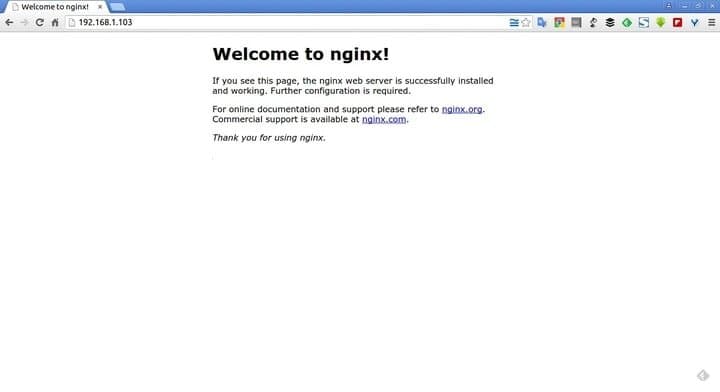
It is very easy to start the Nginx web server, as demonstrated
below. Simply use one of the below commands to invoke the standard
web server.
$ sudo service nginx start
When you issue this command, Nginx is being started by the
System V init script. If you are running Nginx from a systemd-based
system like the Ubuntu Linux 16.04LTS and above, you will need to
use the below command.
$ sudo systemctl start nginx
You should get a response showing whether the server started
successfully or not. Another simple but effective method is to call
Nginx directly using the binary path, as shown below.
$ sudo /usr/bin/nginx
2. Stop Nginx Server
You can also stop a running Nginx server using similar methods
shown above. However, remember that when you stop a running Nginx
server, all system processes associated with it are killed. It will
terminate even if you have active connections.
$ sudo service nginx stop
This command will stop the Nginx process in systems that use the
System V init script. For systemd-based machines, the following
command can be used.
$ sudo systemctl stop nginx
However, these commands can still take a considerable amount of
time in busy servers. The next command demonstrates how to stop the
Nginx service in a faster way.
$ sudo killall -9 nginx
3. Quit Nginx Server
Quitting an Nginx server is similar to stopping one – with one
distinct difference. The Nginx daemon takes a graceful approach to
quit in the sense that it won’t interrupt any active connections.
So, your client requests will be served as expected before shutting
down.
$ sudo service nginx quit
Use this command to quit your Nginx server from the Linux shell[4]. Users running a
systemd-based machine can utilize the next command to do this
job.
$ sudo systemctl quit nginx
You may also use one of the following Nginx commands for
quitting a running server.
$ sudo nginx -s quit
$ sudo kill -QUIT $( cat /usr/local/nginx/logs/nginx.pid )
4. Restart Nginx
Server
When you do a server restart, the Nginx process simply stops and
then starts again. You can use one of the below commands to restart
your Nginx daemon from the command-line.
$ sudo service nginx restart
This command will restart the Nginx server using the System V
init script. You can use systemctl for doing this
in a systemd-based system like newer Ubuntu releases.
$ sudo systemctl restart nginx
You can also do this in a different manner, as shown by the
following example.
$ sudo /etc/init.d/nginx restart
If you have compiled Nginx from the source, then you can use the
next command.
$ sudo /usr/local/nginx/sbin/nginx -s restart
5. Reload Nginx
Server
Reloading an Nginx server differs slightly from restarting one.
When you reload a server, Nginx will shut down in a graceful
manner. What this means is that the Nginx daemon will first
terminate, then parse the configuration file for attempted changes,
and start the new worker process without interrupting
operations.
$ sudo service nginx reload
$ sudo systemctl status nginx
The first command uses the System V init script, whereas the
last command is for systemd-based Linux distributions. You can also
invoke the following script to do this job.
$ sudo /etc/init.d/nginx reload
You should use the next command if you have compiled Nginx from
the source code.
$ sudo /usr/local/nginx/sbin/nginx -s reload
The next command is another handy way of gracefully restarting
your Nginx server.
$ sudo nginx -s reload
6. Check Nginx
Status
Sometimes you may want to view the current status of your Nginx
server before performing any operations on them. This can be done
very quickly using one of the below commands. Remember to
sudo your command or switch to the root user.
$ sudo service nginx status
As shown in some previous commands, this command works by
initializing the System V init script. You can use the next command
for systems that use systemd instead.
$ systemctl status nginx
Another way of doing this would be to use the Nginx init.d
script directly, as demonstrated by the following command.
$ sudo /etc/init.d/nginx status
If Nginx is compiled from the source code, then you the next
command.
$ sudo /usr/local/nginx/sbin/nginx -s status
7. Check Nginx
Configuration
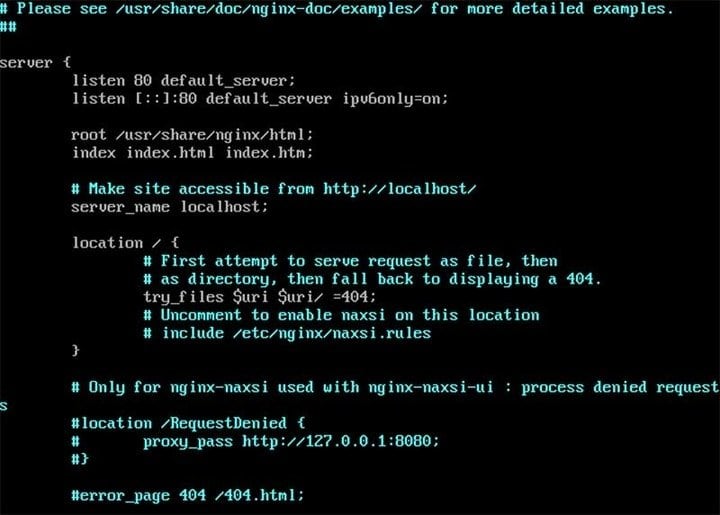
Since there is a wide range of Nginx customization
abilities, network admins often need to tweak the configuration
file to add/unlock new features. However, you should always test
your configuration file for potential errors. Else, malicious users
might leverage faults in your server configuration. [5]
$ sudo nginx -t
This is a simple command that does this job for you. When you
run this, you’re basically telling Nginx to check the configuration
file for syntax errors and refrain from running the server. You can
use the following command to dump the result of the configuration
test on your terminal console.
$ sudo nginx -T
You may also use one of the following Nginx commands to test the
configuration of your Nginx server.
$ sudo service nginx configtest   # System V Init
$ sudo systemctl config nginx     # systemd-based
8. Send Signals to
Nginx
Admins can send various useful signals to the Nginx daemon. You
will need to use the -s flag to send a signal to
Nginx, followed by the actual signal. We had already seen signals
in action when we used it to quit and reload our Nginx server.
Here, we’re specifying them in order.
$ sudo nginx -s stop     # stops a running Nginx server
$ sudo nginx -s quit     # quits Nginx server
$ sudo nginx -s reload   # gracefully restarts Nginx
$ sudo nginx -s reopen   # reopens server log file
However, your Nginx version should be at least 0.7.53 or more.
Otherwise, you can not send signals to your Nginx processes.
9. Display Nginx Version
Information
Some newer features of Nginx are only available to recent
versions. So admins may face some compatibility issues on legacy
servers. You can easily determine your Nginx version to see whether
your issues have anything to do with the server version or not.
$ sudo service nginx -v       # uses System V Init
$ sudo systemctl -v nginx     # for systemd-based distributions
The following commands can be used to display additional
information regarding your Nginx installation, such as
configuration variables and compiler version.
$ sudo service nginx -V
$ sudo systemctl -V nginx
Additionally, if you are running a Ubuntu or Debian-based Linux server[6], you may use the next
command to find out your Nginx version.
$ sudo apt-cache policy nginx
10. Display Help
Page
The Nginx help page is a great reference point for both
beginners and seasoned Linux admins. You can use one of the
following Nginx commands to view this reference from the Linux terminal emulator[7].
$ sudo service nginx -h     # uses System V Init
$ sudo systemctl -h nginx   # for systemd-based distributions
You can also use the next commands to do this job.
$ sudo service nginx -?     # uses System V Init
$ sudo systemctl -? nginx   # for systemd-based distributions
Referencing the help page is always an excellent choice since
they allow a quick glimpse into the options available to the
user.
11. Use Alternative
Configuration
There is an unending list of customization abilities offered by Nginx web
servers. Admins can easily tweak the Nginx configuration file
for adding extra functionalities to their server. The default Nginx
configuration file on most systems is /etc/nginx/nginx.conf.
However, it is often a good practice to implement your
customizations on an alternative configuration file first. [8]
$ sudo nginx -c ~/test.conf
Note that we are assuming your new configuration file is named
test.conf. Substitute this portion with the actual name of your
configuration file. You can now test your new configurations using
the below command.
$ sudo nginx -t -c ~/test.conf
You can also instruct Nginx to look for the default
configuration in a different directory when compiling from the
source. Simply pass this directory when configuring the
installation.
# ./configure --conf-path=/etc/some/other/nginx.conf
12. Suppress Non-Error
Messages
It is normal to receive error messages when you are testing new
configurations. However, you will also get a lot of irrelevant
information when checking your customizations. Luckily, the Nginx
daemon offers a simple option to suppress these non-error messages,
as demonstrated below.
$ sudo nginx -q -t -c ~/test.conf
This command will test a custom configuration file called
test.conf and will omit unnecessary information from the output. It
is quite useful for remote server administration tasks.
13. Change Global
Directive
The global directive contains all the configuration parameters
available to your Nginx server. It is one of the most sensitive
section of your web server and requires earnest attention. The
-g option allows admins to define personalized
Nginx directives for their web servers.
$ sudo nginx -g "pid /var/run/test.pid; worker_processes 2;"
This command specifies the global Nginx directives for PID and
defines the number of worker processes, 2 in this case. Now we can
test this using the alternative configuration file used
earlier.
$ sudo nginx -t -c ~/test.conf -g "pid /var/run/test.pid; worker_processes 2;"
14. Change Nginx Prefix
Path
The prefix path contains all the files used by your Nginx web
server. It is also the same directory used by configuring for
setting the relative paths (except library sources). By default,
Nginx uses the /usr/local/nginx
directory as the prefix. The below command demonstrates how we can
override this from the command-line.
$ sudo nginx -p /path/to/new/prefix
The -p flag allows us to pass the new prefix
location. It often comes in handy when testing new servers.
However, this option is not available for Nginx servers older than
version 0.7.53.
15. Check stub_status
Module
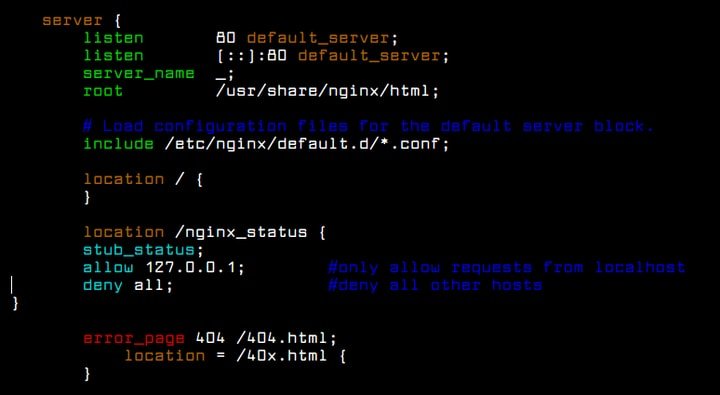
The stub_status module exposes some very
important metrics about Nginx. Admins often use it for monitoring
their Linux mail servers[9]
or proxy servers. Although all pre-built Nginx binaries come with
this module, your Nginx server might not have this if you have
compiled Nginx from the source. You can use the following command
to test whether you’ve got it or not.
$ sudo nginx -V 2>&1 | grep --color -- --with-http_stub_status_module
If you find out that you’re missing this module, you can always
rebuild Nginx from the source. Simply include the
–with-http_stub_status_module parameter when configuring
Nginx, as shown below.
$ ./configure --with-http_stub_status_module
16. Check Nginx Path
There are several Nginx commands for checking the path of your
Nginx installation. Like everyday Linux terminal commands[10], you can always use the
which/whereis command to check for the Nginx path.
$ which nginx
$ whereis nginx
The above commands will display all system locations that
contain files related to your Nginx setup. You can do this another
way by using the ps command and grepping for the required
information.
$ ps aux | grep nginx
You should now see the location of your Nginx daemon clearly.
This is very useful to developers who don’t have low-level
privileges to the server machine.
17. Locate Nginx PID
The PID or Process ID is a unique number used to distinguish
processes on Linux and Unix-like systems[11]. We can send various
signals to our Nginx server by using the appropriate PID. This PID
can be found by using one of the following commands.
$ ps aux | grep [n]ginx
$ pgrep nginx
$ cat /run/nginx.pid
So we can use either pgrep or the vanilla grep command in
conjunction with ps. Do not worry if you don’t understand how
“grep” works. We have already published a resource-intensive guide on Linux grep
commands[12].
18. Find Log Files
The log files contain a lot of valuable information for both
system admins and developers. Nginx has two default log files
consisting of the access.log and error.log
documents. These are located at /var/log
and can be viewed by using the following command.
$ ls /var/log/nginx/*.log
Now you should see those log files mentioned above. As their
name suggests, access.log contains information regarding
your site visitors and error.log houses warnings/details
about misconfigurations. However, you will need to enable these two
logs from your Nginx configuration file before you can use
them.
19. Set Virtual
Hosts
Virtual hosts allow server admins to run more than one website
in a single server machine. This is often useful since you can
share your computing processes to run multiple sites at the same
time. However, the term virtual host is usually associated with
Apache servers. They are known as “Server Blocks” in the
Nginx world.
$ sudo ln -s /etc/nginx/sites-available/YOURSITE.com /etc/nginx/sites-enabled/YOURSITE.com
You can easily enable virtual hosts on an Nginx server using
this simple symlink. Just remove the symlink if you want to disable
virtual hosts.
20. View Compiled Nginx
Modules
As you have seen in some previous Nginx commands, when you
install the daemon, some essential modules are also installed. We
can easily view these Nginx modules by using the below command.
$ sudo 2>&1 nginx -V | tr -- - '\n' | grep _module
This command leverages several Linux command-line tools and
filters out irrelevant information to display only the modules.
Since Nginx has a plethora of modules, this command can be useful
to check what modules are compiled for your server.
21. Enable/Disable Nginx
Service
Enabling the Nginx service allows the server to auto-start
during boot time. It is essential for dedicated servers because
otherwise, user requests might get interrupted. We can very easily
enable Nginx to auto-start using the below command.
$ sudo service nginx enable     # System V Init
$ sudo systemctl enable nginx   # systemd-based systems
These simple but effective commands will make sure your server
downtime is reduced as much as possible. You can also disable
auto-start if you want. Simply use one of the following
commands.
$ sudo update-rc.d -f nginx disable
$ sudo systemctl disable nginx
22. Upgrade Nginx on the
Fly
Nginx allows admins to upgrade the binary and/or configuration
file on the fly. This means your client requests will not be
interrupted due to server upgrades. To do this, first, we need to
locate the PID of the master Nginx process. We can do it using a
simple command that we’ve already demonstrated.
$ cat /run/nginx.pid
Your new Nginx binary should be ready by now. Spawn a new set of
Nginx master/worker processes[13] which use the new
binary via the below command.
$ sudo kill -s USR2 `cat /run/nginx.pid`
Now kill the worker processes used by the first master process
using the following command.
$ sudo kill -s WINCH `cat /run/nginx.pid.oldbin`
Follow it by killing the old master process.
$ sudo kill -s QUIT `cat /run/nginx.pid.oldbin`
23. Setup Nginx in Chroot
Jail
A chroot jail for your Nginx server will provide an extra layer
of security in case of potential break-ins. Admins often use this
technique to make sure their servers are isolated and safe in a
small section of the Linux filesystem[14]. Use the following
commands to set up your Nginx server inside a chroot jail.
# D=/nginx
# mkdir -p $D
# mkdir -p $D/etc
# mkdir -p $D/dev
# mkdir -p $D/var
# mkdir -p $D/usr
# mkdir -p $D/usr/local/nginx
# mkdir -p $D/tmp
# chmod 1777 $D/tmp
# mkdir -p $D/var/tmp
# chmod 1777 $D/var/tmp
# mkdir -p $D/lib64
# ls -l /dev/{null,random,urandom}
# /bin/cp -farv /usr/local/nginx/* $D/usr/local/nginx
You’ll need to run these as root. Now find out the shared
libraries using the below command.
# ldd /usr/local/nginx/sbin/nginx
Copy all libraries one by one, as shown below.
# cp /lib64/libpcre.so.0 $D/lib64
You’ll also need to copy /etc and a few other directories as
well.
# cp -fv /etc/{group,prelink.cache,services,adjtime,shells,gshadow,shadow,hosts.deny,localtime,nsswitch.conf,nscd.conf,prelink.conf,protocols,hosts,passwd,ld.so.cache,ld.so.conf,resolv.conf,host.conf} $D/etc

# cp -avr /etc/{ld.so.conf.d,prelink.conf.d} $D/etc
Your chroot jail is now ready for Nginx. Simply kill the old
service and start the new one using the next command.
# /usr/sbin/chroot /nginx /usr/local/nginx/sbin/nginx -t
24. Run Nginx inside
Docker
Docker containers have become extremely popular due to their
flexibility and robust performance. You can easily create and run
your Nginx web server from inside a docker container. The next
command pulls the official Nginx image and creates a server
instance using the default configuration.
$ docker run --name nginx-server -P -d nginx
You can maintain persistent storage using the following simple
command.
$ sudo docker run --name nginx-server -v /var/www:/usr/share/nginx/html:ro \

-v /var/nginx/conf:/etc/nginx:ro -P -d nginx
You can find more useful Docker commands in this
post[15]. Take a glance over it
if you’re looking for docker-specific information.
25. Run Nginx inside
LXD
LXD is hailed as the next-generation Linux container and offers
an astounding set of features. You can also use Nginx through LXD
containers. Take a look at the following Nginx commands for
LXD.
$ sudo lxc launch ubuntu:18.04 nginx-server
$ sudo lxc exec nginx-server -- sudo --user ubuntu --login
$ sudo apt update
$ sudo apt install -y nginx
$ sudo systemctl reload nginx
First, we created a container called nginx-server and then
started a shell in that container. Then we updated the package list
and installed the Nginx web server inside that container. The last
command simply reloads the server.
Ending Thoughts
There are many surprising features offered by Nginx, and new
users are often overwhelmed by its sheer capabilities. Luckily, you
can gain tremendous confidence if you know only some basic Nginx
commands. That’s why we took the liberty of presenting these
awesome commands to you. We have covered not only the basic
commands but also some advanced, more powerful command-line tricks.
Hopefully, you will feel more authority over your Nginx skills once
you’re accustomed to these commands. Let us know your thoughts in
the comment section below and keep visiting for more guides on
Linux servers.
References
- ^
Linux
and BSD (www.ubuntupit.com) - ^
find them here
(nginx.org) - ^
in this
guide (docs.nginx.com) - ^
the
Linux shell (www.ubuntupit.com) - ^
a wide
range of Nginx customization abilities
(www.ubuntupit.com) - ^
Debian-based Linux server
(www.ubuntupit.com) - ^
Linux
terminal emulator (www.ubuntupit.com) - ^
customization abilities offered by
Nginx web servers (www.ubuntupit.com) - ^
Linux
mail servers (www.ubuntupit.com) - ^
everyday Linux terminal commands
(www.ubuntupit.com) - ^
Linux
and Unix-like systems (www.ubuntupit.com) - ^
a
resource-intensive guide on Linux grep commands
(www.ubuntupit.com) - ^
Nginx
master/worker processes (nginx.org) - ^
the
Linux filesystem (www.ubuntupit.com) - ^
useful
Docker commands in this post
(www.ubuntupit.com)
Read more https://www.ubuntupit.com/must-know-nginx-commands-for-developers-and-admins/