Linux powers the majority of the web and a considerable amount
of workstations around the globe. One of the primary reasons behind
the ever-growing popularity of Linux and BSD systems is their
rock-solid policies regarding security. Linux systems are
inherently hard to crack due to their underlying design principles.
However, no system is unbreakable, and if you don’t harden your
workstation or Linux server on par with the latest standards,
you’re likely to fall victim to various types of attacks and/or
data breach. That’s why we have outlined 50 Linux hardening tips
that will help you increase your server security to the next level.
[1]
Linux Hardening Security Tips for
Professionals
Security has become an integral part of the computing world. As
a result, hardening your personal workstation, as well as server
security, is a must. So continue reading and incorporate the below
tips as much as possible for increasing the security of your Linux
machine.
1. Document Host
Information
Documenting the host information can become extremely beneficial
in the long run. If you intend to maintain the same system over the
course of time, chances are things will get messy at some point.
However, if you document your workstation or server right from the
day of its installation, you will have a solid idea of the overall
system infrastructure and employed policies.
Include the below information about the system in your
documentation. Feel free to add some extras based on your server
requirements.
- System name
- Installation date
- Asset number (values tagging hosts in business
environments) - IP address
- MAC address
- Kernel version
- Administrator’s name
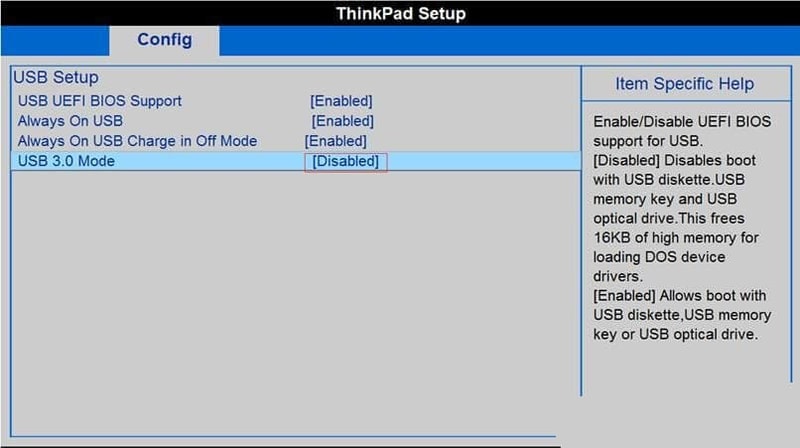
2. Secure BIOS and Disable USB
Booting
You should secure your BIOS using an appropriate password so
that other users can’t access or modify the settings. Since it is
pretty straightforward to access the BIOS menu in modern
mainboards, end-users may override existing settings and manipulate
sensitive configurations.
Additionally, users may also use bootable systems to access your
host data. This could also pose threats to the integrity of your
server. You can disable USB devices altogether by using the
following command.
# echo 'install usb-storage /bin/true' >> /etc/modprobe.d/disable-usb-storage.conf
USB booting can be also turned off from the BIOS menu. However,
this is not mandatory if you’re running a personal workstation that
can not be accessed by other users.
3. Encrypt Disk
Storage
Encrypting your disk storage can prove highly beneficial in the
long term. It will prevent data leaks in case of theft or any
third-party intrusion. Luckily, there are a wide variety of Linux encryption
tools[2] that make this tas
hassle-free for admins.
Additionally, modern Linux distributions offer admins to encrypt
their Linux filesystem[3]
during the installation process. However, you should know that
encryption may affect performance throughput and will likely make
data recovery difficult.
4. Encrypt Data
Communication
Since data transmitted over the network can be easily captured
and analyzed using open source security tools, data encryption
should be your top priority during the Linux hardening process.
Many legacy data communication tools do not employ proper
encryption and thus may leave your data vulnerable.
You should always use secure communication services such as ssh,
scp, rsync, or sftp for remote data transfer. Linux also allows
users to mount remote filesystems using special tools like fuse or
sshfs. Try to use GPG encryption[4]
to encrypt and sign your data. Other Linux tools that offer data
encryption services include OpenVPN, Lighthttpd SSL, Apache SSL,
and Let’s Encrypt.
5. Avoid Legacy Communication
Services
A large number of legacy Unix programs do not provide essential
security during data transmission. These include FTP, Telnet,
rlogin, and rsh. No matter whether you’re securing your Linux
server or personal system, stop using these services for good.
You can use other alternatives for this type of data transfer
tasks. For example, services like OpenSSH, SFTP, or FTPS makes sure
that data transmission happens over a secure channel. Some of them
employ SSL or TLS encryptions to harden your data communication.
You may use the below commands to remove legacy services like NIS,
telnet, and rsh from your system.
  # yum erase xinetd ypserv tftp-server telnet-server rsh-server
# apt-get --purge remove xinetd nis yp-tools tftpd atftpd tftpd-hpa telnetd rsh-server rsh-redone-server
Use the first command for RPM-based distributions like RHEL and
Centos or any system that uses the yum package manager. The second
command works on Debian/Ubuntu-based systems. [5]
6. Keep Kernel and Packages Up to
Date
To maintain your server security, you should always apply the
latest security updates as soon as possible. This can reduce the
surface of attack in case any vulnerabilities are discovered in
older packages or kernel modules. Thankfully, updating the system
is very easy and can be done reasonably fast.
# yum update
# apt-get update && apt-get upgrade
Use the yum command to update your RHEL/Centos systems and the
apt command for Ubuntu/Debian-based distros. Additionally], you can
automate this process by utilizing the Linux cron job. Visit
our guide on Linux crontab[6] to learn more about cron
jobs.
7. Enable SELinux
SELinux[7]
or Security Enhanced Linux is a security mechanism that implements
various methods for access control at the kernel level. SELinux is
developed by Red Hat and has been added to many modern Linux distributions.[8] You can think of it as a
set of kernel modifications and user-space tools. You can check out
whether SELinux is enabled in your system or not by using the below
command.
# getenforce
If it returns enforcing that means your system is protected by
SELinux. If the result says permissive that means your system has
SELinux but it’s not enforced. It will return disabled for systems
where SELinux is completely disabled. You can enforce SELinux by
using the below command.
# setenforce 1

8. Minimize System
Packages
Minimizing system packages can greatly increase the overall
security of your system. Since software bugs are one of the main
barriers to security, having fewer packages mean the vulnerability
surface gets smaller. Moreover, servers usually gain considerable
performance boost when they’re free of unnecessary bloatware.
# yum list installed
# yum list <package>
# yum remove <package>
You can use the above yum commands in Linux to list installed
software in your system and get rid of the ones you don’t actually
need. Use the below commands if you’re running a
Debian/Ubuntu-bassed system.
# dpkg --list
# dpkg --info <package>
# apt-get remove <package>
9. Split Network
Services
If you’re using traditional monolithic network services on your
server, an attacker will gain access to your entire infrastructure
as soon as he/she exploits a single service. For example, say
you’re running a LAMP stack[9], what happens when an
attacker exploits a bug in the Apache service? He’ll eventually
escalate other services and will likely to gain full system
control.
However, if you split your network services and use one network
per service, the attack will be less successful. This is because
the intruder will need to exploit each network before he can gain
full system access. You can follow the below steps to split a
traditional LAMP stack configuration.
- Configure an NFS file server
- Configure a MySQL database server
- Configure a Memcached caching server
- Configure an Apache+php5 webserver
- Configure a Lighttpd server for static data
- Configure an Nginx server for reverse proxy
10. Maintain User Accounts and
Password Policy
Unix systems usually have more than one user account. Your
system is as secure as the users that run it. So, make sure that
only trusted people can run a specific system. You can use the
useradd/usermod commands to add
and maintain new user accounts on your machine.
Always enforce strong password policies. A strong password
should be more than eight characters long and a combination of
letters, numbers, and special characters at least. However, users
should be able to memorize their passwords. Additionally, verify
that your password isn’t susceptible to dictionary attacks. You can
use the Linux PAM module called pam_cracklib.so for doing
this.
11. Set Password Expiration
Dates
Another common Linux hardening method is to enable password
expiration for all user accounts. You can easily set expiration
dates for user passwords by utilizing the chage
command in Linux. Your system will ask users to set a new password
once their existing once expire.
# chage -l mary
# chage -M 30 mary
# chage -E "2020-04-30"
The first command lists the current password expiration date for
the user mary. The second command sets the expiration date after 30
days. You can also set this date using a YYYY-MM-DD format by using
the third command.
12. Enforce the Linux PAM
module
You can increase password strength by making sure that users
can’t set or use weak passwords. Password crackers can easily brute
force them and gain unauthorized access. Moreover, limit password
reuse by appending the following line to Ubuntu/Debian and
RHEL/Centos respectively.
# echo 'password sufficient pam_unix.so use_authtok md5 shadow remember=12' >> /etc/pam.d/common-password
# echo 'password sufficient pam_unix.so use_authtok md5 shadow remember=12' >> /etc/pam.d/system-auth
Now, your users won’t be able to reuse any passwords used within
the last 12 weeks. Also, use the below tips to prohibit weak
passphrases altogether.
# apt-get install libpam-cracklib # install cracklib support on Ubuntu/Debian
Append the line –
# echo 'password required pam_cracklib.so retry=2 minlen=10 difok=6' >> /etc/pam.d/system-auth
You don’t need to install cracklib in RHEL/Centos. Simply append
the following line.
# echo 'password required /lib/security/pam_cracklib.so retry=2 minlen=10 difok=6' >> /etc/pam.d/system-auth
13. Lock Login Attempts after
Failure
Admins should make sure that users can’t log into their server
after a certain number of failed attempts. This increases the
overall security of the system by mitigating password attacks. You
can use the Linux faillog command to see the failed login
attempts.
# faillog
# faillog -m 3
# faillog -l 1800
The first command will display the failed login attempts for
users from the /var/log/faillog database. The second command sets
the maximum number of allowed failed login attempts to 3. The third
one sets a lock of 1800 seconds or 30 minutes after the allowed
number of failed login attempts.
# faillog -r -u <username>
Use this command to unlock a user once they’re prohibited from
login. The max number of failed login attempts for the root user
should be high or else brute force attacks may leave you
locked.
14. Check for Empty
Passwords
Users are the weakest link in a system’s overall security.
Admins need to make sure that no user on the system has empty
passphrases. This is a mandatory step for proper Linux hardening.
Use the following awk command in Linux[10] to verify this.
# awk -F: '($2 == "") {print}' /etc/shadow
It will display if there’re any user accounts that have an empty
password in your server. To increase Linux server hardening, lock
any user that uses empty passphrases. You can use the below command
to do this from your Linux terminal.
# passwd -l <username>
15. Disable Login as Super
User
Admins should not frequently log in as root in order to maintain
server security. Instead, you can use sudo execute Linux terminal commands[11] that require low-level
privileges. The below command shows how to create a new user with
sudo privileges.
# adduser <username> sudo
You can also grant sudo privileges to existing users by using
the below command.
# usermod -a -G sudo <username>
16. Set Email Notifications for
sudo Users
You can set email notifications so that whenever a user uses
sudo, the server admin gets notified via an email. Edit the
/etc/sudoers file and add the following lines using your favorite
Linux text editor.
# nano /etc/sudoers
mailto "[email protected]
[12]” mail_always on
Replace the email with your own mail or that of the auditing
staff. Now, every time someone performs a system-level task, you
get informed.

17. Secure GRUB
Bootloader
There are several Linux bootloaders[13] available today.
However, GRUB remains the top choice for most admins due to its
diverse feature set. Moreover, it’s the default bootloader in many
modern Linux distributions. Admins who take their Linux hardening
steps seriously should set a strong password for their GRUB
menu.
# grub-md5-crypt
Enter this at your terminal and grub will ask you for the
password. Enter the password you want to set and it will generate
an encrypted hash using your password. Now, you’ll need to put this
hash into your grub configuration menu.
# nano /boot/grub/menu.lst
or
# nano /boot/grub/grub.conf
Add the computed hash by adding the below line between the lines
that set the timeout and splash image.
password –md5 <calculated-hash>
18. Validate the UID of Non-Root
Users
A UID or User-ID is a non-negative number assigned to the users
of a system by the kernel. The UID 0 is the UID of the superuser or
root. It is important to make sure that no user other than root has
this UID value. Else, they can masquerade the whole system as
root.
# awk -F: '($3 == "0") {print}' /etc/passwd
You can find out which users have this UID value by running this
awk program. The output should contain only a single entry, which
corresponds to root.
19. Disable Unnecessary
Services
A lot of services and daemons are started during system boots.
Disabling those that are not mandatory can help in Linux hardening
and improve boot time. Since most modern distributions use systemd
instead of init scripts, you can use systemctl for finding these
services.
# systemctl list-unit-files --type=service
# systemctl list-dependencies graphical.target
These commands will display such service and daemons. You can
disable a specific service by using the below command.
# systemctl disable service
# systemctl disable httpd.service
20. Remove the X Window Systems
(x11)
The X Window Systems or x11 is the de-facto graphical interface
for Linux systems. If you’re using Linux for powering your server
instead of your personal system, you can delete this entirely. It
will help to increase your server security by removing a lot of
unnecessary packages.
# yum groupremove "X Window System"
This yum command will delete x11 from RHEL or Centos systems[14]. If you’re using
Debian/Ubuntu instead, use the following command.
# apt-get remove xserver-xorg-core
21. Disable the X Window Systems
(x11)
If you don’t want to delete x11 permanently, you may disable
this service instead. This way, your system will boot into text
mode instead of the GUI. Edit the /etc/default/grub file using your
favorite Linux text editor[15].
# nano /etc/default/grub
Find the below line –
GRUB_CMDLINE_LINUX_DEFAULT="quiet splash"
Now, change it to –
GRUB_CMDLINE_LINUX_DEFAULT="text"
Finally, update the GRUB file by using –
# update-grub
The last step is to tell systemd to not load the GUI system. You
can do this by running the below commands.
# systemctl enable multi-user.target --force
# systemctl set-default multi-user.target
22. Verify Listening
Ports
Network attacks are extremely common on servers. If you want to
maintain a secure server, you should validate the listening network
ports every once in a while. This will provide you essential
information about your network.
# netstat -tulpn
# ss -tulpn
# nmap -sT -O localhost
# nmap -sT -O server.example.com
You can use any of the above commands to see which ports are
listening for incoming requests. We have an earlier guide that
provides a detailed discussion of essential nmap commands in Linux[16].
23. Investigate IP
Addresses
If you find any suspicious IP in your network, you can
investigate it using standard Linux commands. The below command
uses netstat and awk to display a summary of running protocols.
# netstat -nat | awk '{print $6}' | sort | uniq -c | sort -n
Use the below command to find more information about a specific
IP.
# netstat -nat |grep <IP_ADDR> | awk '{print $6}' | sort | uniq -c | sort -n
To see all unique IP addresses, use the following command.
# netstat -nat | awk '{ print $5}' | cut -d: -f1 | sed -e '/^$/d' | uniq
Feed the above command to wc for getting the number total of
unique IP addresses.
# netstat -nat | awk '{ print $5}' | cut -d: -f1 | sed -e '/^$/d' | uniq | wc -l
Visit our guide on various Linux network
commands[17] if you want to dive
deeper into network security.

24. Configure IPtables and
Firewalls
Linux offers excellent in-built protections against unwanted
network requests in the form of iptables. It is an interface to the
Netfilter[18] mechanism provided by
the Linux kernel. You can easily block specific IP addresses or a
range of them using iptables.
# iptables -A INPUT -s xxx.xxx.xxx.xxx -j DROP
You can use the above command to block all network requests for
a given IP address. Refer to our manual on Linux iptables[19] to learn more about
this tool. You can install and use other powerful firewalls as
well.
25. Configure Kernel
Parameters
The Linux kernel has a lot of runtime parameters. You can easily
tweak some of them to improve Linux hardening. The sysctl command
allows admins to configure these kernel parameters. You may also
modify the /etc/sysctl.conf file for kernel tweaking and increased
security.
For example, add the below line at the end of your sysctl
configuration to allow system reboots after 10 seconds of a kernel
panic.
# vim /etc/sysctl.conf
kernel.panic=10
Add the below line to randomize the addresses for mmap base,
heap, stack, and VDSO pages.
kernel.randomize_va_space=2
The next line will make the kernel ignore ICMP errors.
net.ipv4.icmp_ignore_bogus_error_responses=1
You can add tons of such rules and personalize them to fit your
kernel requirements.
26. Disable SUID and SGID
Permission
SUID and SGID are special types of file permission in the Linux file system. Having the SUID
permission allows users other to run executable files like they are
the owner of those files. Likewise, the SGID permission gives
directory rights similar to the owner but also gives ownership of
all child files in a directory. [20]
These are bad since you don’t want any users other than you to
have those permissions on a secure server. You should find any file
that has SUID and SGID enabled and disable those. The following
commands will respectively list all files that have SUID and SGID
permission enabled.
# find / -perm /4000
# find / -perm /2000
Investigate these files properly and see if these permissions
are mandatory or not. If not, remove SUID/SGID privileges. The
below commands will remove SUID/SGID respectively.
# chmod 0755 /path/to/file
# chmod 0664 /path/to/dir
27. Split Disk
Partitions
The Linux filesystem divides everything into several parts based
on their use case. You can separate the critical portions of the
filesystem into different partitions of your disk storage. For
example, the following filesystems should be split into different
partitions.
- /usr
- /home
- /var & /var/tmp
- /tmp
You should also create separate partitions for different
services like for Apache and FTP server roots. This helps to
isolate the sensitive portions of your system. Thus, even if a
malicious user gains access to some part of the system, he can not
roam freely through the entire system.
28. Secure System
Partitions
When performing Linux server hardening tasks, admins should give
extra attention to the underlying system partitions. Malicious
users may leverage partitions like /tmp, /var/tmp, and /dev/shm to
store and execute unwanted programs. Luckily, you can implement
steps to secure your partitions by adding some parameters to your
/etc/fstab file. Open this file using a Linux text editor.
# vim /etc/fstab
Find the line that contains the /tmp location. Now, append the
parameters nosuid, nodev, noexec, and ro as a comma-separated list
after defaults.
They offer the following functionalities –
- nosuid – prohibit SUID permission on this partition
- nodev -disable special devices on this partition
- noexec – disable execution permission for binaries on this
partition - ro – read-only
29. Enable Disk
Quotas
Disk Quotas are simply limits set by the system administrator
which restrict usage of the Linux filesystem for other users. If
you are hardening your Linux security, implementing disk quotas is
mandatory for your server.
# vim /etc/fstab
LABEL=/home /home ext2 defaults,usrquota,grpquota 1 2
Add the above line to /etc/fstab for enabling disk quota for the
/home filesystem. If you have already a line /home, modify that
accordingly.
# quotacheck -avug
This command will display all quota information and create the
files aquota.user and aquota.group in /home.
# edquota <user>
This command will open the quota settings of <user> in an
editor where you can assign the quota limits. You can set both soft
and hard limits for the disk quota size as well as the number of
inodes. Use the below command to view a report on the disk quota
usage.
# repquota /home
30. Disable IPv6
Connectivity
IPv6 or Internet Protocol version 6 is the latest version of the
TCP/IP protocol. It comes with an extended feature list and many
usability benefits. However, IPv4 is still the trade of choice for
most servers. So, chances are you might not be using IPv6 at all.
In such cases, you should turn this off altogether.
By removing unnecessary network connectivity, your server’s
security will be more solid. Thus, turning off IPv6 offers
reasonable Linux hardening effects. Add the below lines to
/etc/sysctl.conf for disabling IPv6 connectivity from the kernel
level.
# vim /etc/sysctl.conf
net.ipv6.conf.all.disable_ipv6 = 1
net.ipv6.conf.default.disable_ipv6 = 1
net.ipv6.conf.lo.disable_ipv6 = 1
Finally, run the below command to load the changes in your
server.
# sysctl -p
31. Maintain Word-Writable
Files
Word-writable files are fils that anyone can write to. This can
be very dangerous since it effectively allows users to run
executables. Plus, your Linux hardening is not foolproof unless
you’ve set the appropriate sticky bits. A sticky bit is a single
bit that, when set, prevents users from deleting someone else’s
directories.
Thus, if you’ve got world-writable files that have sticky bits
set, anyone can delete these files, even if they’re not owned by
them. This is another serious issue and will often cause havoc on
server security. Luckily, you can find all such files by using the
below command.
# find /path/to/dir -xdev -type d \( -perm -0002 -a ! -perm -1000 \) -print
Replace the path argument with directories that may contain such
files. You can also start from the root ‘/’ of your filesystem but
it’ll take a long time to execute. Once listed, investigate the
files thoroughly and change their permissions as required.

32. Maintain Noowner
Files
Noowner files are files that do not have any owner or group
associated with them. These can pose a number of unwanted security
threats. So, admins should take the necessary measures required to
identify these. They can either assign them to the appropriate
users or may delete them entirely.
You can use the following find command to list the noowner files
present in a directory. Check out this guide to learn more about
the find command in Linux.
# find /path/to/dir -xdev -type d \( -perm -0002 -a ! -perm -1000 \) -print
Inspect the results thoroughly to make sure there aren’t any
unwanted noowner files in your server.
33. Verify Server
Logs
Most Unix systems use the Syslog standard to log useful
information regarding the kernel, network, system errors, and many
more. You can find these logs in the /var/log location. They can be
viewed using several terminal server commands in Linux[21]. For example, the below
command displays the recent log entries about the kernel.
# tail /var/log/kern.log
Similarly, you can consult /var/log/auth.log for authentication
information.
# less /var/log/auth.log
The /var/log/boot.log file provides information on the system
boot process.
# less /var/log/boot.log
You can also inspect hardware and device information from
/var/log/dmesg.
# less /var/log/dmesg
The /var/log/syslog file contains log information about
everything in your system except the authentication logs. You
should inspect it for getting a broad overview of your server.
# less /var/log/syslog
Finally, you can use journalctl to inspect the systemd journal.
It will yield a ton of useful logs.
34. Use the logrotate
Package
Linux systems collect logs and store them for the admins. Over
time, these logs will beef up in size and may even cause a
significant shortage in disk space. The logrotate package is
extremely useful in this case since it can rotate, compress, and
mail system logs. Although you may question its role when it comes
to Linux hardening, it offers unquestionable benefits.
You can find service-specific configuration files of logrotate
in the /etc/logrotate.d directory. The global logrotate
configuration is done via /etc/logrotate.conf. You can set various
parameters in here like the number of days to keep the logs,
whether to compress them or not and so on.
35. Install Logwatch /
Logcheck
Log files usually contain a lot of information, many of those
are irrelevant in terms of Linux hardening. Thankfully, admins can
use packages like Logwatch and Logcheck to easily monitor
suspicious logs. They filter out common entries that are expected
in your logs and only draw your attention to unusual entries.
Logwatch is an extremely powerful log analyzer[22] that can make log
management much easier. It is suitable for admins looking for
all-in-one solutions since it provides a unified report of all
activity on their servers.
# sudo apt-get install logwatch
# yum install -y logwatch
You can use the above commands to install it on Ubuntu/Debian
and RHEL/Centos systems respectively. Logcheck is considerably
simpler compared to logwatch. It mails admins as soon as there
occur any suspicious logs. You may install it by –
# sudo apt-get install logcheck
# yum install -y logcheck
36. Install IDS
Solutions
One of the best Linux hardening methods for servers is using an
IDS (Intrusion Detection Software). Our editors highly recommend
the Advanced Intrusion Detection Environment
(AIDE)[23] for this purpose. It is
a host-based IDS that offers many robust features, including
several message digest algorithms, file attributes, regex support,
compression support, and so on.
# apt-get install aide
# yum install -y aide
You can install in on Ubuntu/Debian and RHEL/Centos using the
above commands. Plus, you should also install rootkit checkers if
you want to maintain Linux security. RootKits are harmful programs
designed to take over the control of a system. Some popular tools
for rootkit detection are Chkrootkit[24], and rkhunter[25].
37. Disable Firewire/Thunderbolt
Devices
It is always a good idea to disable as many peripherals as
possible. This makes your server secure against attackers who have
gained direct access to the infrastructure. Earlier, we have shown
how to disable the USB devices. However, malicious users may still
connect firewire or thunderbolt modules.
Firewire is the generic name of the IEEE 1394 hardware
interface. It is used for connecting digital devices like
Camcorders. Disable it by using the following command.
# echo "blacklist firewire-core" >> /etc/modprobe.d/firewire.conf
Similarly, the thunderbolt interface provides connections
between your system and high-speed peripherals like hard disk
storages, RAID arrays, network interfaces, and so on. You can
disable it by using the below command.
# echo "blacklist thunderbolt" >> /etc/modprobe.d/thunderbolt.conf
38. Install IPS
Solutions
An IPS or Intrusion Prevention Software protects network servers
from brute force attacks. Since a considerable number of malicious
users and bots are trying to gain access to your remote server,
setting up a proper IPS will help you in the long run.
Fail2Ban[26] is one of the most
popular IPS solutions for Unix-like systems. It is written using
Python and is available on all POSIX-compliant platforms. It will
look for obtrusive network requests all the time and block them as
soon as possible. Install Fail2Ban using the below command.
# apt-get install -y fail2ban
# yum install -y fail2ban
DenyHosts[27] is another popular IPS
solution for Linux hardening. It will protect your ssh servers from
intrusive brute force attempts. Use the following commands to
install in on your Debian or Centos servers.
# apt-get install -y denyhosts
# yum install -y denyhosts
39. Harden the OpenSSH
Server
OpenSSH is a software suite consisting of networking utilities
that provide secure communication over public networks. The OpenSSH
server has become the de-facto application for facilitating ssh
connections. However, the bad guys also know this and they
frequently target OpenSSH implementations. So, hardening this
application should be a top concern for all Linux sysadmin.
For example- always use keys over password when initiating a new
session, disable superuser login, disable empty passwords, limit
user access, set up firewalls on port 22, set idle timeouts, use
TCP wrappers, limit incoming requests, disable host-based
authentication, and so on. You may also employ advanced Linux
hardening methods like chrooting OpenSSH.
40. Utilize Kerberos
Kerberos[28] is a computer network
authentication protocol that allows access to computerized
infrastructures based on tickets. It uses very hard to break
cryptographic logic which makes systems supported by Kerberos very
secure. Admins can protect their system from eavesdropping attacks
and similar passive networking attacks very easily if they use the
Kerberos protocol.
Kerberos is being developed by MIT and provides several stable
releases. You can download the application from their
website[29]. Consult the
documentation to see how it works and how you can set it up for
your usage.

41. Harden Host
Network
Admins should employ strong network policies in order to protect
their secure servers against malicious hackers. We have already
outlined the necessity of using intrusion detection systems and
intrusion prevention systems. However, you can harden your host
network further by doing the following tasks.
# vim /etc/sysctl.conf
net.ipv4.ip_forward=0
# disbale IP forwarding

net.ipv4.conf.all.send_redirects=0
net.ipv4.conf.default.send_redirects=0
# disable send packet redirects

net.ipv4.conf.all.accept_redirects=0
net.ipv4.conf.default.accept_redirects=0
# disable ICMP redirects

net.ipv4.icmp_ignore_bogus_error_responses
# enable bad error message protection
We’ve added comments using the hash symbol to outline the
purpose of these network parameters.
42. Utilize AppArmor
AppArmor[30] is a Mandatory Access
Control (MAC) mechanism that makes it possible to restrict the
usage of system resources based on programs. It allows admins to
mandate policies on a program-level rather than users. You can
simply create profiles that control the access to network, sockets,
file permissions, and so on for your host applications.
Recent Debian/Ubuntu systems come with AppArmor pre-installed.
The pre-existing AppArmor profiles are stored in the
/etc/apparmor.d directory. You can modify these policies or even
add your own policies during the Linux hardening process. Use the
below command to view the AppArmor status in your system.
# apparmor_status
43. Secure Web
Server
Linux servers are widely used for powering web applications. If
you’re using your server for this purpose, you need to harden your
server components appropriately. Some of these the PHP runtime,
Apache HTTP server, and the Nginx reverse proxy server. Secure your
Apache server by adding the below lines in the configuration
file.
# vim /etc/httpd/conf/httpd.conf
ServerTokens Prod
ServerSignature Off
TraceEnable Off
Options all -Indexes
Header always unset X-Powered-By
# systemctl restart httpd.service
We’ve prepared a standalone guide on the Nginx
server[31] a while ago. Follow the
suggestions in that guide to secure your Nginx server. Head over to
this documentation for learning the best PHP
security practices[32].
44. Configure TCP
Wrappers
TCP wrappers are a host-based network filtering system that
allows or denies access to your host services based on pre-set
policies. However, for it to work, your host service must be
compiled against the libwrap.a library. Some common TCP
wrapperd Unix daemons include sshd, vsftpd, and xinetd.
# ldd /sbin/sshd | grep libwrap
This command will notify if a service is supported by TCP
wrappers or not. The TCP wrappers system enforces access control
using two configuration files, the /etc/hosts.allow and
/etc/hosts.deny. For example, add the following lines to
/etc/hosts.allow for allowing all incoming requests to the ssh
daemon.
# vi /etc/hosts.allow
sshd : ALL
Add the following to /etc/hosts.deny for rejecting all incoming
requests to the FTP daemon.
# vi /etc/hosts.deny
vsftpd : ALL
To see more information about the configuration options, consult
the tcpd man page, or visit this documentation from FreeBSD[33].

45. Maintain Cron
Access
Linux provides robust automation support by means of cron jobs.
In short, you can specify routine tasks using the cron scheduler.
Visit our earlier guide on cron and crontab[34] to learn how cron
works. Nevertheless, admins must make sure that ordinary users are
unable to access or put entries in the crontab. Simply put their
usernames in the /etc/cron.deny file to do this.
# echo ALL >>/etc/cron.deny
This command will disable cron for all users in your server
except root. To allow access for a specific user, add his username
to the /etc/cron.allow file.
46. Disable
Ctrl+Alt+Delete
The Ctrl+Alt+Delete
key combinations allow users to force reboot many Linux
distributions. This can be particularly problematic if you’re
managing a secure server. Admins should disable this hotkey in
order to maintain proper Linux hardening. You can run the following
command to disable this in systemd-based systems.
# systemctl mask ctrl-alt-del.target
If you’re on legacy systems that use init V instead of systemd,
edit the /etc/inittab file and comment out the following line by
appending a hash before it.
# vim /etc/inittab
#ca::ctrlaltdel:/sbin/shutdown -t3 -r now
47. Enable NIC
Bonding
NIC or Network Interface Card bonding is a form of link
aggregation in Linux. Multiple network interfaces are joined in
this method for gaining better resource availability and
throughput. If you’re maintaining busy Linux servers, you can use
this method for reducing the workload on a single interface and
distribute them across multiple interfaces.
The whole process of NIC bonding differs between Debian and
RHEL/Centos systems. We will cover them in a standalone guide soon.
For now, simply remember that you can achieve better reliability by
enabling network bonding.
48. Restrict Core
Dumps
Core dumps are memory snapshots that contain crash information
of executables. These are created when binaries stop working or
crash in simple terms. They contain too much sensitive information
about the host system and may threaten your Linux security if
fallen into the wrong hands. Thus, it is always a good idea to
restrict core dumps on production servers.
# echo 'hard core 0' >> /etc/security/limits.conf
# echo 'fs.suid_dumpable = 0' >> /etc/sysctl.conf
# sysctl -p
# echo 'ulimit -S -c 0 > /dev/null 2>&1' >> /etc/profile
Run the above commands to restrict cor dumps on your server and
increase Linux hardening.
49. Enable Exec
Shield
The Exec Shield project was developed by Red Hat for protecting
Linux systems against automated remote attacks. It performs
particularly well against various buffer overflow-based exploits.
You can enable exec shield for your Linux server by running the
below commands.
# echo 'kernel.exec-shield = 1' >> /etc/sysctl.conf
# echo 'kernel.randomize_va_space = 1' >> /etc/sysctl.conf
This method will work on both Debian and RHEL systems.
50. Create Regular
Backups
No matter how many Linux hardening methods you apply, you need
to be always prepared for unforeseen problems. Backing up your
workstation or server can prove extremely beneficial in the long
run. Thankfully, a large number of backup utility for Linux[35] exists to make system
backups easier.
Moreover, you must automate the backup process and store your
system data safely. Employing disaster management and recovery
solutions can be also useful when it comes to data management.
Ending Thoughts
Although Linux is much more secure when compared to home
operating systems, admins still need to maintain a set of Linux
hardening policies. We have compiled this guide with many of the
best practices used by Linux security experts. You should try to
employ as many of them as possible. However, do not apply these
without understanding their effect on your system. You need to have
a foolproof plan as well as a good understanding of server security
to keep your system safe from malicious users. Hopefully, we
provided you the essential tips you were looking for.
References
- ^
Linux
and BSD systems (ubuntupit.com) - ^
a wide
variety of Linux encryption tools
(ubuntupit.com) - ^
Linux
filesystem (ubuntupit.com) - ^
GPG
encryption (en.wikipedia.org) - ^
Debian/Ubuntu-based systems
(ubuntupit.com) - ^
our
guide on Linux crontab (ubuntupit.com) - ^
SELinux
(en.wikipedia.org) - ^
modern
Linux distributions. (ubuntupit.com) - ^
LAMP
stack (ubuntupit.com) - ^
awk
command in Linux (ubuntupit.com) - ^
Linux
terminal commands (ubuntupit.com) - ^
[email protected]
(www.ubuntupit.com) - ^
several Linux bootloaders
(ubuntupit.com) - ^
RHEL
or Centos systems (ubuntupit.com) - ^
favorite Linux text editor
(ubuntupit.com) - ^
essential nmap commands in Linux
(ubuntupit.com) - ^
guide
on various Linux network commands
(ubuntupit.com) - ^
Netfilter
(en.wikipedia.org) - ^
our
manual on Linux iptables (ubuntupit.com) - ^
the
Linux file system (ubuntupit.com) - ^
40
Useful Linux Server Commands for Beginners in 2020
(ubuntupit.com) - ^
Top 15
Best Linux Log Viewer & Log file Management Tools
(ubuntupit.com) - ^
Advanced Intrusion Detection
Environment (AIDE) (aide.github.io) - ^
Chkrootkit
(en.wikipedia.org) - ^
rkhunter
(en.wikipedia.org) - ^
Fail2Ban
(www.fail2ban.org) - ^
DenyHosts
(en.wikipedia.org) - ^
Kerberos
(en.wikipedia.org) - ^
download the application from their
website (web.mit.edu) - ^
AppArmor
(en.wikipedia.org) - ^
standalone guide on the Nginx
server (ubuntupit.com) - ^
documentation for learning the best
PHP security practices (www.php.net) - ^
documentation from FreeBSD
(www.freebsd.org) - ^
guide
on cron and crontab (ubuntupit.com) - ^
backup
utility for Linux (ubuntupit.com)
Read more https://www.ubuntupit.com/best-linux-hardening-security-tips-a-comprehensive-checklist/