Go is a statically-typed programming language with strong support
for concurrency. It is backed by Google and is meant for
general-purpose projects like systems application development or
web apps. Golang is becoming more and more popular due to its
robust feature set and support for the latest programming
practices. A large number of companies are looking for active Go
developers due to its growing usage in modern applications.
Developers can use a number of go commands to increase their
programming productivity or workflow management. In this guide, we
will discuss some of these commands for aspiring Go devs. [1]
Useful Go Command Examples in
Linux
Go provides a suite of useful tools for managing the build
process and workflow for programmers. They are invoked by means of
a set of simple commands built right into go. We are outlining 40
such useful commands in the following section.
1. Build a Program
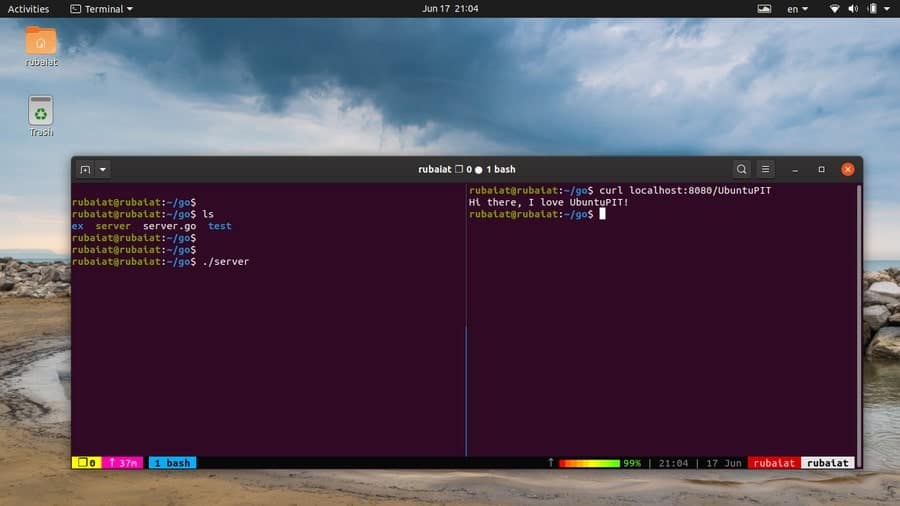
The go build command allows developers to build the binary
executable for a given program. We have created a simple server
program called server.go for demonstrating this. Now, we will build
this program using go build.
$ go build server.go
This command will create a binary executable file named server
in our go working directory. You can find out the code for the
server program from this section of the Golang website. Now,
we can run the program like any other Linux command-line tools. [2][3]
$ ./server
2. Run a Program Without Building
It
Developers usually make gradual changes to their programs based
on testing. It is inconvenient to build the program each time you
make a slight modification. Luckily, go allows us to run a program
even without building it in the first place.
$ go run server.go
This command will run the program directly without requiring you
to build the source code. It is extremely useful when you are
playing around with smaller sub-programs.
3. Display Current
GOPATH
Go manages the source codes, objects, and binaries of a program
by using the Go Workspace. The root of this workspace is specified
by using the GOPATH variable. You can find the
current path to your Go Workspace by using the following
command.
$ go env GOPATH
This is where you need to put your source files and compiler
them. Although you can set up multiple Go Workspaces, it is advised
to use one distinct workspace. The sub-command env
also provides a lot of other information, as we’ll see later.
4. Set New GOPATH
From Go version 1.8, Unix systems specify the
$HOME/go directory as the default GOPATH. However,
you can easily change this to a different location using the
following simple command.
$ go env -w GOPATH=$HOME/projects/go
This will change your GOPATH to
$HOME/projects/go. You can also set the GOPATH by
adding the following line to your ~/.bash_profile.
Simply open the file using your favorite Linux text editor[4] and append the next line
at the end.
export GOPATH=$HOME/projects/go
After saving the file, exit, and run the following command to
reflect the changes.
$ source ~/.bash_profile
5. Install Go
Packages
Every go program you write or use is part of a go package. Go
packages are nothing but a directory that contains some go files
inside the /src directory. We can install go
packages very easily by using the go install command.
$ go install test-app
When you run this command, go will look for the directory
test-app first in $GOROOT/src and then in
$GOPATH/src. Once it is found, go will determine
the entry point of the package by looking for the package main in
the source files. Go will then proceed to install this package and
place the test-app binary in the /bin directory of
your workspace.
6. Download and Install
Packages
Golang has been enjoying growing popularity among a large number
of FOSS developers. As a result, a lot of useful programs are being
written using go. You can easily download a third-party go package
and install it using the following simple command.
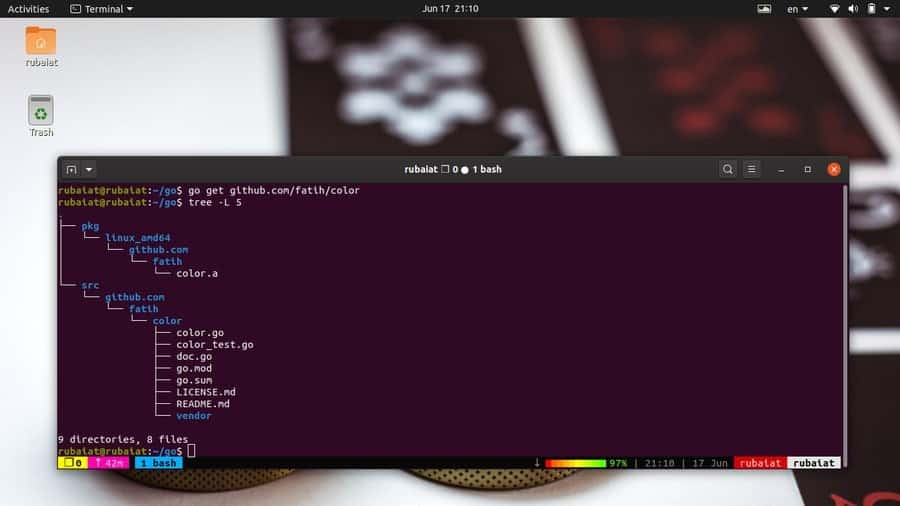
$ go get host/example-project
$ go get github.com/fatih/color
This command will download and install the popular color package
alongside all its dependencies. You can also update the package in
the future by using the -u flag, as shown
below.
$ go get -u github.com/fatih/color
7. List Packages Alongside
Dependencies
Your Go workspace will grow over time and may house packages
that are no longer needed. You can list all installed go packages
as well as their dependencies. This will help you determine which
packages to remove from your workspace.
$ go list
This go command requires an import path and will provide
information on a specific package. To get information on all
installed packages, you need to use a special wildcard.
$ go list ./...
Run this command from your GOPATH and go will display all the
packages that are installed in your workspace.
8. Fix Go Packages
When you update your go version, programs that use older
features may get broken. Go provides a handy tool to fix these
programs and rewrite them to use newer features of the language.
You will need to use the go fix command to do this.
$ go fix app/app.go
This command will rewrite the app.go file to accommodate newer
Go APIs and features. Use the following command to fix entire
applications.
$ go tool fix app/
9. Remove Go Objects
Go creates objects files during program builds and stores them
in a temporary directory. Plus, many go tools also create various
objects that takes storage space. You will want to get rid of the
unused objects over time.
$ go clean
It will remove all go objects that are created before running
this command. Use the below command to remove all objects for a
specific package.
$ go clean -i app/
The -i option of clean will delete all
corresponding binaries or archives as well.
10. Display Environment
Information
Programmers can easily find information on various go
environment variables. The go env command can be used to display
all go environment variable in your Linux terminal emulator. [5]
$ go env
It will print out all go variables no matter whether their
values are set or not. To print the value of a specific go
variable, use the following format.
$ go env VARIABLE
$ go env GOCACHE
We have printed the GOPATH earlier using the above syntax. It is
useful for retrieving particular environment variables.
11. Create Bug
Reports
Go is a relatively new language and rolls out new features quite
often. Although it is designed very carefully, you may sometime
face unwanted bugs or problems. Thankfully, it is very convenient
to generate bug reports for the go runtime.
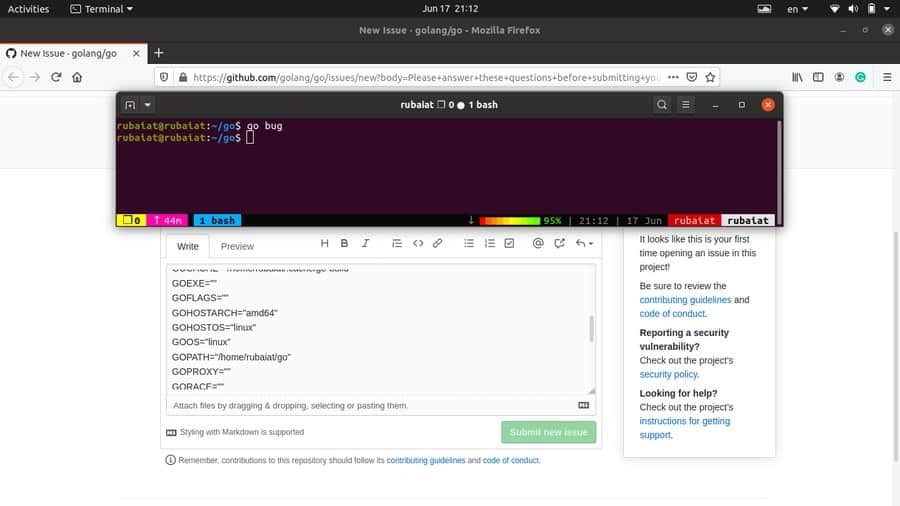
$ go bug
When you run the above command, it will open your default
browser and create a bug report in Go’s official GitHub repository.
It will add all essential information such as system information as
well as go configurations.
12. Reformat Package
Sources
The Go runtime makes formatting extremely convenient for
developers. You can simply fire up your Linux code editor[6]
and start writing code without thinking about indentations or
alignments. Once done, use the below go command to format your code
according to Go’s recommendation.
$ go fmt [packages]
$ go fmt server.go
The second command formats the server.go file. You can also pass
in a directory containing a bunch of go files to format them all.
Go will use tabs for indentations and spaces for code
alignments.
13. Manage Modules
All Go commands have pre-built support for modules. Modules in
Go are nothing but a collection of multiple go packages. The
go.mod file contains all third-party packages for a Go
application. You can easily create this file by using the following
command.
$ go mod <command> [arguments]
$ go mod init app
This command will create a go.mod file for our custom
app package. It will contain the module name as well as the go
version information. The mod utility takes various other commands
apart from init. Type the following to view the
available options.
$ go help mod
14. Generate Go
Files
Golang allows developers to create or update Go source files by
using directives within existing sources. The generate command is
used for doing this. Although generate is meant for creating or
updating Go files, it can be used to perform other tasks as
well.
$ go generate [-run regexp] [-n] [-v] [-x] [build flags] [file.go... | packages]
When you run go generate, it will look for directives of the
following format in your go source files.
//go:generate command argument...
Generate will run the command once it finds the directive inside
your go source. Note that there can be no spaces before or within
“//go“.
15. Upgrade Package
Dependencies
Earlier, we showed how to install or update packages using the
go get utility. However, when working on larger projects, you will
often need to update your package dependencies. The following
command updates all Go packages that are in your GOPATH.
$ go get -u all
However, you should use different GOPATH for different projects.
It will make sure that updating packages in project A wouldn’t
break project B. You can also upgrade a package to a specific
version by using the suffix ‘@‘.
$ go get [email protected]
[7]
16. Test Package
Upgrades
Once you have completed upgrading, make sure that all of your
old projects are working flawlessly. You can use the following
simple command to do this from your terminal.
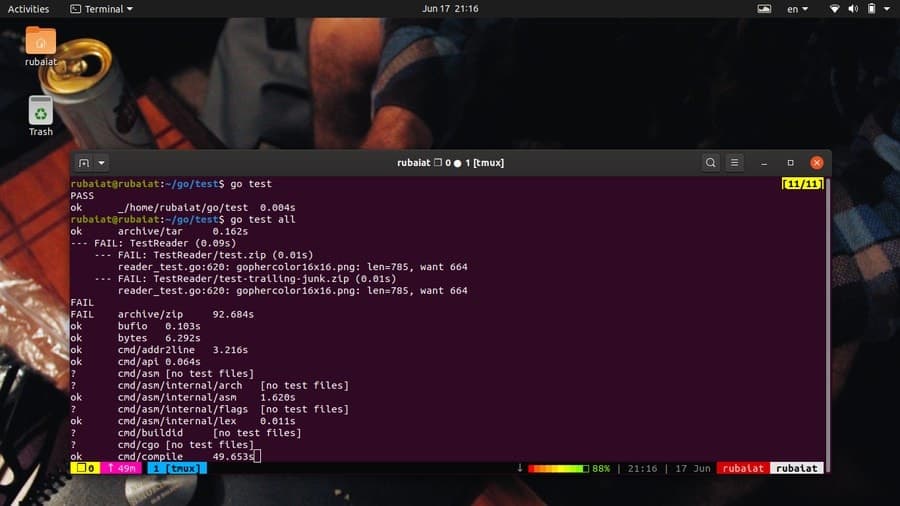
$ go test all
This command will check whether the applications are working as
expected after the package upgrades. You can also test a single
project by specifying the import path of the project.
$ go test app/
This will display summarized information on the test
results.
17. Find Mistakes in
Packages
Go provides a flexible tool for catching unsuspected errors or
mistakes in your source file. The go vet command uses heuristics to
find suspicious use of constructs, which often lead to actual
errors. The below command vets the package that is in the current
directory for such errors.
$ go vet
You can also specify the packages using the import path, as
shown in the below example.
$ go vet app/
Use the below command to find more information on vet and its
available options.
$ go doc cmd/vet
18. Download Modules to
Cache
You can download Go Modules to your local cache. This is very
useful when working on larger projects and will make app updates
easier over time. The command for this looks like below.
$ go mod download [-x] [-json] [modules]
Simply pass the module name, as shown below.
$ go mod download example-project/app
Since Go version 1.11, the downloaded modules are stored in
$GOPATH/pkg/mod. The -x options
display which commands will be executed by mod download. The
-json flag prints a set of JSON objects describing
the downloaded module to the terminal output.
19. Maintain Module
Dependencies
The go mod tidy command allows us to add missing dependencies or
delete unused modules. This go command helps in maintaining module
dependencies and keep your applications as lean as possible. Simply
run the following simple command to do this.
$ go mod tidy [-v]
Make sure to run this from your project’s root directory. You
can check the go.mod file to see which dependencies were added or
deleted. The -v flag, if used, causes tidy to
display which modules were removed to the standard error.
20. Create Vendored Copy of
Dependencies
Go allows developers to create a vendored copy of the module
dependencies. This simply resets the main module’s vendor directory
and include all the packages that are required to build or test
packages that are in the main module.
$ go mod vendor [-v]
The above command makes a vendored copy of the main module’s
dependencies. If you use the -v option, it will display the names
of the vendored modules and packages to the system’s standard
error.
21. Verify Module
Dependencies
Programmers can easily verify whether all the dependencies of
the current modules have the expected content or not. The “go mod”
verify command checks that if any dependencies in the local cache
have been modified since download. The command takes the below
format.
$ go mod verify
The above command will print ‘all modules verified‘ if
the module dependencies are unmodified. Else, it will report which
modules have been changed and cause a non-zero exit. This simple
tool can help developers determine the integrity of their
dependencies.
22. Display Why Packages/Modules
are Needed
You can see why certain modules or packages are required in your
application. This is useful if you are working with someone else’s
code or are trying to figure out what certain things do in a
specific project. The “why” command of the mod tool allows us to do
this.
$ go mod why [-m] [-vendor] packages...
$ go mod why golang.org/x/text/language golang.org/x/text/encoding
The first one is the general syntax, and the second one is an
example. It prints out why the language and
encoding packages are required in your application.
23. Disassemble Go
Binaries
If you are using Go for systems programming or intensive
applications like games, you will need to analyze your executables
from time to time. Go provides a set of tools for analyzing
binaries. In this example, we will look at the objdump command. It
disassembles go executables and works like the Linux objdump
command.
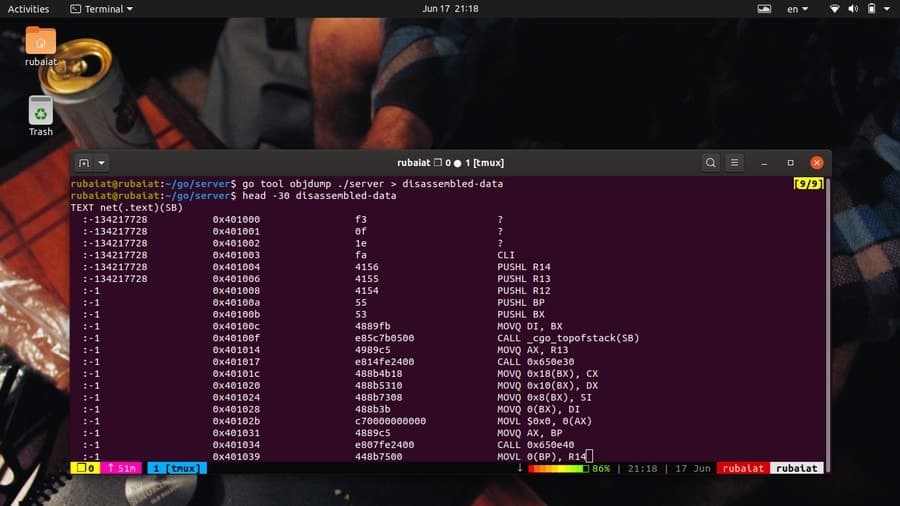
$ go tool objdump [-s symregexp] binary
This is supported syntax for objdump. You need to use the go
tool utility to use objdump. The below command disassembles a go
binary named server.go.
$ go tool objdump ./server
You can limit the disassembly to specific symbols by using the
-s option. It will only disassemble the symbols whose name matches
symregexp. You will usually want to save the
output for detailed inspection.
$ go tool objdump ./server > disassembled-data
24. Display Exported API for
Packages
You can easily display the APIs exported by a set of Go
packages. You will need to use the api tool of the go command to do
this. Take a close look at the below command to see how this
works.
$ go tool api
This will print out the APIs for your go packages in the
standard output. Redirect the output to a file if you want to save
the output of this command.
25. Use Go Assembler
Go comes with an in-built assembler that lets developers
create object files from assembler
source[8] code. Although you will
rarely use assembly with go, having the ability to do so doesn’t
hurt. Simply write the assembly code inside your go package. You
can then invoke the go assembler, as demonstrated below.
$ go tool asm test.s
$ go tool asm new-test.asm
Usually, systems programmers use assembly to increase the
performance of a critical section of code. Even go implements some
portion of the math package using assembly, such as the pi
computation.
26. Print Build ID of
Binaries
The build id of an ELF binary is a unique representation of the
build information. Go provides a simple utility for displaying this
information directly from your terminal. See the below example to
see how this works.
$ go tool buildid server
This will print out the build-id of the binary executable named
server. This is created when you generate the binary via go build
or other build tools. You can match it with the output of the file
command. Run the below command and look for the Go BuildID
section.
$ file server
27. Use the CGO Tool
One major feature of Go is its interoperability with C
codebases. You can use C codes inside Go sources and vice versa.
You can then generate the binary by using the usual go build or
install from the root of your package. Alternatively, you can use
the cgo tool of the go runtime.
$ go tool cgo [cgo options] [-- compiler options] gofiles...
$ go tool cgo app/ccode.go
Consult the below documentation to see which options are
available to cgo.
$ go doc cmd/cgo
28. Use Go Compile
By default, the go build or run command does not create object
files. You can use the compile utility of the go command to
generate an object file. It will only work when you use go tool, as
illustrated in the below example.
$ go tool compile server.go
This command create a binary executable called server as well as
an object file named server.o. The compile utility also offers a
plethora of useful functionalities. You can check a detailed
overview of compile by running the following command.
$ go doc cmd/compile
29. Use Go Dist
The dist utility allows developers to bootstrap, build, and test
the go runtime from their terminal. It has the following
syntax.
$ go tool dist [command]
Some of the available commands are banner, bootstrap, clean,
list, env, and version. You can find a list of all supported
commands by running the following.
$ go doc cmd/dist
For example, the following snippet prints the Go installation
banner using the dist tool.
$ go tool dist banner
Use the below command to list all supported platforms for Go. It
will display a JSON output indicating the OS, Architecture, and CGO
support.
$ go tool dist list -json
30. Use the Gofmt
Tool
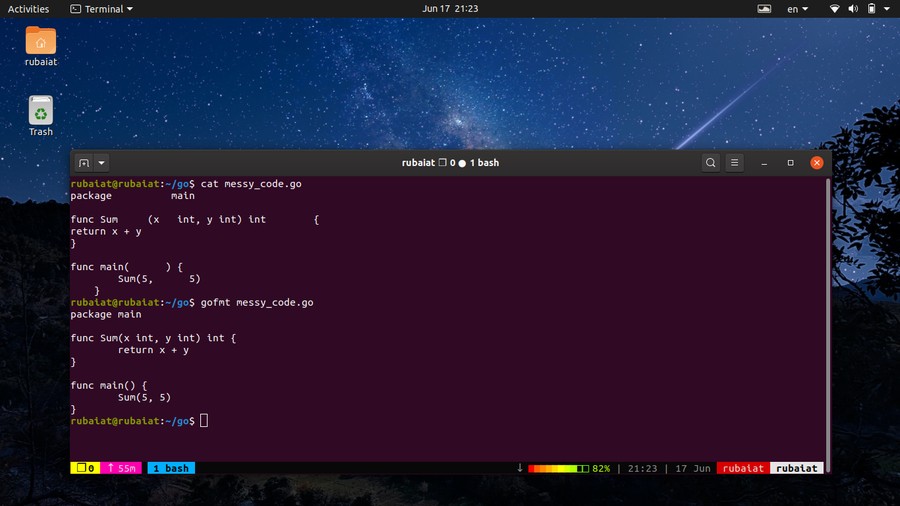
Gofmt is another one of Go’s source formatting utility. It works
quite similar to fmt. In fact, when you use go
fmt, it calls this under the hood. Gofmt has the following
syntax.
$ gofmt [flags] [path ...]
For example, the below command will reformat the source file
test.go and print it to the standard output. If you give a pathname
instead of a filename, gofmt will try to reformat all .go files
inside that directory.
$ gofmt test.go
Contrary to fmt, gofmt does not write back the changes to the
original file. You will need to use the -w flag
for doing so. Use the following command to get a list of all
available flags.
$ go doc cmd/gofmt
31. Use the Link
Tool
The Link utility reads the go archive or object for a package
main and creates a binary executable containing all of its
dependencies. It is invoked using go tool and has the below
syntax.
$ go tool link [flags] main.a
For example, the below command will combine the server.o file
with its dependencies and spit out a binary.
$ go tool link server.o
Link supports a large number of flags that allow developers to
manage or control the build process. You can find a detailed list
of them by running the following command.
$ go doc cmd/link
32. Print Symbol
List
You can print the list of symbols contained in an object file,
archive, or executable by using the go nm tool. Symbols are simply
names of global objects such as methods used by an object file. The
syntax of this command is shown below.
$ go tool nm [options] file...
$ go tool nm server.o
The output prints each symbol in a new line. They are separated
by three space-separated fields, representing the address, type,
and symbol name. You can view the list of symbol types from
this page of the Go documentation. The
options include size, type, sort, and n. [9]
33. Manage Go
Archives
Go allows developers to create, modify, or extract archives. The
go tool nm allows us to do such binary operations. It is a basic
simulation of the traditional ar tool in Unix. The syntax for this
command is shown below.
$ go tool pack op file.a [name...]
The op stands for operations. Pack permits several operations,
including creating an archive, adding to the archive, and
extracting.
$ go tool pack r server.a server.o
This command appends the file server.o to the archive server.a.
You can see the list of all available OP codes by running the
following command.
$ go doc cmd/pack
34. Display Profiling
data
Go comes with excellent profiling support. If you are developing
resource-intensive applications or programming for low-spec
machines, profiling will help you increase performance
significantly. The pprof utility of the go command allows us to
display and interpret profiling data.
$ go tool pprof binary profile
$ go tool pprof ./app cpu.prof
You can work with both CPU and Memory profiles. Moreover, pprof
also allows developers to analyze profiling data remotely over the
web. Although starting Go programmers may find the API a little bit
complicated, we found the performance gain to be worth the learning
curve.
35. Display Trace
Files
Go provides excellent concurrency support via goroutines.
However, we often see developers writing concurrent code that
hardly benefits their programs. This happens due to ineffective
parallelization, which causes latency, contention, and other
performance issues. Thankfully, you can use the go trace utility
for visualizing how your goroutines are working.
$ go tool trace trace.out
This command will display the trace file trace.out for a given
program, which can be generated in multiple ways. You can use the
go test command,
runtime/trace.Start, or the
net/http/pprof package for creating a trace file
for your application. Check out this link to learn
more[10] about this.
36. Convert Test Output to
JSON
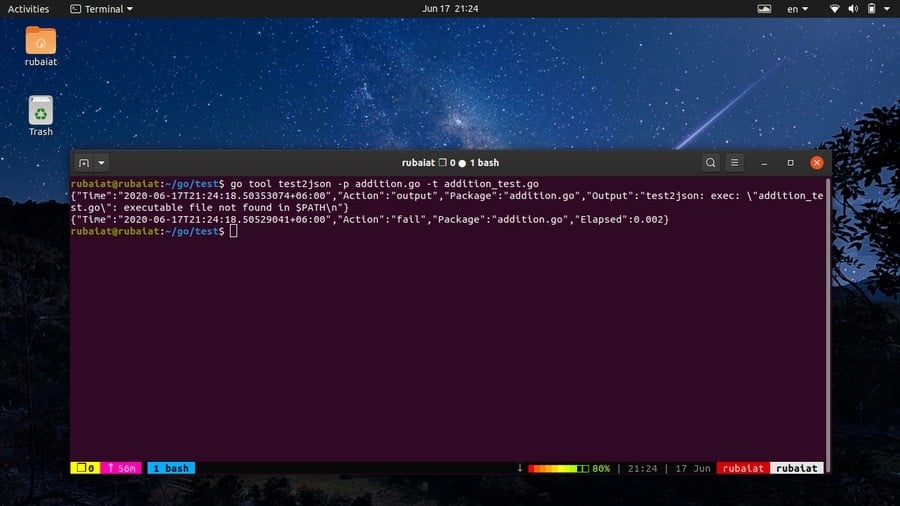
The go command-line utility provides an effective way to convert
test output to JSON. You can save this JSON output for later
inspection or may use it for further processing. The below command
shows us how to do this by using the test2json utility of
Golang.
$ go tool test2json [-p pkg] [-t] [./pkg.test -test.v]
$ go tool test2json -p example.go -t example_test.go
The first line contains the syntax for the
test2json command, while the second one is a
working example. It will display the JSON output directly to the
console. You can save this data easily by using a simple
redirection.
37. Use the Addr2line
Tool
Go provides a minimal simulation of the GNU addr2line tool by
means of the go command addr2line. It translates addresses to line
numbers in your program. It can be really beneficial to systems
programmers and debuggers.
$ go tool addr2line binary
When invoked this way, this command will read hex addresses. For
each address, it displays the function name and line number
corresponding to that address. You can find more information on
this tool by using the following command.
$ go doc cmd/addr2line
38. Display Help
Page
The help page of go contains summarized information of standard
go commands. It is useful for quickly looking up the usage and
syntax of everyday commands. You can invoke the help page by
running one of the following simple commands.
$ go help
$ go --help
Moreover, you can also print information for a specific command
by using the below syntax.
$ go help <topic>
$ go help install
39. Display Go
Documentation
Go provides in-depth documentation for the runtime utilities as
well as standard commands. These are extremely useful if you want
to master the fundamentals of Golang and learn the best practices.
You can invoke the documentation in one of the following ways.
$ man go
This will print out a basic manual for Go. However, go provides
individual manuals for each command. You can find out detailed
information for a specific command by running the following.
$ man go-<topic>
$ man go-install
To access documentation for various go tools, use the go doc
command. The below command displays the documentation for the go
link utility.
$ go doc cmd/link
40. Display Version
Information
Golang is a relatively new language, and thus it is very common
to have differences across various releases. Many features are not
available to older go versions at all. So, you need to make sure
that your go installation meets the requirements for certain
features.
$ go version
The above command will show you which version of the go runtime
is installed in your machine. You can use this to make sure your
code works the same on the production environment as it does on
your development machine.
Ending Thoughts
Golang is enjoying massive popularity due to its robust feature
set and performance. Tech giants like Google and Netflix are using
Go to build their flagship applications. One of the primary reasons
behind Go’s continuing popularity is its standard toolchain. The
standard utilities are often more than enough for even the largest
of projects. And they are easily accessible by means of simple go
commands. In this guide, we have outlined all the major commands
needed to increase your go expertise as well as workflow.
Hopefully, they will help you become a go master in no time.
References
- ^
Top 20
Most Popular Programming Languages To Learn For Your Open-source
Project (www.ubuntupit.com) - ^
this section of the Golang
website (golang.org) - ^
Linux
command-line tools. (www.ubuntupit.com) - ^
favorite
Linux text editor (www.ubuntupit.com) - ^
Linux
terminal emulator (www.ubuntupit.com) - ^
Linux
code editor (www.ubuntupit.com) - ^
[email protected]
(www.ubuntupit.com) - ^
create
object files from assembler source
(www.ubuntupit.com) - ^
this page of the Go documentation
(golang.org) - ^
Check out this link to learn
more (golang.org)
Read more https://www.ubuntupit.com/go-command-examples-for-aspiring-golang-developers/