As software supply chain security becomes more and more crucial,
security, DevSecOps, and DevOps teams are more challenged than ever
to build transparent trust in the software they deliver or use. In
fact, in Gartner recently published their 2022 cybersecurity
predictions – not only do they anticipate the continued expansion
of attack surfaces in the near future, they also list digital
supply chain as a major rising attack surface and one of the top
trends to follow in 2022.
After all, any software is only as secure as the weakest link in
its supply chain. One bad component, any malicious access to your
development environment—or any vulnerability in your software’s
delivery life cycle—and you risk your code’s integrity, your
customers, and your reputation.
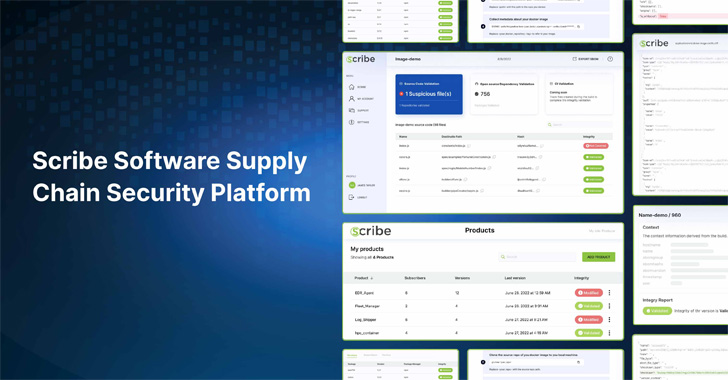
Scribe
Security[1] recently launched a new
platform that claims to address these urgent needs by enabling its
users to build trust in their software across teams and
organizations. According to Scribe Security, SBOM is a best
practice that is expected to become widely required and used to
mitigate software supply chain risks. With that in mind, they
decided to take the lead and become the first vendor to introduce
the concept of a Hub for security evidence about software products
and have launched a friendly and easy-to-use platform.
Our team recently explored Scribe’s platform in more detail.
First things first
Scribe’s platform: What you need to know before diving in:
- Free and easy to use: Scribe’s platform offers
a complete self-serve experience. It is easy to implement and use,
as it is plugin and CLI-based. And finally, you can start with a
freemium, no strings attached. - Software security evidence hub: While most
other Software Supply Chain security solutions ignore the need to
make software products’ security transparent to customers, buyers,
and security teams, Scribe’s platform introduces a hub for security
evidence. As such, the platform supports a workflow for sharing
SBOMs across or within enterprises. A number of insights will soon
be added to the platform so stakeholders will receive ongoing
updates about the software they use. One such insight, CVEs, is
already included, allowing both the software producer and the
people they share their security insights with to see what CVEs are
present in each new release. An interesting experimental feature of
the platform is the ability to validate software integrity and
share that evidence with stakeholders.
To facilitate this product review, the team at Scribe Security
gave us access to the latest version of their platform. Here’s what
we found:
Getting Started
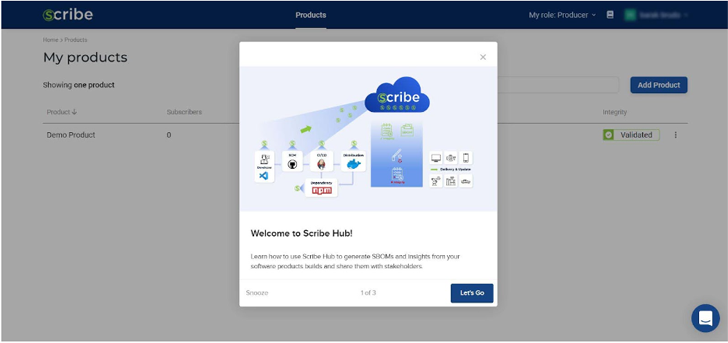
Using the Scribe platform, software producers can gain
visibility into their pipelines and artifacts and choose software
consumers—subscribers—for each pipeline. Let’s say I’m a software
producer interested in trying the service. This is the first screen
I see. Each part of the interface is explained and illustrated.
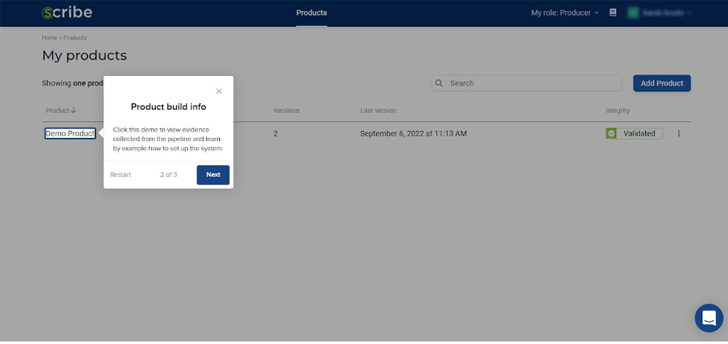
Notice that even when you first start there is already a demo
product you can use as an example of how the Scribe platform works.
You can either play around with the existing demo product or you
can add a new product of your own.
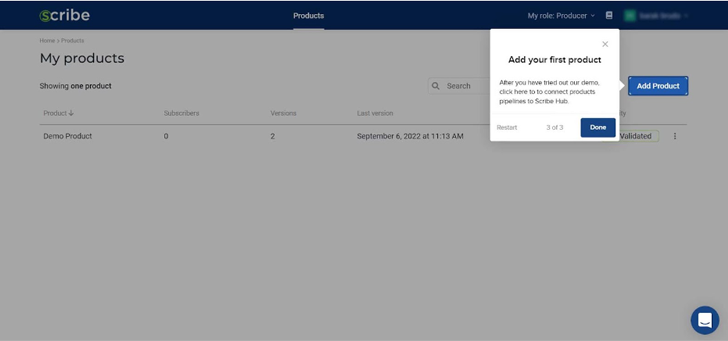
The highlighted ‘add product’ button on the top right allows you
to add new products. For each new product, you’ll get the 3 needed
secrets: Product Key, Client ID, and Client Secret. You’ll also get
a link to the integration explanation of your choice; currently,
you can choose either GitHub, Jenkins, or a general CI option.
We’ll cover that in more detail in a bit.
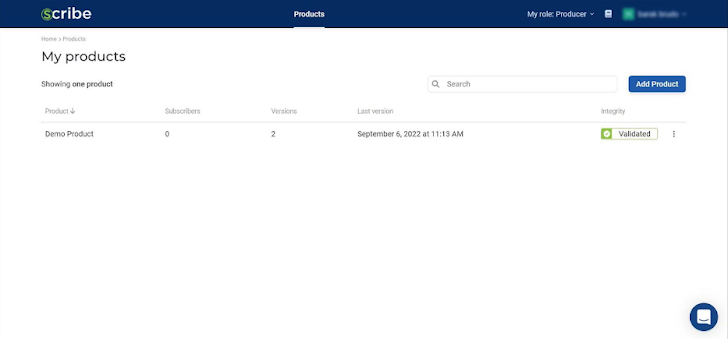
Using this example product, I can test what the platform can
offer.
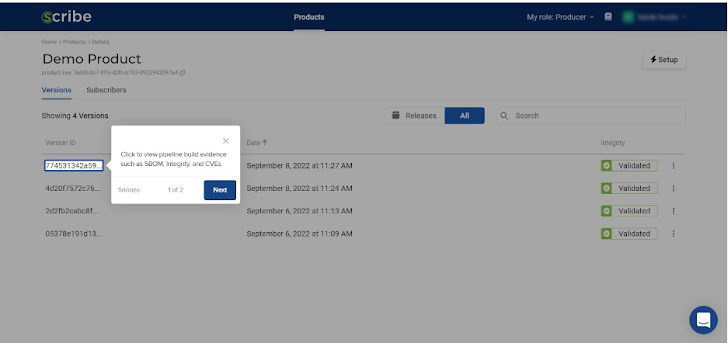
By clicking on it, I can see the product builds that have
already been uploaded. With the intention of testing out the
platform’s interface, I started with one, and created several more
after.
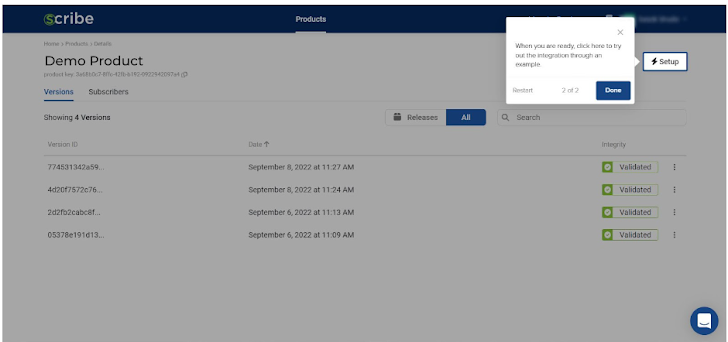
The highlighted ‘Setup’ button on the top right gives you access
to the current product information.
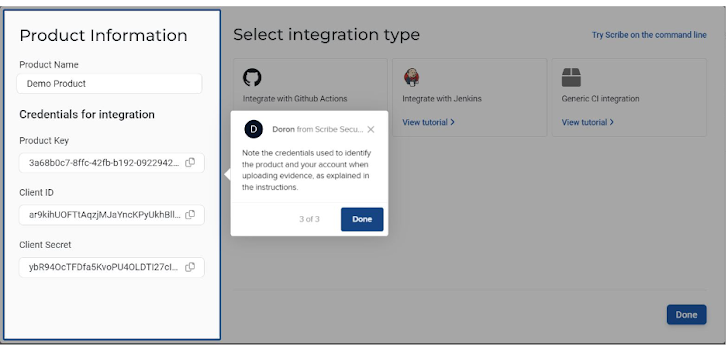
You can see the 3 product secrets, Product Key, Client ID, and
Client Secret, just in case you lost them or forgot them.
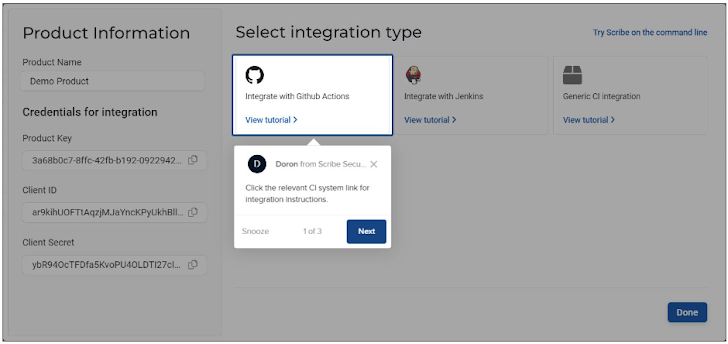
You also get access to the integration instructions, so if you
changed your pipeline you can now see how to integrate the Scribe
tool into your new pipeline.
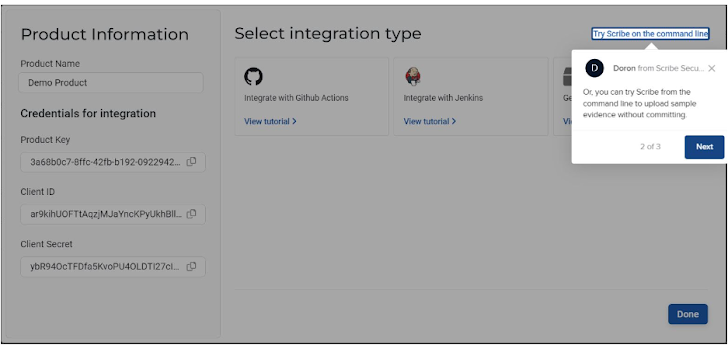
What caught my attention was a link at the top right stating
‘Try Scribe on the command line’, so I decided to click on it to
see what would happen.
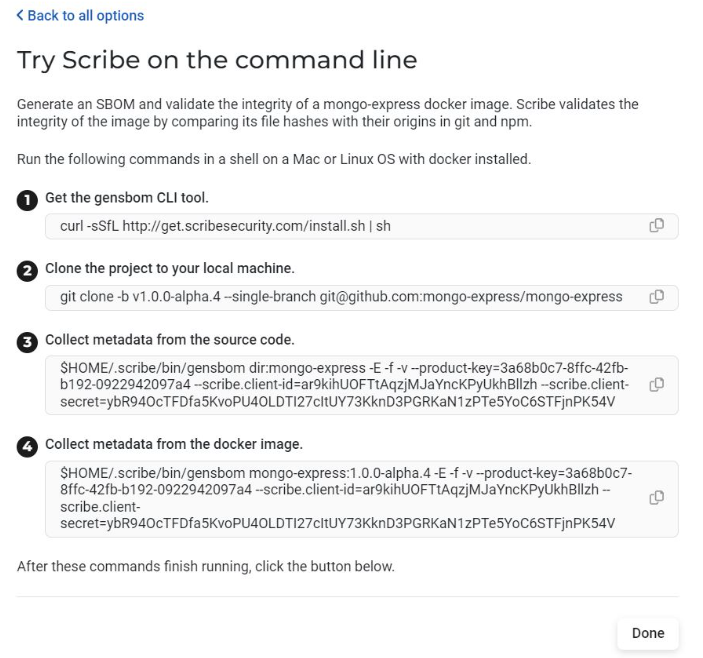
As you can see, the platform displays the full CLI commands when
you click ‘Try Scribe on the command line’. The whole truth is
revealed. Using the CLI, I simply had to replace the default
project (mongo-express) with the sample project I wanted to
try.
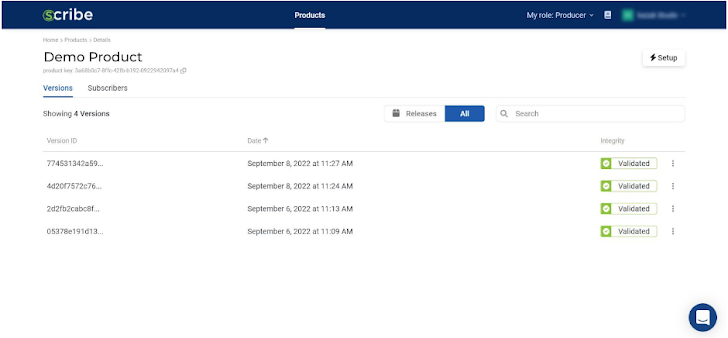
Looking at all the software builds I’ve added to this product,
you can see the date and time they were created and know if they
were validated in terms of file integrity. The three dots at the
end of each build allows you to ‘release’ a build—make it visible
to the software consumers, or subscribers, you have defined for
this product. It also allows you to download the build’s SBOM.
It was pretty easy to add additional projects. The only thing I
had to do was go back to the main project page and click on ‘Add
Project’. Once you’ve played around with the sample product you can
go ahead and add a new one of your own. The screen you get is
identical to the ‘setup’ screen except it gives you the secrets to
a brand new product, while the ‘setup’ screen gives you the
information for the existing project where it’s located.
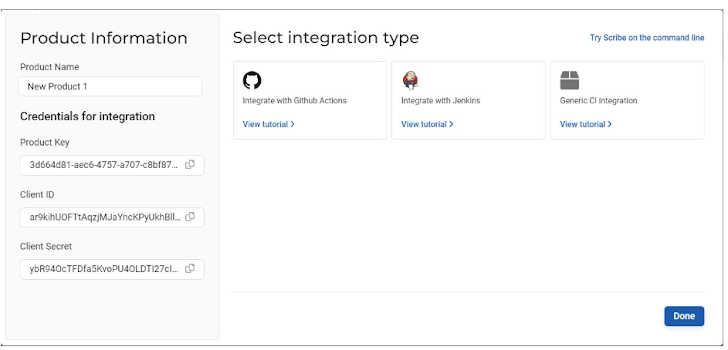
It’s really simple to use—all I had to do was enter the name of
the new project. Bear in mind that there will not be much to see
until I upload builds or pick subscribers for this new project.
Credentials are what connect my product pipeline to the Scribe
platform: Product Key, Client ID, and Client Secret. The Client ID
and Client Secret are valid for all my future projects while the
Product Key is unique to each project.
As soon as I have all the information, I can configure my
pipeline to gather the required information and upload it to the
Scribe platform.
According to its documentation[2], Scribe currently
supports GitHub, Jenkins, and other CI pipelines.
All explanations were very straightforward. As part of my
pipeline, I was asked to include two collectors: The first collects
information about the hashes of source code files, and the second
collects information about dependency hashes. While the first
collector is optional, the second one isn’t. Skipping this step
will result in a blank report since the image SBOM is generated by
the second collector. As of the version I tried, the Scribe
platform supports Node.js and npm for integrity and provenance
validation. As part of this review process, the Scribe team also
informed me that they plan to expand their offering in the near
future.
Once I have configured the pipeline, the technical part is done.
With this pipeline, every time I create a new build, evidence and
SBOM are uploaded to the Scribe platform, then processed and
presented as part of the My Products page.
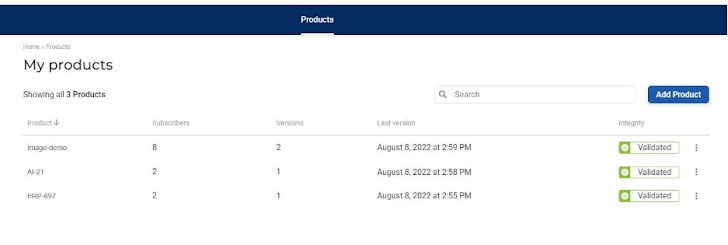
This is where things got interesting for me—the various options
available to me on the Scribe platform’s main page. First, I
noticed that I can always add another product (top right, blue
button). There is no limit to the number of products (or pipelines)
I can manage.
The information I can see for each product includes its name
(the one I chose, not necessarily the one used in the pipeline or
SCM), its subscribers, versions, and last build version date, as
well as whether its integrity was validated.
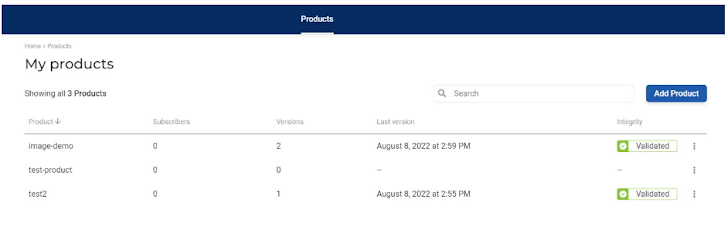
In the above image, the test-product line has
no details since no build has been made for it and no subscribers
have been added. Only after my pipeline has uploaded some data will
Scribe’s platform be able to show me anything about that product.
Data upload only occurs when a new build is initiated, so you’ll
need to trigger a build to see anything in the Scribe platform.
It’s a bit annoying if you weren’t planning on building a new
version just yet, but I understand their reasoning.
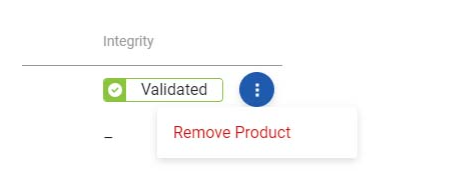
The three dots at the end of each line allow me to remove a
product if I so choose.
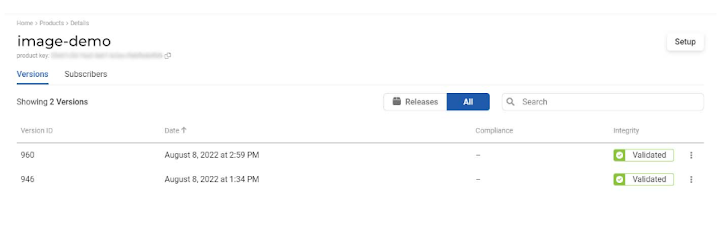
After clicking on a product line, I was directed to the specific
product page. All the builds uploaded for that product are listed
here along with their information.
I can decide which of the existing versions (if any) can be
released by clicking the three dots at the end of each line. When I
publish a version, the subscribers I’ve added to that product will
be notified of a new release and able to see information related to
that release.
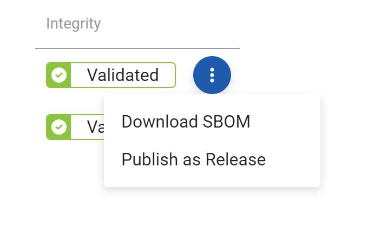
The same menu allows me to download SBOM for that build so I can
access it immediately.
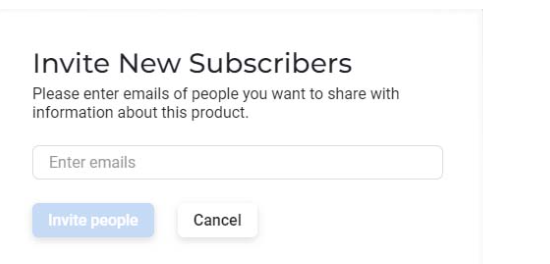
Above the product key you can see that there is a
Subscribers tab in addition to the Versions
tab.
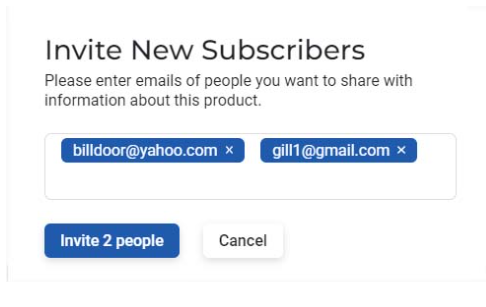
The next step was to navigate to the
Subscribers tab, where I entered new subscribers’
email addresses to invite them to join. Yes, it’s that simple.
There was no limit to the number of emails I could enter.
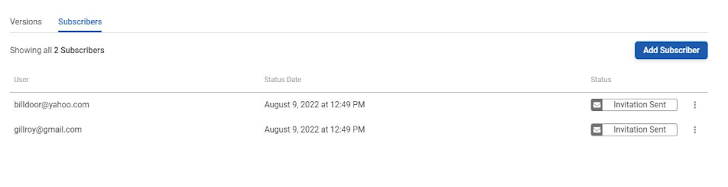
Now that I have some subscribers I can manage them on this
page.
My task was to test the system, so I added two fictitious
subscribers and the invite was sent. The three dots at the end of
each line allow you to resend the invite or revoke it. There is no
easy way to define a shared list of subscribers for multiple
projects since subscribers are managed per product.
Integrity report and SBOM
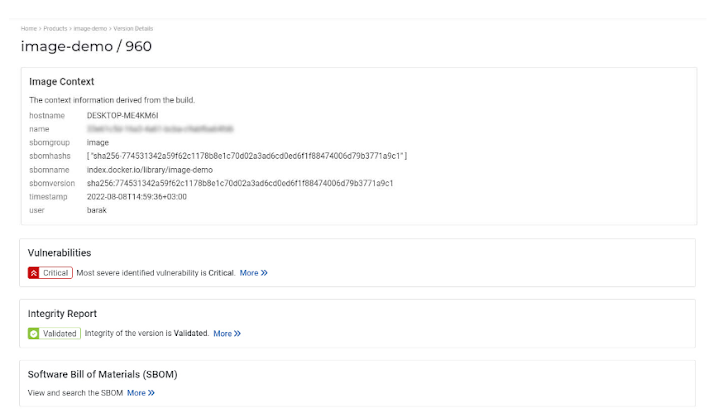
When I clicked a version line on the single product page, I was
taken to the build version page. There you can find all the context
metadata about that specific build, as well as links to the
integrity report, vulnerabilities report, and the SBOM.
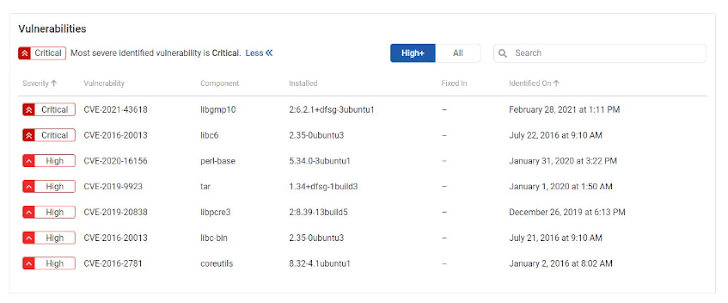
After clicking the More link in the
vulnerabilities section, we can see the vulnerabilities found in
this image with the CVE designation and severity. The worst CVEs
are designated as critical. You have a filter on
the top right allowing you to see only the High severity CVEs and
up, or choose to see all of the CVEs. You can also use the search
bar to look for a specific CVE you think might impact your
build.
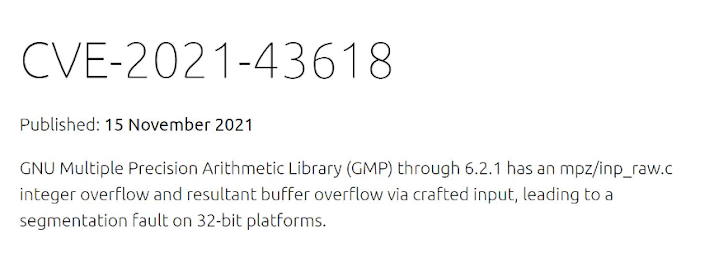
Clicking on a CVE will take you to the CVE’s details as they
were reported, including remediation information if it exists.
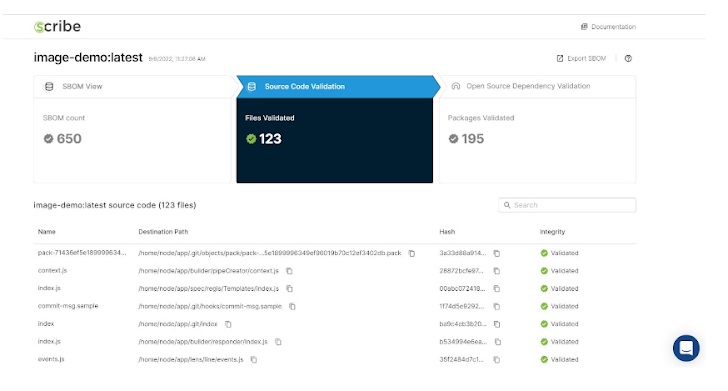
The More link in the Integrity Report section
takes you to the full report. I and all my subscribers have full
access to this report and can export the SBOM which represents the
report’s underlying data.

I can reach the SBOM data from the previous page as well by
clicking the ‘more’ link in the SBOM section.
With the integrity report, I can easily see the validation of
the source code (middle top box), assuming I have included that
collector in my pipeline. Additionally, I can see the validation of
my open-source packages (right top box) based on the second
collector I’ve included.
I can also search for a specific package, such as log4j, if I’m
so inclined. The search option is separate for your source code and
open-source packages. Remember to switch to the appropriate report
section at the top of the page, depending on what you’re looking
for.
If you are a software producer, keep in mind that you are in
full control of what you share and when. No one is obligated to
release or share a build with a less-than-perfect report; only the
versions you choose to release will be shared with that project’s
subscribers.
Subscriber’s point of view
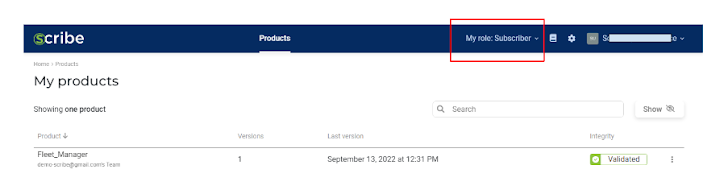
A user that was invited to subscribe to a product signs up as a
subscriber role after accepting the invitation.
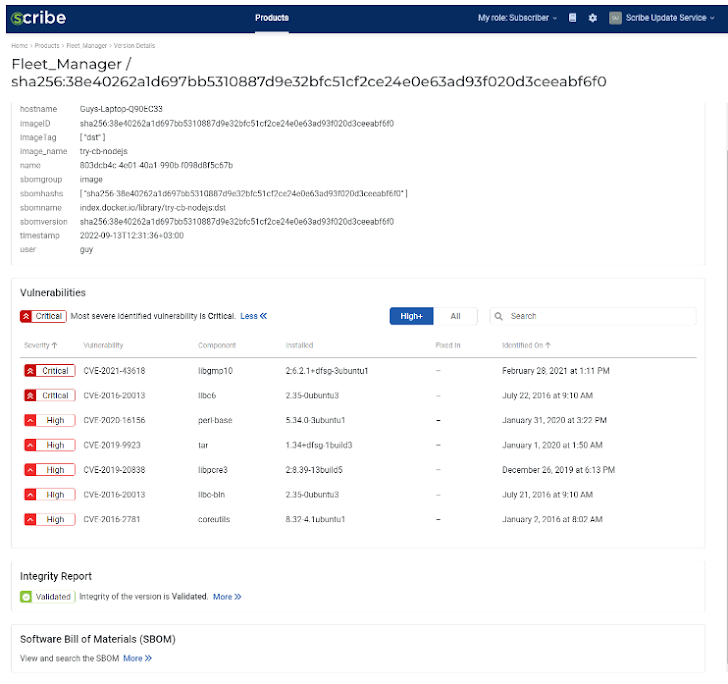
The subscriber then gets a transparency report about the product
and updates about CVEs (and other future insights)
Evidence store for builds
Every time you run a build you get a new version, a new
integrity report, and a new SBOM. This information can be found on
the Scribe platform product page.
It operates as a repository for past security data and evidence
store for your product where you can always go back and check
previous versions. Your product will have a sharable evidence trail
with provenance information about your source files (if you
included that collector) and dependencies.
Any subscriber can access every version of the product
retroactively, so you don’t need to compile lots of reports and
SBOMs. If you are audited or want to share that information for
other reasons, simply add a new subscriber’s email to that product
and they will have access right away.
Conclusion
Providing an attestation store and sharing hub for product
builds’ security information, this product is solid and
interesting. Clearly, a lot of thought went into it and it’s
definitely a great step forward. So when (it’s no longer a question
of if) you need to generate, manage and share SBOMs and
related security insights for your software products you should
give it a try.
The Scribe team plans to add vulnerability alerts and
product/pipeline security policy validation in the near future. In
my view, these additions will enrich the platform and make it even
more valuable.
References
- ^
Scribe Security
(scribesecurity.com) - ^
documentation
(scribe-security.netlify.app) - ^
Visit the Scribe website
(scribesecurity.com)
Read more https://thehackernews.com/2022/10/scribe-platform-end-to-end-software.html