ZIP is the most popular and effective archive file format.
It is compatible across any platform, including Linux, Windows, and
other UNIX based operating systems. As it is widely used, you will
frequently come across zip files. And you need to know the ways to
deal with zip files very well to work with them. If
you are a beginner in Linux and don’t know how to zip and unzip
files on Ubuntu, this brief and easy tutorial is for you. In this
tutorial, I am going to show you all the available ways (both
command line and the graphical user interface) to zip and unzip
files on Ubuntu Linux.
Zip and Unzip Files on
Ubuntu
For this tutorial, we are using Ubuntu 18.04 LTS version[1]. Though the tutorial
will work exactly the same for any version of the Ubuntu. For the
task, we need to check whether our system has a pre-installed zip.
Most of the time, it is installed. If the software is not there,
you can install it by the following command. Open the
terminal and run the following command:
sudo apt install zip unzip
This command will install the necessary programs for the
task.
1. Zip Through the Command
Line
Use the zip command to zip files from the terminal. You
need to write it in the following way:
zip zipname file1 file2 file3 ... fileN
The parameter zipname is the name of your zipped
file. The files are serially written one by one with a single
space. You can zip an unlimited number of files. To
better understand, look at the below picture.
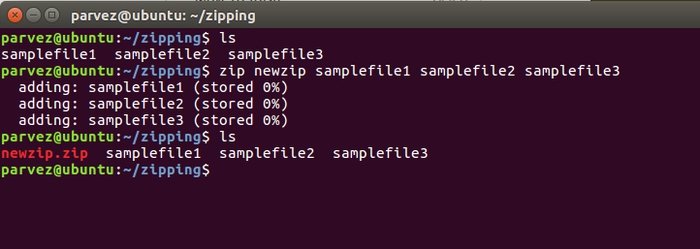
Here, all three files -samplefile1, samplefile2, and
samplefile3 are zipped into the newzip.zip folder. You
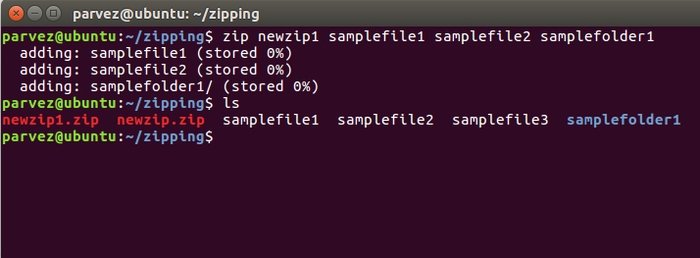
can also zip folders alongside with files using the following
command:
zip zipname file1 file2… fileN folder1 folder2… folderN
The command will be executed in the same way as before. Here, we
zipped two files with a folder into the newzip1.zip file.
2. Zip through the
GUI
You can zip using the graphical user interface. Linux
systems provide an excellent GUI interface for more simple
operation. First of all, go to the directory of the
files you need to zip. Then select the files with pressing ctrl and
right-click the mouse to see the below options. Select compress for
this purpose.
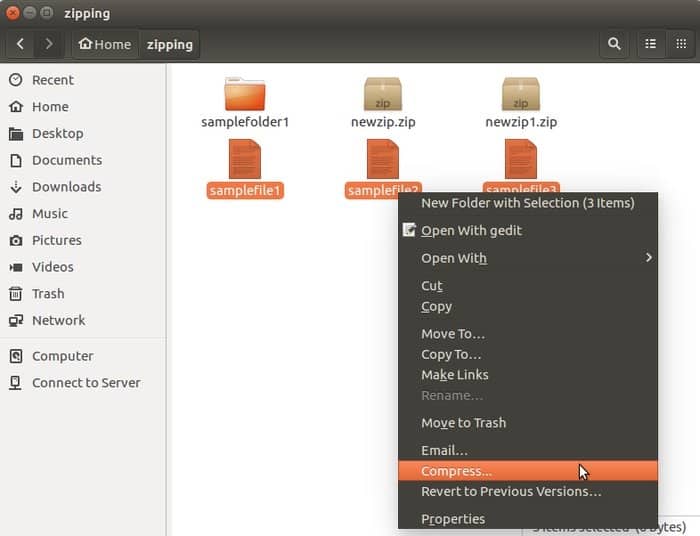
After clicking the below window will pop up.
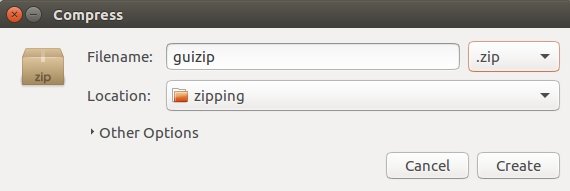
Here you name the file and select the type of compression.
There are other formats like .tz,.gz,.rar, etc. For this
task, we select the .zip format[2]. You can select the
location of the file.
3. Unzip through the Command
Line
To unzip a zipped file, go to the target directory. Then you
simply need to use the unzip command. See below-
unzip zipname
Here, zipname is the name of your zipped file.
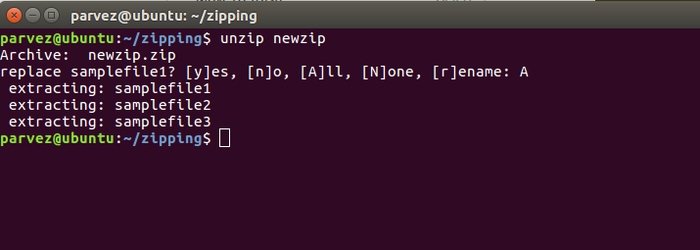
Here you will get options like replacing files. This is
because we are extracting the zip file into the same folder with
the files. You should enter A to extract all if you
want to extract the files into another directory. Write the command
in the following way:
unzip zipname -d directoryname
Here you should specify the name of a directory following
the -d command.
4. Unzip through the
GUI
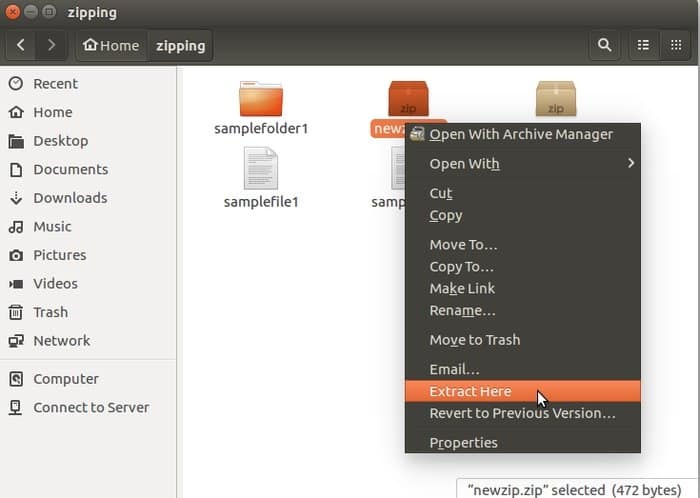
To graphically do this, you should go to the folder where
the zipped files are kept. Select the file and do exactly what
specified below-
5. Unzip .gz Files
In Linux systems, you find many files are archived in .gz
format. In Ubuntu, you can also extract that type of file. Just use
the following command-
gunzip filename.gz
gunzip works with other archive formats, including
z, .Z, .taz, .tgz, _z, and more. Just put the name of the file
after the command, and you will get the file extracted.
6. Unzip .rar Files
To unzip .rar files, you need an unrar package installed on your
computer. First, install it with the following command-
sudo apt-get install unar
The given command will unzip .rar files
unrar filename.rar
To extract it to a selected directory use the following-
unar -o ./directoryname filename.rar
7. Unzip .tar.gz
Files
The other popular archive file format is .tar.gz. You can unzip
them in the terminal too. First, uncompress the .gz file with
gunzip command-
gunzip filename.tar.gz
Then write the following command-
tar xvf filename.tar
If your system has GNU tar, you can extract the file
directly by a single command-
tar zxvf filename.tar.gz
8. Unzip .7z Files
For unzipping .7z files, you need to install p7zip first in your
computer. To do so, execute the given command on the terminal.
sudo apt-get install p7zip-full
This command lists the content of the file-
7z l backup.7z
Now, write the following command to extract the file-
7z e backup.7z
9. Unzip Using Python
Script
If you don’t want to install anything to extract files, you can
use scripts to do that. Ubuntu’s scripting language Python comes with all the required
modules that offer unzipping functionality. The following script
can be used in unzipping a zip file. [3]
#!/usr/bin/env python3
import sys
from zipfile import PyZipFile
for zip_file in sys.argv[1:]:
    pzf = PyZipFile(zip_file)
    pzf.extractall()
Then run the following command to run this script and unzip your
files-
python3 pyunzip.py filename.zip
10. Unzip Using Perl
Script
Perl is also a scripting language for Linux and offers similar
modules like Python above. This simple Perl script will allow you
to unzip files. Just put on the following-
#!/usr/bin/env perl
use Archive::Extract;
foreach my $filepath (@ARGV){
        my $archive = Archive::Extract->new( archive => $filepath );
        $archive->extract;
}
Then write the following command to extract your zip files-
perl perlunzip.pl filename.zip
Final Thoughts
With this, we come to the end of the tutorial. Here we
tried to describe every possible way on how to zip and unzip files
on Ubuntu. The command-line utility is more useful when you are
working with a remote server. The GUI format is simple and
accessible for the right context menu to make the windows and macOS
users more at home on Linux.
If you don’t want to install anything more to unzip files,
you can also write Python or Perl scripts to do the job. We
provided the scripts for that task. This is convincing while you
are developing something that requires you to embed the unzipping
functionality with the environment.
That’s all for the procedure of zipping and unzipping
files and folders on Ubuntu. I hope the tutorial is sufficient for
learning the whole thing. If I miss anything regarding the issue,
please let me know in the comments. Happy Learning!
References
- ^
23 Best
Things To Do After Installing Ubuntu 18.04 and 18.10
(www.ubuntupit.com) - ^
.zip
format (en.wikipedia.org) - ^
The 30
Best Python Courses and Certifications in 2020
(www.ubuntupit.com)
Read more https://www.ubuntupit.com/how-to-zip-and-unzip-files-on-ubuntu-linux-an-ultimate-guide/