LAST UPDATED ON:
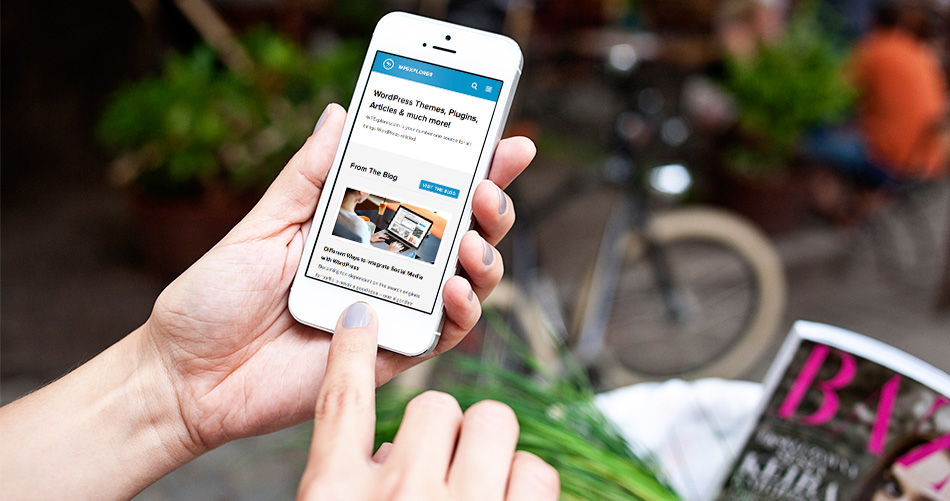
Why make an app in the first place, I hear you ask? Apps might not be very useful for marketing anymore, but they’re quite convenient for your customers – giving them more of a choice as to how they interact with your site. With the continued rise of mobile internet – more people now access the internet via mobile apps than desktops – apps are blossoming, as most are nowhere near as awkward or problematic as mobile web browsers.
The cost and frustration involved in building one has gone far down, too. In the old days, a lot of businesses were interested in apps, but most weren’t able to build them because it was simply too difficult. But thankfully, things are different now. You no longer need much money or coding knowledge to build a competent app. Let’s explore them, shall we?
A Note on Free App Builders
Over the last few years, a ton of free options for building an app have shown up, but one of the easiest is Adobe’s PhoneGap Build. As their site advertises you simply upload your HTML5, CSS and JavaScript files and the site will do the work of assembling them into an immediately-downloadable app. Best of all, it can build three simultaneously for Android, Windows 8 and iOS – saving you plenty of time.
The result won’t be anything too fancy. In fact, all this method really does is disguise your homepage as an app. When the viewer taps the icon, they’ll just be taken to the same mobile website they’d see if they were to access it via their phone’s browser. So, in order for this method to be effective, you have to have an existing site that’s optimized for mobile viewing. That’s why our first step is to…
Make Sure Your WordPress Site Has a Mobile Version
If your WordPress site isn’t optimized for mobile devices, there’s really no point in this. So optimize it! Of course it’s easiest to simply use a mobile responsive WordPress theme like Total. But if your theme isn’t responsive there are plenty of plugins that can help.
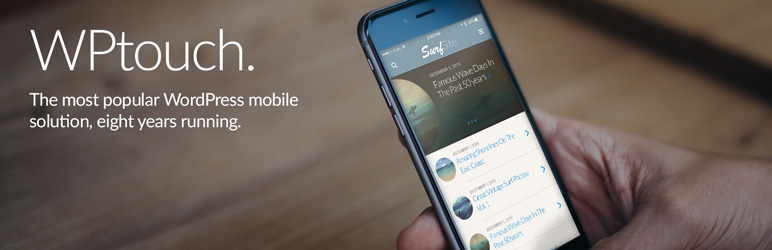
WPtouch and iThemes Mobile will both let you create simple but effective mobile themes based on your current site design. The administration panel lets you customize most aspects of their appearance without having to mess with the code.
Any Mobile Theme Switcher is a basic plugin that will detect the device your viewer is using and display a specific theme for that device. So if you want to balance multiple themes – one for each mobile OS – you can do it that way.
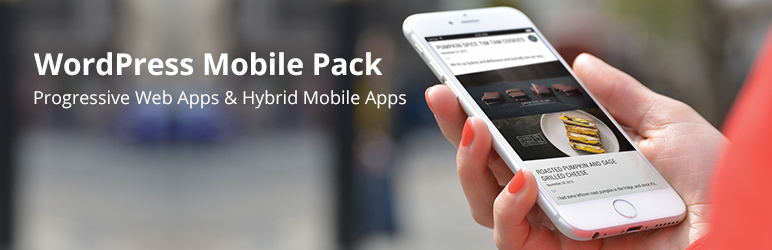
Finally, there’s the WordPress Mobile Pack, which offers a host of cross-platform mobile web applications, UI and theming options, and easy integration with Google Analytics.
Use PhoneGap Build to Create an App
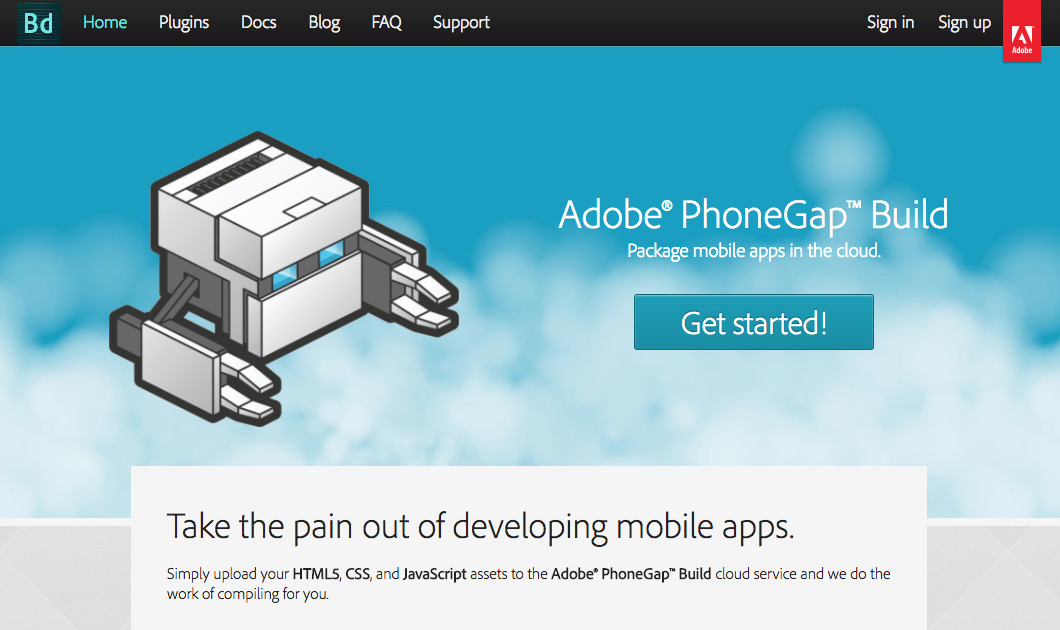
Now you can get started with Adobe PhoneGap to actually create an app for your WordPress website.
1. Preparation
Before you start make sure you have a way to test your app on hand. You can use browser dev tools to imitate mobile device views, or try a service like CrossBrowser Testing. But if you can manage it really is best to have an iOS and an Android device on hand.
Next, head over to Adobe’s PhoneGap Build and click on the giant “completely free” plan button to create a free Adobe account (or sign in with your current logins) to get started. The free plan allows for a single private app (which uses a private Github repo) or unlimited OpenSource apps (public Github repos) up to 50MB in size. So, if you’re only making one app the free plan should work fine.
Though it’s worth noting if you’re an Adobe Creative Cloud member you get tons more with PhoneGap Build. You’ll be able to create up to 25 private apps, and you can create apps up to 1GB. If you’re a web designer or developer we highly recommend getting a Creative Cloud membership anyway since you’ll always have the latest versions of PhotoShop, Illustrator, etc plus a free online Adobe Portfolio. It’s a must have toolkit item in our opinion. But back to the point, let’s move on to the next step in creating your app.
2. Create App Files
Your root directory needs to contain key files for PhoneGap to create your app. Specifically your index.html, config.xml and a res directory folder (that last one is where you’ll add your default icon and OS-specific icons).
You can download the example PhoneGap Hello World template to see how the structure works. If you open it up, it’ll look like this:
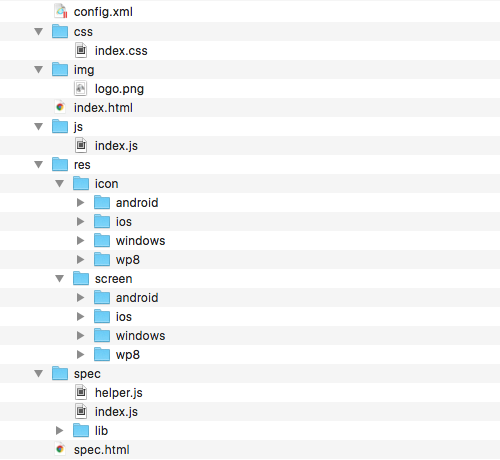
So as you can see, your two core files will be the config.xml and index.html with added folders for CSS, images, JS and the res folder we mentioned.
Next, you’ll need to make the icons to go in your res folder. You can use any image processing or vector program for this, as long as the result is a .jpg or .png larger than 1000×1000 pixels.
IconsFlow is a great tool to help you create professional app icons quick using preset images, colors options, gradients, etc. Just design your icon, create a free account and download your files. If you already have an icon but need it resized for all devices and operating systems, the free App Icon Maker can do just that. But if you do a quick Google search you’ll find there are plenty of other websites, services and apps to choose from to create your icon.
3. Configure Your App
The config.xml is your app’s configuration file which controls most of the app’s functions. It works across all platforms, so you don’t have to worry about modifying it for any specific OS. Here’s the sample provided in the PhoneGap docs:
<?xml version="1.0" encoding="UTF-8" ?>
<widget xmlns   = "http://www.w3.org/ns/widgets"
    xmlns:gap   = "http://phonegap.com/ns/1.0"
    id          = "com.phonegap.example"
    versionCode = "10"
    version     = "1.0.0" >

<!-- versionCode is optional and Android only -->

  <name>PhoneGap Example</name>

  <description>
      An example for phonegap build docs.
  </description>

  <author href="https://build.phonegap.com" email="support@phonegap.com">
      Hardeep Shoker
  </author>

</widget>
For your app, you’ll be including general widget information (reverse domain id, version and version code for Android), name, description, author, and platform (but only if you want to specify a single platform – leaving this out means all 3 platforms will have apps created). A much more thorough guide than I can provide through this article can be found in the PhoneGap Docs.
4. The Actual Build
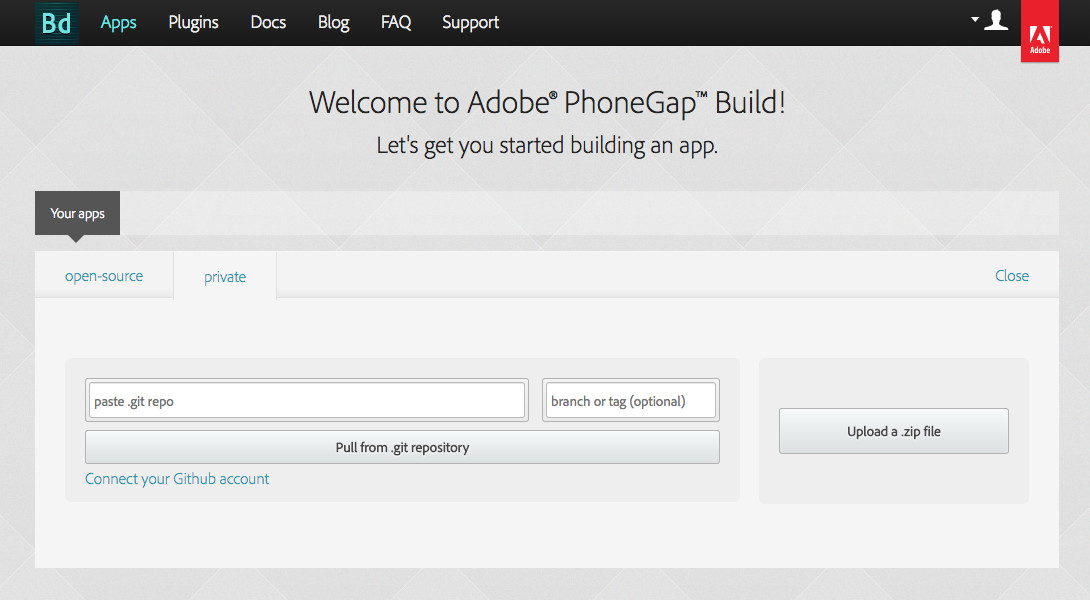
Go to the PhoneGap Builder website and sign in. You’ll be presented with the empty apps screen. With your structured zip file on hand you should know what to do next: upload it via the button to the right.
Alternatively you can connect your Adobe account to your Github. The advantage to this is being able to pull from your repositories, but it’s up to you. IN any case – click one of the two big buttons to start the process.
The program will analyze your data and present you with a screen showing the details of your app-to-be. All you have to do from there is click ready to build, and it’ll get to work.
An important note: PhoneGap Builder can only work with iOS if you’ve joined the iOS Developer program (which was priced at $99/yr when this article was written) and provided your certificates. With the program’s software, you can actually build the app there yourself. But the reason we’re using PhoneGap is so we can save time by doing all three at once – negating the need to do any separately. So yes, you’re paying for a bunch of services you have no intention on using, but if you want your app on any iProducts, they kind of have you over a barrel here.
Testing Your App
With your app done and ready to go you can test it by clicking the icon to download a specific app platform it to your device. Or, you can navigate to the app’s public page on an Android/iOS device and download it from there, then install it from your downloads file. If the app’s icon doesn’t show up, you’ve probably got the URL wrong in the config.xml file. Fix it, re-upload and rebuild.
If everything’s OK though, test the app, play around with it and put it through its paces. You shouldn’t have to spend too long on this because, after all, it is your own website. But if something’s gone wrong and you need to rebuild it, then update the files in your GitHub repo, go to the app page in PhoneGap Builder and click on update code. If this doesn’t work, try rebuild all.
Alternative App Builders
In addition to iOS’s tools, there are plenty of other app-building services and plugins you can use, many of which will also build, at least, an Android app at no cost.
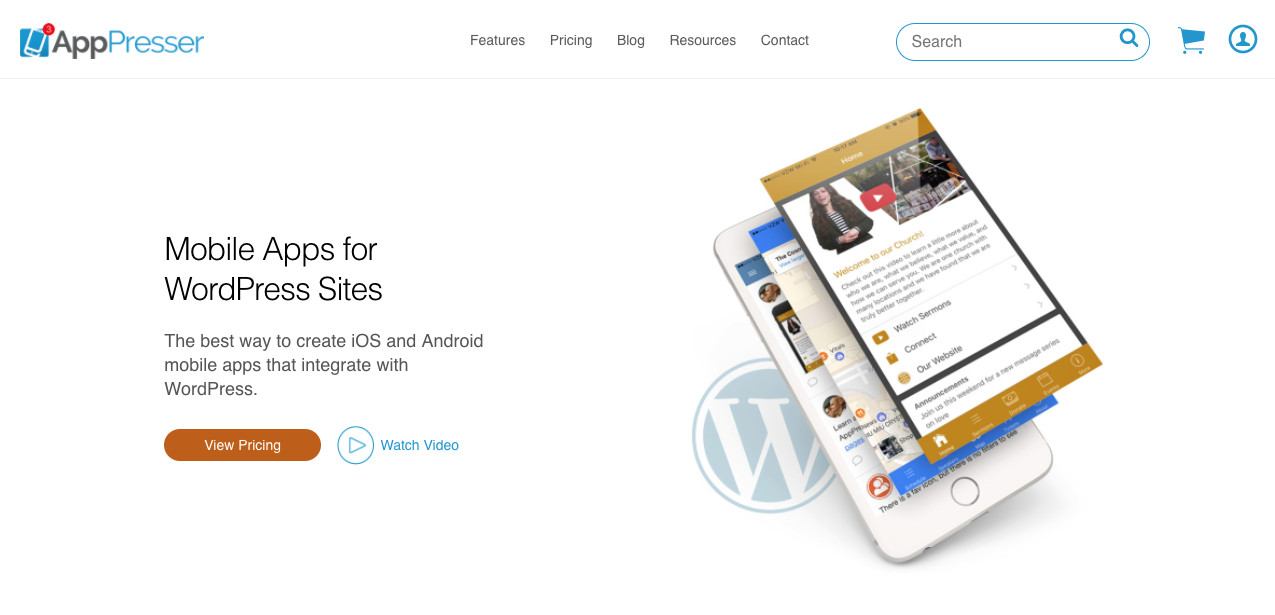
AppPresser is the biggest, the most popular and supposedly the first mobile app Framework for WordPress. It offers full integration: where most app builders only use a feed from your WordPress site, AppPresser lets you use all your plugins, posts and pages. In addition, it automatically updates the app as soon as you make any edits to your site. It features full support for e-commerce, too.
WP Webapp is a WordPress plugin that does roughly the same thing as the PhoneGap method above, but easier, with some extra bells and whistles. You don’t have to go through the trouble of messing around with your folders or editing the config file. There are two other levels, Pro and Enterprise, that offer things like one-click install, splash screens and installation for up to 25 websites.
Finally, there are a bunch of people you can pay to do it for you. However, with so many easy and affordable ways to DIY, you don’t really need to go that route for a basic app.
There are a ton of ways to build an app, and although it seems intimidating at first glance, the above methods make it incredibly simple. Just make sure you have a good mobile website to start with, okay? Now let me have it. Did I get anything wrong here? Are there any other methods I should know about? Feel free to leave your feedback below!