Pentaho data integration tool is a business analysis tool that
is used for data integration in data analysis. Business
intelligence (BI) is mostly run over data integration, data
analysis, and data visualization, where data is
provided from an input source and gets divided into many parts for
various operations like joining, merging, and manipulation. Data
integration is the process of collecting, connecting, and
processing data. [1]
Data can be used in different types. Raw data, live data, data
from the database and any source of data can be used for data
synthesis. The database runs on Structured Query Language (SQL),
where Pentaho data integration also requires a sound knowledge of
SQL.
Open-source data integrating tools are available for Business
intelligence (BI) and data visualization processes. There are
several open-source data integration tools such as Clover
ETL, Pentaho, Karma, Pimcore, Skool, Myddleware, Talend Open
Studio. Among them, PDI is the most used and
user-friendly data integration tool. It has a smart and balanced
graphical user interface (GUI). PDI is mostly used for data
processing, which can also be used with the Hadoop file system
(HDFS).
For online analytical processing (OLAP) and data visualization,
it’s very much important to handle data carefully and manipulate if
necessary. For these kinds of work, Pentaho data integration is a
handy tool that can be run in almost every operating system.
Today, we are going to see how to install the Pentaho data
integration tool properly on Ubuntu. We are using Ubuntu as a
common platform, but other distributions of Linux like Kali, Mint,
Red Hat, Lubuntu, etc. are also compatible with Pentaho.
The Pentaho data integration tool requires the 1.8 version of
Java. If any other version of Java is running inside your system,
you have to uninstall them and re-install java 8. You need to make
sure that you have java 8 installed as default.
Step 1: Checking Java
Version
To check the current java version of your machine, go to the
terminal and type the terminal command given below. This will show
your current java version if you have any java installed
already.
java -version
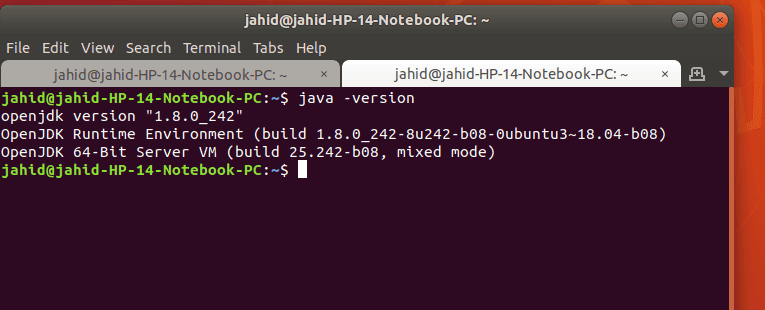
If your machine doesn’t have any java installed, it will show
you the basic command-lines of how to install Java from the
terminal.
Step 2: Installing and Configuring
Java 8
If you have the required version of Java, which is 1.8, you are
good to go! But if you don’t have the required version of Java,
please follow the command-line in the terminal to install java 1.8.
If you have the higher version of Java installed in your system,
first you have to delete that. To do so, type the following
command-line in your terminal.
sudo apt remove openjdk-11-jre-headless openjdk-11-jre openjdk-11-jdk-headless openjdk-11-jdk
To install java 1.8 here is the terminal command-line:
sudo apt install openjdk-8-jdk
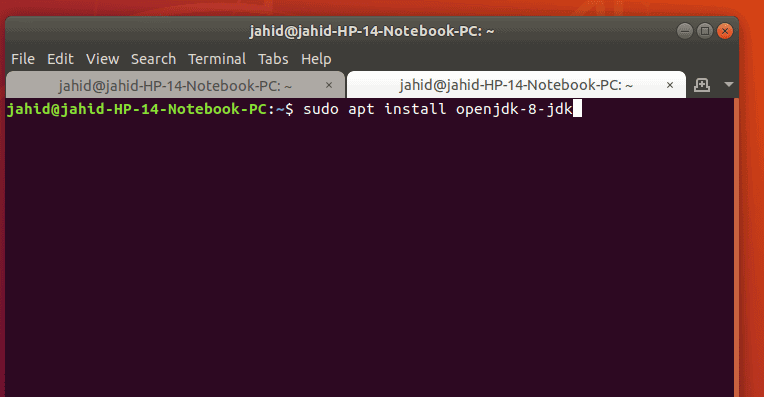
After installing Java 1.8, make it your default version of Java.
For that, follow the command-line in the terminal.
sudo update-alternatives --config java
sudo apt install default-jre
Step 3: Downloading the Pentaho
Data Integration Tool
After installing and configuring Java, now you are ready to
download the Pentaho Data Integration (PDI) tool. The download link
is given below. It’s almost a 1.5Gb compressed file.
Pentaho Data Integration Tool
Download [2]
After the download is finished, extract the compressed file. And
then, you will find the file folder of PDI looking like the picture
below.
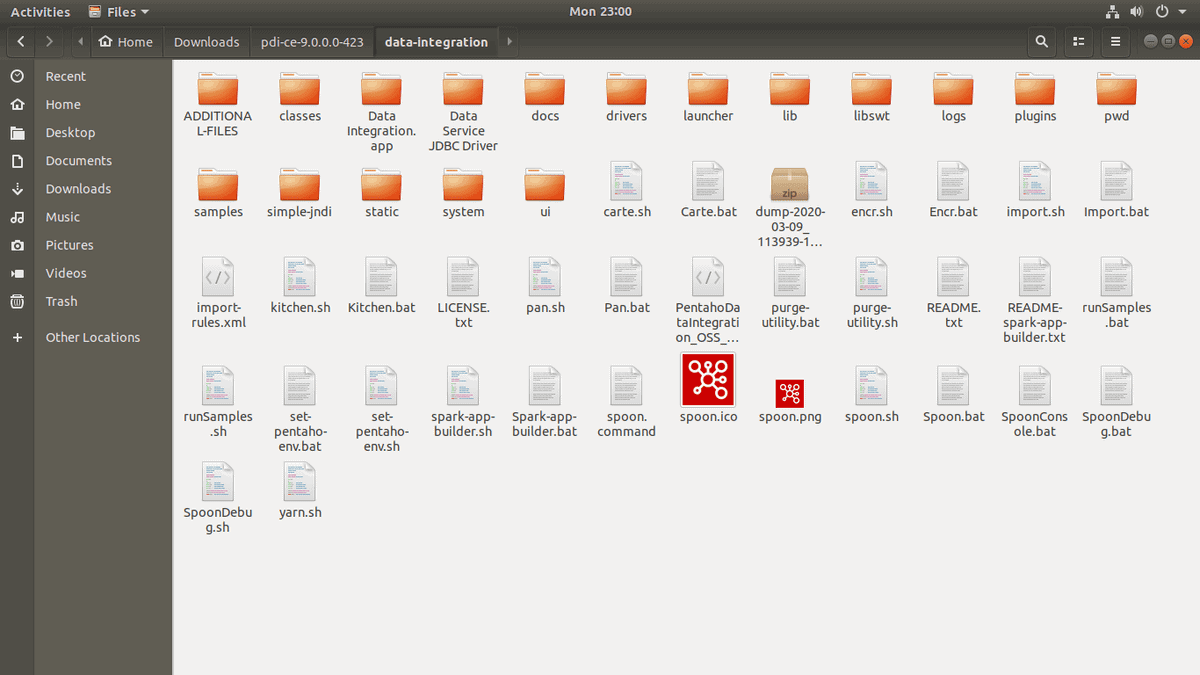
Here, inside the PDI folder, you have to find the
spoon tool, which will be run to open the PDI.
Now, the time has come to discuss the spoon tool. With the help of
Java, the spoon runs the Pentaho data integration tool inside your
machine.
To run the spoon tool, go inside the Pentaho data integration
folder, right-click anywhere inside the folder and select ‘open
with terminal’. Once the terminal is opened, it will be
looking like this:
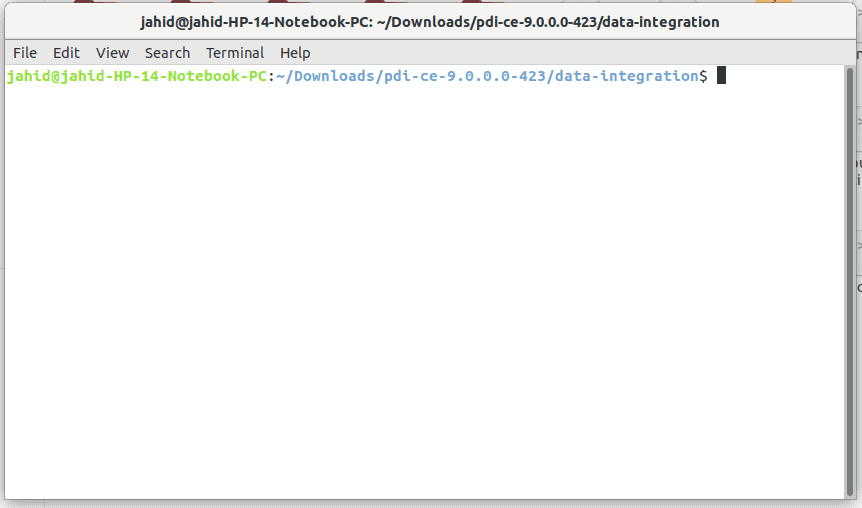
Then type sh spoon.sh and hit the
Enter button. There you go! Pentaho data integration tool is
opening!
It will run Java in your system, and simultaneously a pop-up
window will be shown in your screen indicating that the PDI is
opening. Your display should look like the picture given below.

Step 4: Setting up Pentaho
Data Integration Tool for First Time Use
Here, You are almost done installing Pentaho data integration in
your machine. Now you are ready to use! Pentaho data integration
allows you to connect databases, upload CSV files, run SQL
operations, and much more stuff. Today we will be showing how to
send e-mail from Pentaho data integration.
Mostly, Pentaho data integration allows sending e-mails for the
purpose of reporting the current progress of work. PDI also allows
attaching files via email to the client end of Pentaho data
integration. To send an email from the Pentaho data integration
tool, you need to get access to permission from the e-mail service
you’re using.
For example, if you are using Gmail, you need to get permission
from Gmail. For that at first, you have to log in into Gmail, then
under security setting; there you need to grand the access of ‘Less
secure apps access.’

Now let’s back to the Pentaho data integration tool! At Pentaho
data integration window, you will find two primary options, they
are:
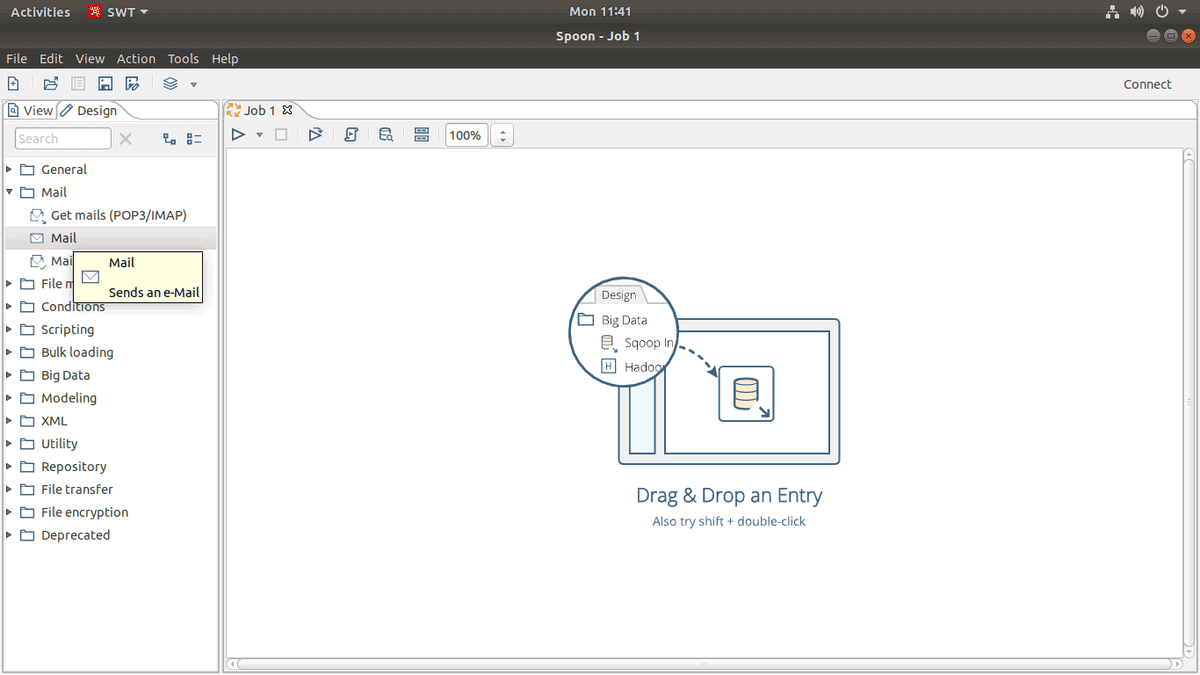
After clicking on Jobs, under Jobs, you will find the ‘Mail’
option. Now you have to drag and drop the mail function at the left
window, as shown in the picture below.
After that, in Pentaho data integration at the top, you will
find a search bar, type ‘Start’ and you will find an object named
‘Start’. You have to drag and drop that too at the left blank
window. In the same process, you have to drag and drop the
‘Success’ button in the same window. The alignment of those 3
buttons inside the window will be,
Start > Mail > Success
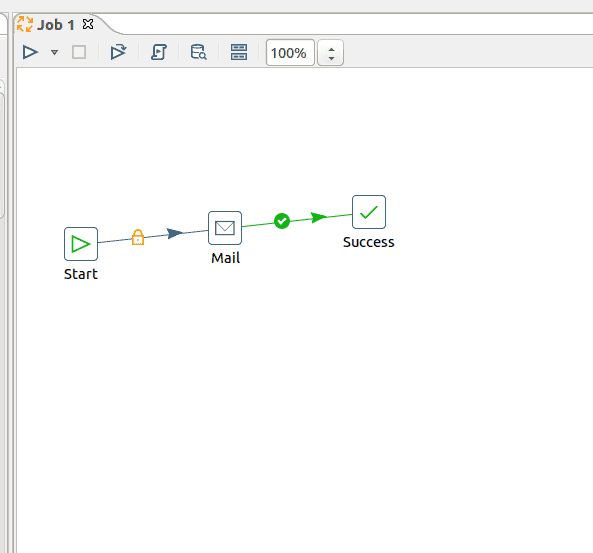
Now it’s time to connect the 3 buttons with each other inside
the Pentaho data integration tool. For that, you need to hold your
‘Shift’ button from your keyboard and click the first object you
want to join with the next object, holding shift and dragging the
mouse cursor will make the buttons interconnected. After this, you
have to set up the ‘Start’ function settings. For that double click
on ‘Start’ function, it will open a dialogue box where you will
find the setting options.
The primary settings guide of email sending in Pentaho
data integration is given below with examples.

Under the ‘Address’ column, the settings will
be:
Destination address: This address will be the email
address where you want to send an email from Pentaho data
integration. If you have more than one email recipients, just use a
comma(,) between two emails. You may also use Cc and Bcc if you
want.
Sender Name: It’s your email address which has the
permission of ‘Less secure apps access’
Under ‘Server’ column the settings will
be:
SMTP Server: smtp.gmail.com(for Gmail service)
Port: 465
Checkmark the authentication, then the
Authentication setting will be:
Authentication user: It’s your email address that has
the permission of ‘Less secure apps access’. Put the email
inside Pentaho data integration.
Authentication password: Password of your Authentication
e-mail. Then checkmark ‘Use secure authentication’.
Secure authentication type: SSL
Under the ‘Email Message’ column, the settings
will be:
Include date in message? : Checkmark
Use HTML format in mail body: Checkmark
Encoding: UTF-8
Subject: Subject of your email
Comment: Body of your email.
After finishing this setup there, you will find a column named
‘Attached Files’ if you want to attach any file with your email you
have to set up this column as well. Pentaho data integration allows
users to attach a file with email.
Now save this PDI file in your machine, the file extension will
be file_name.ktr
Here,
.ktr is the kettle file extension of Pentaho
kettle. After the file is saved and everything is perfect, click on
the ‘Start’ button, which will initialize your Email job. It will
check your PDI settings and will send the email to your
receiver.
If everything is done successfully, you will get a successful
message, as shown below in the picture. If there happens something
wrong, you will get the error message on the screen. After fixing
those errors trying again will reach you to success.
Finishing Touch
Here you are at the finishing stage of this post. In this post,
we have discussed the fundamentals of PDI. We have seen the process
of avoiding java error and how to set a java version as default. In
the middle of this post, we have discussed the settings of the
email button of PDI. And at the bottom, we have discussed the email
vendor settings and user end settings.
Pentaho data integration is a business intelligence (BI) tool
for data integration that has a special feature of sending emails
to clients. It has many more features for data analysis. If you
have anything to share with others about data integration tools or
have anything to ask related to this post, you’re welcomed to ask
in the comment section below.
References
- ^
The 20
Best Data Visualization Tools Available in 2020
(www.ubuntupit.com) - ^
Pentaho
Data Integration Tool Download
(sourceforge.net)
Read more https://www.ubuntupit.com/how-to-install-pentaho-data-integration-pdi-tool-on-ubuntu/