If you are a database engineer or data analytics, I
am sure you have already heard the name of Anaconda Navigator and JupyterLab. Both are Python interpreter used to code python
for database handling. Indeed,
the use of Python for
data science is now no longer a choice rather obvious.
Python has a vast library and syntax for
data visualization and data output. Now
here, confusion arrives when you want to learn Python. Still, you
can’t understand which distribution of Python you should select and
which Python IDE[2][3] (Integrated Development Environment) is helpful for database management. [1]
Anaconda Navigator and JupyterLab both are
the open-source distribution of Python. If you’re a Linux user and you are used to the command
prompt or terminal for Python, I’m sure you’re looking for a simple
but effective environment to write python where you can input and
output data files. In Linux, Anaconda
Navigator, and JupyterLab, both are very
effective and powerful Python
interpreters used for data science and machine
learning[4].
Anaconda Navigator and
JupyterLab

If you are using
Mac or Linux[5], your system already has
installed Python. You can check the Python version from the
terminal. Hence, Anaconda Navigator and
JupyterLab have all supported Python libraries[6] like
matplotlib,numpy,pandas, etc. Anaconda Navigator is
used for both data science and machine learning. To
use Anaconda, we will be using the Anaconda
graphical user interface named Anaconda Navigator.
The name Jupyter has come from the
combination of these three programming languages Julia, Python, and R.
JupyterLab is a web-based Python environment. I must mention that
Jupyter Notebook comes pre-installed with Anaconda Navigator, where
JupyterLab is the next updated version of the Jupyter
Notebook.[7]
Today in this post, we will learn how to
install Anaconda Navigator and JupyterLab in Linux.
We will also see how to use Jupyter Notebook-web
by using Google Colab.
How to Install Anaconda Navigator
in Linux
To install Anaconda Navigator in Linux, first, you need to
download the bash file of Anaconda. You will find the
bash file on the official website of Anaconda. Bash
file allows us to install files from the shell script. You can also
download the installer file from the bash command in
the terminal.
Step 1: Installing Python 3.7 to
Install Anaconda Navigator in Linux
Currently, Anaconda requires Python 3.7 version. So make sure
that your Linux machine has updated Python. You can also find
Anaconda installer files for the older version of Python. Use these
terminal commands to upgrade Python if necessary.
$ sudo apt-get install python3.7
$ sudo update-alternatives --install /usr/bin/python3 python3 /usr/bin/python3.6 1
$ sudo update-alternatives --install /usr/bin/python3 python3 /usr/bin/python3.7 2
$ sudo update-alternatives --config python3
Step 2: Downloading Anaconda
Navigator in Linux
Now after Python is updated, it’s time to download the Anaconda
bash file. Let us create a temp folder to store the Anaconda bash
file. You can download the bash file using the following
command.
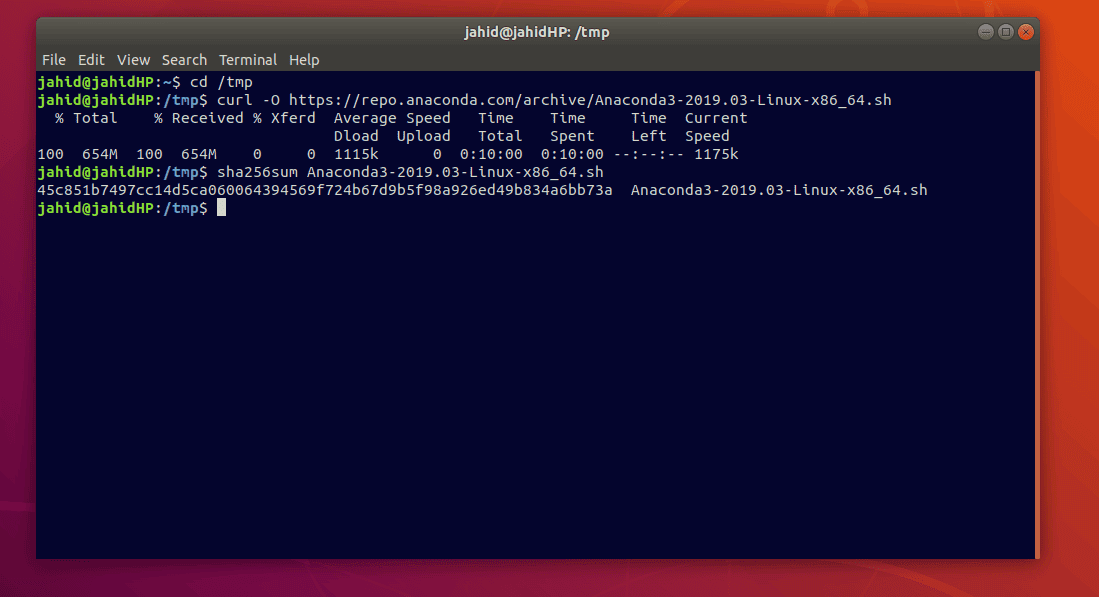
To download the Anaconda Navigator file, I will use the
cURL command[8]. cURL command can
download and store files directly from FTP or authentic Linux
server. After the curl command is run, you will see the file size,
download speed, estimated time required in your terminal.
$ cd /tmp
$ curl -O https://repo.anaconda.com/archive/Anaconda3-2019.03-Linux-x86_64.sh
You can also download the Anaconda Navigator file manually from
the official website of Anaconda. For that, while installing
process arrives, you have to open the Anaconda Navigator file in
the terminal manually.
After the download is finished, we will be using the sha259sum
program to check if the download is verified or not. This sha259
program is used for monitoring the file repository to verify the
file.
$ /tmp$ sha256sum Anaconda3-2019.03-Linux-x86_64.sh
Step 3: Installing Anaconda
Navigator in Linux
Now I will run the bash shell command in the terminal to
install the Anaconda Navigator. Bash command can read, write, and
install files from the terminal. [10]
$ /tmp$ bash Anaconda3-2019.03-Linux-x86_64.sh
Here, as I have downloaded the Anaconda Navigator in my temp
directory, so I’m running the bash command inside the temp folder.
You have to mention your directory for using bash command.
In the installing process, you will be asked for your permission
to initiate the process, and you’ll also be asked to choose the
directory where you want to install Anaconda Navigator.
After the installation process is done, it will show a success
message on your terminal screen. Now comes the activation of the
bash file. For that, type the following command in your
terminal.
$ /tmp$ source ~/.bashrc
Now, you can see the list of packages installed inside the
Anaconda Navigator.
$ /tmp$ conda list
To run the Anaconda Navigator in your Linux machine, just type
the following command in your terminal.
$ /tmp$ anaconda-navigator
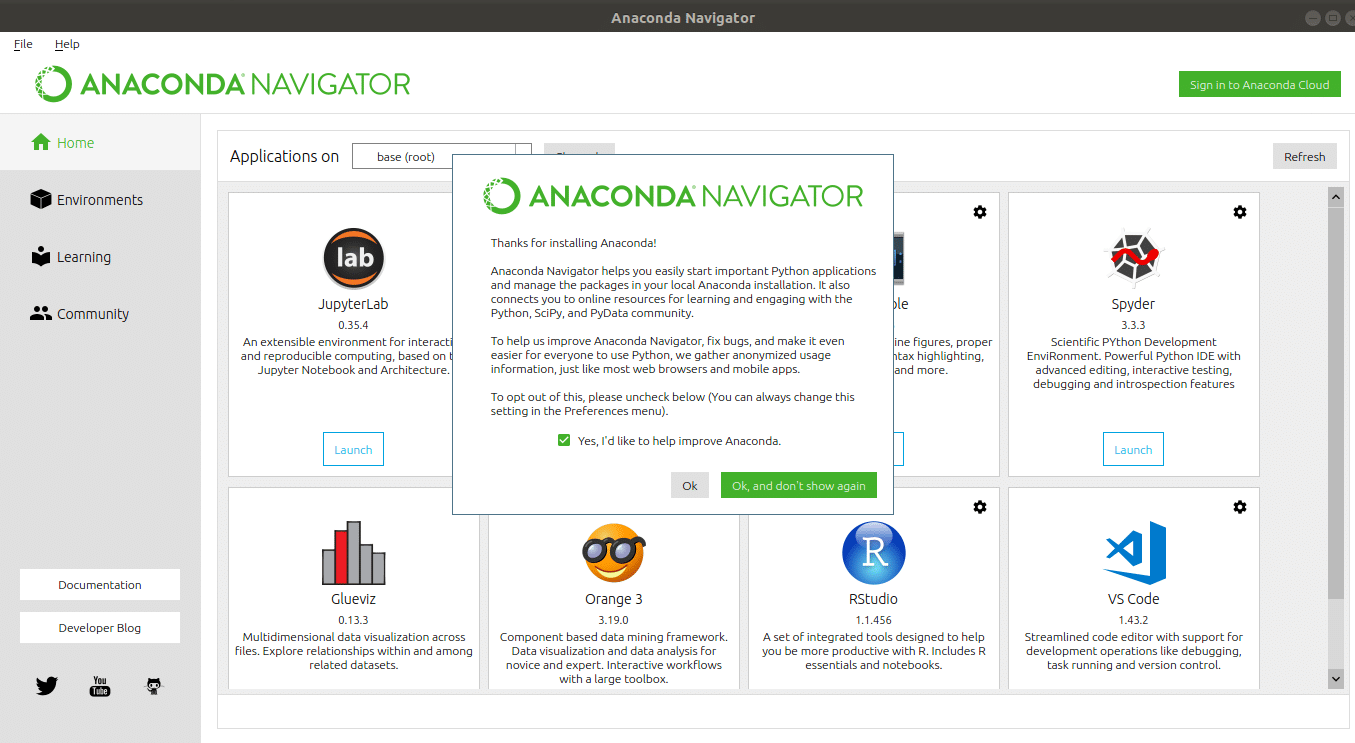
After the Anaconda Navigator is opened, you will see the
pre-installed environments displayed on the screen. Here I’m
dropping the list of applications that you get with Anaconda
navigator.
Bonus Tip: Installing Anaconda
Navigator on other Linux Distros
The process of installing Anaconda Navigator in all Linux
distributions are mostly the same. All you need to confirm that you
have Python 3.7 installed in your machine. And have to be careful
while using the bash commands. Be mindful of using the
download directories.
You can create a new folder to store the Anaconda Navigator
installer files instead of using a temp folder. Follow the
instructions to create a new folder from the terminal. All the
other instructions are the same, as shown previously.
$ cd ~
$ mkdir NewFolder
$ cd NewFolder
$ curl -O https://repo.anaconda.com/archive/Anaconda3-2019.03-Linux-x86_64.sh
Installing JupyterLab in
Linux
As you have already seen that, the JupyterLab is already
installed inside the Anaconda Navigator, you can run JupyterLab
from the Anaconda Navigator, or you can install JupyterLab
individually for better performance. You can also install Jupyter
Notebook in your Linux if you need it. Actually, JupyterLab has
vast library access to Python[12], and all functions are
arranged very nicely.
Step 1: Creating pip
Environment to Install JupyterLab in Linux
The pip command is used to install the authentic and additional
Python package in Linux. We will be using the pip
command to create the environment of Python. To create a new
environment, we will use the pipenv command.
- First, you need to install the Python 3 in your Linux machine.
To do that, just follow the command line provided below in your
terminal.
$ sudo apt-get install python3-pip python3-dev
- Now, the vital part comes, creating a pip user environment for
Python in Linux. For that, we will be using the pip3 command. This
will handle both pip and python-dev package.
$ Pip3 install --user pipenv
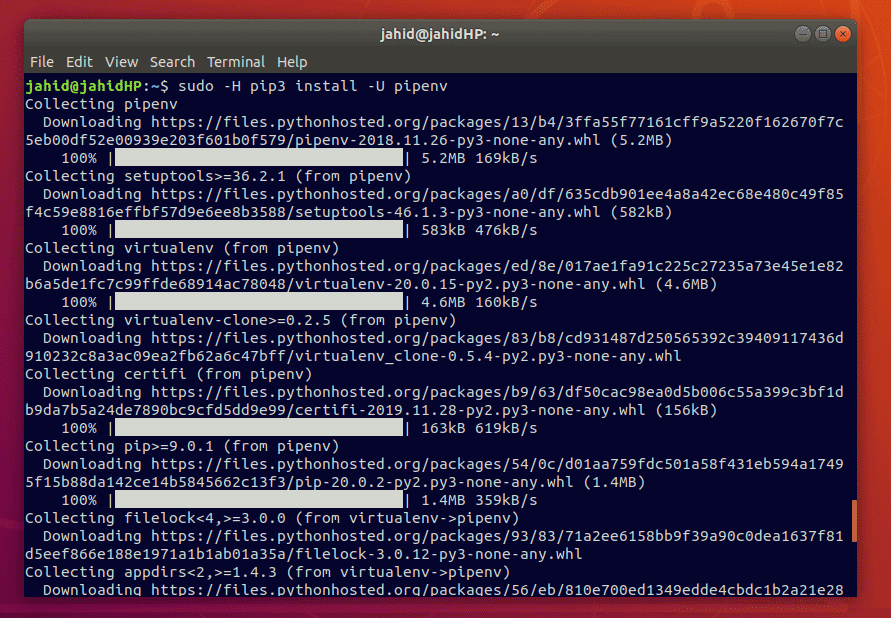
- If you find any error message, you can use the following
command to get rid of pip errors!
$ sudo -H pip3 install -U pipenv
Step 2: Making a Project Directory
for JupyterLab in Linux
The fundamental of making a project directory for JupyterLab is
simple; it will store all the file that is generated from
JupyterLab inside the particular folder. You can create a folder
manually, or you can use the following make directory
mkdir commands in the terminal.
$ cd ~/Desktop
$ sudo mkdir <folder name>
Step 3: Installing Jupyter Console
in Linux
After the project directory is created, you can now install the
Jupyter console inside your Linux machine. For that, we can use the
pip environment that has created earlier.
$ pipenv install jupyter
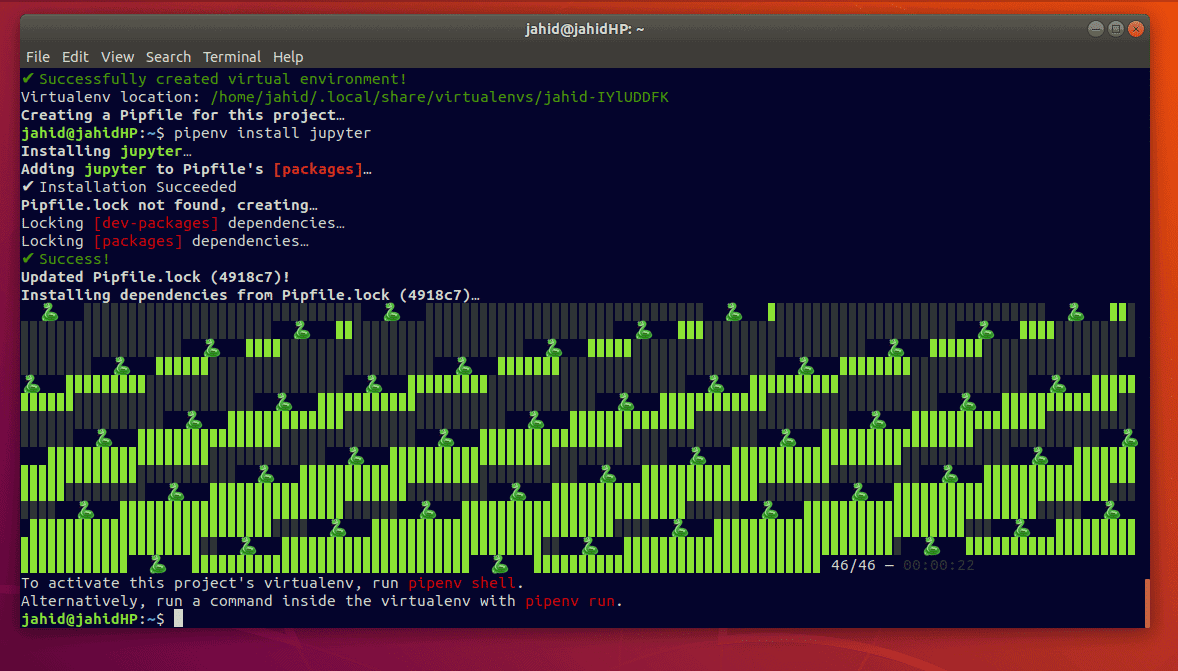
After you see the Success message in your terminal, you have to
run a shell command to activate this project’s virtual environment.
Just follow the shell command given below.
$ pipenv shell
Step 4: Installing JupyterLab in
Linux
Here comes the final step, installing JupyterLab. As we have
already created the virtual environment for Jupyter console now, we
can quickly run the pipenv shell commands in our Linux
system. To install JupyterLab from pip command, follow the terminal
command kept below. You can also install JupyterLab by
pipenv (pip environment) command. Both processes are
given below. You will see the progress bar of the installation
process in your terminal.
$ pip install jupyterlab
$ pipenv install jupyterlab
$ pipenv shell
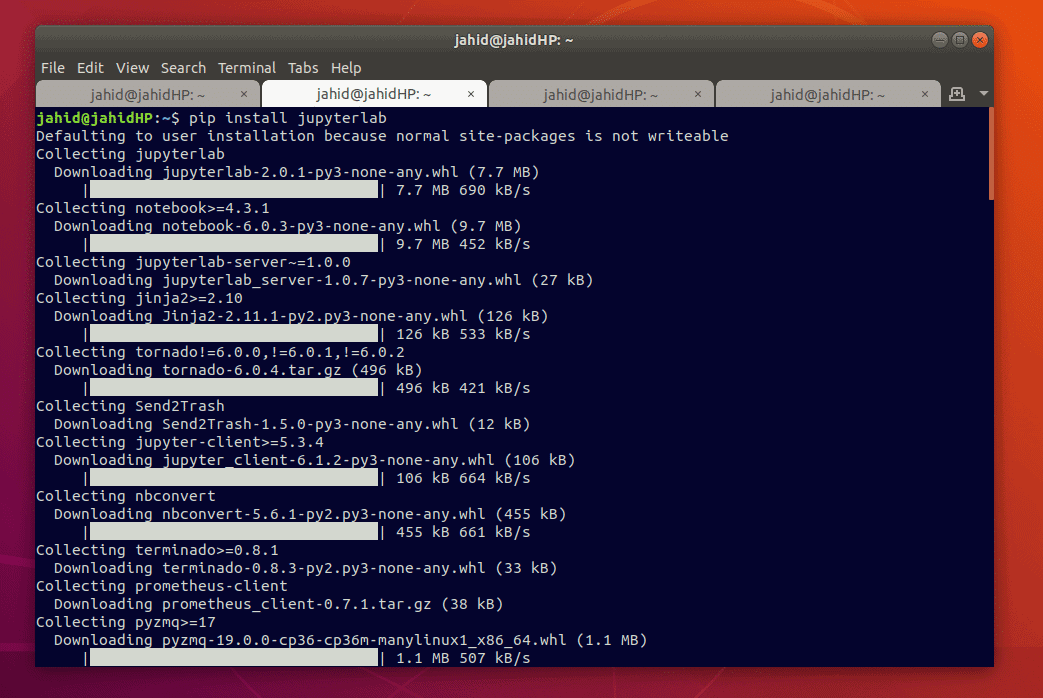
And after the installation is done, type the following command
in your terminal to open JupyterLab.
$ pipenv shell
$ jupyter lab
$ jupyter lab
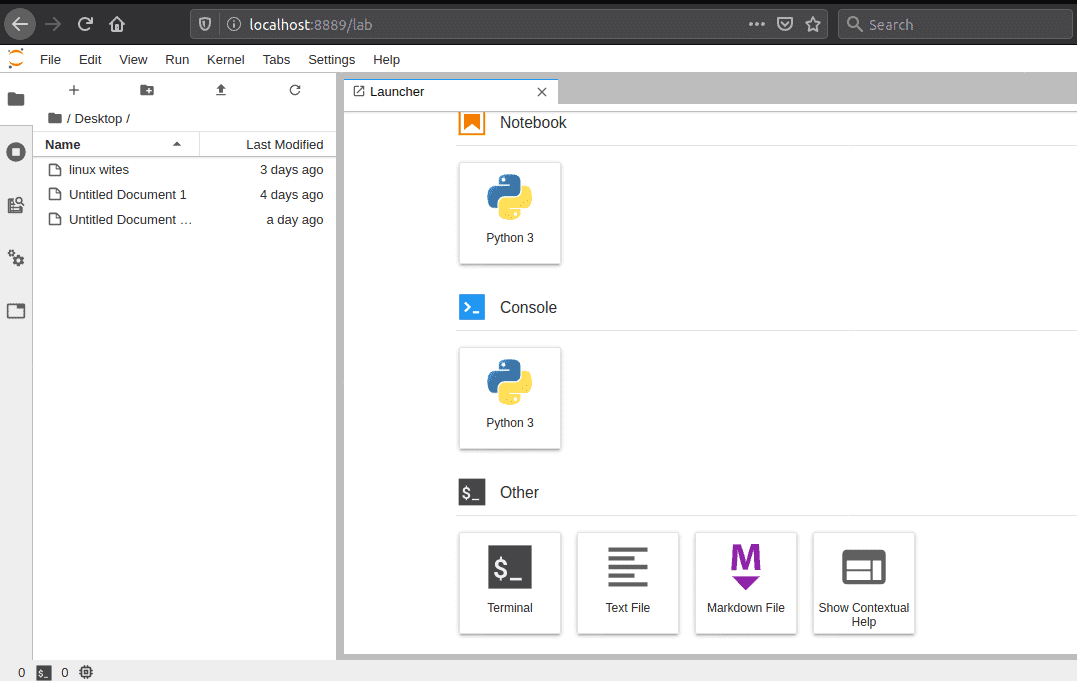
As Jupyter console creates a virtual environment, so the
JupyterLab will use the localhost address to link with the web
browser. Once the command is run in the terminal, immediately, you
will see that JupyterLab is opened in your web browser.
Final Thought
For professional Python user’s it was very confusing which
Python console should they use. Before the Anaconda Navigator and
JupyterLab were created, programmers used to write Python in
terminal and shell scripts. But currently in Linux, Anaconda
Navigator and JupyterLab are the most used Python interpreters. In
this post, we have seen how to install Anaconda Navigator and
JupyterLab in Linux using pipenv and pip
shell commands.
It is said that in the future, Python will lead the world of
programming language. If you are a Python programmer or want to
enter into the world of programming language with Python, I hope
this post will be helpful for you to choose the best Python
interpreter. If you love this post, don’t forget to share this post
on your social accounts. [13]
References
- ^
Data
Engineer vs Data Scientist: 14 Interesting Facts To Know
(www.ubuntupit.com) - ^
The 20
Best Data Visualization Tools Available in 2020
(www.ubuntupit.com) - ^
Top 20
Best Python IDE for Linux. Some of Them are Open Source
(www.ubuntupit.com) - ^
The 20 Best Machine Learning and
Artificial Intelligence Books in 2020
(www.ubuntupit.com) - ^
Linux vs
Mac OS: 15 Reasons Why You Must Use Linux Instead of Mac OS
(www.ubuntupit.com) - ^
Python libraries
(www.ubuntupit.com) - ^
Julia
(julialang.org) - ^
50
Useful and Productive cURL Command in Linux
(www.ubuntupit.com) - ^
Anaconda
Navigator (www.anaconda.com) - ^
40
Simple Yet Effective Linux Shell Script Examples
(www.ubuntupit.com) - ^
Top 20
Best Visual Studio Code Extensions For Programmers
(www.ubuntupit.com) - ^
The 20
Best Python Tips and Tricks You Must Know in 2020
(www.ubuntupit.com) - ^
50
Frequently Asked Python Interview Questions and Answers
(www.ubuntupit.com)
Read more https://www.ubuntupit.com/how-to-install-anaconda-navigator-and-jupyterlab-in-linux/