In Linux, the filesystem is the core map, where
the operating system stores file inside the permanent memory. The
file system manages the way of how data will be structured and
managed inside the machine. All open source file systems are
categorized as Linux filesystem. Linux usually detects all
components like a file. Even Linux considers the hard disk as data!
That’s the main reason why Linux has no driver letter like windows
have C drive, E drive, etc. But Linux has a Home directory like
Windows has ‘My Computer or This PC.’ Linux stores all operating
files inside the root folder. Inside the Home directory,
Linux users can create files using terminal or shell commands. [1]
Create Files in Linux Using
Terminal Commands
Creating a file inside your Linux machine is the first step to
let your Linux know that you know how to rule Linux, and you have
control over filesystems. To create a file in Linux, there are
several methods. But before we start creating a file, first we must
know the basics of the Linux file system. Linux has some file
folder inside the root directory. They are: bin, boot,
dev, home, lib, opt, usr, srv, etc. We are not going to learn
about the entire Linux filesystem, but a tad bit.[2]
In this post, we are going to know the
functionalities of the Linux file system and how to to create files
in Linux using terminal commands. Besides this, we will also see
different methods of creating files of a specific size in
Linux.
Prior to start creating a file, let’s see a very basic command of Linux. The
tree command is usually used to see the root
directory that shows the deep list of file-folder directories.
Normally tree is pre-installed in Linux, but if you have
any problem using the tree command, you can follow the
apt commands given below. [3][4]
- For Ubuntu Use This apt
Command in Terminal to Install treesudo apt install tree
- For Red Hat Type This Command in
Terminal to Install treesudo dnf install tree
- For openSUSE Use This Command to
Install treesudo zypper install tree
- For Arch-like Distros Type This Command
in Terminal to Install treesudo pacman -S tree
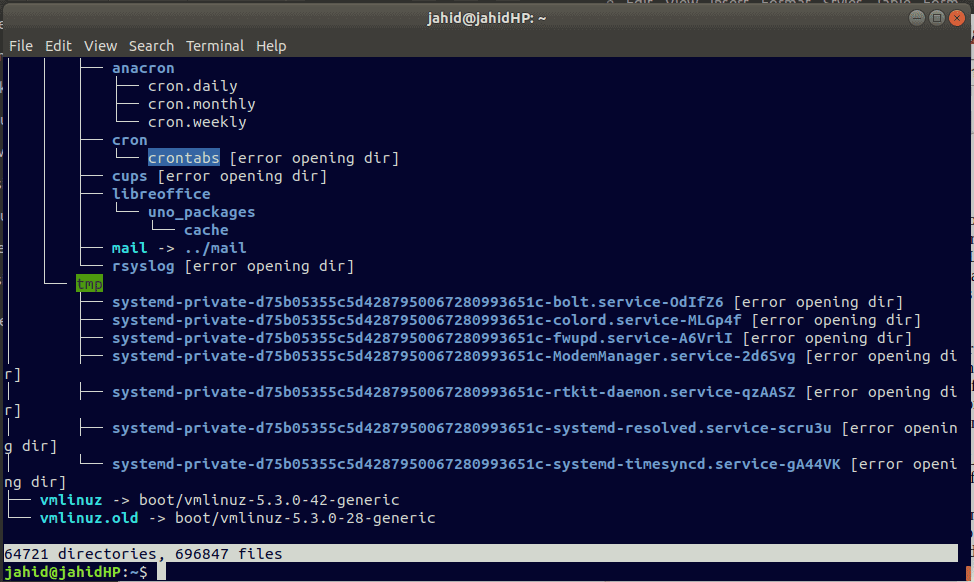
Now you can check your root directory by typing
the tree command provided below. This will show you the chart of
your files and how many directories and files you have in your
root.
tree /
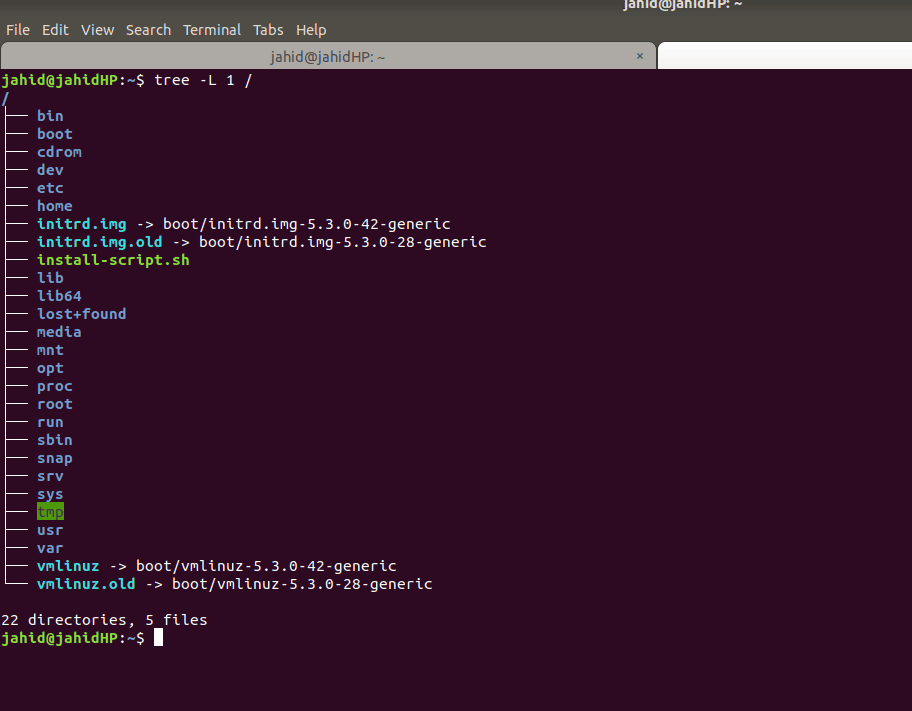
If you don’t want to see the details file chart,
you can see the primary directories by using this command
tree -L 1/
1. Creating File in Linux Using
cat Command
The concatenate or the cat command is used for creating single
or multiple files. It allows users to make together in a chain or
series of files. Cat command can create or display files from the
local directory. It can view single or multiple files. It can also
sort files from the contents of multiple files.
To use cat command first, you need to open the
terminal in your system. You can search terminal on your Linux launcher[5], or you can press
Ctrl+Alt+T from your keyboard. Usually, the
terminal is allocated in the home location. So, the files
you create by using cat command will be stored in the
home directory. You can use pwd command in your
terminal to check where the terminal is allocated.
Usually, cat creates an empty file for
further uses. Suppose you want to create a doc file named
newfile101, all you need to do is just type the command given below
in your terminal. After the file is created, you can check if the
file is created or not. To verify, simply type the following
command in the terminal.
cat > newfile101.doc
ls -lh newfile101.doc
Here, this > (grater) sign is known as
redirect sign; we will know details about the redirect symbol
soon.
2. Creating File in Linux
Using touch Command
In Linux, touch command is used to create files
where the timestamp is a vital point. If you are a data engineer[6]
and have experience working with CSV files, I’m sure you know how
much it is important to maintain the timestamp in files. Here,
touch command can modify, manipulate the timestamp of files.
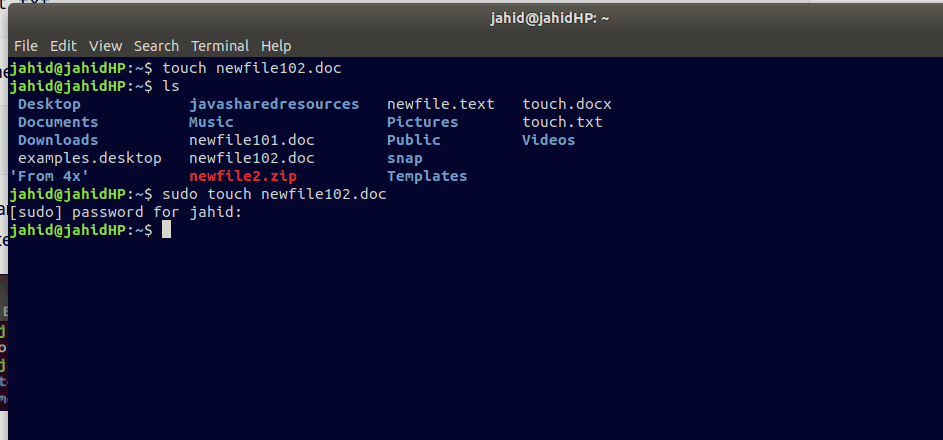
- To create a file using the touch
command, follow the terminal commands written below.
touch newfile102.doc
- To verify whether the file has created or not,
simply type “ls command” from the terminal to see the list
of files in the directory, and you will find the file has been
created.
3. Creating File in Linux
Using redirect Symbol
If you are a system administrator, every day,
you might need to create tons of files to keep logs updates. What
if, you can create files from your terminal using only a redirect
(<) sign. Normally in Linux, every file is associated with
another file, which can be symbolized by > sign. But in the
terminal, if you put the redirect symbol along with a file name
with a file extension, it will create a zero kb file in the local
directory.
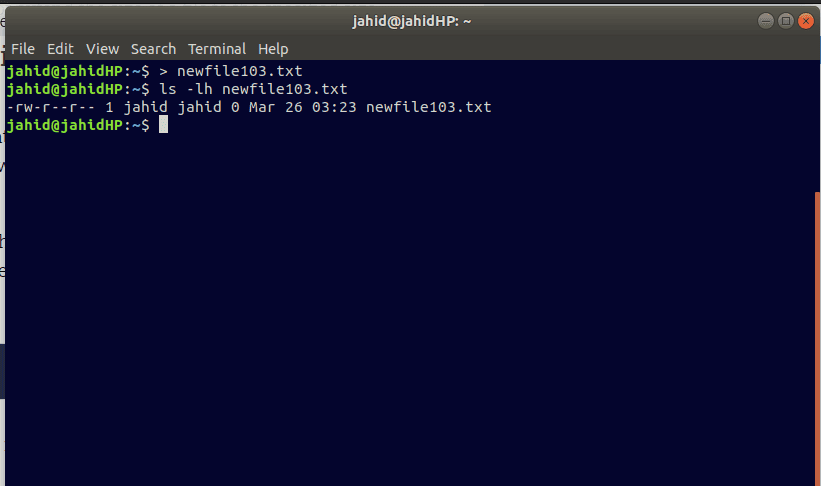
To create a file using a redirect symbol, just
type a > symbol in the terminal and write a file name. There you
go! You have got your desired file ready. You may check the file
from the list command.
>newfile103.txt ls -lh newfile103.txt
4. Creating File in Linux
Using echo Command
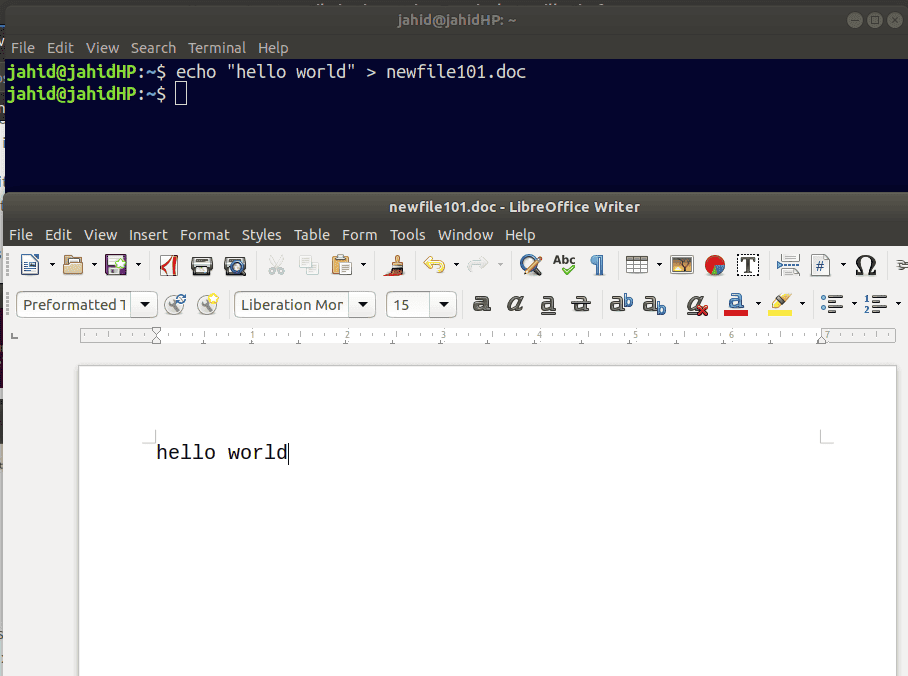
In Linux, echo is used to place any statement or
argument inside any file. If a blank text or doc file is created
before now, you can input string by using echo command. Suppose,
previously, I have created a doc file named
newfile101.doc. Now I want to input the ‘hello world’
string inside the doc file.
So, instead of opening the file manually from
the directory, I can just type the echo command from the terminal.
The echo command will be as given below. After the string is
replaced, you can check the string using cat command.
echo "hello world" > newfile101.doc
cat > newfile101.doc
5. Creating File in Linux Using
Vim
If you are a programmer and you’re used to
coding with an IDE[7], I’m sure you’ve heard
the name of Vim[8]. Formerly it was known
as Vi (Visual), then the improved version came, and now it’s called
vim. Vim is a text editor[9]
used in the command-line interface. You can also create files from
vim. It will help you to code directly from vim. To create a file
from vim, just type the following line in the terminal.
Let you want to create a file named
newfile106.txt, then all you need to type this
command.
vi newfile106.txt
To see the file, follow the ls lh
command given below.
ls -lh newfile106.txt
6. Creating File in Linux
Using nano Command
Nano is the What You See Is What You Get
(WYSIWYG) popular text editor in Linux. With UTF-8 encoding Nano is
a regular type text editor, which is also known as GNU nano. Nano
is very much efficient and helpful for those Linux users or who are
still struggling with Linux. It can render codes very effectively.
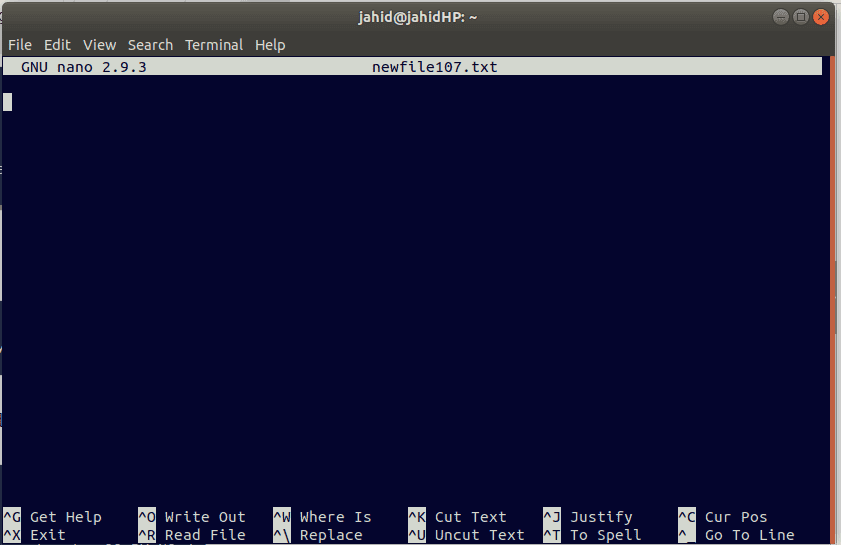
To create a file from nano, you can follow the command line kept
below.
nano newfile107.txt
After creating the file, you can view the file
either using ls command or using cat command.
class="western">ls -lh newfile107.txt
cat newfile107.txt
7. Creating File in Linux
Using printf Command
All programmers around the world know the
function printf command. It the command which is used to
print any function as output or print any string in IDE. To create
a text file using printf command, you need to use the
following command line in the terminal.
printf "Printf command line check attempt 01 " > printf.txt
To view the file type and file from terminal use
this commands:
ls -l printf.txt
cat printf.txt
8. Creating File in Linux Using
head Command
when the file is very large in size, programmers often use the
head command to print the initial part of the file. If you want to
print just the first 10 lines of your program for checking
purposes, the head command is there for you. It prints the
first 10 lines by default setting.
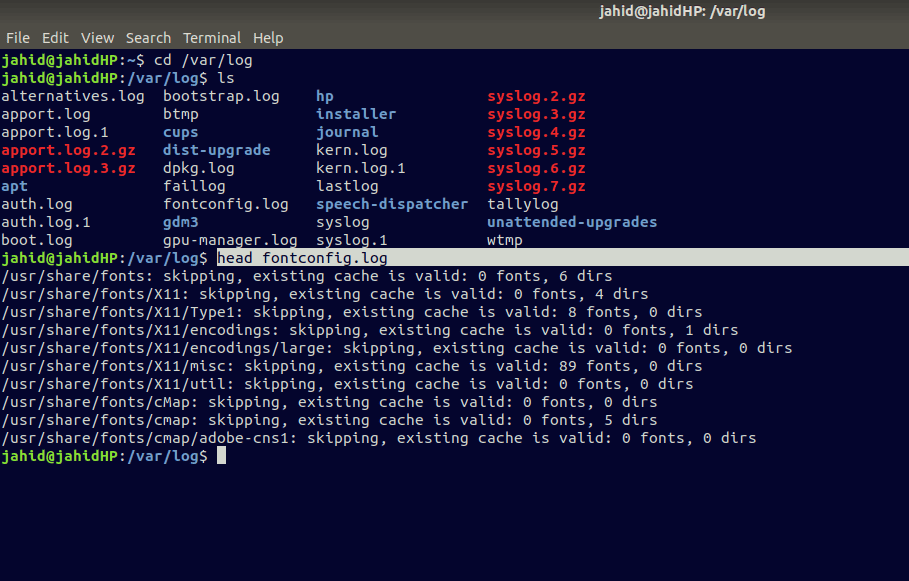
Let you want to open a log file from my local directory. To do
so, I can open the log list of files from the terminal. After the
log directory is opened, you can use the head command to print the
first 10 lines of that log file.
cd /var/log
ls
head fontconfig.log
9. Creating File in Linux Using
tail Command
As we have seen the head command above, the tail
command is just like the same as the head command. But the
only difference is, head command prints the first 10 lines where
the tail command prints the last 10 lines of a file. This command
is usually used to view the last output or last body of a datasheet
or data set.
For example, let you want to print the last 10 lines of the
fontconfig.log file.
cd /var/log
ls
tail fontconfig.log
10. Creating File in Linux Using
truncate Command
In data definition, language truncate Command is used to delete
any data from the database, but in Linux, truncate Command is used
to shrink or expand the size of a file. Let’s first create a text
file using touch command then we will see how to expand the size of
that file using truncate command.
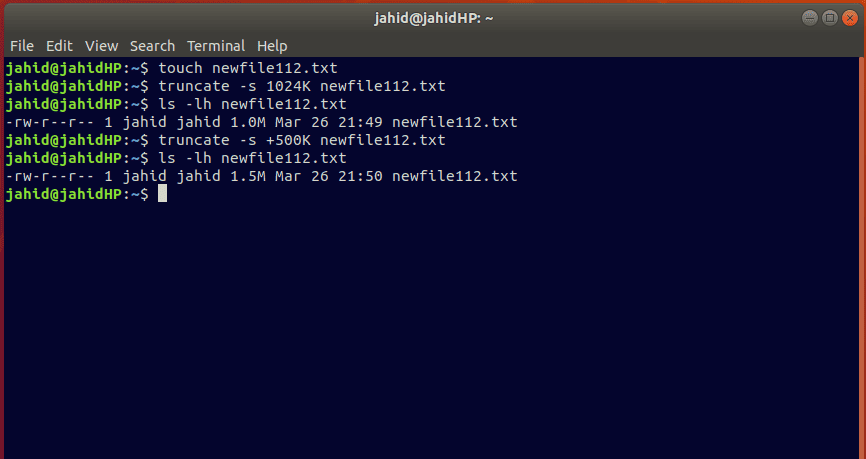
Here I am assigning the file name as newfile112.txt. Then using
truncate command, I am allocating the file size to 1024K
(1M). Then at the next part using truncate command, we will resize
the file size to 1.5M.
touch newfile112.txt
truncate -s 1024K newfile112.txt
ls -lh newfile112.txt
-rw-r--r-- 1 jahid jahid 1.0M Mar 26 21:49 newfile112.txt

truncate -s +500K newfile112.txt
ls -lh newfile112.txt
-rw-r--r-- 1 jahid jahid 1.5M Mar 26 21:50 newfile112.txt
Creating Files of Specific Size in
Linux
Linux administrators often create specific size files to check
the storage capability, network speed, or system performance[10]. Besides this, if you
are a database engineer, you must know that dummy data is important
to check the database function. That’s why creating files of a
specific size is important. Be mindful that, Linux shell commands
are very useful to create quick files of a specific size. Here we
will see some command methods on how to create dummy data.
1. Generate Files of a Specific
Size Using truncate Command
In the above, we have just learned how to expand file size using
the truncate command. Besides expanding file sizes, you can create
files of exact size by this command. Here I’m going to show how to
create a 25M size file using truncate command. To do this,
first, open your terminal and follow the command lines written
below. Let I’m assigning the file name as UbuntuPIT.txt
truncate -s 25M UbuntuPIT.txt
2. Generate Files of a Specific
Size Using fallocate Command
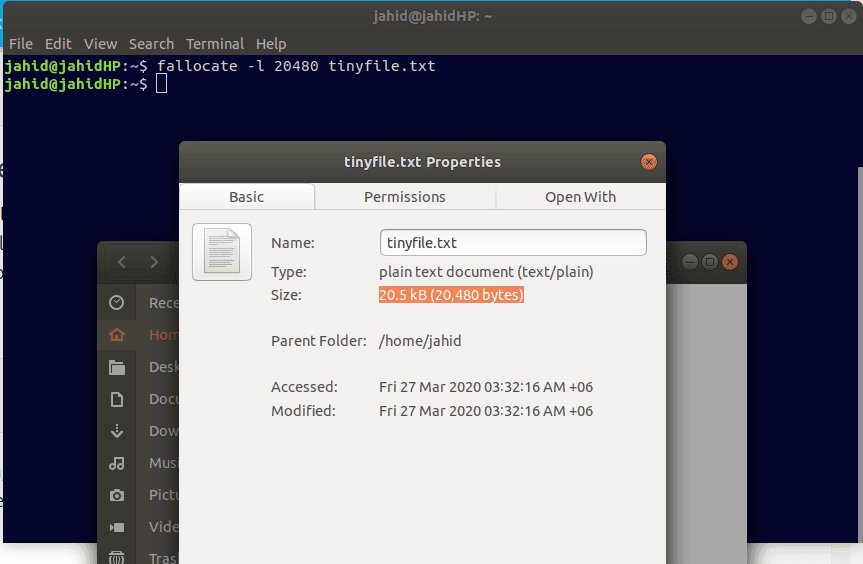
Fallocate allows users to create the small and tiny size of
files in Linux. You can generate files of byte using fallocate
command. Using fallocate, you can also create large files if you
need them. For that, you just need to do the math of byte, bit, Kb,
Mb, GB, TB.
Let you want to create a 20kb size file. For that, your math will
be 20*1024= 20480kb.
fallocate -l 20480 tinyfile.txt
3. Generate Files of a Specific
Size Using head Command
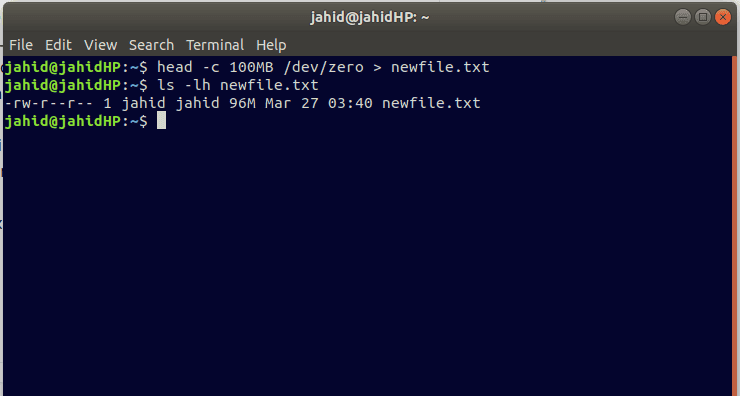
Previously we have seen that the head command is used
to print the first 10 lines of a log or text file. Here I will show
you how you can use the head command to generate a specific sized
file. Here you should note that every file has some system reserved
part. That’s why if you want to create a 100MB size file, it will
create a tad bit small size of file due to the system reservation.
After creating the file using the head command, you can
verify the file size.
head -c 100MB /dev/zero > newfile.txt
ls -lh newfile.txt
4. Generate Files of a Specific
Size Using perl Command
Perl is a wide range script programming language that can be
used in Linux system administrative work. As perl can use
the syntax library of different programming languages so
perl can be used for networking or even in web
development. Perl is used as an integrated text editor or IDE. When
very large shell commands are difficult to handle, here comes the
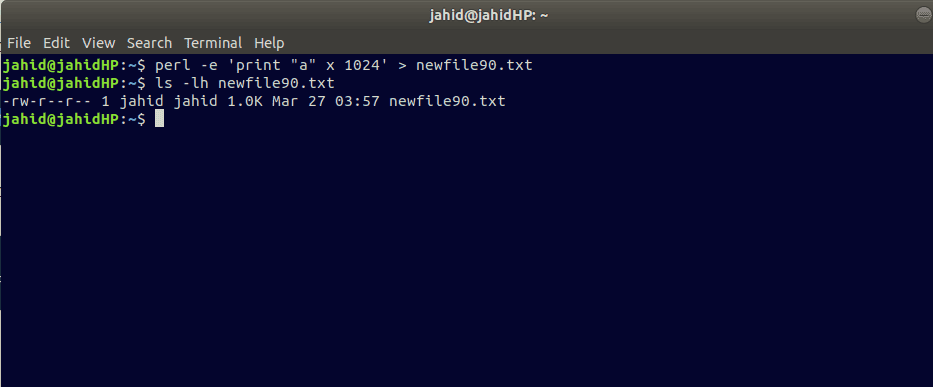
perl. Now I am going to show how to create a specific size of the
file using perl command. I am allocating the file size to
1K.
perl -e 'print "a" x 1024' > newfile90.txt
ls -lh newfile90.txt
5. Generate Files of a Specific
Size Using xfs_mkfile Command
The xfs_mkfile command is the quick command to create a specific
sized file in Linux. Here, the term xfs is the short form
of the high-performance journaling file system, and mkfile
is the Linux syntax that allows users to create byte, kilobyte,
megabyte or gigabyte size of the file.
xfs_mkfile 1M newfile95.txt
1 ls -lh daygeek5.txt
Final Thoughts
Studying the Linux file system[11] helps us to understand
the layer or file system hierarchy. Creating files using shell
commands is the first lesson of learning the Linux file system.
Terminal commands help users to interact with the core files. Some
useful and very quick file creating commands are described in this
post. For better understanding, each command is explained with a
brief note and example. Some command has some similar parts which
will help to lead the next command. All the commands are very
basic, and if you are a system administrator, you must know all of
them.
If you find this post useful or instructive, please let us know
which part you liked most. We also encourage viewers to write
constructive and relative comments in the comment section. You can
share this post with your friends who are interested to know about
the Linux file system. Happy Linuxing!
References
- ^
40
Simple Yet Effective Linux Shell Script Examples
(www.ubuntupit.com) - ^
Everything You Need To Know About the
Linux File System (www.ubuntupit.com) - ^
The 50
Most Useful Linux Commands To Run in the Terminal
(www.ubuntupit.com) - ^
apt
commands (help.ubuntu.com) - ^
Top 20
Best Linux Application Launchers To Improve Your Productivity
(www.ubuntupit.com) - ^
Best 20
Data Scientist Skills That You Need To Get Data Science Jobs
(www.ubuntupit.com) - ^
Best
Linux Code Editor: Top 10 Reviewed and Compared
(www.ubuntupit.com) - ^
Vim
(www.ubuntupit.com) - ^
Linux
Text Editor: 20 Text and HTML Editors Reviewed for Linux Nerds
(www.ubuntupit.com) - ^
Most
Comprehensive List of Linux Monitoring Tools For SysAdmin
(www.ubuntupit.com) - ^
Everything You Need To Know About the
Linux File System (www.ubuntupit.com)
Read more https://www.ubuntupit.com/how-to-create-files-in-linux-system-an-ultimate-guide-for-beginners/