
Today’s admins certainly have plenty on their plates, and
boosting ecosystem security remains a top priority. On-premises,
and especially remote, accounts are gateways for accessing critical
information.
Password management makes this possible. After all,
authentication should ensure that a user is whom they claim to be.
This initial layer of security is crucial for protecting one’s
entire infrastructure.
Unfortunately, the personal nature of passwords has its
shortcomings. Passwords are easily forgotten. They may also be too
simplistic; many companies don’t enforce stringent
password-creation requirements. This is where the Active Directory
Password Policy comes in.
Additionally, the following is achievable:
- Changing user passwords
- Recording password changes and storing them within a history
log
Active Directory accounts for any impactful changes across user
accounts. We’ll assess why and how administrators might leverage
these core features.
Why change user passwords?
We’ve touched on the most innocuous reason for many password
changes: forgetfulness. Users might fail to remember login
credentials for a number of reasons. Following verification (or a
quick help desk chat), Active Directory administrators can quickly
restore one’s account access. Productivity might otherwise
suffer.
Security is another driver, though in three different respects.
Firstly, infrastructure is subject to many threats. Attacks, data
leaks, and inadequate safeguards might expose passwords to prying
eyes. Changing compromised passwords can thwart bad actors.
Secondly, a given password might be somewhat easy to guess,
despite existing password requirements. An employee might use terms
considered ‘low-hanging fruit’ for outsiders attempting to guess
passwords or launch brute force attacks. For example, Apple
employees should avoid using strings containing “Apple” or “Steve
Jobs” within their passwords.
Thirdly, job roles and employment statuses change regularly
across organizations. These dictate what resources employees may
access. It’s important that employees can’t view non-applicable
documents or data or utilize certain programs. Additionally, admins
need to terminate internal accounts for ex-employees. While not
technically a password change, in the way we envision,
this involves deletion of one’s credentials.
Why record historical password changes?
Password changes are fairly common in the IT realm. However,
monitoring and logging changes can help admins detect fishy
activity. Password changes only occur via the user or Active
Directory administrator. Any password change by another actor might
signify a hack. These activity logs can help teams track suspicious
occurrences or mitigate pending disaster.
Bad actors can steal information. They might perform password
resets—temporarily solidifying their account access while locking
legitimate users out. Password change histories can prevent leaks
and minimize downtime.
How to Change a User Password in Active
Directory
Active Directory is tailor-made for Windows networks.
Consequently, there are multiple ways in which AD admins can change
user passwords[1].
This can be done directly within Active Directory. Password
changes are possible outside of AD, via methods that directly
manipulate AD’s database. We’ll first discuss the former.
Using Active Directory Users and Computers
(ADUC)
ADUC is a supplemental GUI that allows administrators to
interact with Active Directory components. The software enables
remote object (users and devices) management. ADUC has been a
central tool for 20 years now and remains a user-friendly option
for those weary of PowerShell or otherwise.
ADUC isn’t a default component that comes pre-installed on
machines. Instead, users need to download and install Remote Server
Administration Tools (RSAT). The interface comes bundled with this
larger package of tools. How do we change passwords after
completing this step?
ADUC lets admins view individual users within groups or domains.
Microsoft states that ADUC employs Active
Directory Services Interface (ADSI)[2]
actions for setting passwords. This occurs in two ways: via
Lightweight Directory Access Protocol (LDAP) or via the
NetUserChangePassword protocol. LDAP requires an SSL connection to
bolster communication security between domains and clients. When
changing a password, it’s essential that the user’s previous
password is known beforehand.
The password change process[3] is pretty simple from
here:
- Right-click the top of ADUC’s left-hand pane
- Click on Connect to Domain Controller
- Locate the relevant domain controller, and then the user within
that site - Locate the relevant user and change their password using the
GUI
This is done by right-clicking a user account, selecting
Reset Password, and making necessary changes.
Using Active Directory Administrative Center
(ADAC)
ADAC is newer than ADUC, and while its user base is smaller, it
remains highly useful for password changes. ADAC’s GUI makes this
pretty easy, requiring few steps after startup. Here’s how[4]:
- Within the navigation pane, locate the appropriate node
containing the appropriate user - Right-click on the username and click Reset
Password - Type the new password in the popup box, confirm it, and save
any changes
As with ADUC, admins can even require users to reset their
passwords upon their next login. There’s also another method for
changing passwords within ADAC. The ADAC Overview page contains a
Reset Password section, which allows an admin to access users in a
snap.
Using PowerShell Commands
In particular, Windows users can type the
Set-ADAccountPassword cmdlet and execute it. The benefits of using PowerShell are
two-fold.[5] Advanced users can work
password changes into existing automation, allowing for password
refreshes at certain intervals. Additionally, admins may change the
passwords of multiple users simultaneously. This is incredibly
useful for remediation following a hack or data leak.
Note that users must import their Active Directory module by
using the Import-module ActiveDirectory command. This opens the
door for AD cmdlet usage. Admins must have the Reset Password
permission enabled to enact these changes.
The appropriate steps are as follows, for a sample user named
usernameX and a new password—passwordY:
Type the following cmdlet:
Set-ADAccountPassword usernameX -Reset -NewPassword
(ConvertTo-SecureString – AsPlainText “passwordY” -Force -Verbose)
-PassThru
This automatically replaces the old password without manually
inputting the information a second time.
The console will display the objects to reflect these
changes
Admins may encounter the following error instead of a
confirmation:
Set-ADAccountPassword: The password does not meet the length,
complexity, or history requirement of the domain.
Companies institute case and character requirements for security
purposes, and the new password does not meet those requirements.
Repeat step one with a revised password.
One may let end users change their own passwords upon login by
typing the following cmdlet:
Set-ADUser -Identity usernameX -ChangePasswordAtLogon $True
What if we want to reset a batch of passwords, for a specific
team within our organization?
PowerShell lets us type the following to achieve this:
get-aduser -filter “department -eq ‘PM Dept’ -AND enabled -eq
‘True'” | Set-ADAccountPassword -NewPassword $NewPasswd -Reset
-PassThru | Set-ADuser -ChangePasswordAtLogon $True
This enforces a password change for all project management teams
upon their next login. This is effective for periodic resets or in
response to a team-specific security threat.
How to Check Password Change History
There are multiple external tools for auditing password changes
in Active Directory. However, we’ll focus on the native route,
which employs the Group Policy Management Console (GPMC). After
running GPMC, admins should do the following:
- Navigate the filesystem using the following path:
Default Domain Policy > Computer Configuration >
Policies > Windows Settings > Security Settings > Local
Policies > Audit Policy: Audit account management. This
summons two checkboxes labeled Success and Failure. Check both
boxes and click Apply in the bottom right of the
window. All login attempts will be logged. - Under Windows Settings > Security Settings >
Event Log, set the maximum security log size to 1GB. This
allows for long-term data capture without exceeding file
limits. - Choose Overwrite events as needed after
clicking “Retention method for security log.” - Open the Event Log and search for events using two core IDs:
4724 (admin password reset attempt) and
4723 (user password reset attempt)
One may also see the event codes[6] 4740 (a user was locked
out) or 4767 (a user account was unlocked). These aren’t alarming
on their own. However, we want to ensure that these events happen
in concert with a 4724 or 4723—which suggests an authentic user
indeed caused these events, as opposed to a nefarious actor.
Audit password changes with Specops
uReset
Specops uReset is a self-service password reset solution that
also helps you keep an eye on password changes. The Administrative
reporting menu provides statistical data related to locked accounts
and password changes.
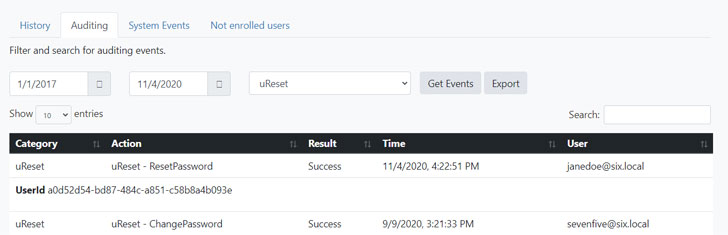
Specops uReset simplifies how you monitor password changes and
can even reduce lockouts by updating the locally cached credentials,
even when a domain controller can’t be reached[7].
Visit Specopssoft to request a free trial of Specops
uReset[8].
References
- ^
multiple
ways in which AD admins can change user passwords
(specopssoft.com) - ^
Microsoft states that ADUC employs
Active Directory Services Interface (ADSI)
(docs.microsoft.com) - ^
The
password change process
(docs.microsoft.com) - ^
Here’s
how (forsenergy.com) - ^
The
benefits of using PowerShell are two-fold.
(woshub.com) - ^
One may
also see the event codes
(adamtheautomator.com) - ^
updating
the locally cached credentials, even when a domain controller can’t
be reached (specopssoft.com) - ^
request
a free trial of Specops uReset
(specopssoft.com)