Before hunting malware, every researcher needs to find a system
where to analyze it. There are several ways to do it: build your
own environment or use third-party solutions. Today we will walk
through all the steps of creating a custom malware sandbox where
you can perform a proper analysis without infecting your computer.
And then compare it with a ready-made service.
Why do you need a malware sandbox?
A sandbox allows detecting cyber threats and analyzing them
safely. All information remains secure, and a suspicious file can’t
access the system. You can monitor malware processes, identify
their patterns and investigate behavior.
Before setting up a sandbox, you should have a clear goal of
what you want to achieve through the lab.
There are two ways how to organize your working space for
analysis:
- Custom sandbox. Made from scratch by an
analyst on their own, specifically for their needs. - A turnkey solution. A versatile service with a
range of configurations to meet your demands.
How to build your own malware sandbox?
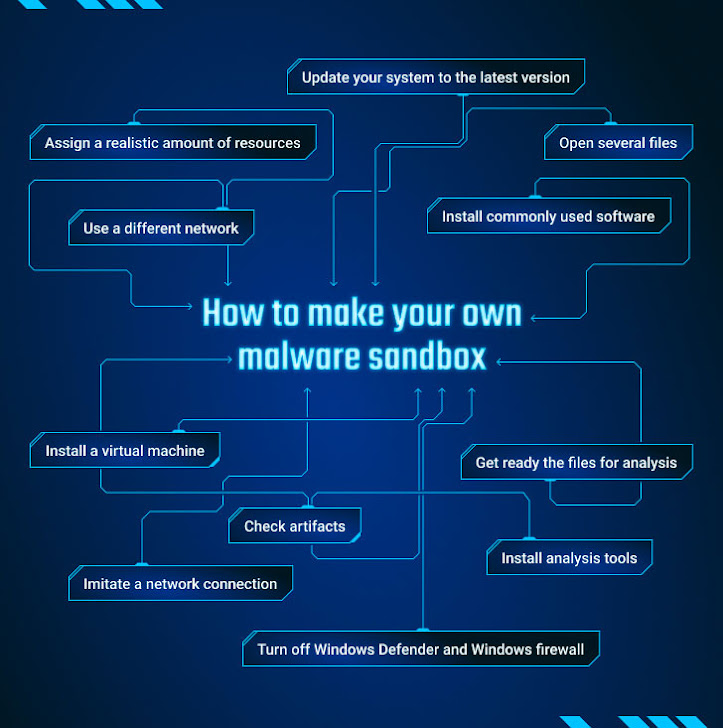
How to make your own malware sandbox
Let’s walk through all steps that you need to set up the simple
environment for malware research:
1 — Install a virtual machine
Running malware should happen in a properly isolated environment
to avoid infection of a host operating system. It’s better to have
an isolated computer, but you can set up a virtual machine or
rather a few of them with different versions of OSs. There are a
bunch of VMs presented in the market: VMWare, VirtualBox, KVM,
Oracle VM VirtualBox, Microsoft Hyper-V, Parallels, or Xen.
2 — Check artifacts
Modern malware is smart – it understands whether it’s run on the
virtual machine or not. That is why it’s essential to get rid of
artifacts. Check code, remove detection, and others.
3 — Use a different network
Another precaution is to use a different network system.
Preventing any infection of other computers on your network is
important. Get a VPN service and set it up correctly. You can’t let
the traffic leak happen from a real IP address.
4 — Assign a realistic amount of resources
Our goal is to make a system look as authentic as possible to
trick any malicious program into executing. Make sure that you
assign a realistic amount of resources: more than 4 Gb of RAM, a
minimum of 4 cores, and disk space of 100 Gb and more. That is a
basic requirement to pretend as a legit system. And still, keep in
mind that malware checks the configuration of equipment. If there
is a virtual machine’s name somewhere, a malicious object
identifies it and stops working.
5 — Install commonly used software
If you install Windows and leave it as is, a malicious object
will get that it is analyzed.
Install a few applications, like Word, browsers, and other
programs that all users usually have.
6 — Open several files
Here we need to show that it is a real computer that belongs to
someone. Open a few documents to accumulate logs and a few temp
files. Several types of viruses check this. You can use Regshot or
Process monitor to make logs of registry and file system changes.
Note that these programs can be detected by malware when it is
running.
7 — Imitate a network connection
Some kinds of malware check if it can connect to websites like
Google. How to trick a malicious program into thinking that it’s
online? Utilities like INetSim and the FakeNet tool imitate a real
Internet connection and allow us to intercept the requests that
malware is making. Try to check network protocols between a
malicious object and its host server. But beforehand, find out what
the analyzed sample is connecting with using WireShark. And it
takes some effort not to give up this tool to the malware, be
careful.
8 — Install analysis tools
Prepare the tools you’ll use for analysis and ensure that you
know how to use them. You can go with Flare VM tools or make use of
these programs:
- Debuggers: x64dbg investigates malicious code by executing
it. - Disassemblers: Ghidra makes reverse engineering easier, with
access to the decompiler’s output. It also can be used as a
debugger. - Traffic analyzers: Wireshark checks network communication that
malware requests. - File analyzers: Process Monitor, ProcDOT aim to monitor and
understand how processes deal with files. - Process monitors: Process Explorer, Process Hacker help to
watch malware behavior.
9 — Update your system to the latest version
Your system should be up-to-date as well as all software. Filter
out the regular Windows changes that are happening quite often.
However, your experiment may require a different version, such as
how malware exploits some OS errors. In this scenario, choose and
get the necessary version set up.
10 — Turn off Windows Defender and Windows firewall.
Disable things like Windows defender. If you are working with
malware, it can trip the antivirus.
11 — Get ready the files for analysis
Create a shared folder, select a directory you need.
Set up a snapshot to roll back to the later state of the
VM in case of an error.
If you complete all these steps, you’re good to go and start the
analysis.
Is there a more efficient option to analyze malware?
All these steps take a lot of time and preparation. And still,
there is a chance that your sandbox will not be secure enough,
invisible for malware, and provide the necessary information. So,
what is a better solution? Here comes the second option – use a
ready-made solution. Let’s take a look at ANY.RUN.
ANY.RUN[1]
is an online malware sandbox that you can use for detection,
monitoring, and analyzing threats. The best part of it is time and
convenience:
- It takes only a few minutes to complete an analysis of a
malicious sample. - Most of the tools are ready for you, just choose what you need
and start the task. - Your files, system, and network are completely safe.
- The interface is simple enough even for junior analysts.
It’s still can be customizable – select an operating system,
software set, localization, and other details for your purposes.
But the perk is that you don’t need to install anything! Take your
computer, and you are all set.
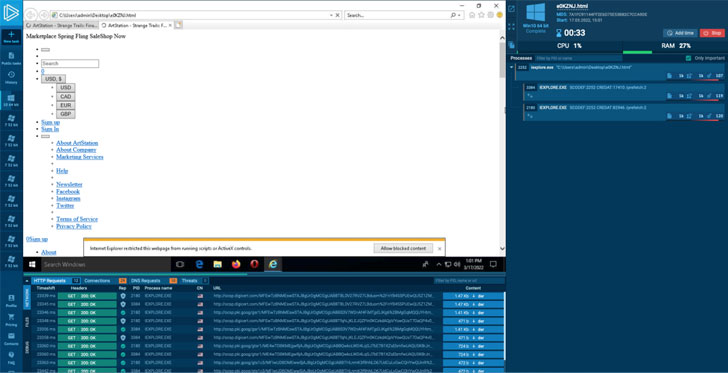
Two minutes is usually enough to crack even an advanced malware,
and most modern anti-evasion tricks don’t work here. ANY.RUN hunts
them all.
Enjoy a faster solution
The best experience is your own, that is why we offer you to try
the sandbox by yourself and check the features of ANY.RUN[2]. And here is a special
offer for our readers – you can try the service for free:
Write the “HACKERNEWS” promo code in the email subject
at support@any.run and get 14 days of ANY.RUN premium subscription
for free!
Of course, it’s up to you how to perform malware analysis. You
can spend some time building your own virtual environment or
perform analysis in several minutes using a convenient sandbox like
ANY.RUN. The choice is yours. The most important thing is what you
will do with these services and how to achieve your goals there.
But that’s another story. Successful hunting!
Read more https://thehackernews.com/2022/03/how-to-build-custom-malware-analysis.html