As there is no official download button on the Youtube
website to grab videos, so downloading youtube videos is always a
bit tricky job. People have been using third-party applications to
download videos from youtube. A few download
managers are available for Linux, who has the
option of downloading youtube videos. Some web browser extensions
available to download youtube videos. But, if you want to use a
hassle-free tool to download videos from youtube, surely YouTube-DL
is the best option. YouTube-DL is a terminal shell-based command
line application to download youtube videos on Linux. Here,
YouTube-DL is the short form of Youtube Downloader.
[1]
YouTube-DL on Various Linux
Distros
The YouTube-DL is written in Python, and C language. I must
mention that the YouTube-DL grab videos from youtube based on the
web scraping method. In this post, we are going to see how to
install YouTube-DL on different Linux distros. Later, we will also
see some useful techniques for downloading video and audio files
from youtube using the YouTube-DL tool.

1. Installing YouTube-DL on
Debian/Ubuntu Linux Distro
Linux users must know that the Gnome shell has gained tremendous
attention from Ubuntu users across the world. You should be glad to
know that the YouTube-DL is also a product of Gnome shell. That’s why
the YouTube-DL works perfectly on Ubuntu Linux. [2]
Method 1: Installing YouTube-DL on Ubuntu Linux via
PPA Commands
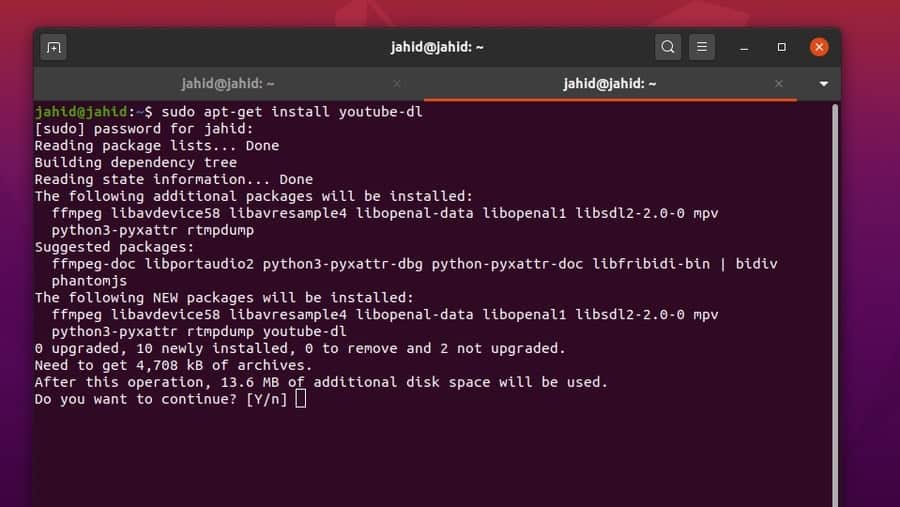
Let’s see how to install YouTube-DL on Ubuntu Linux. In the very
first step, I will update and upgrade the Linux system. Because
updating the system repository[3] is a crucial part before
installing any package, it makes the installation smoother.
$ sudo apt update && sudo apt upgrade
$ sudo add-apt-repository ppa:nilarimogard/webupd8
$ sudo apt-get update
$ sudo apt-get install youtube-dl
To check whether any version of YouTube-DL is already installed
on your computer or not, you can use the following terminal command
lines. Then you can update the YouTube-DL tool on Ubuntu.
$ youtube-dl -U
$ sudo youtube-dl --update
Method 2: Installing YouTube-DL on Ubuntu Linux via
cURL Commands
There is also an extraordinary way to update the
YouTube-DL on Linux that is based on the Client URL (cURL) command lines[4]. To use cURL commands,
you need to install the cURL tool. Then you may proceed to update
the YouTube-DL. You can use the chmod command in the
terminal to get the full access over your Linux system.
$ sudo apt install curl
$ sudo curl https://yt-dl.org/latest/youtube-dl -o /usr/local/bin/youtube-dl
$ sudo chmod a+rx /usr/local/bin/youtube-dl
2. Installing YouTube-DL on Kali
Linux Distro
Kali Linux[5]
is mainly used for high security and ethical hacking purpose.
Regular Linux users can also use the Kali Linux for day to day use.
The method of installing YouTube-DL on Kali Linux is pretty simple
and straightforward. All the terminal command lines are given
below. Kali Linux is built based on the fundamentals of Debian
distributions, so we can use the sudo apt commands to
install the YouTube-DL package on Kali Linux distro.
$ sudo apt install youtube-dl
$ youtube-dl
$ youtube-dl -F Youtube_URL
3. Installing YouTube-DL on Red
Hat Linux Distro
Red Hat Linux is the business enterprise version among all of
the Linux distros. We will be using the yum and
commands to install and configure the YouTube-DL on Red Hat Linux.
You can also use the wget commands to install the
YouTube-DL in the local directory of Red Hat Linux. After the
installation is done, you may now use the chmod
command to get the full access over the YouTube-DL on your Red Hat
Linux.
$ wget https://yt-dl.org/downloads/latest/youtube-dl -O /usr/local/bin/youtube-dl
$ yum install youtube-dl
$ chmod a+rx /usr/local/bin/youtube-dl
4. Installing YouTube-DL on Arch
Linux Distro
The Arch Linux is a bit underrated distribution of Linux.
Because installing and maintaining applications on Arch Linux is a
little tuff. However, now I will show how to install YouTube-DL on
Arch Linux distro. We will use the cURL tool to update and upgrade
the repository of YouTube-DL. Then we will change the
root permission, so that we can run operations through
the Linux terminal shell.
$ sudo curl -L https://yt-dl.org/downloads/latest/youtube-dl -o /usr/local/bin/youtube-dl
$ sudo chmod a+rx /usr/local/bin/youtube-dl
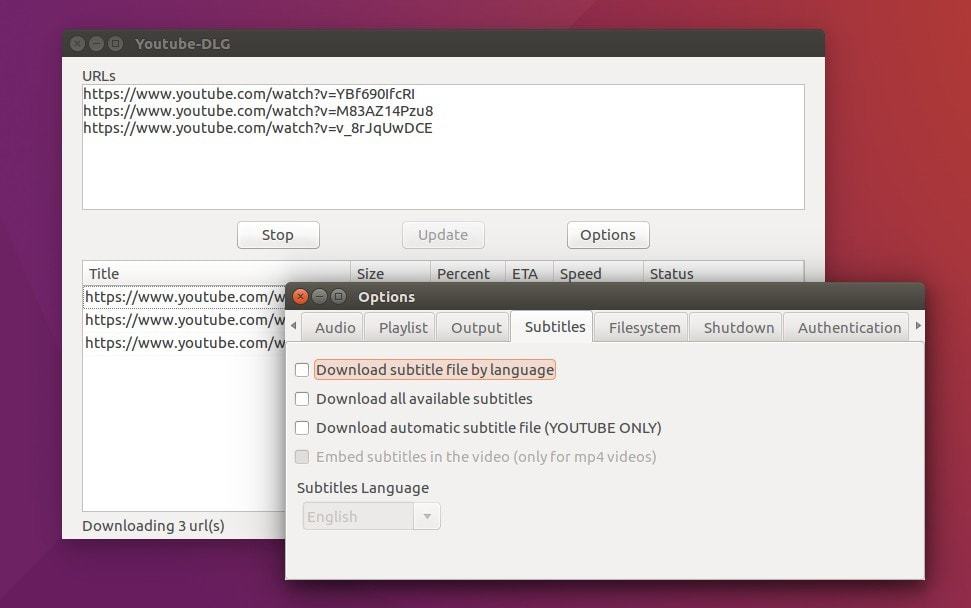
Using the graphical user interface (GUI) of YouTube-DL is the
easiest method to download youtube videos. I will now show how to
install the GUI of YouTube-DL on Linux. First, update the system
repository through the PPA shell commands. After that, you can
install the GUI application through some terminal command lines.
All the terminal commands are given below.
$ sudo add-apt-repository ppa:nilarimogard/webupd8
$ sudo apt-get update -y
$ sudo apt-get install youtube-dlg -y
If you find any errors while installing the GUI of YouTube-DL,
that could have occurred due to broken links or other repository
restrictions. In that case, you can follow these terminal command
lines given below.
$ wget http://ppa.launchpad.net/nilarimogard/webupd8/ubuntu/pool/main/y/youtube-dlg/youtube-dlg_0.4-1~webupd8~bionic9_all.deb
$ sudo dpkg -i youtube-dlg_0.4-1~webupd8~bionic9_all.deb
$ sudo apt-get install -f
You can also download the YouTube-DL-GUI from the official
website of YouTube-DL-GUI. There you will find the GUI application
for the Arch Linux, OpenSUSE, and Ubuntu Linux. Slackware
repository, PyPi, and the Source Codes of YouTube-DL-GUI are also
available on the website.
Download the
YouTube-DL-GUI[6]
Python will indeed be the leading programming language[7] in the next decades.
Here is a unique method to install YouTube-DL on your Linux machine
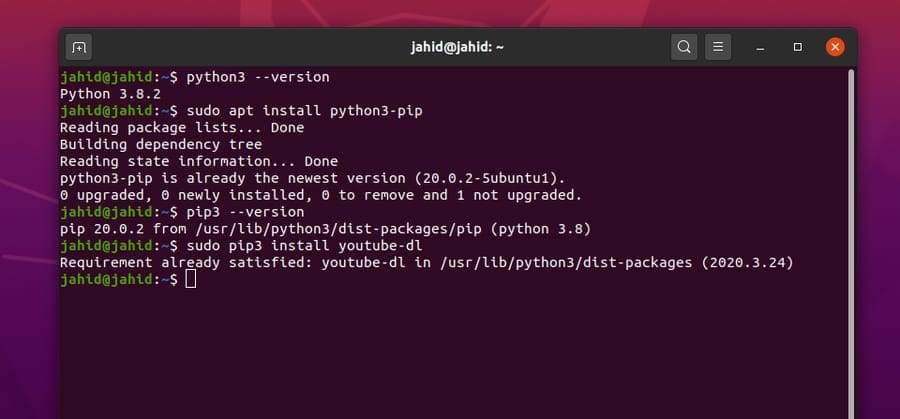
via the Python Package Installer (PIP). First, you need to check
which version of Python is running inside your Linux computer. Then
you may continue to install the PIP package on Linux. Once the PIP
package is installed, now you can start installing the YouTube-DL
on Linux through the PIP installer. In my case, I am using Python
3, so I will install and run the PIP3 as well.
$ python3 --version
$ sudo apt install python3-pip
$ pip3 --version
$ sudo pip3 install youtube-dl
$ sudo pip3 install youtube-dl --upgrade
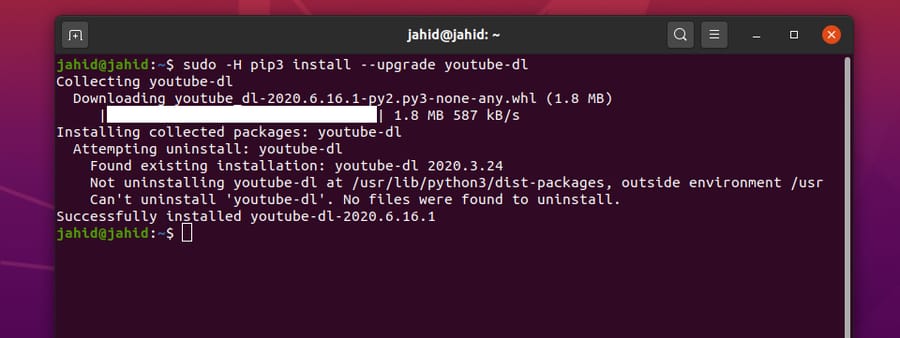
After the YouTube-DL is installed successfully on Linux, you may
now update the YouTube-DL through the pip commands.
$ sudo youtube-dl -U
$ sudo -H pip3 install --upgrade youtube-dl
Getting Started with the Functions
of YouTube-DL
Till now, we have learned how to install and configure
YouTube-DL on Linux. Now I will show some primary features of
YouTube-DL. YouTube-DL can download a single video, a bunch of
videos, or even a full playlist from youtube. There are options to
download subtitles along with the video. If you are a music lover,
there are also options to extract and download audio-only from
youtube. Now I am describing a few methods of how to use YouTube-DL
on Linux.
Step 1: Download Video from
Youtube by YouTube-DL
Before you start using the YouTube-DL, I would like to recommend
you to go through the manuals of YouTube-DL. The manuals will help
you to understand how to use YouTube-DL commands on Linux.
$ youtube-dl --help
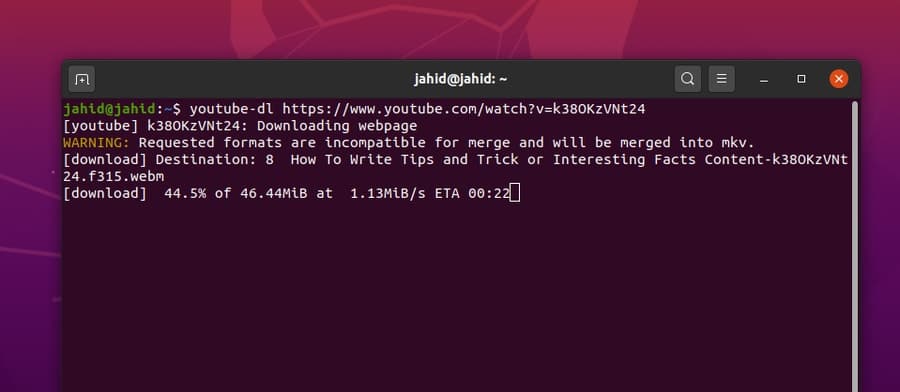
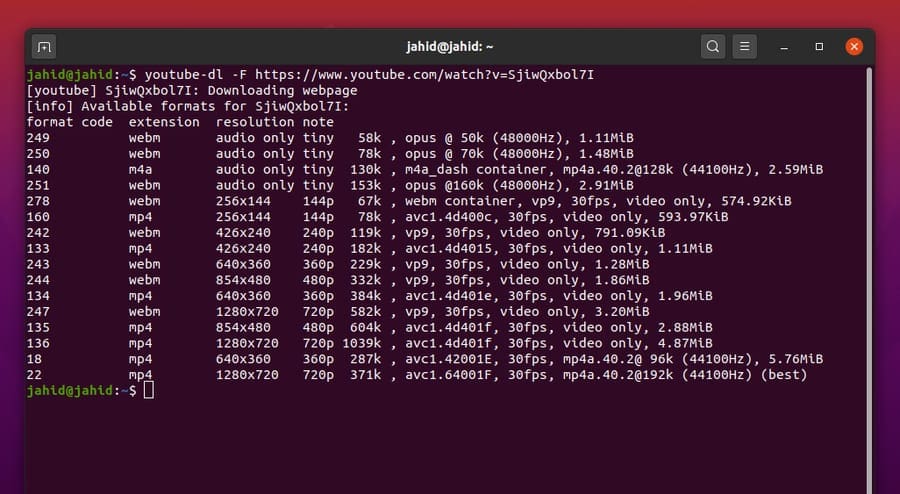
To download a single youtube video, open your Linux terminal shell[8]
and follow the command line given below. You have to replace the
video URL to get your desired video. You can also check the
available formats of a particular youtube video. Then, select the
video format and follow the next terminal command line. Here, the
number 18 is assigned as an MP4 video. For better understanding, I
am adding a picture of video formating.
$ youtube-dl -F https://www.youtube.com/watch?v=k38OKzVNt24
$ youtube-dl https://www.youtube.com/watch?v=k38OKzVNt24
$ youtube-dl --list-formats https://www.youtube.com/watch?v=k38OKzVNt24
$ youtube-dl -f 18 https://www.youtube.com/watch?v=k38OKzVNt24
Step 2: Downloading a Full
Playlist from Youtube
Now, I will show how to download a full playlist through the
YouTube-DL commands on Linux. But, be mindful that the playlist
privacy must be public. You can also download an unlisted youtube
video. You might want to know what would happen if you accidentally
close the terminal window on Linux while the download process is
running?
Will the download resume or, you have to start over? Well,
luckily, the answer is yes, your download will be resumed and
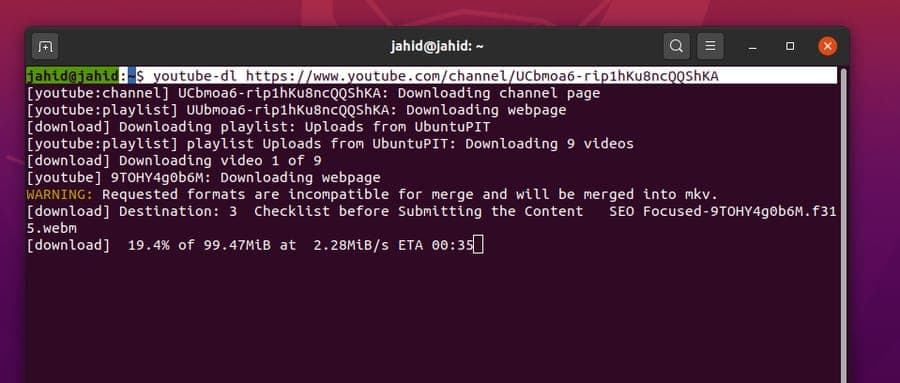
merged. You can download a full youtube channel through the
YouTube-DL commands on Linux. YouTube-DL also supports bulk
download, download specific video from a playlist, and multiple
downloads at a time.
$ youtube-dl https://www.youtube.com/channel/UCnKhQkCUS1oCEvjuTfU4xIw/playlists
$ youtube-dl https://www.youtube.com/channel/UCbmoa6-rip1hKu8ncQQShKA
$ youtube-dl [URL1] [URL2]
$ youtube-dl -a videos-list.txt
$ youtube-dl -o linux-video https://www.youtube.com/watch?v=9TOHY4g0b6M&t
$ youtube-dl --playlist-items 6 https://www.youtube.com/channel/UCnKhQkCUS1oCEvjuTfU4xIw/playlists
Step 3: Assign Path & Formats for
YouTube-DL
This is the step where you can assign a directory to store the
downloaded videos on your Linux machine. Otherwise, YouTube-DL
stores file in the Linux Home directory. You can
download the best quality or the worst quality of the video from
youtube through the YouTube-DL tool. Here, the syntax
-f is used for starting the download process.
$ youtube-dl -o ~/Downloads/UbuntuPIT/linux-video https://www.youtube.com/watch?v=9TOHY4g0b6M&t
$ youtube-dl -f worst https://www.youtube.com/watch?v=SjiwQxbol7I
$ youtube-dl -f best https://www.youtube.com/watch?v=SjiwQxbol7I
If you find any video that is unavailable on your country, no
worries, you can set a proxy address and port along with the
YouTube-DL command in the Linux terminal.
$ youtube-dl --proxy http://user:[email protected]
[9]_proxy.com:port url
YouTube-DL also has created an option to extract and download
the audio file from the youtube video in mp3 format. To download an
audio file using the YouTube-DL on Linux, you need to open the
terminal shell and type youtube-dl-x --audio-format mp3. Here, the
<URL>-x syntax is used to
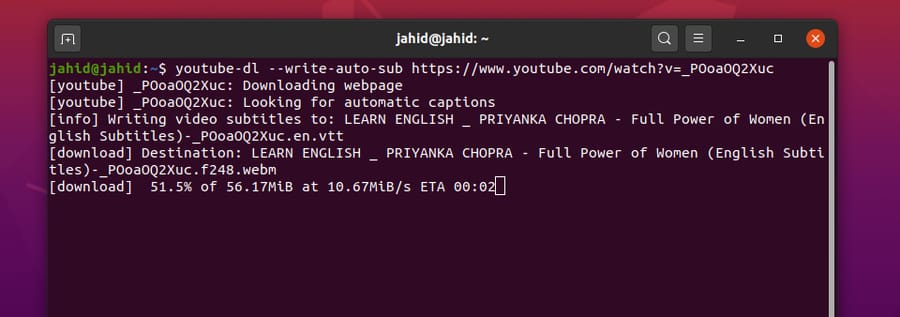
extract audio from the video file. YouTube-DL also allows
downloading videos with subtitles. You can choose the type of
subtitles and subtitle language.
$ youtube-dl -x --audio-format mp3 https://youtu.be/9ao4FEaDGhQ
$ youtube-dl -x https://www.youtube.com/watch?v= 9ao4FEaDGhQ
$ youtube-dl --write-auto-sub https://www.youtube.com/watch?v=_POoaOQ2Xuc
$ youtube-dl --list-subs https://www.youtube.com/watch?v=_POoaOQ2Xuc
$ youtube-dl --sub-lang en https://www.youtube.com/watch?v=_POoaOQ2Xuc
Problems You May Face While
Installing YouTube-DL
Here are some tips and tricks that would be helpful for you. If
you find that the YouTube-DL has stopped functioning suddenly on
your Linux machine, there is a chance that you have mismatched with
the Python versions. This issue often occurs in Python 3.8. Make
sure that your Python is working correctly. Then re-install the
YouTube-DL on your Linux machine.
$ sudo apt-get purge youtube-dl
$ sudo apt remove youtube-dl
$ sudo apt install python3-pip
$ sudo pip install youtube-dl
If you had installed the YouTube-DL through the Snapcraft[10] online application
store, there is a chance that your YouTube-DL tool might stop
working frequently. But don’t worry, this is a mild issue. Just
install the Snap application on your Linux machine and re-install
the YouTube-DL via the snap commands.
$ sudo apt install snapd
$ sudo snap install youtube-dl
Here is an actual tough problem that you may face while using
the YouTube-DL on Linux. What would happen if you unintentionally
delete the installation directory of the YouTube-DL from your
filesystem? Here is the answer, you have to make the same directory
inside your Linux machine and configure the permission settings.
Usually, YouTube-DL is installed in the
/usr/local/bin/youtube-dl directory.
$ sudo mkdir -v -p /usr/local/bin
$ sudo curl https://yt-dl.org/downloads/2016.02.05.1/youtube-dl -o /usr/local/bin/youtube-dl
$ sudo chmod a+rx /usr/local/bin/youtube-dl
Removing YouTube-DL from Linux
Distro
Till now, we have gone through all the processes of installing
and using the YouTube-DL on Linux. But every so often, you may need
to uninstall the YouTube-DL package from your computer. Here are
some quick and basic terminal command-lines to remove YouTube-DL
from Linux distros. You can also delete the installation directory
of YouTube-DL from the Linux filesystem[11].
$ sudo apt-get remove youtube-dl
$ sudo apt-get remove --auto-remove youtube-dl
$ sudo apt-get purge youtube-dl
$ sudo apt-get purge --auto-remove youtube-dl
Ending Words
No doubt, Youtube is the richest video streaming website that is
owned by Google. Youtube has not yet launched or announced to add
any official download button to download videos from youtube. So, I
think YouTube-DL is the best method to download youtube videos on
Linux. And let me also add that downloading video from youtube is
not illegal until you use it for business purposes or start taking
advantage of it.
In this post, I have described all the possible ways of how to
install YouTube-DL on Linux and how to use it properly. If you are
a Linux user and think that using the YouTube-DL tool is an
excellent method to download youtube videos, share this post on
your social media. If you know any better approach to download
youtube videos, please share your idea with us. Feel free to write
your opinions in the comment section.
References
- ^
download
managers (www.ubuntupit.com) - ^
Gnome shell
(www.ubuntupit.com) - ^
repository
(www.networkworld.com) - ^
50
Useful and Productive cURL Command in Linux
(www.ubuntupit.com) - ^
The 15
Things To Know Before Using Kali Linux in 2020
(www.ubuntupit.com) - ^
Download
the YouTube-DL-GUI (mrs0m30n3.github.io) - ^
Top 20
Most Popular Programming Languages To Learn For Your Open-source
Project (www.ubuntupit.com) - ^
40
Simple Yet Effective Linux Shell Script Examples
(www.ubuntupit.com) - ^
[email protected]
(www.ubuntupit.com) - ^
Snapcraft
(snapcraft.io) - ^
Everything You Need To Know About the
Linux File System (www.ubuntupit.com)
Read more https://www.ubuntupit.com/how-to-install-and-use-youtube-dl-on-linux-system/