Google Chrome is one of the most stable and reliable web
browsers for internet surfing and downloading.
Google also made a free and open-source version of Google Chrome
Web Browser, known as the Chromium browser. About 60% of internet
users use the Google Chrome browser to enter the internet world.
Everyone loves the Google Chrome browser because of its simple,
elegant, and decent user interface and synchronization ability.
Installing the Google Chrome web browser on your Linux machine can
open the door of hassle-free internet browsing. And of course,
installing Google Chrome on Linux is not a hard task.
[1]
Google Chrome on Linux
Distros
Most of the Linux distros[2]
are fully capable of installing and maintaining the functions of
Google Chrome. When you choose Linux for security purposes, Google
Chrome is the most recommended internet browser for you. In this
post, I will show how to install and use Google Chrome on Ubuntu,
REHL, CentOS, and Fedora Linux distributions.
1. Installing Google Chrome On
Ubuntu Linux
Ubuntu is the leading operating system of Linux
distribution. Very first of this post, we are going to see how to
install Google Chrome on Ubuntu Linux. There are two methods to
install Chrome on Ubuntu. One is the terminal command-line (CLI)
based method, and another is the graphical user interface (GUI)
method.
Method 1: Installing Google Chrome by
Gdebi Package Installer
Now I’m going to introduce you to all the possible
techniques of installing Google Chrome through the terminal shell
on Ubuntu. For starter, I am going to install
the Gdebi Debian package
installer on Ubuntu. With the help of the Gdebi installer, we can
install any Debian packages very smoothly on Ubuntu Linux.
[3]
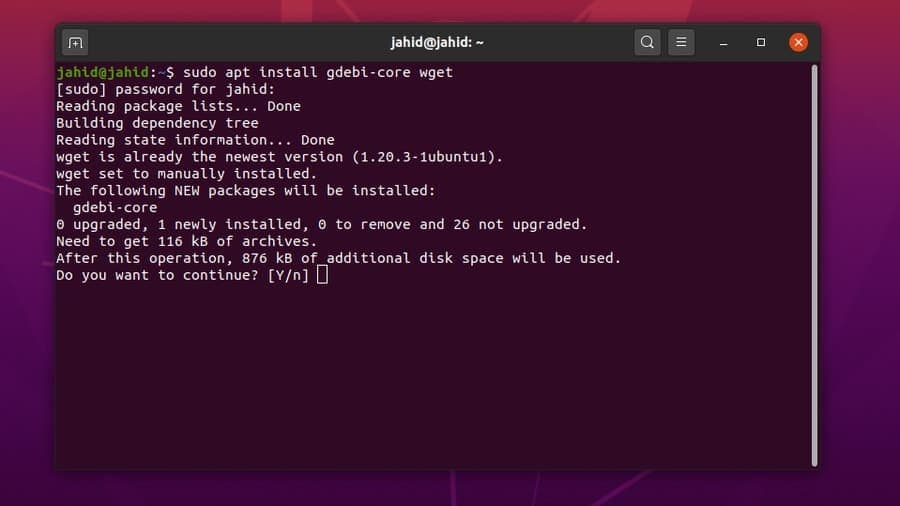
After the Gdebi is installed inside the Ubuntu machine, we will
now download the stable repository file of Google Chrome. Just
type the installer command and hit the Enter button.
$ sudo apt install gdebi-core wget
$ sudo gdebi google-chrome-stable_current_amd64.deb
After the installing processes are done, you can now launch
Google Chrome by typing the package name on the terminal shell.
$ google-chrome
Method 2: Installing Chrome on Ubuntu by
wget Commands
If you don’t want to install the Gdebi Debian package installer,
here is the straightforward method. You can use a wget
command to download the Google Chrome package on your Ubuntu Linux.
And after the download is finished, simply run the Debian package
(dpkg) installer command on the terminal shell.
You can update all Ubuntu applications from the Ubuntu terminal
shell using the apt-get update command. But here is a
method to show how to update and install only the Google Chrome on
Ubuntu Linux. We are going to proceed with the update && command line.
apt install
$ wget https://dl.google.com/linux/direct/google-chrome-stable_current_amd64.deb
$ sudo dpkg -i google-chrome-stable_current_amd64.deb
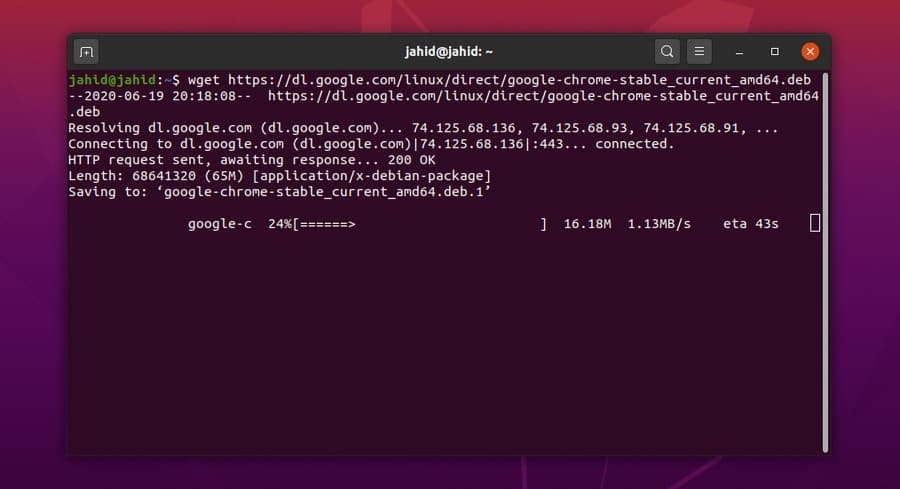
Once you have installed Google Chrome successfully inside your
Ubuntu machine, now you can check the version of your Google
Chrome, whether it is stable or unstable.
$ cat /etc/apt/sources.list.d/google-chrome.list
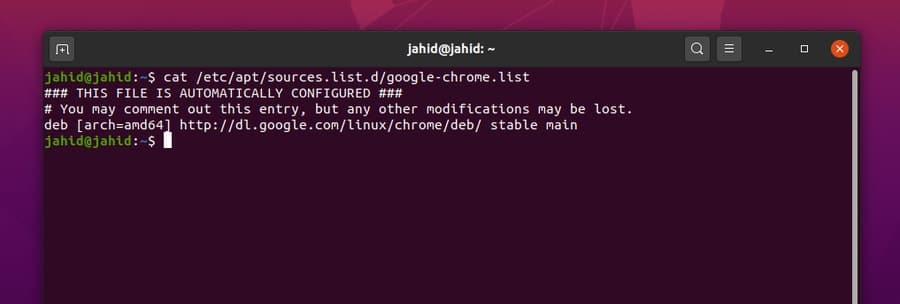
Method 3: Installing Chrome on Ubuntu by GUI
Method
In this method, no terminal command lines are required to
install Google Chrome on Ubuntu Linux. This process is moderately
simple and easy. This method is helpful for them, who are just the
newcomer on Linux. All you need is to go to the Official website of
Google Chrome and download the chrome Debian
package[4] file for Ubuntu.
If you are visiting the site from a Ubuntu OS, the site will
automatically detect your OS and ask you to choose whether you want
to download or not. Just mark the .deb package and hit
the ‘Accept and Install’ button.
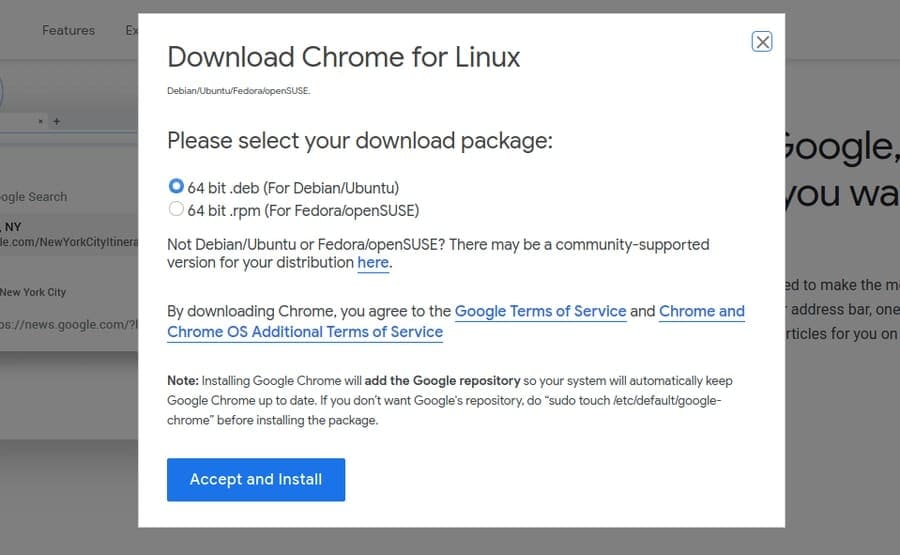
Once the .deb package is downloaded; you can now
open the download directory. Then, right-click on the package file,
and choose ‘Open With Ubuntu Software Center.‘
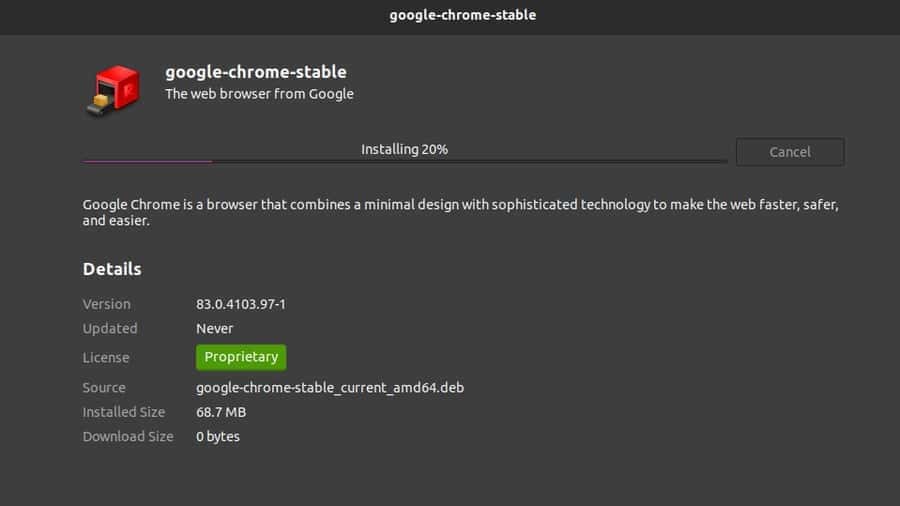
There you go; it will directly take you to the software center. Now
you need to click on the ‘Install‘ button and
proceed with your Ubuntu administrator password. You will be able
to see the progress of the installation.
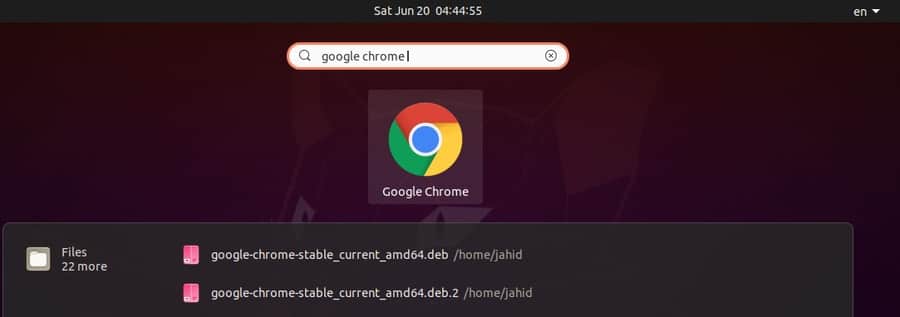
After the installation is done, you can find Google Chrome at
the top search bar of Ubuntu. Click on the Google Chrome icon, and
there you go! Your Google Chrome is now open. You can also open the
software from the terminal shell.
2. Installing Google Chrome on Red
Hat Enterprise
The process of installing Google Chrome on Red Hat Linux is
almost the same as Ubuntu Linux. Here, you have to change the
terminal command from sudo to yum. Rest
of the procedures are the same as it was. There are two methods of
installing Google Chrome on Red Hat Linux. First, I am going to
show the terminal command-line (CLI) based method; then, I will
show the GUI method.
Method 1: Getting Google Chrome On REHL and SuSE by CLI
Method
To update the Google Chrome package on Red Hat Linux, you can
use the following command line. I am using a wget
command to download the package file. Then I will run and install
the software through the yum install command. You can
also check for updates of Google Chrome on Red Hat Linux. Now to
launch the Google Chrome, just open the terminal, type the package
name and add a & after the package name, and hit the
Enter button.
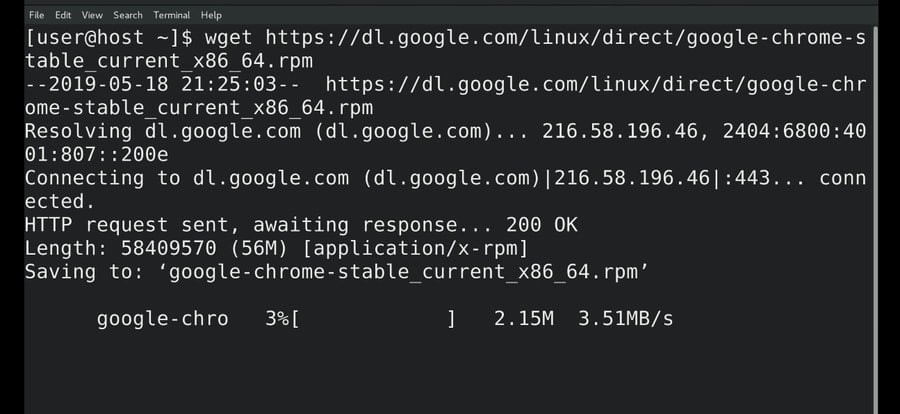
$ wget https://dl.google.com/linux/direct/google-chrome-stable_current_x86_64.rpm
$ sudo yum install ./google-chrome-stable_current_*.rpm
$ sudo yum update google-chrome-stable
$ google-chrome &
You can also use the following wget and yum
commands in the terminal shell to download and install Google
Chrome on SuSE Linux Distro.
$ wget https://dl.google.com/linux/direct/google-chrome-stable_current_x86_64.rpm
$ yum -y install redhat-lsb libXScrnSaver
$ yum -y localinstall google-chrome-stable_current_x86_64.rpm
Method 2: Installing Google Chrome on REHL by GUI
Method
Previously we have seen how to download the Debian
.deb package of Google Chrome for Ubuntu. There we
have also seen that there was an option to download the
.rpm package as well. The .rpm package is
for Red Hat Linux. We need to download the .rpm
package to install Google Chrome by the GUI method.
I’m going to download the file in the Downloads
directory. After the download is done, open the terminal and go to
the superuser mood. Then open the download list and run the
sudo yum install command to install the Google Chrome
on Red Hat Linux.
$ su
$ cd Downloads/
$ ls
google-chrome-stable_current_x86_64.rpm
$ sudo yum install ./google-chrome-stable_current_x86_64.rpm
3. Installing Google Chrome on
Fedora Linux
Fedora Linux is mostly used for server maintenance and
networking. To install Google Chrome on Fedora Linux, you need to
follow the simple terminal command lines that are written below. I
am using the .dnf shell commands to perform the
installation.
$ sudo dnf install google-chrome-stable_current_*.rpm
$ sudo dnf install google-chrome-stable_current_x86_64.rpm
Once the download and installation of Google Chrome are done on
Fedora Linux, we can update the package by the following terminal
commands.
$ google-chrome
$ cat /etc/yum.repos.d/google-chrome.repo
$ sudo dnf update google-chrome-stable
4. Installing Google Chrome on
CentOS
Those who are using the CentOS must know that the CentOS is
based on Red Hat Linux, and with the architectural design of
CentOS, we can run most of the Red Hat Linux commands to install a
package of CentOS. We will use the wget command and
yum shell commands to download and install Google
Chrome on CentOS.
$ wget https://dl.google.com/linux/direct/google-chrome-stable_current_x86_64.rpm
$ sudo yum localinstall google-chrome-stable_current_x86_64.rpm
$ yum install google-chrome-stable
To update and get information about Google Chrome on CentOS, use
the following terminal command lines.
$ cat /etc/yum.repos.d/google-chrome.repo
$ yum info google-chrome-stable
After everything is done correctly, it’s time to run the browser
on CentOS. To open the Google Chrome from CentOS, type the package
name in the terminal and hit the Enter button. If you want to run
Google Chrome in the background, just put a & sign
after the package name and hit the Enter button.
$ google-chrome &
Getting Started With the Web
Browser
Till now, we have seen how to install Google Chrome on various
Linux distros. Now I am going to take a tour with Google Chrome to
show the Chrome browser’s primary interface. At the very beginning,
when you open Google Chrome for the first time, it will ask if you
want to make it as your default browser or not. You can make any
decision you wish to, then hit the ‘OK‘
button.
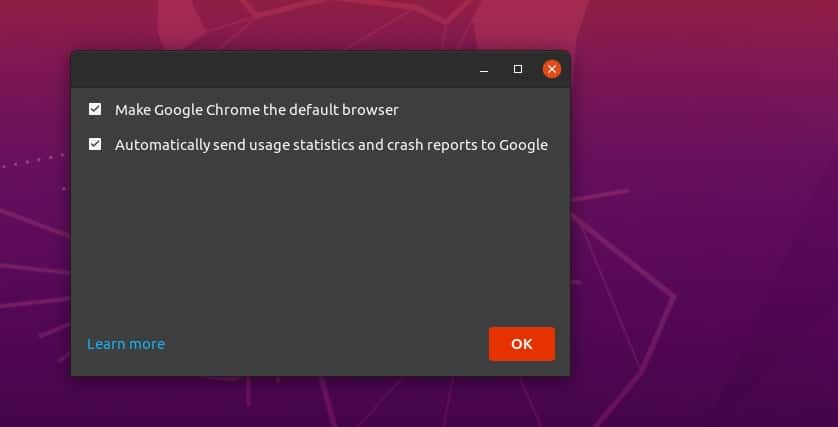
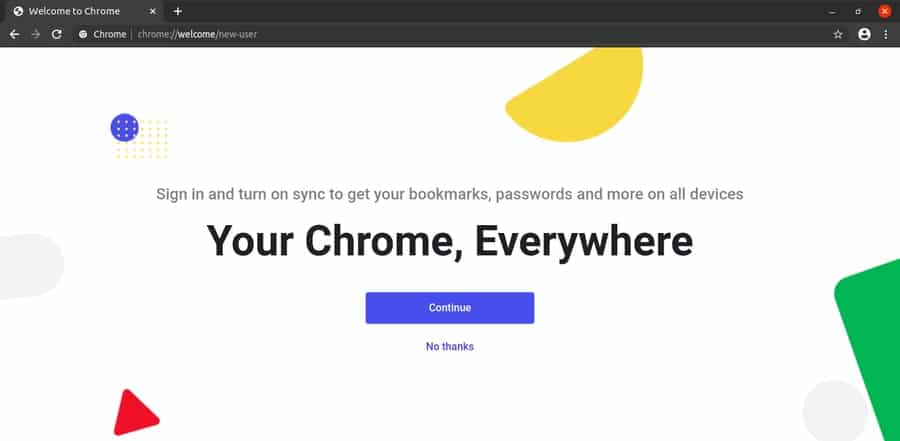
That is the entire setup that you needed to know. After that,
the browser will take you to the startup page. You can sign in to
the browser to get all your bookmarks and passwords secured and
protected. You will find a three-dot menu at the right upper corner
of the Google Chrome browser; there you will find all the settings
and configurations.
Removing the Google Browser from
Linux
We all have overheard the problem against Google Chrome that: it
consumes much more memory (RAM) than any other web browsers. I deny
this accusation and want to add that, Yes, the allegation would be
correct on Windows or other Operating Systems, but not on Linux.
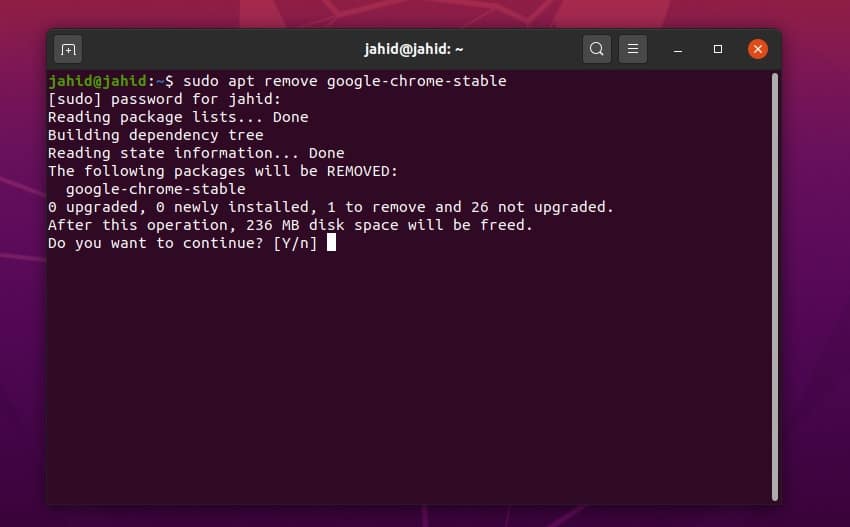
Hence, if you need to remove or uninstall the Google Chrome browser
form your Ubuntu Linux machine, here is a convenient method to do
so.
$ sudo apt remove google-chrome-stable
$ sudo dpkg -r google-chrome-stable
To remove Google Chrome from other Linux distros, use these
terminal commands to remove Google Chrome from Reh Hat Linux,
Fedora Linux distros. You can also use the last terminal command if
you’ve installed Google Chrome via the Python PIP installer.
$ yum remove google-chrome*
$ rpm -qa | grep chrome
$ rpm -e <chrome package name here>
$ yum -y erase google-chrome
$ sudo yum -y erase google-chrome
$ sudo pip uninstall youtube-dl
Ending Thoughts
Using an authentic and safe web browser can give you relief from
getting enraged while browsing the internet. It has a vast number
of browser extensions, and the search engine is set as Google by
default. In this post, I have summed up all the possible ways of
installing Google Chrome on Linux machine.
If you are a Google Chrome user and find this post useful,
please share it on social media. We encourage you to write any
comments on the comment section related to this post. You can also
write to let us know which web browser do you like most, and
why.
References
- ^
most
stable and reliable web browsers
(www.ubuntupit.com) - ^
Best
Linux Distro: Top 10 Recommendation To Boost Up Your Linux
Experience (www.ubuntupit.com) - ^
Gdebi
(launchpad.net) - ^
download the chrome Debian package
(www.google.com)
Read more https://www.ubuntupit.com/how-to-install-and-use-google-chrome-on-linux-system/