If you are thinking about owning a personal or commercial
media server with a dedicated hardware
configuration in a very efficient way, then you are in the right
place. The Xbian is the most lightweight Operating system that you
can install inside your Raspberry Pi board. Actually, the Xbian is
mostly an embedded media player with an Operating System. The Xbian
is also known as KODI, which is developed by the
X-Box Media
Center foundation. [1][2]
XBian on Raspberry
Pi
 As the
Python programming language[3] is always installed by
default inside the Raspberry Pi[4]
boards, so it will be very much easy to run an Operating System
that can be integrated with the Raspberry Pi functions
conveniently. No doubts that the XBian OS is the most famous and
insubstantial Operating System for the Raspberry Pi
Board[5]. In this post, we are
going to see how to install the XBian on your Raspberry Pi
Board.
Step 1: Downloading the XBian
Image File
The very first step to install the XBian on your Raspberry Pi
board is to download the proper XBian image file. Later we will be
using an image burner tool to make the image bootable. To download
the XBian image file, you can simply visit the official website of
XBian; under the download menu, you will find the image file. Try
downloading XBian for Raspberry Pi. You can choose the download
version according to your Pi board.
Step 2: Downloading the Etcher
Tool
Among all the image burner software available on the web, the
Etcher is the most powerful and handy tool to burn the XBian image
file. From the Etcher tool, you can either choose the image file
from your notebook or desktop storage, or you can also just provide
the download link of the image file, the Etcher tool will download
and burn the XBian image file automatically.
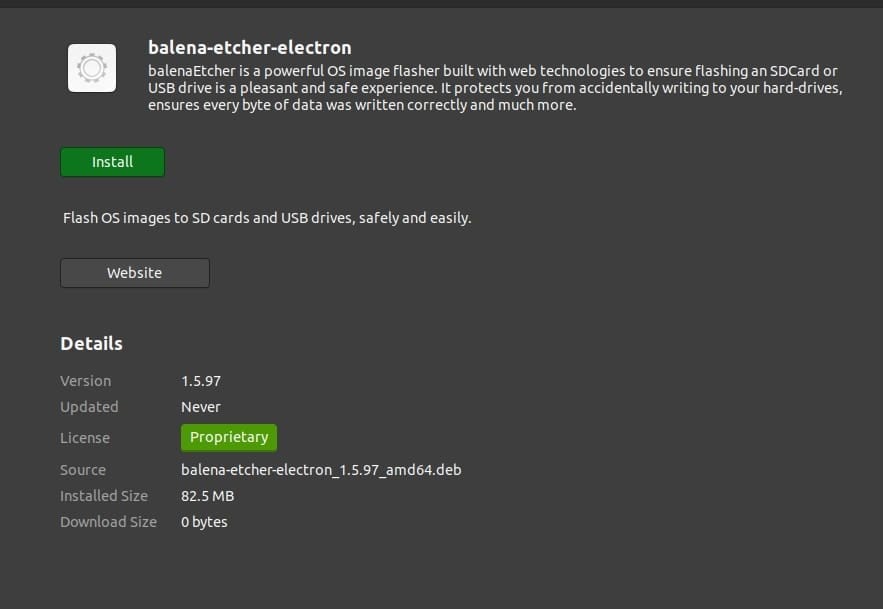
Follow the instructions to download and install Etcher inside
your Linux machine. If you are using the Debian or the Ubuntu
Linux, you can download the .deb file and install the
Etcher from Ubuntu Software. Here you will also find the
.rpm files if you are using the Fedora, CentOS, or the
SUSE Linux distributions.
You can also add the repository files on your Linux and install
the Etcher using the following terminal commands.
$ sudo apt-key adv --keyserver keyserver.ubuntu.com --recv-keys 379CE192D401AB61
$ sudo apt update
$ sudo apt install balena-etcher-electron
Step 3: Burning the XBian OS for
Raspberry Pi
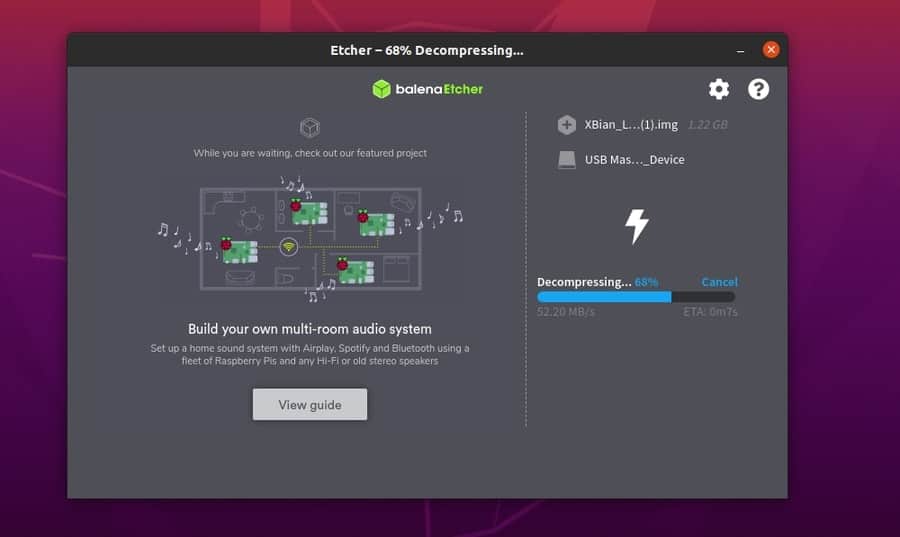
As I have mentioned previously, Etcher is the most handly and
functional tool to burn the XBian image file, so to make the XBian
bootable first insert an SD card inside your desktop, then open the
Etcher tool. Now from the image selection tool, select the XBian
image file from your disk. Mostly the XBian image file comes in a
compressed zip version.
Then, the USB drive will be automatically selected in Etcher.
Now click the Flash button. That’s all you needed to do! The rest
of the work will be done automatically. Once the bootable XBian
image is ready, eject your USB and insert the SD card inside the
Raspberry Pi board.
Step 4: Getting Started With the
XBain on Raspberry Pi
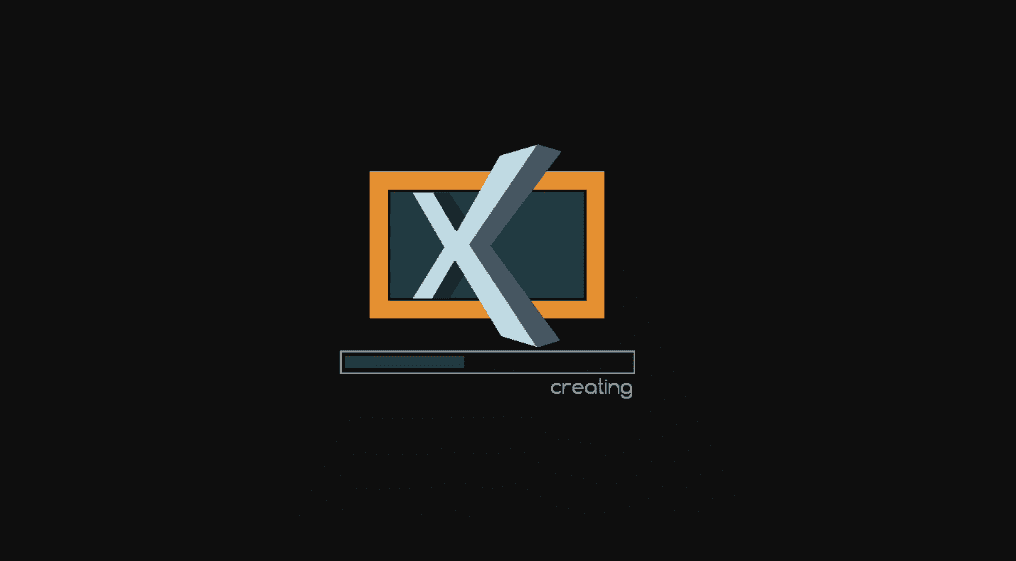
After inserting the bootable SD card inside your Raspberry Pi
board, power up the Pi board. It will automatically detect the
XBian image and load the files from the SD card. Installing XBian
is very much quick and simple. You will find some installing menu
for further instructions.
You may ask to enter a license key; you can skip this part and
jump to network configuration. Select your WiFi, or you can also
choose the Lan cable option to get your XBian up to date with
third-party applications. You will also get options to backup your
XBian system. Or you can also restore XBain OS if you have a
previous XBian backup.
At the very beginning of installing the XBian on Pi boards, you
may ask for the user name and password of the XBIan. Here, the
default username and password is given for you.
Username:  xbian
Password:  raspberry
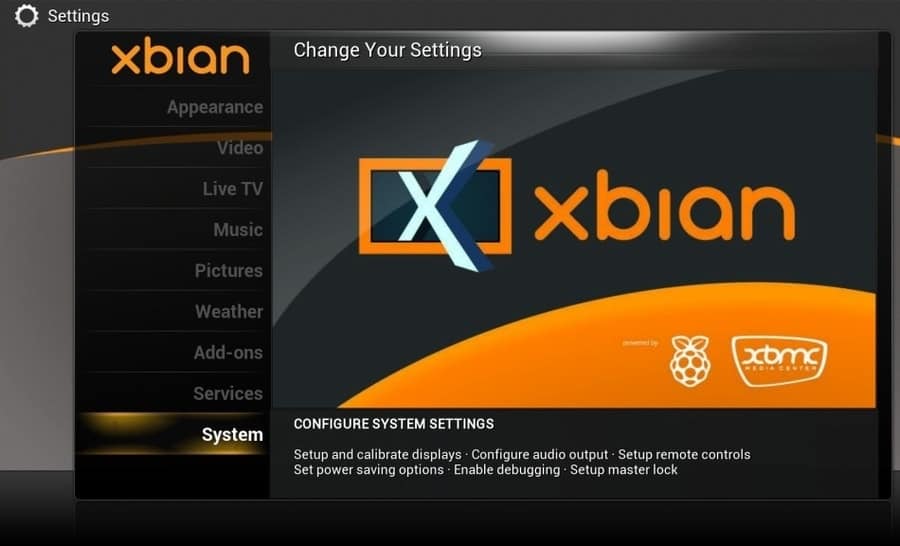
You may find your screen resolution is not perfect at the
initial stage of installing the XBian OS. You can fix the screen
resolution from the Display Settings, under the System Settings
option. After everything is done perfectly, you will get your XBian
OS ready within a few minutes. Yes, that it is, as simple as
that.
Problems You Might
Find
While installing the XBian OS on your Raspberry Pi board, I’m
afraid you may find a couple of issues functioning not properly.
But don’t worry, here are some primary solutions for yours.
While you are trying to get a fresh install of the XBian OS
inside your Pi board, you may find that the Ethernet or the Lan
cable is not working. You can try reconnecting or changing the LAN
cable. If the problem is still there, connect to your Internet
Service Provider (ISP). This internet connectivity issue is found
on Raspberry Pi board 2.
After the installation is done, you should try to update your
XBian system from the system updater. You may find an error
regarding the Updating Error. This problem could occur due to the
preinstalled Python2.7. Here is the primary solution to avoid
Python clashing errors.
$ sudo sed -i '/_hashlib.so/d' /var/lib/dpkg/info/python2.7.list
$ sudo sed -i '/_ssl.so/d' /var/lib/dpkg/info/python2.7.list
Final Thoughts
The XBian is written in C++[8]
that is very much a core language to get interacted with very
primary types of machinery. And as the Raspberry Pi boards are
mostly a huge combination of integrated circuits, so there is no
doubt that the XBian OS will run smoothly on Pi boards. Besides
that, nowadays, the combination of Raspberry Pi and XBian (mostly
known as Kodi) is a trending method for Home theater PC (HTPC).
In this post, I have illustrated the primary and basic
fundamentals of how to install and configure the XBian on Raspberry
Pi boards. If you like this post, please do share this post on your
social media. Also, write comments if you have anything to share
with us regarding this post.
References
- ^
13 Best
Linux Media Server Software for Making Your Own Home Theater PC
(www.ubuntupit.com) - ^
KODI (kodi.tv) - ^
The 30
Best Python Libraries and Packages for Beginners
(www.ubuntupit.com) - ^
Raspberry Pi
(www.ubuntupit.com) - ^
The 20
Best Raspberry Pi OS Available to Use in 2020
(www.ubuntupit.com) - ^
Download XBian
(xbian.org) - ^
Download
Etcher (github.com) - ^
The 20
Best C++ Books for both Professional and Beginner
(www.ubuntupit.com)
Read more https://www.ubuntupit.com/how-to-install-xbian-on-raspberry-pi-a-complete-tutorial-for-newbie/