Linux system info tools let you view the detailed state of the
hardware components of your machine running Linux based distributions. Although, the
Windows platform is preferred by most of the gamers apart from
gaming consoles. The hardware sentinels and tech geeks have an
obsession with Linux. We know that Linux offers great flexibility
to the superuser. But most of the Linux distributions do not offer
built-in hardware info tool on Linux that offers an easy to use
GUI. But the awesome developer community is offering some great
tools for this purpose. [1]
By using the hardware information tools for Linux, you can view
each component and their details of your custom-built Linux
machine. Besides, some of them will show you the current state and
load of the components so that you can keep track of the
performance.
Choosing the best hardware info tool for your Linux system is
not an easy task. Because you won’t want to install different tools
for different purposes, rather you should choose a tool that will
work as a jack of all trades.
As you are unable to check out every Linux system info tool, we
have already done our homework. Here we have enlisted the best 10
hardware information tools for Linux that will help you to get the
most out of your hardware.
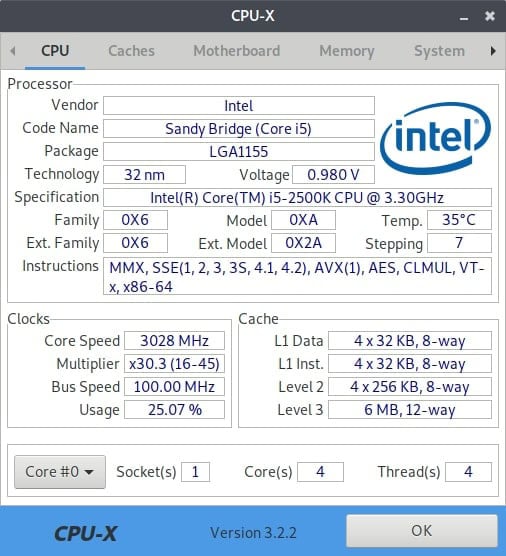
1. CPU-X
If you were ever on the Windows platform, then you might have
used the popular system info software CPU-Z. This is the port of
that popular tool that you can use on Windows. It will give you all
the detailed analytics of the hardware components installed on your
PC. The UI is very simple and minimal, just like the original
CPU-Z. You will get all the information arranged in categories, and
you can access all of them by navigating through the tabs.
Key Features of CPU-X
- It will show you the current processor temperature in your
preferred units. - Apart from the hardware info, it will show you the detailed
info about the operating system you are using. - This tool can monitor the CPU and GPU load in real-time so that
you can track the performance graph. - It can be run on any version of Linux, and hence you should not
find any difficulties using it.
2. I-NEX
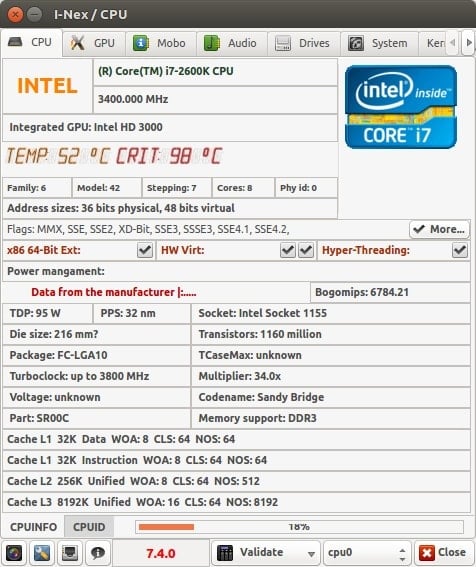
This is one of the most popular hardware probing tools available
out there. It has all the features of CPU-X. The plus point of this
tool is the beautiful and intuitive user interface. It will show
you all the installed components of your PC, like CPU, GPU,
motherboard, RAM, Audio devices, and so on. You will even see your
firmware stats in this tool for getting a detailed overview.
Key Features of I-NEX
- You can export your computer spec as an image file if you want
to show your rig off. - This tool has integrated sharing features for sharing the full
system info to third party services. - It will show different features by marking as a tick or cross
mark so that you can get an idea of the features your machine
lacks. - I-NEX can show the component’s brand name and model name along
with the respective logo of the brand.
3. Hardinfo
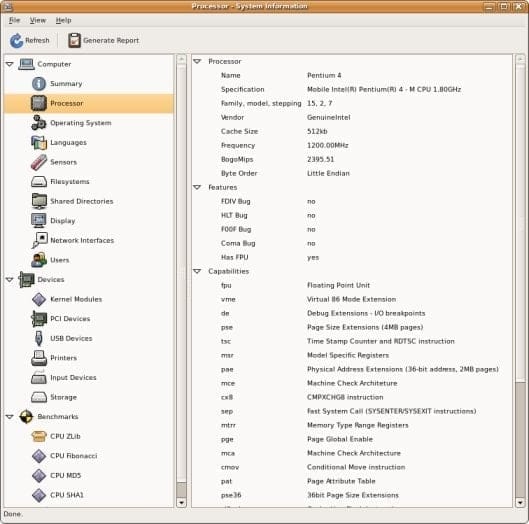
Hardinfo is an easy to use Linux system info tool. The user
interface is very simple and comfortable to view. The features and
components are neatly arranged on the main menu. It is the most
feature-rich hardware info tool on Linux. It has some basic
benchmarking tools built-in with this apart from the core
features.
Key Features of Hardinfo
- This tool can utilize different sensors in your machine, such
as a temperature sensor, and can read data from it. - You can manage all the attached devices via USB or wirelessly
by using this tool. - CPU Blowfish, CPU CryptoHash, FFU Raytracing, and some other
popular benchmarking algorithms are built into this tool. - Users can generate an HTML file and export based on the
detailed system info and benchmarks.
4. KDE HAL Device
Manager
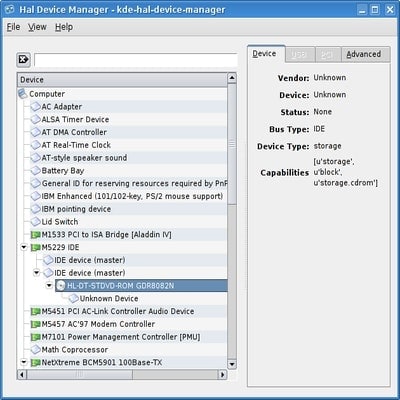
This is the unofficial port of the popular Ubuntu system info
tool, HAL Device Manager. Although the newer version of Ubuntu
opted to use the alternative tool named HardInfo. You will find
this tool in KDE’s official application store. You can even use
this tool in other Linux based distributions. The simple user
interface uses fewer computer resources while running.
Key Features of KDE HAL Device
Manager
- This is a complete package for managing all the connected
devices of your computer. - You can see the properties of specific hardware from this
tool. - It has an advanced tab for each component for showing the
in-detail features. - The tool has an in-built documentation feature for helping the
new users.
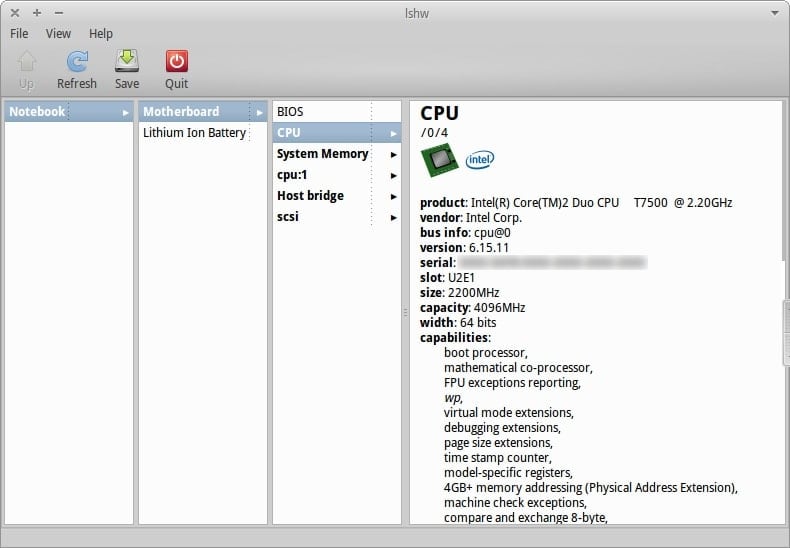
5. lshw-gtk
If you are a veteran Linux user, then you might have known the
name of the built-in Linux tool for showing the hardware info on
Linux. This is called lshw and can be accessed via typing this
simple command inside the terminal window[6]. Hence many people
prefer the graphical user interface for using with ease; the
developers built an open-source GUI based on this tool named
lshw-gtk. This tool has all the common features of a classic system
info viewer tool.
Key Features of lshw-gtk
- This tool will report the whole system configuration, including
motherboard, memory, CPU, cache, and others. - You can generate reports for exporting in different formats,
including plain text, XML, or HTML. - The GUI is based on the GTK+ framework, and hence it supports
all the GTK’s theming capabilities. - Users have access to all the reports via the terminal window
without installing the GUI.
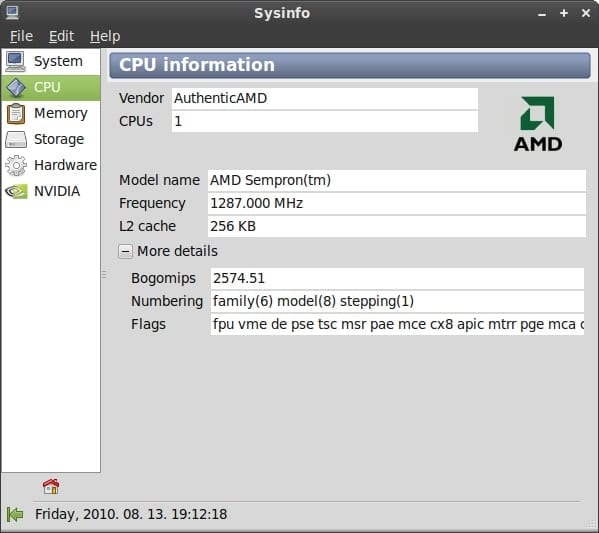
6. Sysinfo
Sysinfo is a pretty basic tool for getting detailed reports on
system hardware. It doesn’t offer many features, just like some of
the tools mentioned above. But this tool will be adequate for most
of the users out there. The user interface of this Linux system
info tool is very sleek with minimal visuals that are not very
resource-heavy.
Key Features of Sysinfo
- It arranges the five major components of a PC into its menus
such as system, storage, memory, CPU, and additional hardware. - This tool can automatically assign the brand logo or icon for
different components installed on your computer. - It shows time, date, and some other necessary elements inside
the window. - This tool shows a graphics card tab for the machines with a
dedicated GPU installed.
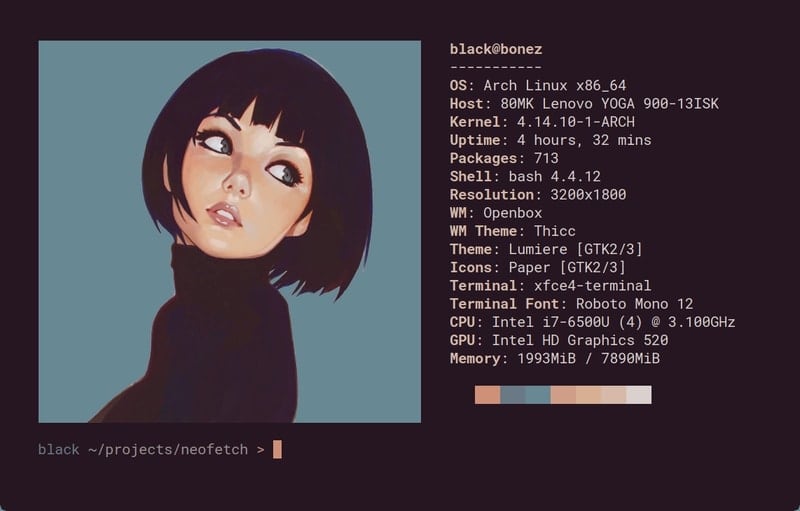
7. Neofetch
Neofetch is a versatile command line-based tool for displaying
hardware information. Though most of the terminal-based tools look
boring, it is not. It will beautifully arrange the information with
your operating system’s logo. This tool is written with Bash and
supports any type of Linux distro with even added support for the
Windows OS.
Key Features of Neofetch
- Users can select what parameters they want to display while
showing the system configuration. - The logo can be customized and replaced with a user-defined
image or ASCII code for unique aestheticism. - This tool supports more than 150 operating systems and Linux
variants. Users can even report any unsupported OS so that it can
be officially supported. - Neofetch supports adding custom hardware parameters and
assigning custom command-line flags for them.
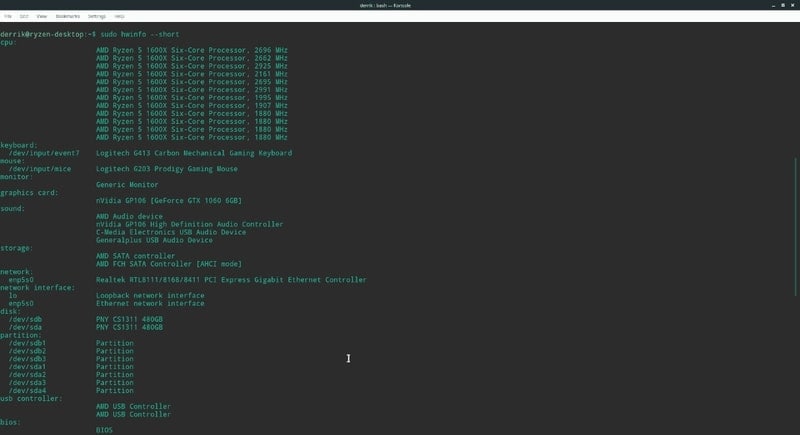
8. HWinfo
This is yet another command-line tool for Linux that lives
inside the terminal window. Although it does not offer many
customization options like other Linux system info tools- such as
Neofetch. It was originally developed for the OpenSUSE Linux
project. Later it got several unofficial ports for other Linux
distributions.
Key Features of HWinfo
- This tool uses a popular hardware component probing library
named libhd.so. - You can use some command-line flags to display modified pieces
of information. - It supports integrating with other tools so that you can export
the results for further processing and formatting. - This tool even supports reporting temporary hardware connected
via USB ports.
9. CPU-G
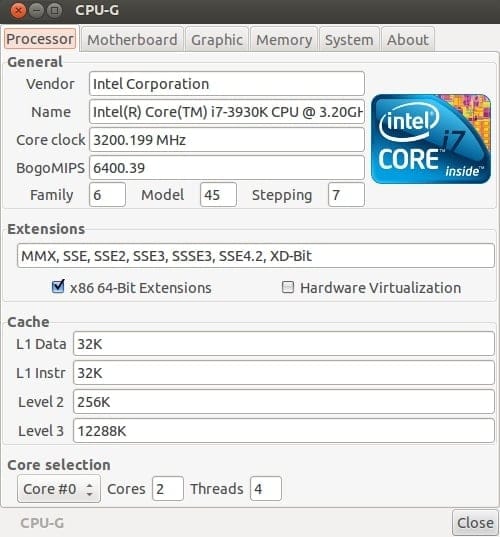
This is a relatively less popular tool for displaying the system
information. The developer named this tool after the popular CPU-X
tool for Linux. This tool is written with Python[11]. Hence it uses GTK+3 as
the GUI framework; you can theme this by using any GTK theme. This
tool has many features arranged in a beautiful and clean
dashboard.
Key Features of CPU-G
- It supports all the common parameters such as CPU, GPU, memory,
storage, additional components, etc. - It has extended support for displaying the battery statistics
of your computer if it is a laptop or tablet. - This tool has a file system detector that shows advanced
parameters like occupied space, mounting point, etc. - You can see the detailed overview of the installed Linux distro
on your computer.
10. KInfoCenter
It is one of the free and open-source examples of hardware
information tools for Linux. This tool was developed by the
KDE[13] software community. But
that doesn’t mean that it will only run on the desktop environments
by KDE. Rather you can download and install it on any Linux
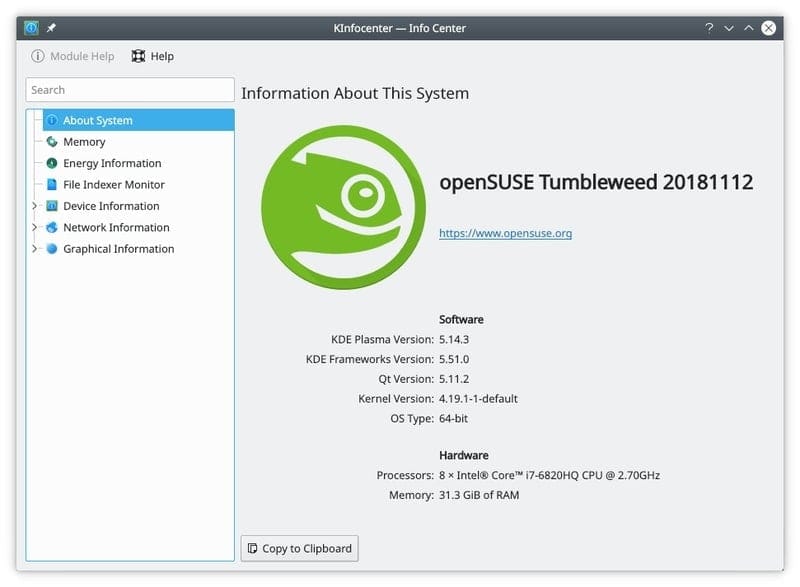
distribution. It has one of the most beautiful and cleanest user
interfaces among all the tools I have mentioned above.
Key Features of KInfoCenter
- It can show detailed battery information along with recharge
cycles that are very helpful for laptop users. - The dedicated network info tab shows you the networking
component with the current upstream and downstream traffic
analysis. - It works as a complete device management tool that can report
every component plugged in via USB, PCI, or other methods. - Complete documentation or help file is included with this tool
for the beginners.
Finishing Up
Well, considering the features while choosing a Linux system
info tool is not a big deal as you have already seen that all the
tools mentioned above provide almost similar feature-sets. In that
case, you can consider the user interface and user experience it
provides. Most of the people don’t keep a hardware information tool
installed on their machine permanently. Rather they use it when
they need it.
No matter how you use the tool, I hope that the above list can
help you to choose a great tool for viewing the system info. If you
think that your favorite tool is missing here, you can comment on
the tool name to let everyone know.
References
- ^
Best
Linux Distro: Top 10 Recommendation To Boost Up Your Linux
Experience (www.ubuntupit.com) - ^
Download
(github.com) - ^
Download
(i-nex.linux.pl) - ^
Download
(help.ubuntu.com) - ^
Download
(store.kde.org) - ^
Linux
Terminal Emulator: Top 15 Reviewed and Compared
(www.ubuntupit.com) - ^
Download
(packages.debian.org) - ^
Download
(sourceforge.net) - ^
Download
(github.com) - ^
Download
(github.com) - ^
The 20
Best Python Tips and Tricks You Must Know in 2020
(www.ubuntupit.com) - ^
Download
(github.com) - ^
The 20
Reasons To Use KDE Desktop Environment in 2020
(www.ubuntupit.com) - ^
Download
(userbase.kde.org)
Read more https://www.ubuntupit.com/best-linux-hardware-and-system-info-tools/