Color picker tools in your Linux system help designers in a lot
of ways. Most people have got a common misconception that the Linux
distros are not designer-friendly. Well, this is partially true
because most of the designers use Adobe suite which is not yet
available for Linux. But Linux has some powerful designing tools
that are completely free to use. Besides they have got almost
similar capabilities like other popular premium tools like Adobe Photoshop and Adobe
Illustrator. This is why many designers who are open-source
enthusiasts at the same time prefer Linux over other platforms.
[1]
Color picker tools help the designer to manage their preferred
color palette and remove the hassle of remembering the HEX codes
for every single color. They can just point to a certain spot of
the reference color to get the web color code of that particular
spot. This is very handy even for the application and web
developers.
Most of the color pickers are simple tools. Some are even
lightweight and portable. Though the name suggests a specific
feature, most of them have some additional bonus features. These
additional features and the quality of user experience make the
difference between them. You don’t need more than one color picker
for your design and development works. But you should choose that
single tool carefully.
Linux has a few color picker tools that are currently being
maintained actively. Since you are unable to test out every color
picker tool we have made a list for you. This list contains the 10
best color picker tools for Linux. I hope the enlisted features may
convince you to choose the best color picker for your next creative
project.
1. Gpick
Gpick is one of the most color picker tools for Linux. It many
many useful features that come handy for creative artists and web
developers. It has a clean and intuitive user interface. As the
source code is publicly available on Github, you can contribute to
its source directly.
The main feature of this tool is the floating color picker
whereas some additional tools are available like exporting the
color palette and so on. Apart from the graphical user interface
the users can use this as a command-line interface to integrate the
features with other tools.
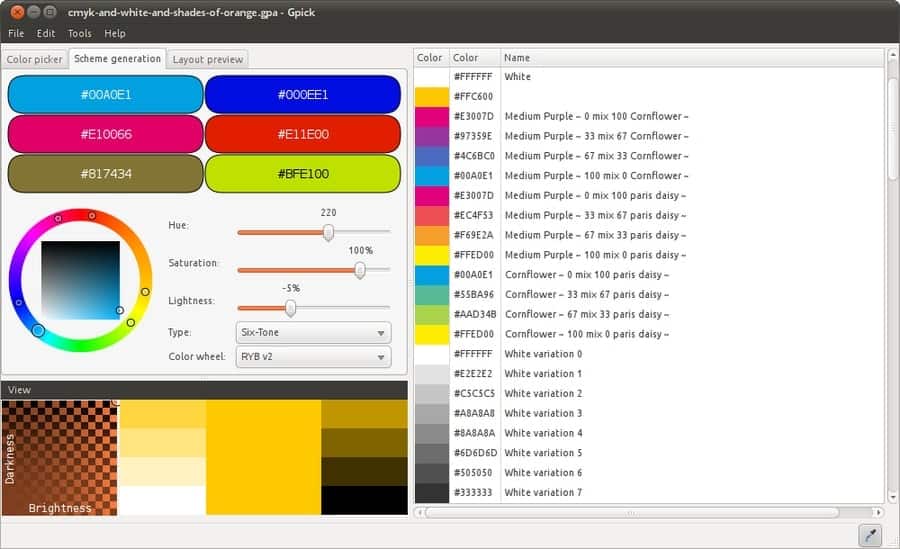
Key Features of Gpick
- You can create a color palette from an imported image.
- Users can import and export the color information to different
file formats compatible with Inkscape, GIMP, and Adobe suite. - You can assign automatic color names while picking a certain
color. - It can be minimized to a simple icon placed in the notification
area for quick picking of colors. - You can export and share the full palette as an HTML page for
other collaborators of your project.
2. Pick
The Pick is a GNOME color picker for the Linux based
distributions. It can also be used on other desktop environments
running Ubuntu apart from GNOME. The best part of this tool is that
it attaches a screenshot of the source from which the color was
picked.
It even assigns a name for the color and can save several colors
at a time. You can later copy your desired item and paste the code
wherever you want. Though the user interface has a minimal look, it
is aesthetically very pleasing.
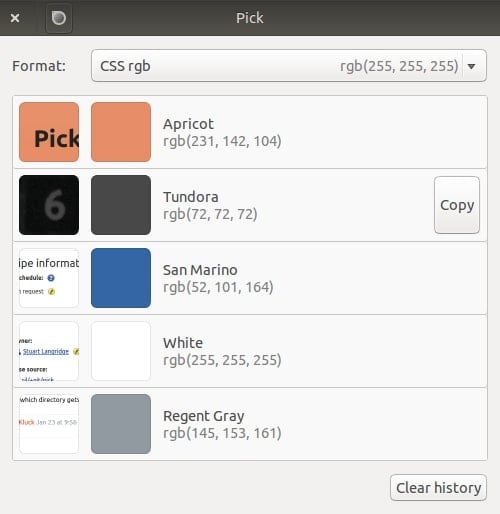
Key Features of Pick
- It can show the colors in different code formats including RGB,
HEX, QT, and even GDK. - There is a magnifier that is controllable via the scroll wheel
of the mouse to get into the accurate spot. - It shows the generic color name of the picked color by using a
library developed by Chirag Mehta. - You can directly paste the color into any compatible graphics
and editing tools for your convenience. - The drop-down menu lets you choose your preferred format and
you can clear the previous history anytime while loading a brand
new project.
3. KColorChooser
KColorChooser is an advanced and feature-rich Linux color picker
tool. It was originally developed for Plasma, the desktop
environment by KDE. It is still a part of the KDE’s application
suite. But you can install this on any Linux based
distributions.
This tool is not only a color picker. Rather it is a complete
package of color palette for the designers out there. You can mix
and generate your own color palettes and export them. a few web
color palettes are built-in with this tool by default for your
inspiration.
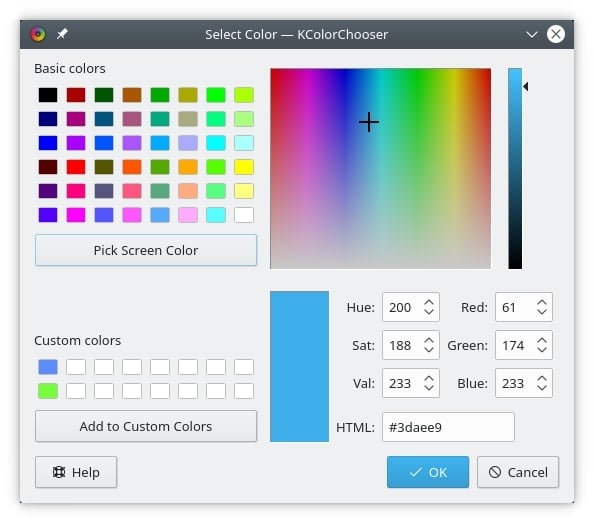
Key Features of KColorChooser
- It can pick the color code in three different formats, such as
HSV, RGB, and HTML. - You can select colors from anywhere on your desktop as well as
from the predefined palettes. - The graphical color mixer helps you to mix and generate a
random color. - You can input the corresponding values of RGB and HSV code to
create a color of your own.
4. Gcolor2
Gcolor2 is a simple yet powerful Ubuntu color picker tool. The
eyedropper feature helps to execute the core functionality of the
tool that is getting the color code of a particular pixel from
anywhere on the screen.
It directly shows you the HEX code for applying to your web
design and development projects. This tool was originally developed
on the codebase of the popular tool Gcolor and uses the GTK+
framework for working on Linux based distros.
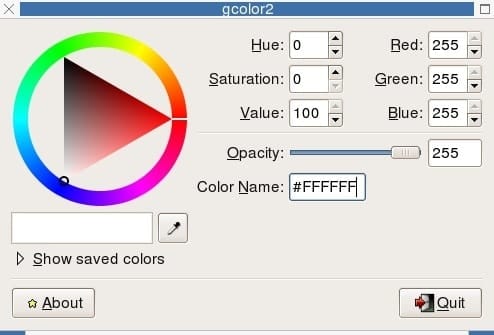
Key Features of Gcolor2
- The user interface has a vintage but simple look that is very
helpful for the beginners. - It will show you the HSV and RGB values of a color that can be
modified by inputting preferred values. - It can show the name of the color for the non-tech persons who
are not familiar with codes. - You can save your picked color palette into the storage and
retrieve it anytime if you want.
5. Delicolour
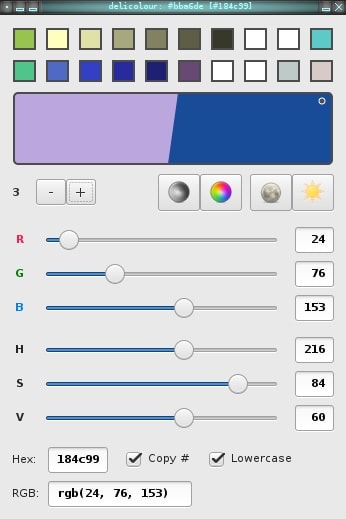
Delicolour is a GNOME color picker based on the GTK3 framework.
The user interface is very sleek and stylish. It has all the
necessary features that a standard color picker tool should have.
Apart from this, the developer tried to provide users with the best
user experience.
For example, it has an RGB and HSV slider that is very
convenient to mix up colors. You can even decide in which format
you want to copy the color code so that you don’t have to modify
the codes after pasting.
Key Features of Delicolour
- The overall user interface is very responsive and minimal. You
can do everything from the main windows. - It can copy two colors into its memory simultaneously. You can
choose to paste one whenever you want. - The Plus and Minus buttons let you increase or decrease the
values for fine adjustments. - It supports keyboard shortcuts to speed up the workflow of your
projects.
6. ColorGrab
It is a very popular Ubuntu color picker for desktop users.
Though most Linux users use this tool for their design and
development works, it is originally a cross-platform tool. This is
why using this tool is convenient when you have to switch your
platform most often.
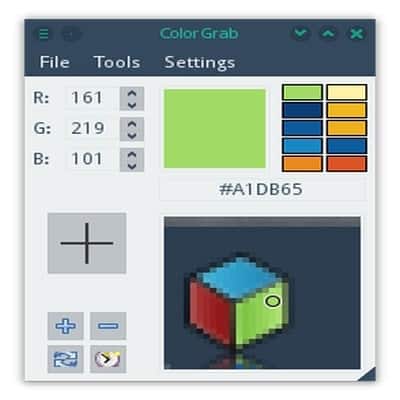
ColorGrab has different windows for different purposes, like HSV
color picker, RGB color generator. There is also a built-in library
of popular colors from where you can choose the primary colors for
your palette.
Key Features of ColorGrab
- It has a cylindrical color mixer which is helpful for mixing
random colors. - The color value fields have individual adjustment buttons for
fine-tuning the color. - You can create and save additional colors into its color
palette tool. - The color selector has advanced zooming capability for getting
the most accurate pixel.
7. Deepin Picker
Deepin Picker is a color picker tool for Linux that comes
exclusively with the popular Linux distro Deepin OS. Just like the
Deepin OS itself, Deepin Picker features a beautiful graphical user
interface.
Though it does not have a bunch of additional features like
other color pickers in this list, it does perfectly what it was
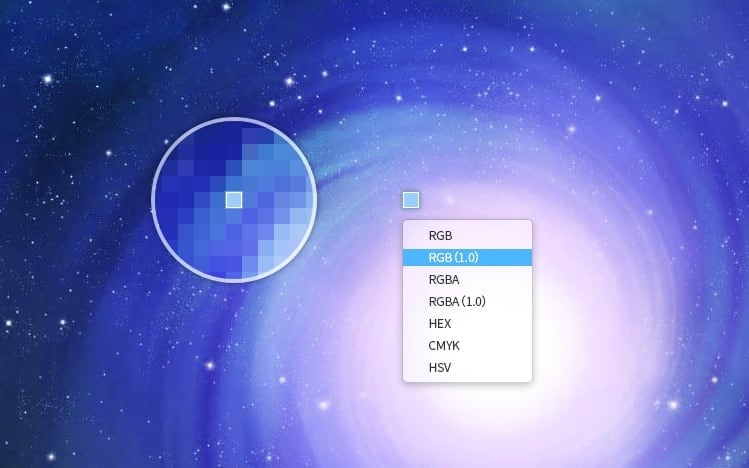
intended to do. This tool can obtain color codes from a certain
pixel in different formats and saves them into the clipboard for
further pasting.
Key Features of Deepin Picker
- It rests silently in the system tray and causes less
distraction into your desktop. - It supports multiple code formats including RGB, RGBA, HEX,
CMYK, and HSV. - You can fork the source code and port it into other Linux
distributions. - You can instantly change the type of code while hovering the
color picker cursor.
8. Color Picker
This is a Linux color picker tool made exclusively for the
Elementary OS[9]. But you can easily
deploy it into other Linux based distributions. It is a very simple
color picker that uses the least resources while running on your
machine.
If you are on Elementary OS you can install this from the
AppCenter. But if you are on other distributions then you can
compile this from the source code by using some dependencies.
Key Features of Color Picker
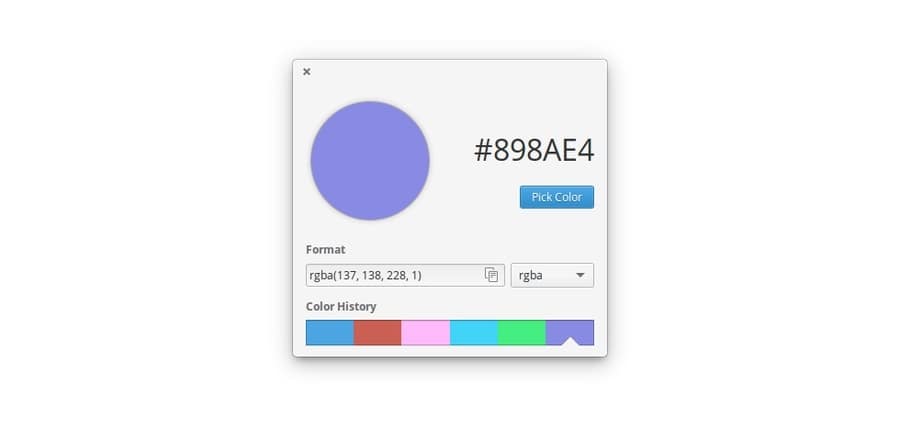
- The picking tool has a magnifier feature that lets you zoom in
into your desired spot. - It can generate codes in different formats from the picked
color. - Color Picker will remember the last six colors into its
clipboard so that you don’t have to search for the previously
fetched color. - Though the feature is limited, it is very easy to use for
beginners.
9. SlickPicker
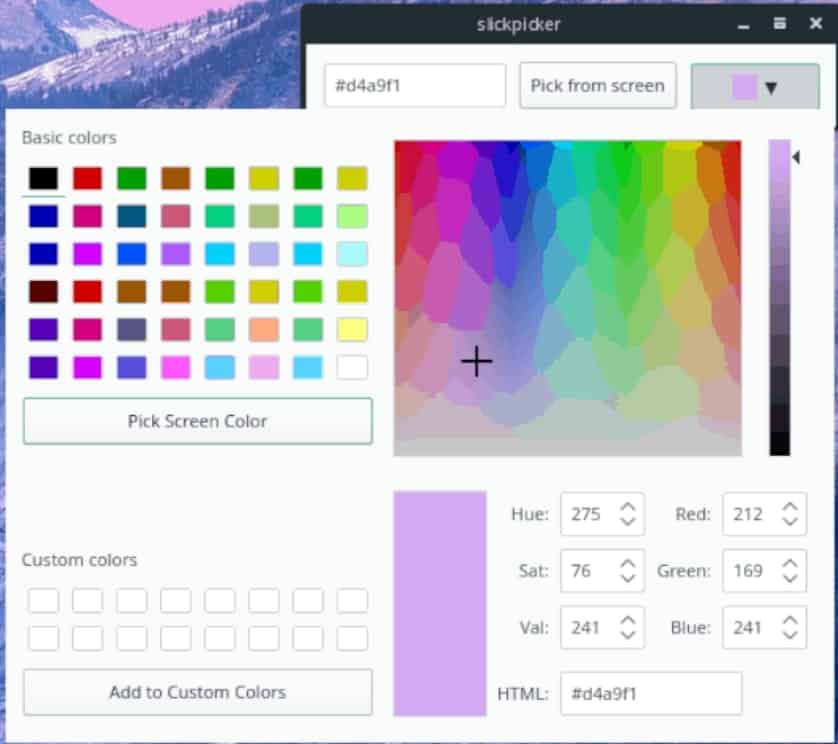
SlickPicker is a gorgeous color picker tool for Linux. It has
all the necessary features you need in this type of tool. The user
interface is very easy to use and convenient. It is a complete
package for the designers.
Unfortunately, you will not find this tool as a package for your
desired Linux distro. rather you can fork and build a package from
the source code if you want to. This tool was originally built with
Python-Qt and it can be quickly opened via a simple command.
Key Features of SlickPicker
- Apart from the beautiful graphical UI, it runs on the Linux
terminal interface. - It has a cylindrical color mixer with an option to increase and
decrease the value. - You can add up to 16 colors into its custom color palette
options. - It has a built-in library for almost all the basic colors from
that you can choose your desired colors.
10. Color Picker
Terminal
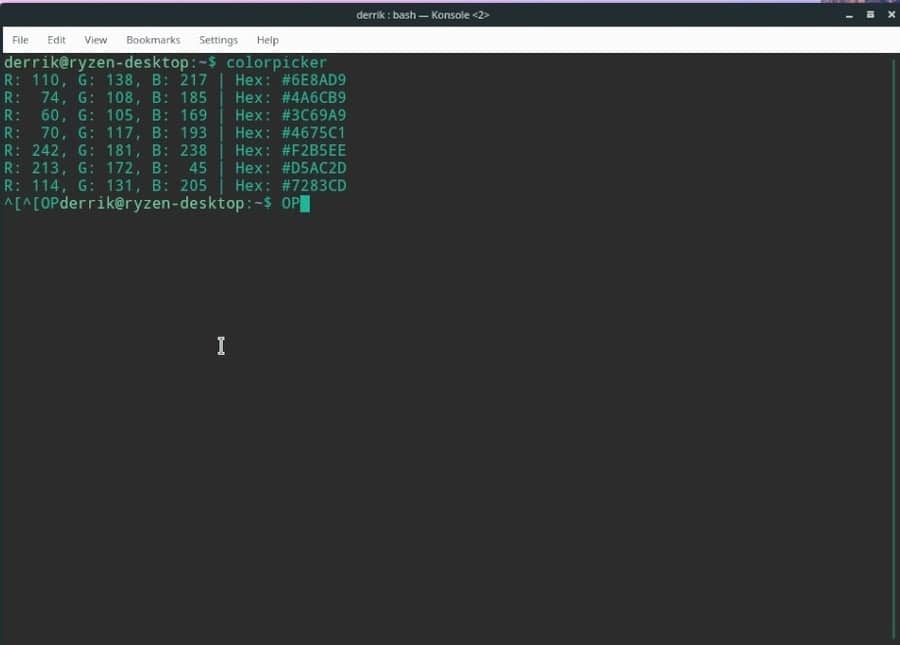
This is a Linux terminal-based color picker tool. When I first
found it, I could not believe that a color picker tool can run
without a graphical user interface. But after using it for testing
purposes, I must say that it is amazing.
This tool will print the color code after you type the command
colorpicker inside the terminal. Yet nobody will
recommend this tool over other feature-rich color pickers, you can
give it a shot if you are a terminal kind of guy.
Key Features of Color Picker
Terminal
- It will print the color code in two different formats such as
RGB and HEX simultaneously. - This tool will show you a color preview in a small rectangle if
you command in that way. - You can use some modifiers for performing some extra
operations. - The Github page has complete documentation on how you can use
this tool.
Finally, Insights
Color picker tools for Linux provides much value to the
designers and developers. Most of the power users can not live
without a color picker. The above-mentioned color pickers are some
of the bests that are being actively maintained. I hope this
article will clear all your confusions and lets you choose your
favorite color picker. If you think that your favorite Linux color
picker is missing in this list, you can comment below to let others
know.
References
- ^
Top 10
Linux Photoshop Alternative Photo Management Software
(www.ubuntupit.com) - ^
Download
(www.gpick.org) - ^
Download
(www.kryogenix.org) - ^
Download
(kde.org) - ^
Download
(gcolor2.sourceforge.net) - ^
Download
(github.com) - ^
Download
(github.com) - ^
Download
(www.deepin.org) - ^
16 Best
Things To Do After Installing Elementary OS 5 Juno
(www.ubuntupit.com) - ^
Download
(github.com) - ^
Download
(github.com) - ^
Download
(github.com)
Read more https://www.ubuntupit.com/best-color-picker-tools-for-linux/