Laptop overheating is a serious issue faced by many users
worldwide. It happens primarily to people who use their notebook
for a long period. Moreover, modern notebooks tend to be much
slimmer than their older counterparts, and thus it’s hard to
implement efficient cooling solutions for them. So, either users
need to buy a flagship notebook or invest in additional cooling
hardware. Thankfully, overheating in Linux can be managed pretty
easily if you implement some useful policies. Today, we will
discuss some proven methods to bring the thermal issues of laptops
in control for Linux users.
Solution for Laptop Overheating in
Linux
Laptop overheating can be caused by so many reasons. However, if
your device is more than two or three years old, your thermal
issues will likely get out of control. You need to enforce some
policies to keep the heat under a critical limit. These policies
can be implemented on either hardware or software or a combination
of both.
Why Laptops
Overheat?
Thermal issues are quite common to portable computing devices
like laptops and mobiles. The primary reason behind this is
inefficient cooling solutions. Implementing efficient thermal
solutions within a small footprint requires more time and money.
Thus, consumer laptops and notebooks often ship with weaker thermal
solutions than desktops.
Moreover, as your laptop age, dust starts to clog up the intakes
and exhausts. This makes heat dissipation harder, and the laptop
will start to overheat. Additionally, one or more faulty hardware
will also lead to laptop overheating.
Another factor that contributes to overheating is large,
resource-hungry software. Many modern applications require
extensive processing. If you’re running an older laptop, chances
are it will have a hard time handling such software. This results
in overheating as the device starts to keep up with the application
and increases processing attempts.
Method 1: Install Tools for
Optimizing Thermal Performance
You can reduce overheating by installing some useful
applications on your Linux machine. Some of them control your
processing speed while others will manipulate the fan speed to
reduce heats. You may install one or more of these packages based
on your need.
TLP
TLP is by far the best software to help you keep your thermal
issues in check. It is a clean, CLI-based application that allows
us to save the battery power without needing to deal with complex
technical details. It is an event-driven solution that adjusts the
power consumption based on system states. However, TLP will not
change power settings due to differences in CPU loads.
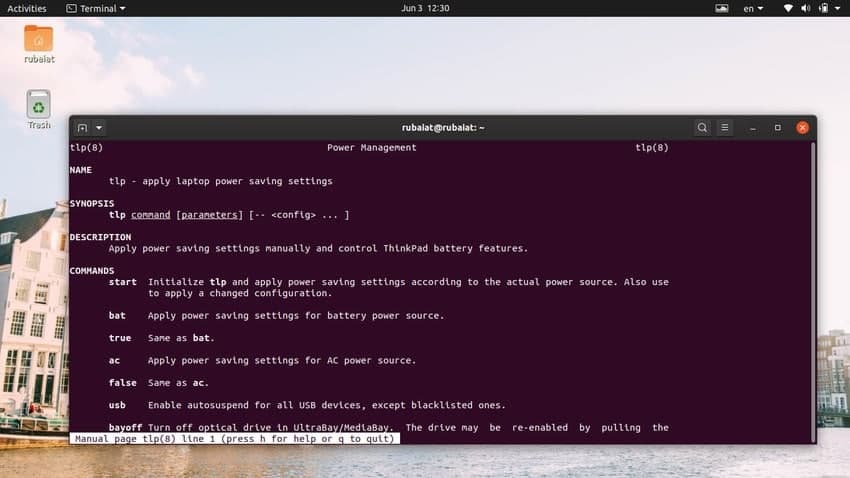
Overall, TLP is suitable for both starting and seasoned Linux
users due to its small footprint yet effective performance. You can
find more about TLP here. Follow the below commands to install TLP
on Ubuntu or Debian systems.
$ sudo add-apt-repository ppa:linrunner/tlp
$ sudo apt-get update
$ sudo apt-get install tlp tlp-rdw
TLP is also available for other major Linux distributions. Check
out this page for installation
instructions[1] in detail.
CPUfreq
CPUfreq is an excellent tool that allows users to increase or
decrease the CPU frequency. Although higher frequencies usually
lead to a boost in CPU performance, it will increase overheating as
well. So, you might want to use CPUfreq for decreasing the CPU
speed instead of increasing.
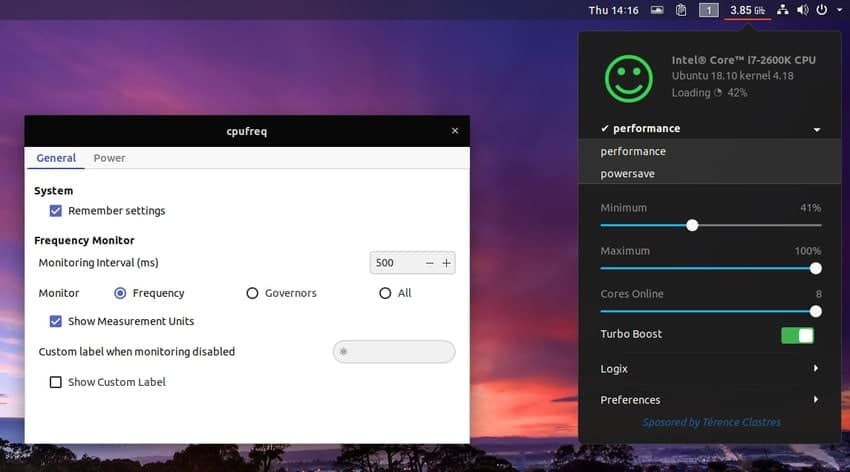
Moreover, CPUfreq comes with some pre-configured operating modes
that let users adjust the frequency based on CPU usage and heat
dissipation. These include the Power Saver mode, a
Performance mode, and an On-Demand mode. You
should activate the Power Saver mode since overheating is your
primary concern. Use the following command to install CPUfreq on
Ubuntu/Debian.
$ sudo apt-get install indicator-cpufreq
thermald
thermald[2]
is an open-source daemon for managing overheating issues in laptops
powered by Linux. It is developed by Intel and is readily available
in Ubuntu repositories. It works by monitoring the thermal state of
your laptops and applies necessary compensation methods to keep the
temperature from hitting the sky.
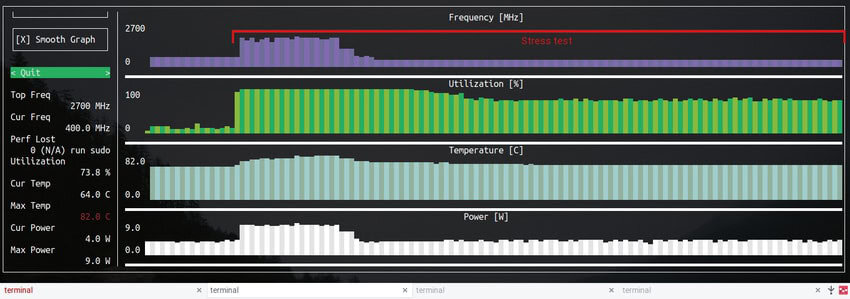
The thermald daemon works in two modes. The Zero Configuration
Mode uses the DTS temperature sensor as well as the
Intel P state driver, Power clamp driver, and
CPUfreq for preventing from overheating. Advanced users
can use the User-defined configuration mode for adding extra
sensors and/or tune existing configurations. You can install
thermald easily using the below command.
$ sudo apt-get install thermald
Laptop Mode Tools
Laptop Mode Tools is another simple but useful tool for
preventing laptop overheating in Linux. It makes it very easy to
enable the laptop mode feature offered by the Linux kernel. It
utilizes tools like hdparm, acpid, and various
CPU frequency scaling methods for delivering a complete notebook
power management suite.
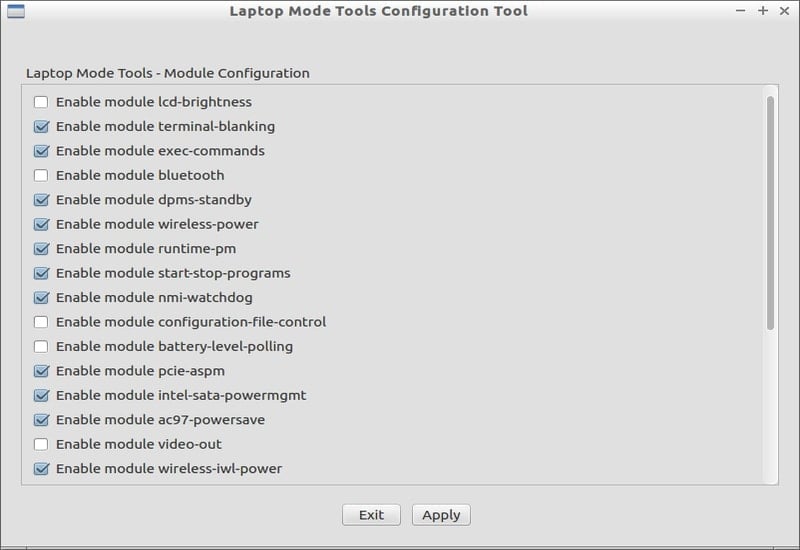
It can control hard disk spinnings, CPU frequencies,
peripherals, and network devices to limit the power usage of your
laptop. However, Laptop Mode Tools does not work very well
alongside TLP. So, you should refrain from installing both LMT and
TLP. You can install Laptop Mode Tools by using the following
simple commands.
$ sudo add-apt-repository ppa:webupd8team/unstable
$ sudo apt-get update
$ sudo apt-get install laptop-mode-tools
LMT also has a nice GUI interface that makes configuring this
tool much easier. You can start the GUI by using the below
command.
$ gksu lmt-config-gui
Bumblebee
Bumblebee is a powerful daemon that allows users to manage
Optimus hybrid graphics cards. This is useful for people who’re
running Intel-based notebooks with a discrete Nvidia GPU unit. It
works by turning the GPU off when no application is using it.
Bumblebee reduces heat generation by drawing less power and
utilizing smart power management tools.
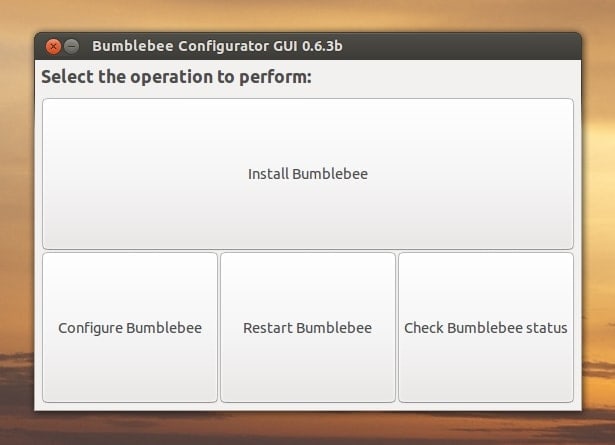
Thus, if you are using such a gaming laptop, check out whether
it supports Nvidia Optimus. If it does so, install Bumblebee to
reduce overheating. You can download Bumblebee freely from its
GitHub repository and install it in your notebook. Visit our guide on essential Git
commands[3] to learn how to download
projects using git.
Method 2: Monitor Laptop Hardware
for Temperature Increases
It is always a good idea to monitor your laptop’s hardware for
detecting a steep increase in heat dissipation. If you’ve already
installed one or more of the above tools, try to find out how much
thermal benefits they are offering. Linux offers some excellent
tools that allow users to monitor hardware temperature
effectively.
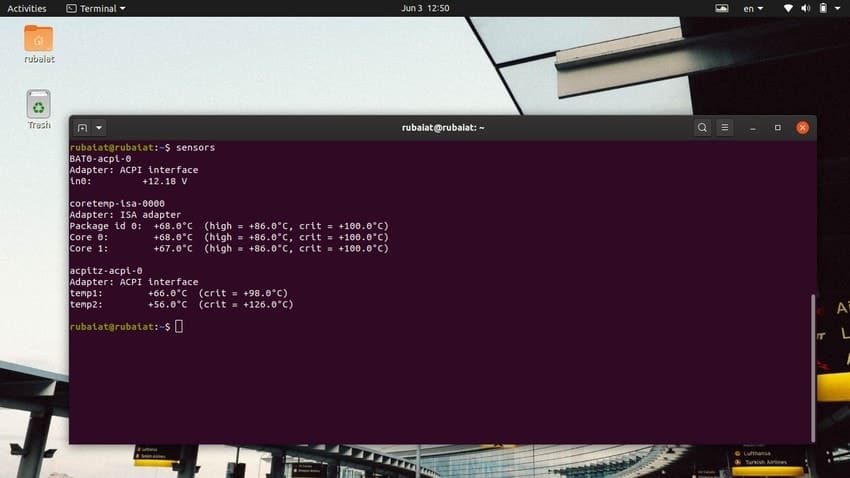
For instance, the sensors package provides
useful information on system hardware. It comes pre-installed in
Ubuntu or Debian-based Linux systems. Simply invoke the application
by running the following command in your Linux terminal emulator[4].
$ sensors
In its simplest form, sensors will display the processor
temperature, including for each individual core. It will mark the
high temperature as well as the critical temperature. Your
processor should never operate in the critical region, or else it
will result in massive laptop overheating.
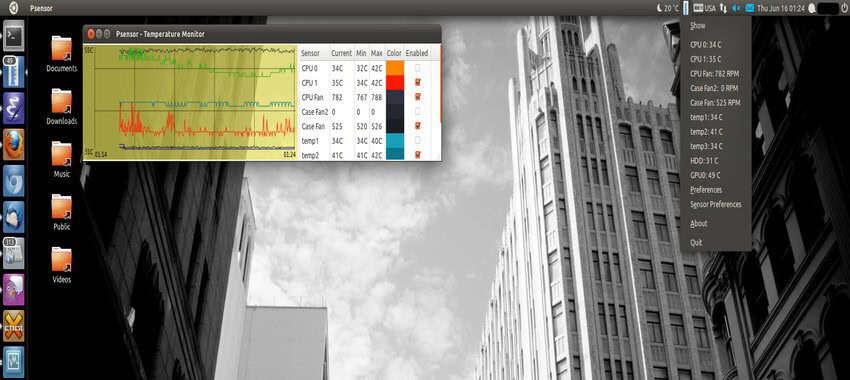
You may also use the psensor application. It
displays the temperature for the CPU, GPU, and HDD alongside
rotation speeds. Moreover, psensor also shows useful heat
statistics using colorized graphs. You can install psensor in
Ubuntu or Debian by running the following commands.
sudo apt-get install lm-sensors hddtemp
sudo sensors-detect
sudo apt-get install psensor
Method 3: Remove CPU Intensive
Applications
Some modern software requires a lot of CPU power, which in turn
results in greater heat productions. It is especially true for
older laptops that don’t have the recommended level of processing
power for such applications. So, if this is the case for you, the
best way to mitigate this is by removing these resource-hungry
programs from your system.
Sometimes even normal applications can clog up the CPU. It
generally happens when the application is facing runtime problems
due to faulty system configuration or a bug in the program. In any
case, we can locate which applications are using the most CPU and
eliminate them to keep the thermal issues under check.
The classic Unix program top can be really
helpful in such scenarios. It displays the processes in a Linux
environment. You can run this application in your console and sort
the processes based on their CPU usage. This will unveil the
programs, causing CPU throttling.
$ top
$ P
Enter the character ‘P’ to display the
processes based on CPU load. Look for programs that are using
significantly more CPU than a combination of standard programs.
Video and image editing tools often throttle older notebooks pretty
easily, so do browsers like Chrome.
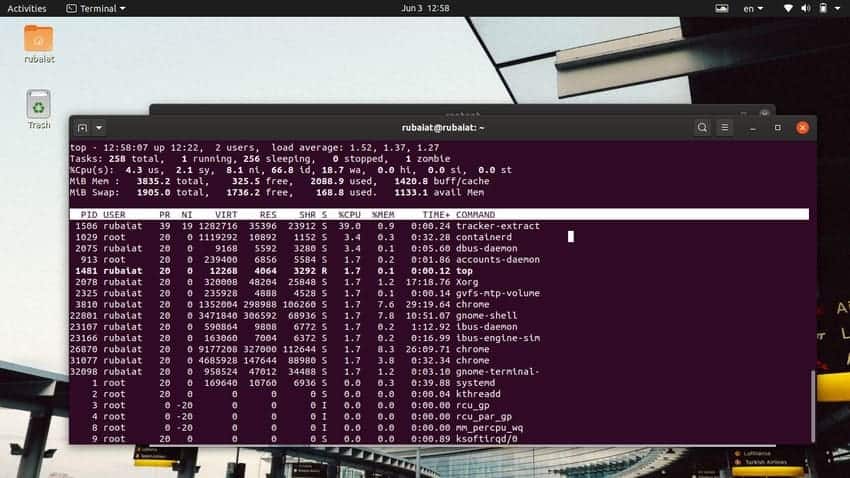
Kill the programs that are using more than 40-50% of the CPU
alone. Visit our earlier guide to learn how to kill a Linux process
easily[5]. One great benefit of
being a Linux user is that you can easily find attractive
alternatives for these CPU-intensive applications.
Method 4: Use a Lighter Desktop
Environment
If your laptop configuration is outdated, then it will have a
hard time keeping up with modern Linux distributions, especially if
you are using resource-intensive desktop environments like KDE, Unity, or
Pantheon[6]. These desktop
environments come with a lot of cool software and graphical
features. Thus they require a lot of processing, something an older
notebook might not be capable of.
This will lead to the laptop overheating in Linux systems that
use graphically heavy desktop environments. Luckily, you can easily
mitigate this issue by choosing a lighter environment, like XFCE or
LXDE. Moreover, popular distributions[7]
often offer users the ability to choose from both lighter and
heavier desktops. So, if you’re using Ubuntu on your old notebook,
simply switch to Xubuntu to reduce overheating.
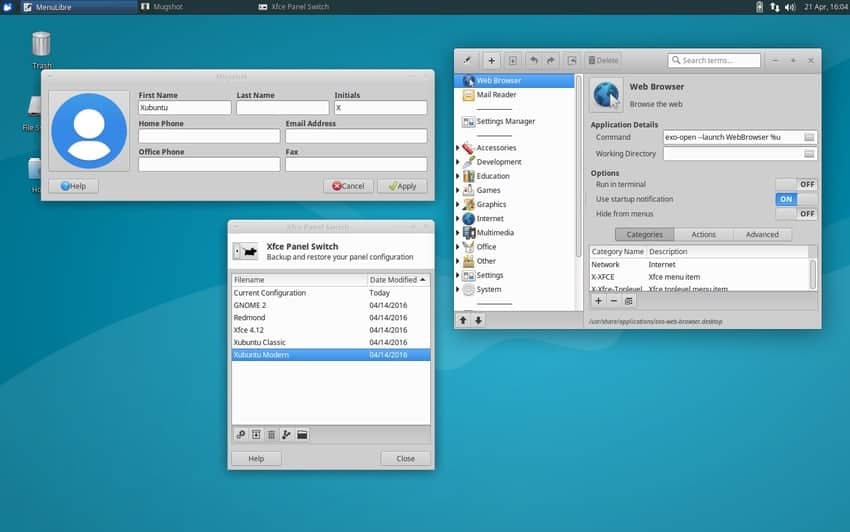
If you’re already running Ubuntu on top of GNOME or a different
DE, you can switch to Xubuntu by using the following command. We
are installing Xubuntu task for avoiding a bug specific to
Xubuntu.
$ sudo apt-get install xubuntu-desktop^
It was once done, simply logout and login again after selecting
the XFCE interface. Try using this for a week or so to make sure
everything works as expected. Once satisfied, you can remove the
standard Ubuntu desktop environment altogether from your
system.
$ sudo apt-get remove ubuntu-desktop
$ sudo apt-get autoremove        # removes dependencies for ubuntu-desktop
Method 5: Implement Prevention
Methods for Laptop Overheating
It is always a good idea to employ proper heat prevention
mechanisms. It will make sure that old notebooks aren’t generating
excess heat. We’re outlining some useful tips to prevent the
overheating of laptops.
Take Care of Internal
Cooling
Laptops usually come with internal cooling mechanisms for heat
dissipation. However, over time these cooling solutions start
underperforming and may lead to laptop overheating. The main reason
behind this is dust and small debris that clog the intakes and
exhausts of the cooling system. This leads to extra heat generation
since the laptop can not dissipate the heat it generates.
However, you can take care of this problem easily by cleaning
your laptop from time to time. You can do this on your own if you
have a basic understanding of computer hardware. If not, we highly
suggest you take your notebook to a professional servicing
center.
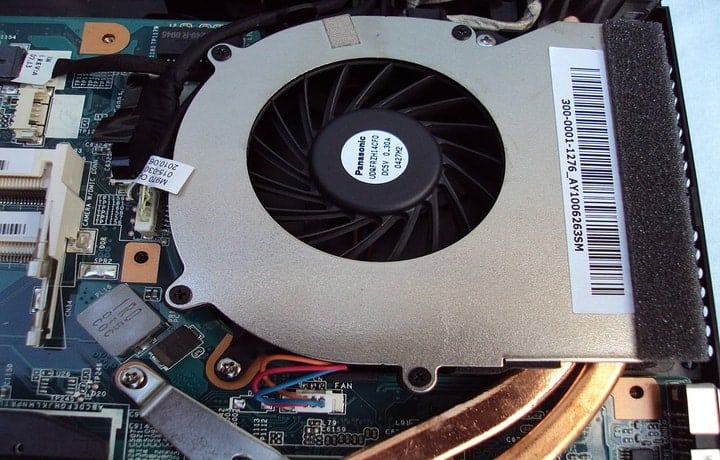
If you decide to clean the laptop yourself, first make sure you
have the necessary tools at hand. A screwdriver and some pieces of
clean cloth should be enough to take apart the battery and the
cooling vents. The cleaning part will become easier if you can
manage a dust blower. Make sure to unplug the power strip and
ground yourself properly.
Place Your Laptop on Flat
Surfaces
Many older notebooks suck in cool air from the bottom of their
surface. If you place these devices on uneven surfaces, they can
not intake the air efficiently. Thus, if you have a similar laptop,
make sure to place it on flat surfaces like a table instead of your
lap or a pillow.
However, if your device has its cooling vents on the side, you
can place it on uneven surfaces. Just make sure something is not
blocking the air passage. Else the cooling mechanism will be
obstructed, and the air inside the cooler will become extremely
hot.

Moreover, you should never place your laptop on fabrics that
contain heat like blankets or felt. They will work as heat
capacitors and prevent your cooling solution from working
effectively, thus creating overheating problems on laptops.
Buy a High-Quality Laptop
Cooler
If you’re running a very old laptop, chances are the cooling
solution can not perform the way it used to do. The easiest way to
mitigate this issue is to invest in a high-quality laptop cooler or
cooling pad. These accessories are designed to provide additional
cooling support for devices that have inadequate thermal
solutions.
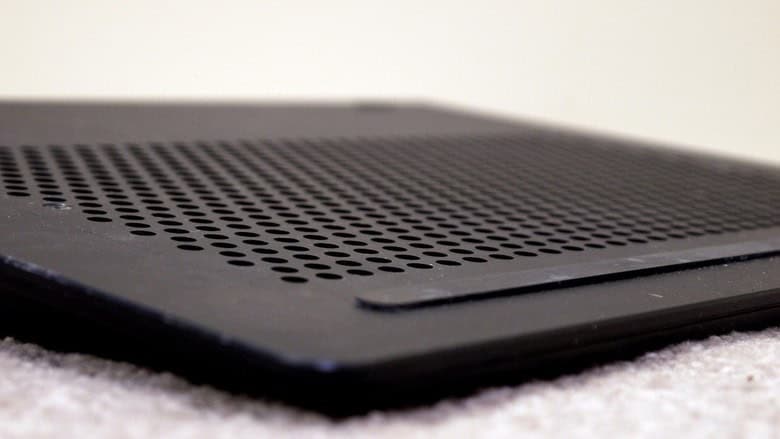
There are mainly two types of laptop coolers in the market.
Active coolers provide additional airflow to the laptop and cool
down heatwaves generated by the device. Passive coolers, on the
other hand, does not provide additional cooling but absorbs the
heat from the laptop. Make sure the cooler operates coherently with
the existing cooling solution of your laptop by checking the
orientation of the fans.
Replace Dying Batteries
Laptop batteries wear down based on their age and quality. There
are significant factors behind this issue. For instance, many
people keep their devices plugged in all the time. It is not a good
practice since the battery should be drained after each full
charge. Moreover, consumer-grade notebooks often ship with average
batteries that tend to wear down pretty fast.
If your laptop’s battery is dying or in a critical state, it
will often generate excess heat alongside other undesirable
effects. Thus, you should replace dying batteries as soon as you
can. Thankfully, notebook batteries aren’t that expensive and are
readily available.
Update the BIOS Regularly
Many people do not update the BIOS of their notebooks regularly.
This can be a problem if the latest updates include newer fan
control mechanisms. Thus, you should always make sure that you have
the latest BIOS version for your device. It will guarantee that you
do not miss out on newer cooling features.
BIOS updates depend largely on the laptop’s brand and which
chipset is in use. The basic principle is to download a newer
version and flash it using a USB device. Updating the BIOS once in
a while may prevent laptop overheating.
Ending Thoughts
Laptop overheating in Linux can be managed easily if you can
find the root cause and implement some necessary steps. Sometimes
heating issues can become a threat and may cause serious problems
to your device. So, if you can not solve these issues by yourself,
immediately take the device to a professional. Moreover, try to
employ as many preventative measures as you can, like buying a
laptop cooler and cleaning the device regularly. We have outlined
all the common ways to mitigate overheating, including software and
hardware approaches. Employ these solutions to keep your laptop’s
heat under a sustainable level.
References
- ^
this
page for installation instructions
(linrunner.de) - ^
thermald
(github.com) - ^
our
guide on essential Git commands
(www.ubuntupit.com) - ^
Linux
terminal emulator (www.ubuntupit.com) - ^
learn
how to kill a Linux process easily
(www.ubuntupit.com) - ^
desktop
environments like KDE, Unity, or Pantheon
(www.ubuntupit.com) - ^
popular
distributions (www.ubuntupit.com)
Read more https://www.ubuntupit.com/all-the-possible-ways-to-reduce-laptop-overheating-in-linux/