If you have been looking for something bigger cloud storage with
limitless access and synchronization, I must say the Nextcloud is
there for you. Crawling from one cloud storage to another cloud
storage would be much more painful and a waste of time. So moving
on to the Nextcloud from other cloud storage is definitely a big
hyper dive. Nextcloud offers you the best cloud storage sharing system among
all your smart devices. Getting Nextcloud is not a very difficult
job on Ubuntu Linux. All you need is just fulfill some software
requirements. [1]
Nextcloud on Ubuntu
Linux
We know that most of the servers are run on the Ubuntu Apache
system over the world. So, getting your own cloud server is
actually a big step to enter the server world. You can use your own
hardware system as the hosting device, or you can buy a hosting
package from the top class hosting providers.
Hence, in this post, we are going to see how to download and
install the NextCloud on Ubuntu. And, of course, we will be using
the localhost service to host all the setup. Once you have done
installing the NextCloud, you will get a log in page where you can
log in and use the cloud service. You can also use the mobile app
for the NextCloud.
Step 1: Get the Ubuntu System
Updated
Both the Apache and PHP require the files to get updates at the
system repository of Ubuntu. Moreover, Ubuntu updates make the
system more functional and more active. It also installs the latest
security guards, Kernel and firmware. So, in the beginning, we are
going to update our Ubuntu system.
$ sudo apt update -y && sudo apt upgrade -y
You can also check if there is any package available that would
get upgraded.
$ sudo apt list --upgradeable
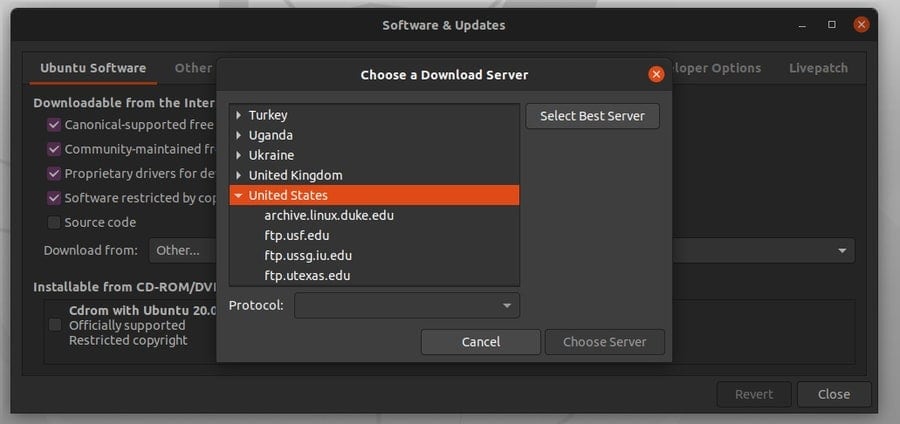
Besides these, you can choose the fastest and best repository
server for your locality and check in the Software & Updates’ if an
update is available from Ubuntu.
Step 2: Installing PHP and Apache
Server on Ubuntu
The Personal Home Page (PHP) language is mostly used for website
development and web related works. Here we are dealing with
Nextcloud, so we must install the PHP language[2]
inside our machine. Then we will also grab and install the Apache
server on our Ubuntu machine.
We can either use the Curl library function or
directly download the PHP and Apache service form web. Here, I am
going to introduce how to use the curl library command line to
install PHP and Apache Server. You should get started by installing
the Curl first on your Ubuntu.
$ sudo apt install curl
Then add the PHP extension community library[3] in your Ubuntu
system.
$ sudo add-apt-repository ppa:ondrej/php
We are going to install and use the LAMP (Linux, Apache, MySQL, and PHP)
package on our Ubuntu system to get started with the Nextcloud. For
that, we will now install the PHP and the Apache server. Next, we
will find out how to get the MySQL service with MariaDB. [4]
$ sudo apt install apache2 libapache2-mod-php7.2 openssl php-imagick php7.2-common php7.2-curl php7.2-gd php7.2-imap php7.2-intl php7.2-json php7.2-ldap php7.2-mbstring php7.2-mysql php7.2-pgsql php-smbclient php-ssh2 php7.2-sqlite3 php7.2-xml php7.2-zip
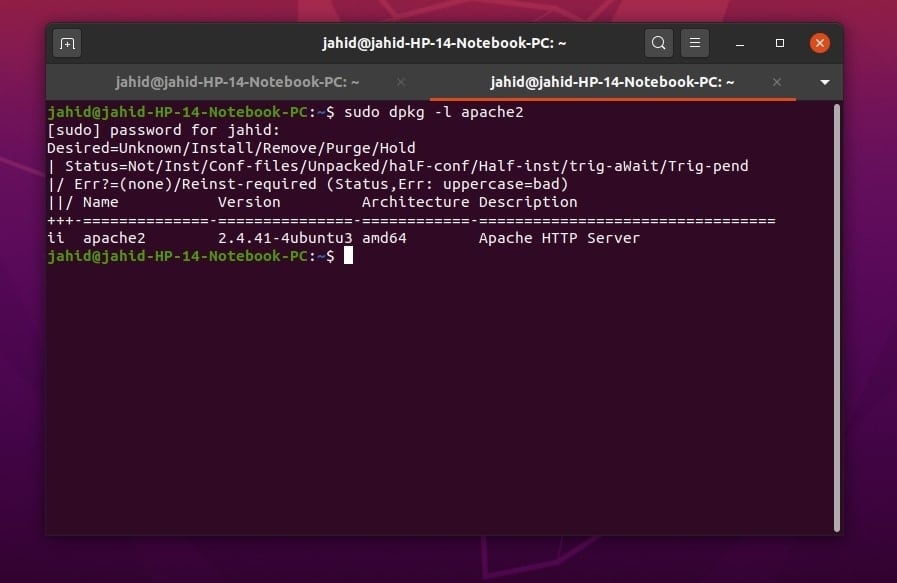
Till now, we have done installing the Apache server and PHP
successfully in our Ubuntu system. You can check the PHP version to
make sure that PHP is functioning perfectly. You can also find
whether the Apache server is responding or not.
$ php -v
$ sudo dpkg -l apache2
Now we will be using some primary Apache server commands to test
and enable the Apache server on the Ubuntu platform.
$ sudo systemctl status apache2
$ sudo systemctl start apache2
$ sudo systemctl enable apache2
I hope the Apache server and PHP is now installed and running
inside your Ubuntu machine. Now it’s time to have a test drive. We
can always perform the Welcome page test to ensure if
the Apache server is functioning or not. As we already know, the
Apache server is installed in the localhost, so, we may hope that
we will find our server at the localhost (127.0.0.1)
address. You can also check your localhost and other
IP addresses using the basic net tool ifconfig
command.
$ sudo apt-get install -y net-tools
$ ifconfig
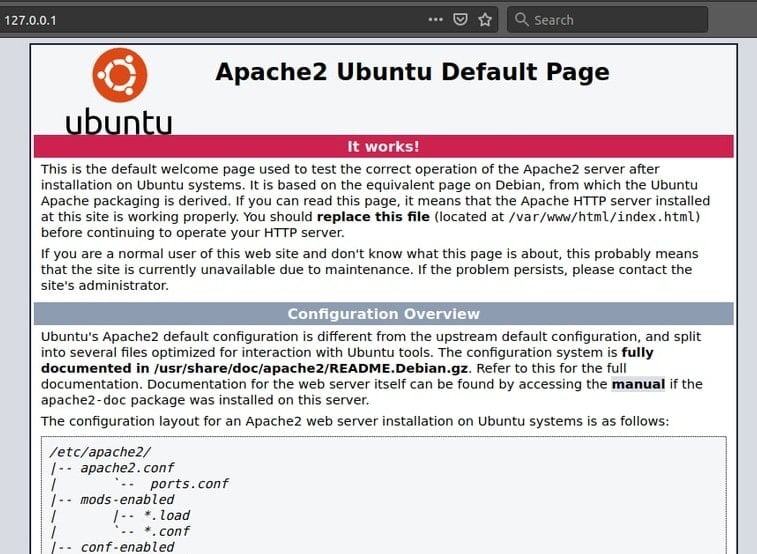
Now, let’s go to the web browser and type localhost
at the address bar and hit the Enter. If the Apache Ubuntu Default
Page appears, congratulations! You’ve successfully installed the
Apache server on your Ubuntu system.
Step 3: Installing and Configuring
MariaDB for Nextcloud
Every cloud storage system or website needs to have a database system[5]
well established to maintain the data of that server. We are going
to use the MySQL language, and for the database engines, we are now
going to install the MariaDB server on our Ubuntu. MariaDB server
will give us access to do some structured query language.
$ sudo apt install mariadb-server
To change the MariaDB server script, we can use the following
terminal command on Ubuntu. This will give us the root access to
the MySQL database engine. Although if you are a fan of PostgreSQL, don’t worry, you can always
change the DB engine once the Nextcloud is installed. [6]
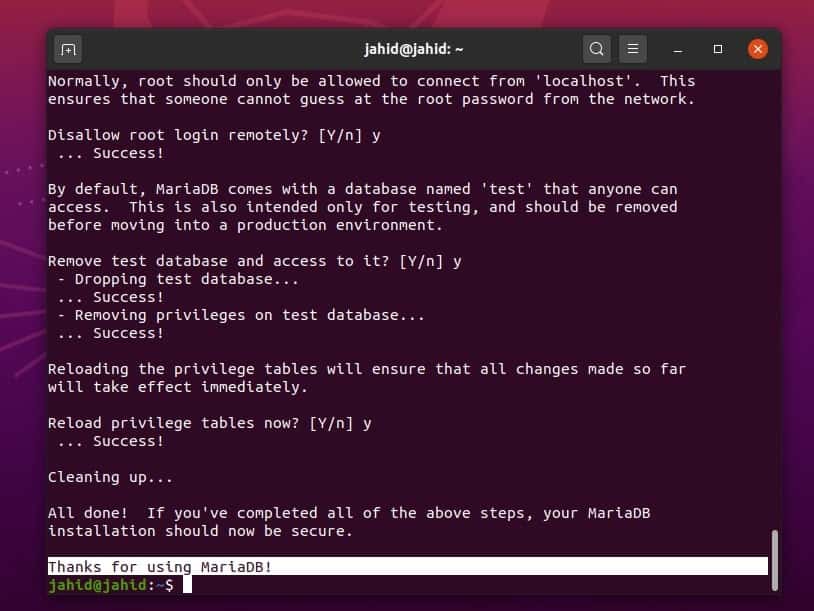
If you have a fresh MariaDB server installed on your machine,
your current password must be blank; you just need to put your
system root password. Then you can change the database password,
allow or remove any existing user from the database engine, and
remove the test database from your database engine.
$ sudo mysql_secure_installation
I assume you know a little SQL[7]
that is required to set up the database for Nextcloud on Ubuntu. So
now, we are going to create a database for the Nextcloud service.
We will use very few primary SQL commands and syntaxes to create
the database. Here we are creating a database named
ubuntupit which is identified by
1234.
$ sudo mysql -u root -p
CREATE DATABASE nextcloud_db;
GRANT ALL ON nextcloud_db.* TO 'ubuntupit'@localhost IDENTIFIED BY '1234';
FLUSH PRIVILEGES;
EXIT;
To check, whether the database is created successfully or not,
you can always use the show database syntax in the
terminal.
$ sudo mysql -u root -p
$ show databases;

Here are some primary MariaDB command lines to enable, disable,
and check the MariaDB service status.
$ sudo systemctl stop mariadb.service
$ sudo systemctl start mariadb.service
$ sudo systemctl enable mariadb.service
Step 4: Downloading and Installing
Nextcloud on Ubuntu
Downloading the Nextcloud is almost an easy process. You just
need to download the compressed version of the Nextcloud on your
Ubuntu machine. Then you have to unzip the compressed file into the
particular /var/www/html/nextcloud directory. You can
use the wget commands to download the zipped
Nextcloud. If you find any difficulties to unzip the file into the
following directory, you might need to change the root permission
of that exact directory. You can use the chown command
to change the path permission.
$ sudo wget -c https://download.nextcloud.com/server/releases/nextcloud-18.0.0.zip
$ sudo unzip nextcloud-18.0.0.zip
$ sudo cp -r nextcloud /var/www/html/
$ sudo chown -R www-data:www-data /var/www/html/nextcloud

Now, after downloading and extracting the Nextcloud file, you
need to edit the Nextcloud configuration script file to get
configured with the Apache server and PHP. Using the Vim or Nano
script editor is recommended to edit the
nextcloud.conf file. If you don’t have the Vim
installed inside your Ubuntu machine, just install it.
$ sudo apt-get install vim
$ vi --version
Now open the Nextcloud configuration script with Vim editor.
$ sudo vim /etc/apache2/sites-available/nextcloud.conf
Add the following script inside your Nextcloud configuration
script. You can just copy and pest the script, then save and exit
the editor.
Alias /nextcloud "/var/www/html/nextcloud/"

<Directory /var/www/html/nextcloud/>
Require all granted
Options FollowSymlinks MultiViews
AllowOverride All

<IfModule mod_dav.c>
Dav off
</IfModule>

SetEnv HOME /var/www//html/nextcloud
SetEnv HTTP_HOME /var/www/html/nextcloud
</Directory>

To enable the Virtual host that we have just added inside the
Apache script, we need to use the a2ensite command for
the Nextcloud configuration. Then we will also need to rewrite the
scripted file and set up the Apache environment for the Nextcloud
service.
$ sudo a2ensite nextcloud.conf
$ sudo a2enmod rewrite
$ sudo a2enmod headers
$ sudo a2enmod env
$ sudo a2enmod dir
$ sudo a2enmod mime
Now after everything is done, you need to restart the Apache
server so that the PHP and Apache server can function with newly
configured settings properly.
$ sudo systemctl restart apache2
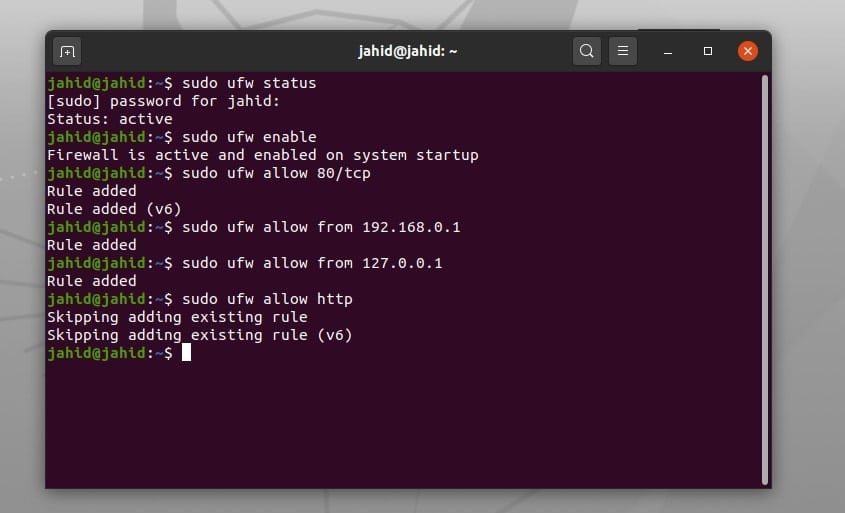
Step 5: Getting Firewall Security
Access
A firewall is the computer network security system that can
allow or deny any IP address[8]
to get access from your Ubuntu machine. As we are using the
localhost address to run our Nextcloud on Ubuntu, so we hope that
the firewall will not become an issue. Furthermore, it’s safe to
check the firewall status and enable it for your Nextcloud.
$ sudo ufw enable
$ sudo ufw status
If your Nextcloud is hosted somewhere else, you can make the
firewall access for that particular IP and port.
$ sudo ufw allow 80/tcp
$ sudo ufw allow from 192.168.0.1
To get the firewall access for all the HTTP websites, you can
use the allow http command in the terminal.
$ sudo ufw allow http
Step 6: Getting Started with the
Nextcloud on Ubuntu
This is the final step to get started with the Nextcloud
service. As far as we have done, all the installation and
configuration processes are done. Now you can open your web browser
and type the localhost address, then add a forward
slash / and type, nextcloud. There you go! Your
Nextcloud client is running. Here you will find some basic setup
processes that you need to fulfill. All the steps are easy and
self-explanatory.

Now after the setup is done, you will be redirected to the login
page. Here you have to enter the username and the password that you
have generated previously. You can also share your Nextcloud
address with others if you have a public accessible hosting
service. Here, I am giving my web address of Nextcloud service for
better understanding.
[email protected]
[9]/nextcloud

The Nextcloud Hub
Here, we are at the very ending of this post; we got the
NextCloud Hub. The NextCloud Hub is something where you can upload,
download, and share your files. You can share files with multiple
users at the same time with the help of NextCloud Hub. You will be
able to find the grid and list view of all your files in the Hub.
Moreover, you will find a chat room where you can chat with your
clients and others.

Here, some key features are listed down of the
Nextcloud-Hub:
- Cloud Talk and Chat
- Allow users to share internal storage
- Grid and list view of files and folders
- Cross-platform software
- Smooth e-mail service
- Nextcloud contact list
- Full-featured office suite
- Data encryption
- Two-factor authentication
Removing or Resetting the
Nextcloud on Ubuntu
Sometime you might need to uninstall or reinstall the Nextcloud
service from your Ubuntu Linux machine. It is more way easy and
simple to remove the Nextcloud than installing it. All you need is
to just need to delete the database from your cloud storage setting
page and delete the directory where you’ve installed the Nextcloud
services. In my case, the directory or the path is
/var/www/html/nextcloud.
If you had installed the Nextcloud using the Snap Store, you
might use the following snap remove command in your terminal
command line.
$ sudo snap remove nextcloud
To reset the Nextcloud settings on Ubuntu, you can use this
terminal command line.
$ sudo -u www-data php /var/www/html/nextcloud/occ user:resetpassword admin
Final Thoughts
Nextcloud is an open-source service, so all the controls are in
your hand. All the files are secure and protected in the NextCloud.
You can lock the privacy system of files from the NextCloud Hub. In
this post, we have discussed the installation process and the
primary features of NextCloud.
So, what do you think about the NextCloud service? Let us know
if you have been using the service before, and how is your
experience. You can write any comments related to this post in the
comment section. Also, share this post on your social media.
References
- ^
Best
Cloud Storage for Linux: 15 Reviewed and Compared for Linux
Nerds (www.ubuntupit.com) - ^
The 20
Best PHP Books To Master Your Skills in 2020
(www.ubuntupit.com) - ^
PHP extension community library
(pecl.php.net) - ^
LAMP
(www.ubuntupit.com) - ^
Top 15
Best Database Management Systems for Linux in 2020
(www.ubuntupit.com) - ^
How to
Install PostgreSQL Database and pgAdmin on Linux
(www.ubuntupit.com) - ^
SQL
(www.ubuntupit.com) - ^
The 10
Best IP Address Management Tools for Linux
(www.ubuntupit.com) - ^
[email protected]
(www.ubuntupit.com)
Read more https://www.ubuntupit.com/how-to-install-nextcloud-on-ubuntu-linux-an-complete-tutorial-for-newbie/