In the era of cloud computing, you can’t deny the
necessity of having at least one cloud service. Those who have been
using Dropbox, Google Drive, or Onedrive for decades will be able
to relate to the concept of OwnCloud. Basically, the OwncCloud is
the opensource and free replacement of all those third-party cloud
servers. On Ubuntu, file hosting and sharing have become easier and
boundless with the assist of OwnCloud service. [1]
OwnCloud On Ubuntu
Linux
If you have your own hosting server, you can install and
configure your OwnCloud on your Ubuntu Linux. You can also choose
any other hosting services to configure your Owncloud. OwnCloud can
be synchronized with your mobile devices, Mac, or even with Windows
operating devices. It is private, secure, and, most importantly,
owned by you. You can share files among your clients and colleagues
with the OwnCloud suite. In this post, we are going to see how to
install and configure OwnCloud on Ubuntu Linux.
Step 1: Updating The Ubuntu System
Repository for OwnCloud
OwnColud requires an updated and virtual private server that can
host all your files. It is important to get your system updated
because, as you are going to host a server so all security patches
must be updated with no bugs. So, first things fast. Let’s update
and upgrade our Ubuntu system.
$ sudo apt update -y && sudo apt upgrade -y
You can also check your Ubuntu Software Updater to check if
there is an update available or not. Remember to choose the best
server for your region to get the best download speed.

Step 2: Installing PHP and Apache
Server for OwnCloud
You may ask, why should you install PHP to start OwnCloud? Well,
the answer is simple; PHP is the best programming language to
interpret with any website and web server. PHP can also be
integrated with any database engine. To install and update your PHP
version from Ubuntu, follow the apt command lines in your
terminal.
$ sudo apt install apache2 libapache2-mod-php7.2 openssl php-imagick php7.2-common php7.2-curl php7.2-gd php7.2-imap php7.2-intl php7.2-json php7.2-ldap php7.2-mbstring php7.2-mysql php7.2-pgsql php-smbclient php-ssh2 php7.2-sqlite3 php7.2-xml php7.2-zip

Now you can install the Apache Server on your Ubuntu system. The
Apache HTTP server will take to the point where you can get started
with the OwnCloud on Ubuntu. If you already have an Apache server
installed, you can check whether it is working properly or not.
$ sudo apt update && upgrade
$ sudo apt install apache2
$ sudo systemctl start apache2
$ sudo systemctl enable apache2
Here you can check if the HTTP server of the Apache is
functioning or not. If you find any error while checking the Apache
server status, be mindful that you are entering the correct version
of the Apache server. Or if you find there is no Apache server
installed in your system, you can follow the terminal commands
provided below.
$ sudo dpkg -l apache2

Now check your PHP version to ensure that the PHP framework is
functioning properly.
$ php -v

Now you might need to make a few changes inside your PHP
configuration file. Make the following changes using the Nano text
editor, as shown below. You can also change these settings
according to the demand of your OwnCloud server.
file_uploads = On
allow_url_fopen = On
memory_limit = 256M
upload_max_filesize = 100M
display_errors = Off
date.timezone = Bangladesh/Dhaka
Step 3: Checking the Apache Server
Status
In order to check whether your Apache server is functioning
correctly or not, very first, you need to allow your firewall
defender to reach the Apache server. Usually, on Ubuntu, the
firewall controls web traffic. It can drop or deny your Apache
server address from the access list. So, let’s tell our Firewall to
accept the Apache server address. Before granting any access, you
can always have the list that might need the firewall access. You
may also need to get the firewall access for the OwnCloud service
on your Ubuntu.
$ sudo ufw app list
$ sudo ufw allow 'Apache'
$ sudo ufw status

Now you can check the status of the Apache server. You can use
the systemctl command in your Ubuntu terminal.
$ sudo systemctl status apache2
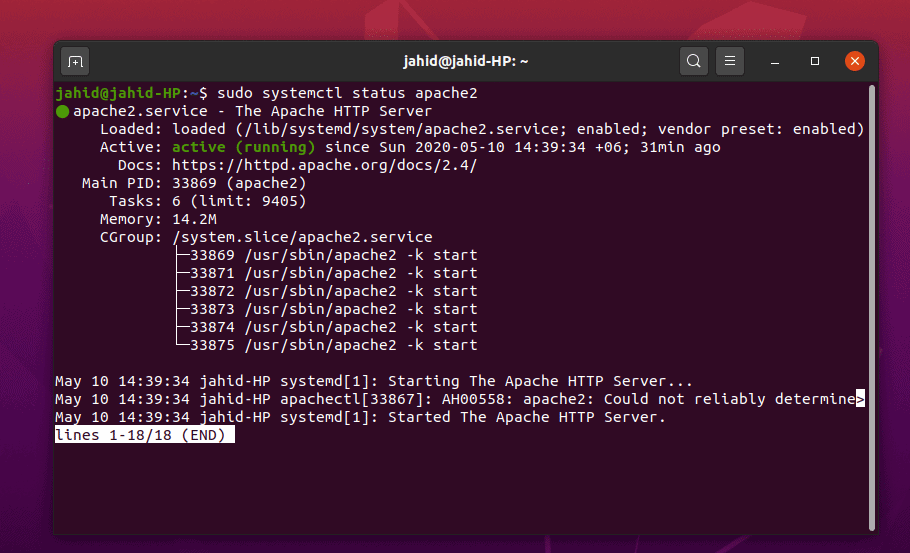
I assume that you have done all the above processes correctly,
and now you’re looking forward to getting into your Apache server.
Here you might find a little complication to find your Apache
server address. Normally the server is always hosted in the
localhost, but if you’re using any Virtual Machine or Docker, you
can find the server address with the basic net tool
ifconfig command.
$ ifconfig

There you go, your Apache default webpage is now opened in your
browser. You can change this file from your Apache root directory.
And you can also get the manual inside your usr/share
directory.
/var/www/html/index.html
/usr/share/doc/apache2/README.Debian.gz

Step 4: Installing and Configuring
the MariaDB for OwnCloud
MariaDB is the recommended server for MySQL language. As we are
working with the Apache webserver so, we will be dealing with a
database as well. To install the MariaDB on your Ubuntu machine,
follow the terminal commands provided below.
$ sudo apt install mariadb-server
Check your MariaDB status, whether it is working or not. Also,
you may check the version of your MySQL.
$ sudo systemctl status mariadb
$ mysql -V
Don’t forget to add the GNU Privacy Guard(GPG) key for the
MariaDB. This will help to encrypt your OwnCloud data. Then, update
the Ubuntu repository.
$ sudo apt-key adv --recv-keys --keyserver hkp://keyserver.ubuntu.com:80
$ sudo add-apt-repository 'deb [arch=amd64,arm64,ppc64el] http://ftp.utexas.edu/mariadb/repo/10.3/ubuntu bionic main'
Here is the thing that you might want to know if your DB engine
is working perfectly or not. By entering the MariaDB root password
in the terminal, you can change the old password, remove anonymous
users, disallow root login remotely, remove test database, and
reload privilege tables from Ubuntu.

To secure your database server and get the root access use the
following terminal command. If you find any error, first close your
Apache localhost server then try again.
$ sudo mysql_secure_installation
$ mysql -u root -p
To change your MySQL default password, login into your system as
the root user and change the password. Configure your OwnCloud
server from the Ubuntu root directory.
$ sudo mysql -u root
$ sudo mysqladmin password
$ sudo mysql -u root -p
Now you need to create a database for the OwnCloud server. Here
are the terminal commands are given below. All the commands are
simple and self-explanatory.

Create a new database for OwnCloud and assign a new
password.
CREATE USER 'ubuntupit'@'localhost' IDENTIFIED BY '1234';
Grand all administrative permission to the database with the
password.
GRANT ALL ON owncloud.* TO 'ubuntupit'@'localhost' IDENTIFIED BY '1234' WITH GRANT OPTION;
Now we are almost done. Flush, save and exit the terminal.
FLUSH PRIVILEGES;
Exit;
Step 5: Downloading OwnCloud on
Ubuntu
Download and installing the OwnCloud is pretty basic on Ubuntu.
There are a variety of OwnCloud agents available on the official
website of OwnCloud. If you are using a Docker, you can also find the
Docker image of OwnCloud in GitHub.
[2][3]
But now, to install the OwnCloud Community edition on your
Ubuntu, use the wget link and unzip the file into the
var/www/ directory. Once the downloading and unzipping
process is done, you can now configure your Apache server settings
with the Vim or the Nano text editor.
$ sudo wget https://download.owncloud.org/community/owncloud-10.4.0.zip
$ sudo unzip owncloud-10.4.0.zip -d /var/www/html/owncloud
$ sudo vim /etc/apache2/conf-available/owncloud.conf
$ sudo nano /etc/apache2/sites-available/owncloud.conf
If you don’t find the Vim[4]
installed in your Ubuntu system, install it first. It’s really
simple.
$ sudo apt install vim
Now once the owncloud.conf file is opened with the
editor, copy and paste the configuration settings inside the file
and save it. You can use the ctrl + X, then
Y, and hit then Enter button to save and exit the file
for Nano editor.
Alias /owncloud "/var/www/html/owncloud/"

<Directory /var/www/html/owncloud/>
Options +FollowSymlinks
AllowOverride All
Require all granted
<IfModule mod_dav.c>
Dav off
</IfModule>
SetEnv HOME /var/www/html/owncloud
SetEnv HTTP_HOME /var/www/html/owncloud
</Directory>Alias /owncloud "/var/www/html/owncloud/"
<Directory /var/www/html/owncloud/>
Options +FollowSymlinks
AllowOverride All

<IfModule mod_dav.c>
Dav off
</IfModule>

SetEnv HOME /var/www/html/owncloud
Set HTTP_HOME /var/www/html/owncloud

</Directory>

Here are some primary Apache server commands that would help you
to configure your OwnCloud server. You can rewrite the script, edit
the header, create a new environment, make a new directory and,
update the Apache mime module with these terminal command
lines. Then, restart your Apache server. [5]
$ sudo a2enconf owncloud
$ sudo a2enmod rewrite
$ sudo a2enmod headers
$ sudo a2enmod env
$ sudo a2enmod dir
$ sudo a2enmod mime
$ sudo systemctl restart apache2
Step 6: Getting Started With the
OwnCloud On Ubuntu
Enable the SSL for the Apache server and generate your own
certificate for the Apache server to get a license. After that, you
can browse to your OwnCloud by using the web address of your Apache
server. Go to your web browser and write your server address and
port(if necessary) the add a forward slash(/) and type
owncloud, then hit the Enter button.
$ sudo a2enmod ssl
$ systemctl restart apache2
$ sudo openssl req -x509 -nodes -days 365 -newkey rsa:2048 -keyout /etc/apache2/ssl/owncloud.key -out /etc/apache2/ssl/owncloud.crt

After everything is done successfully, finally, you should be
able to reach the OwnCloud server page from your web-browser in
Ubuntu.

If you find anything error occurred while opening the OwnCloud
server in your web browser, you must look for the error inside your
configuration files. Use these terminal command lines to find out
where the actual errors are occurring.
$ journalctl | tail
Or you may also open the configuration file from the
directory.
$ cd /etc/apache2
$ apache2ctl configtest
Finishing Touch
Installing OwnCloud on Ubuntu Linux is basically not a hard job.
Most of the servers around the world are run under the Apache
Ubuntu server. So, you need to be careful while editing and
configuring the files with the Vim or Nano. You can customize your
OwnCloud as much as you want; however, be mindful that messing up
with PHP[6]
and Apache server could affect your OwnCloud server badly. Also,
don’t forget to grand the firewall access.
Choosing the best agent for cloud file transmission is really
tough when you have got a lot of options available in your hand.
But I must say, OwnCloud is one of the finest cloud filling systems
for Ubuntu Linux. Let us know what your assessment of the OwnCloud
file server system is. Write down your comment below in the comment
section. Happy Cloud computing!
References
- ^
Top 20
Best Cloud Computing Courses and Certifications in 2020
(ubuntupit.com) - ^
How to
Install and Use Docker in Your Linux System
(ubuntupit.com) - ^
Docker image
(github.com) - ^
100
Useful Vim Commands That You’ll Need Every day
(ubuntupit.com) - ^
mime
module (httpd.apache.org) - ^
The 20
Best PHP Books To Master Your Skills in 2020
(ubuntupit.com)
Read more https://www.ubuntupit.com/how-to-install-owncloud-on-ubuntu-linux-a-tutorial-for-newbie/