The touch command is a simple but useful command in Unix-like
systems that allow users to create files and change timestamps
directly from the terminal. It is one of the most fundamental terminal commands in Linux,
and sysadmins often use this command for a variety of purposes.
Today, we have compiled a short guide outlining 15 practical
examples of touch. You will learn various aspects of touch using
hands-on exercises after completing this guide. So, stay with us
throughout this guide and try the examples on your own machine to
make sure they work as you expect them to. [1]
Practical touch Command Examples
for Linux users
The below examples should help you have a complete understanding
of the touch command. However, you should try these commands
yourself if you want to master this tool in general. So, fire up
your Linux terminal and start executing the
below commands as you read them.[2]
1. Create an Empty File Using
touch
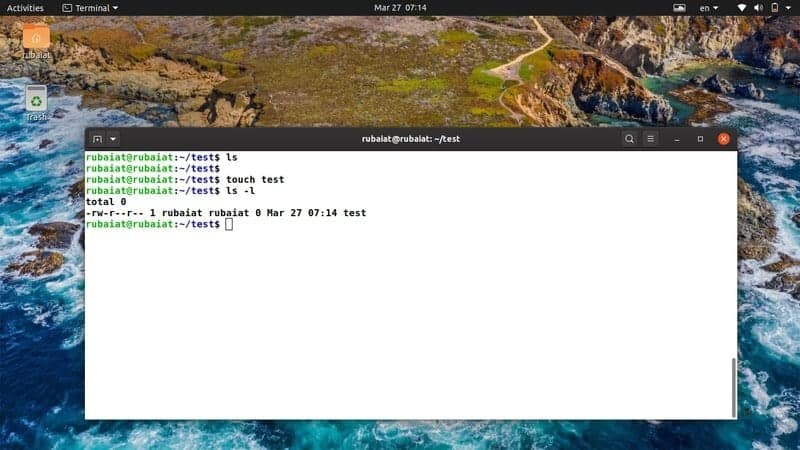
On its most basic usage, touch creates a simple file that does
not contain anything. It is very useful in a number of situations,
like when you are experimenting with file operations or some other
terminal commands. To do this, simply pass a filename after the
touch command.
$ touch test
This will create a simple empty file called test in the
current working directory. You can verify this using the
ls command. You can also use touch to create an
empty file on any other directory by simply passing the right path
before the filename.
$ touch /path/to/filename
2. Create Multiple Empty Files
Using touch
You can also create multiple files at the same time from your
terminal by using the touch command. All you need to do is pass all
the filenames you want to create one after another. Take a quick
look at the below command to see how this works.
$ rm test
$ touch test1 test2 test3 test4 test5
The above command will create all five files at the same time.
You can verify this using the ls -l command in
your terminal. You may also use brace expansion for creating
multiple files using touch at once, as shown by the below
example.
$ rm test1 test2 test3 test4 test         # delete the files first
$ touch test{1,2,3,4,5}
The above command will do the same job but in a much cleaner
way.
3. Create a File and Populate
It
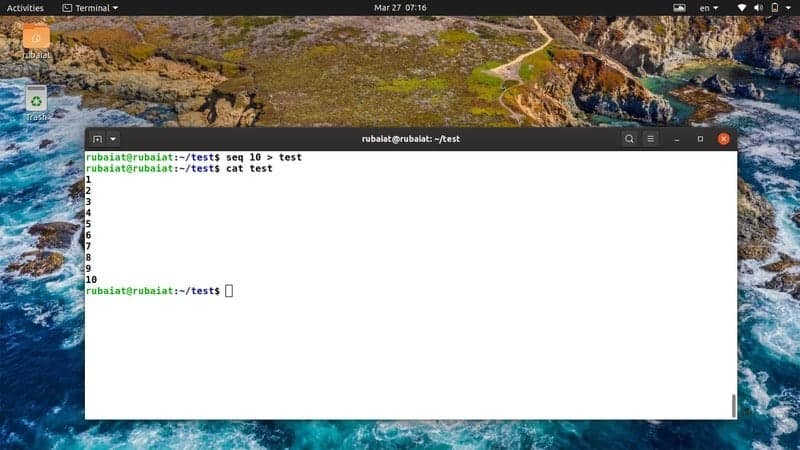
The below example shows you how to create a simple file using
touch and fill that with some contents. We are using the Linux
seq command fo this purpose. But you can resort to
other methods if you want.
$ rm test1 test2 test3 test4 test         # delete the files first
$ seq 100 > test
Now the test file is not empty but contains the numbers 1 to 10.
You can verify this using the Linux cat command.
4. Replicate File Access
Time
The touch command allows users to replicate the file access time
across multiple files. You will need to use the -r
option for enabling this. We are going to create a new file called
new, and instead of using the current time, we will
replicate the time values from the test file created
earlier.
$ touch -r test new
$ ls -l
You can verify this using the ls command. You should see that
the file new has a timestamp that is earlier than the
current time and is the same as the file test. There is a
long-form for this option too, called
–reference.
5. Change Access Time of a File
Using touch
Linux admins often use touch command for modifying the access
time of files created earlier. The next command shows us how to do
this. We need to use the -a option for doing this.
First, check the timestamp of the file test using the
below command.
$ ls -l test --time=atime
Now, use the -a option to change this timestamp
using touch. Note that, the –time=atime option of
ls gives us the access time of a file.
$ touch -a test
Now, if you again check the timestamp of test, you will
notice how it has changed after executing the above command. It is
one of the most common usages of touch in Linux.
6. Change Modification Time of
Files Using touch
You can also change the modification time of a file in Linux
using touch. You will need to use the -m option
for doing this. Take a close look at the below example to see how
this works.
$ ls -l test
$ touch -m test
Firstly, we have viewed the last modification time of
test using ls. Then we have used the
-m option of touch to change this value to the
current time. You can verify this by running the
ls command one more time.
7. Change Date and Time to Current
Time
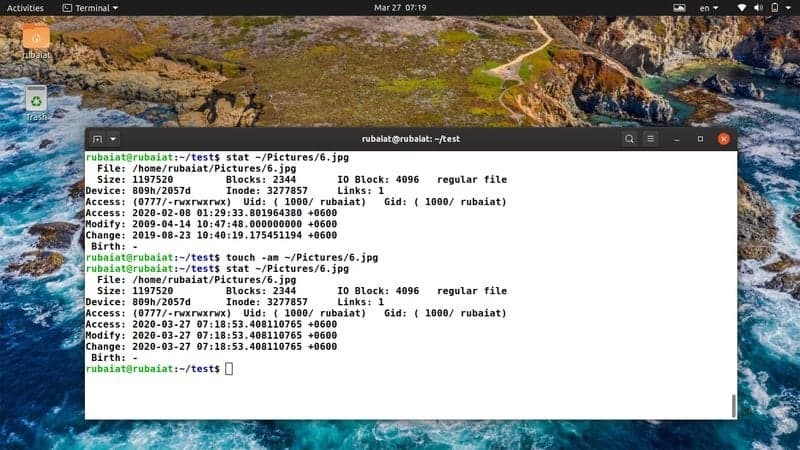
You can use the -a and -m
option together to change both the access time and modification
time of a file in Linux. To demonstrate this, you will need to use
an old file. You can simply run the below command on one such file
to see if it works as expected or not.
$ stat /path/to/old/file
You can see all the time-related information of an older file
using the stat command. It will show the last
access time, modify time, and change the time of your file. Now use
the below command to change the date and time to current date and
time.
$ touch -am /path/to/old/file
Verify the change in date and time by using the
stat command one more time.
$ stat /path/to/old/file
8. Omit the Creation of a
File
The -c or –no-create option of
touch allows us to omit the creation of a file. Although you may
think of this as unproductive, many users use this to check for a
file’s existence.
$ touch -c new-file
$ touch --no-create new-file
When you run the above commands, there will be no change in your
working directory. You can run the ls command once
again to verify this.
9. Change the Date of a
File
We can also use the touch command to manually change the date of
a file. You will need to use the -d or
–date option for doing this. The below command
shows you how to change a file’s date to an earlier date using
touch.
$ ls -l test
$ touch -d '15 Mar' test
Now, if you run the ls command again, you will see that it shows
the file’s date to be Mar 15. But you created this file today,
right? If you look closely, you will see that now ls is only
showing the date, not the time. You can even use this command to
set the date to be in the future.
10. Change Date and Time to
Customized Values
The -t option of touch enables us to change
both the date and time of a file to personalized values. This way,
we can change several parameters, including year, month, date,
hour, minutes, and seconds. Take a close look at the following
example to see how this works.
$ ls -l test                        # display current time & date
$ touch -t 2025 02 01 04 22 test
Now run the ls command again to check the date and time
parameters. The argument to the -t option is in
the format YYMMDDhhmm. Since we have set the values to be
in the future, ls will not be able to show the time parameters.
11. Change the Date
Verbosely
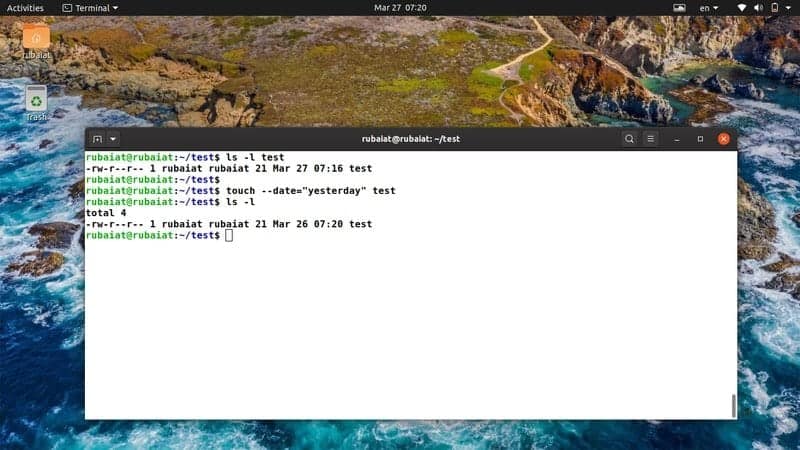
You can also change the date of a file verbosely using touch.
Simply pass the argument of the –date option as a
string for doing this. The below command shows how to change the
date of a file to the previous day.
$ touch --date="yesterday" test
Use the following command to change the date to the next
day.
$ touch --date="tomorrow" test
Verify the dates by using the ls command and see if they are
working as expected.
12. Replicate File Access Time for
Symlinks
The -h or –no-dereference
option of touch allows users to replicate the file access time
across symbolic links. However, this option will only work on
systems that allow changing the time of symlinks.
$ touch -h link
This command does not work in many Linux distributions[3] due to various security
issues.
13. View the Help
Page
The help page contains summarized information of all possible
options for a command. It is very helpful since users can simply
glance over this page and remember what an option is supposed to be
doing.
$ touch --help
This command will bring the help page for the Linux touch
command in your terminal. It saves you from remembering the usage
of each option.
14. View the Man
Page
The man page or manual contains detailed information about all
the available options for Linux terminal commands[4]. You can consult this
page whenever you want by issuing the following simple command.
$ man touch
This will bring you in-depth documentation of how touch works.
Consult this page whenever you are in confusion regarding the usage
of an option.
15. Display Version
Information
You can view what version of touch is installed on your system
by using the below command. It can help you determine various
information about the installed package.
$ touch --version
Ending Thoughts
The touch command is one of the simplest Linux terminal
commands. It is very easy to learn due to its limited number of
options. However, touch can be really helpful in a number of
situations, and seasonal system admins often use this command for
controlling the timestamps of files. Our editors have provided an
in-depth analysis of various such examples. Hopefully, we were able
to provide you the essential information you were looking for from
this guide. Let us know if you have any questions regarding this
command in the comment section below.
References
- ^
fundamental terminal commands in
Linux (www.ubuntupit.com) - ^
Linux
terminal (www.ubuntupit.com) - ^
many
Linux distributions (www.ubuntupit.com) - ^
Linux
terminal commands (www.ubuntupit.com)
Read more https://www.ubuntupit.com/useful-examples-of-touch-command-in-linux/