AWK is a powerful data-driven programming language that dates
its origin back to the early days of Unix. It was initially
developed for writing ‘one-liner’ programs but has since evolved
into a full-fledged programming language. AWK
gets its name from the initials of its authors – Aho, Weinberger,
and Kernighan. The awk command in Linux and other Unix systems invokes the
interpreter that runs AWK scripts. Several implementations of awk
exist in recent systems such as gawk (GNU awk), mawk (Minimal awk),
and nawk (New awk), among others. Check out the below examples if
you want to master awk. [1][2]
Understanding AWK
Programs
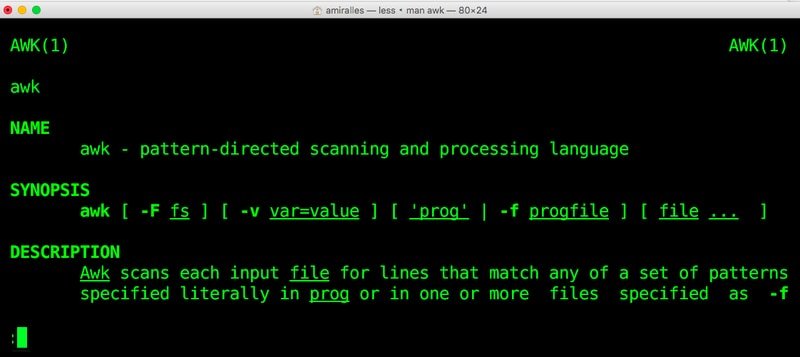
Programs written in awk consist of rules, which are simply a
pair of patterns and actions. The patterns are grouped within a
brace {}, and the action part is triggered whenever awk finds texts
that match the pattern. Although awk was developed for writing
one-liners, experienced users can easily write complex scripts with
it.
AWK programs are very useful for large-scale file processing. It
identifies text fields using special characters and separators. It
also offers high-level programming constructs like arrays and
loops. So writing robust programs using plain awk is very
feasible.
Practical Examples of awk Command
in Linux
Admins normally use awk for data extraction and reporting
alongside other types of file manipulations. Below we have
discussed awk in more detail. Follow the commands carefully and try
them in your terminal for a complete understanding.
1. Print Specific Fields from Text
Output
The most widely used Linux commands[3] display their output
using various fields. Normally, we use the Linux cut command for
extracting a specific field from such data. However, the below
command shows you how to do this using the awk command.
$ who | awk '{print $1}'
This command will display only the first field from the output
of the who command. So, you will simply get the usernames of all
currently logged users. Here, $1 represents the
first field. You need to use $N if you want to
extract the N-th field.
2. Print Multiple Fields from Text
Output
The awk interpreter allows us to print any number of fields we
want. The below examples show us how to extract the first two
fields from the output of the who command.
$ who | awk '{print $1, $2}'
You can also control the order of the output fields. The
following example first displays the second column produced by the
who command and then the first column in the second field.
$ who | awk '{print $2, $1}'
Simply leave out the field parameters ($N) to
display the entire data.
3. Use BEGIN
Statements
The BEGIN statement allows users to print some known information
in the output. It is usually used for formatting the output data
generated by awk. The syntax for this statement is shown below.
BEGIN { Actions}
{ACTION}
The actions which form the BEGIN section is always triggered.
Then awk reads the remaining lines one by one and sees if anything
needs to be done.
$ who | awk 'BEGIN {print "User\tFrom"} {print $1, $2}'
The above command will label the two output fields extracted
from the who command’s output.
4. Use END
Statements
You can also use the END statement to make sure that certain
actions are always performed at the end of your operation. Simply
place the END section after the main set of actions.
$ who | awk 'BEGIN {print "User\tFrom"} {print $1, $2} END {print "--COMPLETED--"}'
The above command will append the given string at the end of the
output.
5. Search Using
Patterns
A large portion of awk’s workings involves pattern matching and regex[4]. As we’ve already
discussed, awk searches for patterns in each input line and only
executes the action when a match is triggered. Our previous rules
consisted of only actions. Below, we’ve illustrated the basics of
pattern matching using the awk command in Linux.
$ who | awk '/mary/ {print}'
This command will see if the user mary is currently logged on or
not. It will output the entire line if any match is found.
The awk command works very well with files and can be used for
complex file processing tasks. The following command illustrates
how awk handles files.
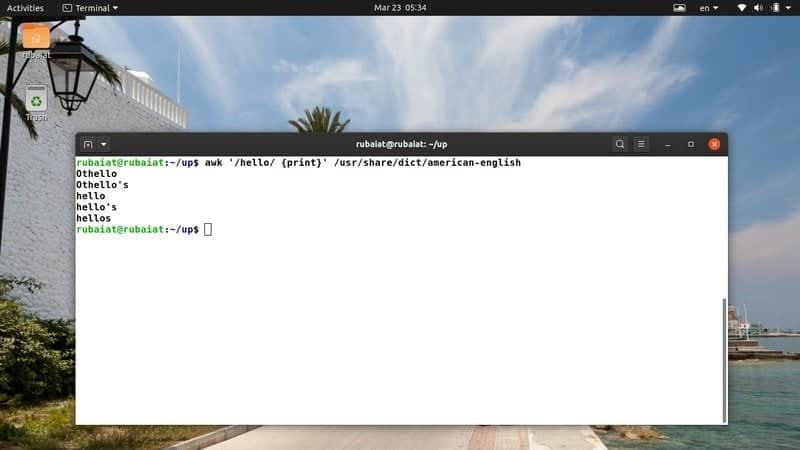
$ awk '/hello/ {print}' /usr/share/dict/american-english
This command searches for the pattern ‘hello’ in the
american-english dictionary file. It is available on most Linux-based distributions. Thus, you can
easily try awk programs on this file. [5]
7. Read AWK Script from Source
File
Although writing one-liner programs is useful, you can also
write large programs using awk entirely. You will want to save them
and run your program using the source file.
$ awk -f script-file
$ awk --file script-file
The -f or –file option allows
us to specify the program file. However, you do not need to use
quotes (‘ ‘) inside the script-file since the Linux shell[6]
will not interpret the program code this way.
8. Set Input Field
Separator
A field separator is a delimiter that divides the input record.
We can easily specify field separators to awk using the
-F or –field-separator option.
Check out the below commands to see how this works.
$ echo "This-is-a-simple-example" | awk -F - ' {print $1} '
$ echo "This-is-a-simple-example" | awk --field-separator - ' {print $1} '
It works the same when using script files rather than one-liner
awk command in Linux.
9. Print Information Based On
Condition
We’ve discussed the Linux cut command[7]
in a previous guide. Now we’ll show you how to extract information
using awk only when certain criteria are matched. We will be using
the same test file we used in that guide. So head over there and
make a copy of the test.txt file.
$ awk '$4 > 50' test.txt
This command will print out all nations from the test.txt file,
which has more than 50 million population.
10. Print Information by Comparing
Regular Expressions
The following awk command checks whether the third field of any
line contains the pattern ‘Lira’ and prints out the entire line if
a match is found. We are again using the test.txt file used to
illustrate the Linux cut command[8]. So make sure you’ve got
this file before proceeding.
$ awk '$3 ~ /Lira/' test.txt
You may choose to only print a specific portion of any match if
you want.
11. Count the Total Number of
Lines in Input
The awk command has many special-purpose variables that allow us
to do many advanced things easily. One such variable is NR, which
contains the current line number.
$ awk 'END {print NR} ' test.txt
This command will output how many lines are there in our
test.txt file. It first iterates over each line, and once it has
reached END, it will print the value of NR – which contains the
total number of lines in this case.
12. Set Output Field
Separator
Earlier, we have shown how to select input field separators
using the -F or –field-separator
option. The awk command also allows us to specify the output field
separator. The below example demonstrates this using a practical
example.
$ date | awk 'OFS="-" {print$2,$3,$6}'
This command prints out the current date using the dd-mm-yy
format. Run the date program without awk to see how the default
output looks like.
13. Using the If
Construct
Like other popular programming languages, awk also
provides users with the if-else constructs. The if statement in awk
has the below syntax. [9]
if (expression)
{
  first_action
  second_action
}
The corresponding actions are only performed if the conditional
expression is true. The below example demonstrates this using our
reference file test.txt.
$ awk '{ if ($4>100) print }' test.txt
You do not need to maintain the indentation strictly.
14. Using If-Else
Constructs
You can construct useful if-else ladders using the below syntax.
They are useful when devising complex awk scripts that deal with
dynamic data.
if (expression)
  first_action
else
  second_action
$ awk '{ if ($4>100) print; else print }' test.txt
The above command will print the entire reference file since the
fourth field is not greater than 100 for each line.
15. Set the Field
Width
Sometimes the input data is quite messy, and users might find it
difficult to visualize them in their reports. Fortunately, awk
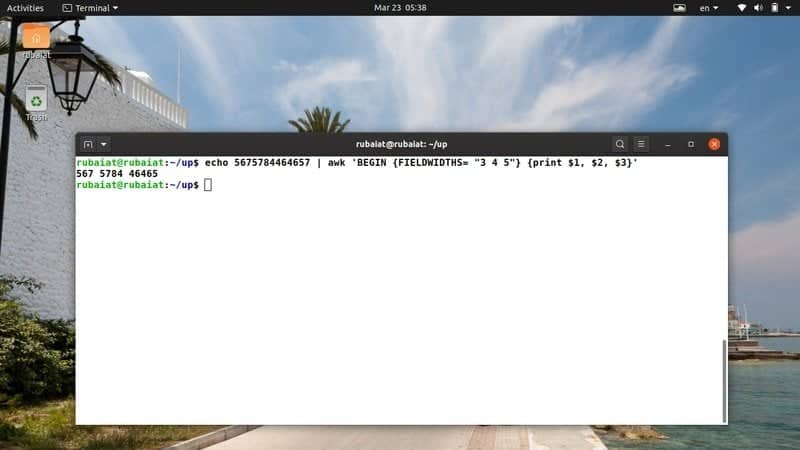
provides a powerful built-in variable called FIELDWIDTHS that
allows us to define a whitespace-separated list of widths.
$ echo 5675784464657 | awk 'BEGIN {FIELDWIDTHS= "3 4 5"} {print $1, $2, $3}'
It is very useful when parsing scattered data since we can
control the output field width exactly as we want.
16. Set the Record
Separator
The RS or Record Separator is another in-built variable that
allows us to specify how records are separated. Let us first create
a file that will demonstrate the workings of this awk variable.
$ cat new.txt
Melinda James

23 New Hampshire

(222) 466-1234

Daniel James

99 Phonenix Road

(322) 677-3412
$ awk 'BEGIN{FS="\n"; RS=""} {print $1,$3}' new.txt
This command will parse the document and spit out the name and
address for the two persons.
17. Print Environment
Variables
The awk command in Linux allows us to print environment
variables easily using the variable ENVIRON. The below command
demonstrates how to use this for printing out the contents of the
PATH variable.
$ awk 'BEGIN{ print ENVIRON["PATH"] }'
You can print the contents of any environment variables by
substituting the argument of the ENVIRON variable. The below
command prints the value of the environment variable HOME.
$ awk 'BEGIN{ print ENVIRON["HOME"] }'
18. Omit Some Fields from
Output
The awk command allows us to omit specific lines from our
output. The following command will demonstrate this using our
reference file test.txt.
$ awk -F":" '{$2=""; print}' test.txt
This command will omit the second column of our file, which
contains the name of the capital for each country. You can also
omit more than one field, as shown in the next command.
$ awk -F":" '{$2="";$3="";print}' test.txt
19. Remove Empty
Lines
Sometimes data may contain too many blank lines. You can use the
awk command to remove empty lines pretty easily. Check out the next
command to see how this works in practice.
$ awk '/^[ \t]*$/{next}{print}' new.txt
We have removed all empty lines from the file new.txt using a
simple regular expression and an awk built-in called next.
20. Remove Trailing
Whitespaces
The output of many Linux commands contains trailing whitespaces.
We can use the awk command in Linux to remove such whitespaces like
spaces and tabs. Check out the below command to see how to tackle
such problems using awk.
$ awk '{sub(/[ \t]*$/, "");print}' new.txt test.txt
Add some trailing whitespaces to our reference files and verify
whether awk emoved them successfully or not. It did this
successfully in my machine.
21. Check the Number of Fields in
Each Line
We can easily check how many fields are there in a line using a
simple awk one-liner. There are many ways to do this, but we will
use some of the awk’s in-built variables for this task. The NR
variable gives us the line number, and the NF variable provides the
number of fields.
$ awk '{print NR,"-->",NF}' test.txt
Now we can confirm how many fields are there per line in our
test.txt document. Since each line of this file contains 5
fields, we are assured that the command is working as expected.
22. Verify Current
Filename
The awk variable FILENAME is used for verifying the current
input filename. We are demonstrating how this works using a simple
example. However, it can be useful in situations where the filename
is not known explicitly, or there is more than one input file.
$ awk '{print FILENAME}' test.txt
$ awk '{print FILENAME}' test.txt new.txt
The above commands print out the filename awk is working on each
time it processes a new line of the input files.
23. Verify Number of Processed
Records
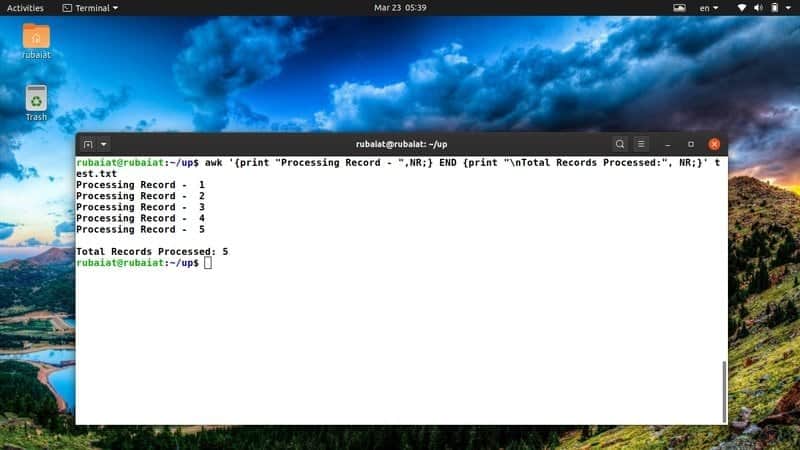
The following example will showcase how we can verify the number
of records processed by the awk command. Since a large number of
Linux system admins use awk for generating reports, it is very
useful for them.
$ awk '{print "Processing Record - ",NR;} END {print "\nTotal Records Processed:", NR;}' test.txt
I often use this awk snippet for having a clear overview of my
actions. You can easily tweak it to accommodate new ideas or
actions.
24. Print the Total Number of
Characters in a Record
The awk language provides a handy function called length() that
tells us how many characters are present in a record. It is very
useful in a number of scenarios. Take a quick look at the following
example to see how this works.
$ echo "A random text string..." | awk '{ print length($0); }'
$ awk '{ print length($0); }' /etc/passwd
The above command will print the total number of characters
present in each line of the input string or file.
25. Print all Lines Longer than a
Specified Length
We can add in some conditionals to the above command and make it
only print those lines that are greater than a predefined length.
It is useful when you already have an idea about the length of a
specific record.
$ echo "A random text string..." | awk 'length($0) > 10'
$ awk '{ length($0) > 5; }' /etc/passwd
You can throw in more options and/or arguments to tweak the
command based on your requirements.
26. Print the Number of Lines,
Characters, and Words
The following awk command in Linux prints the number of lines,
characters, and words in a given input. It utilizes the NR variable
as well as some basic arithmetic for doing this operation.
$ echo "This is a input line..." | awk '{ w += NF; c += length + 1 } END { print NR, w, c }'
It shows that there are 1 line, 5 words, and exactly 24
characters present in the input string.
27. Calculate the Frequency of
Words
We can combine associative arrays and the for loop in awk to
calculate the word frequency of a document. The following command
may seem a little complex, but it is fairly simple once you
understand the basic constructs clearly.
$ awk 'BEGIN {FS="[^a-zA-Z]+" } { for (i=1; i<=NF; i++) words[tolower($i)]++ } END { for (i in words) print i, words[i] }' test.txt
If you’re having trouble with the one-liner snippet, copy the
following code into a new file and run it using the source.
$ cat > frequency.awk
BEGIN {
FS="[^a-zA-Z]+"
}
{
for (i=1; i<=NF; i++)
words[tolower($i)]++
}
END {
for (i in words)
print i, words[i]
}
Then run it using the -f option.
$ awk -f frequency.awk test.txt
28. Rename Files using
AWK
The awk command can be used for renaming all files matching
certain criteria. The following command illustrates how to use awk
for renaming all .MP3 files in a directory to .mp3 files.
$ touch {a,b,c,d,e}.MP3
$ ls *.MP3 | awk '{ printf("mv \"%s\" \"%s\"\n", $0, tolower($0)) }'
$ ls *.MP3 | awk '{ printf("mv \"%s\" \"%s\"\n", $0, tolower($0)) }' | sh
First, we created some demo files with .MP3 extension. The
second command shows the user what happens when the rename is
successful. Finally, the last command does the rename operation
using the mv command in Linux.
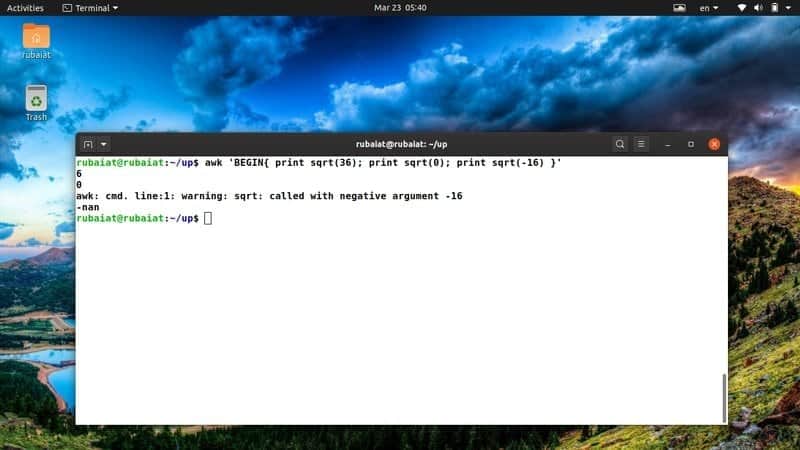
29. Print the Square Root of a
Number
AWK offers several in-built functions for manipulating numerals.
One of them is the sqrt() function. It is a C-like function that
returns the square root of a given number. Take a quick look at the
next example to see how this works in general.
$ awk 'BEGIN{ print sqrt(36); print sqrt(0); print sqrt(-16) }'
Since you can not determine the square root of a negative
number, the output will display a special keyword called ‘nan’ in
place of sqrt(-12).
30. Print the Logarithm of a
Number
The awk function log() provides the natural logarithm of a
number. However, it will only work with positive numbers, so be
aware of validating users’ input. Else someone might break your awk
programs and gain unprivileged access to system resources.
$ awk 'BEGIN{ print log(36); print log(0); print log(-16) }'
You should see the logarithm of 36 and verify that logarithm of
0 is infinity, and the log of a negative value is ‘Not a Number’ or
nan.
31. Print the Exponential of a
Number
The exponential os a number n provides the value of e^n. It is
usually used in awk scripts that deal with large numerals or
complex arithmetic logic. We can generate the exponential of a
number using the built-in awk function exp().
$ awk 'BEGIN{ print exp(30); print log(0); print exp(-16) }'
However, awk can not calculate exponential for extremely large
numbers. You should do such calculations using low-level programming languages[10] like C and feed the
value to your awk scripts.
32. Generate Random Numbers Using
AWK
We can utilize the awk command in Linux to generate random
numbers. These numbers will be in the range 0 to 1, but never 0 or
1. You can multiply a fixed value with the resultant number to get
a larger random value.
$ awk 'BEGIN{ print rand(); print rand()*99 }'
The rand() function does not need any argument. Additionally,
the numbers generated by this function are not precisely random but
rather pseudo-random. Moreover, it is quite easy to predict these
numbers from run to run. So you should not rely on them for
sensitive calculations.
33. Color Compiler Warnings in
Red
Modern Linux compilers will throw
warnings if your code does not maintain language standards or has
errors that do not halt program execution. The following awk
command will print the warning lines generated by a compiler in
red. [11]
$ gcc -Wall main.c |& awk '/: warning:/{print "\x1B[01;31m" $0 "\x1B[m";next;}{print}'
This command is useful if you want to pinpoint compiler warnings
specifically. You can use this command with any compiler other than
gcc, just make sure to change the pattern /: warning:/ for
reflecting that particular compiler.
34. Print the UUID Information of
Filesystem
The UUID or Universally Unique Identifier[12] is a number that can be
used to identify resources like the Linux filesystem[13]. We can simply print
the UUID information of our filesystem by using the following Linux
awk command.
$ awk '/UUID/ {print $0}' /etc/fstab
This command searches for the text UUID in the
/etc/fstab file using awk patterns. It returns a
comment from the file which we are not interested in. The below
command will make sure that we only get those lines that start with
UUID.
$ awk '/^UUID/ {print $1}' /etc/fstab
It restricts the output to the first field. So we get only the
UUID numbers.
35. Print the Linux Kernel Image
Version
Different Linux kernel images are used by various Linux distributions[14]. We can easily print
the exact kernel image upon which our system is based on using awk.
Check out the following command to see how this works in
general.
$ uname -a | awk '{print $3}'
We have first issued the uname command with the
-a option and then piped this data to awk. Then we
have extracted the version information of the kernel image using
awk.
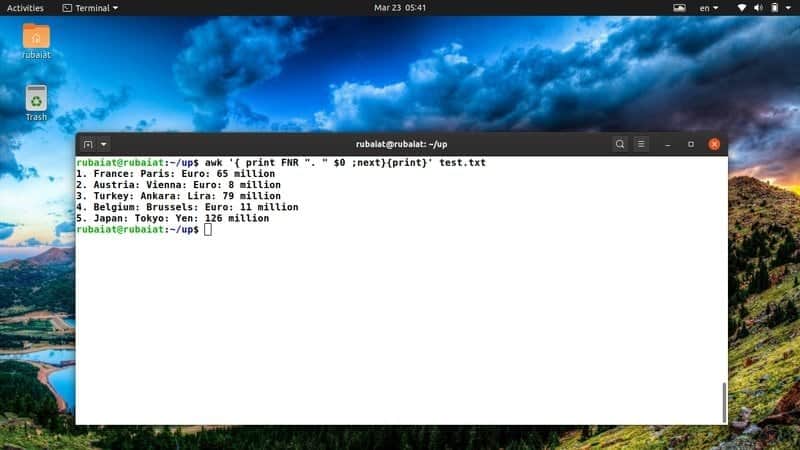
36. Add Line Numbers before
Lines
Users may encounter text files that do not contain line numbers
pretty often. Luckily, you can easily add line numbers to a file
using the awk command in Linux. Take a close look at the below
example to see how this works in real-life.
$ awk '{ print FNR ". " $0 ;next}{print}' test.txt
The above command will add a line number before each of the
lines in our test.txt reference file. It utilizes the on-built awk
variable FNR to address this.
37. Print a File after Sorting the
Contents
We can also use awk to print a sorted list of all lines. The
following commands print the name of all countries in our test.txt
in sorted order.
$ awk -F ':' '{ print $1 }' test.txt | sort
The next command will print the login name of all users from the
/etc/passwd file.
$ awk -F ':' '{ print $1 }' /etc/passwd | sort
You can easily change the order of sorting by modifying the sort
command.
38. Print the Manual
Page
The manual page contains detailed information of the awk command
alongside all the available options. It is extremely important for
people who want to master the awk command thoroughly.
$ man awk
If you want to learn complex awk features, then this will be of
great help to you. Consult this documentation whenever you are
stuck with a problem.
39. Print the Help
Page
The help page contains summarized information of all possible
command-line arguments. You can invoke the help guide for awk using
one of the following commands.
$ awk -h
$ awk --help
Consult this page if you want a quick overview of all available
options for awk.
40. Print Version
Information
The version information provides us information on a programs’
build. The version page for awk contains information like its
copyright, compilation tools, and so on. You can view this
information using one of the following awk commands.
$ awk -V
$ awk --version
Ending Thoughts
The awk command in Linux allows us to do all sorts of things,
including file processing and system maintenance. It provides a
diverse range of operations for handling day to day computing tasks
quite easily. Our editors have compiled this guide with 40 helpful
awk commands that can be used for text manipulation or
administration. Since AWK is a full-fledged programming language on
its own, there are multiple ways to do the same job. So, do not
wonder why we’re doing certain things in a different way. You can
always curate your own recipes based on your skillset and
experience. Leave us your thoughts let us know if you have any
questions.
References
- ^
full-fledged programming language
(www.ubuntupit.com) - ^
Linux
and other Unix systems (www.ubuntupit.com) - ^
widely
used Linux commands (www.ubuntupit.com) - ^
pattern
matching and regex (www.ubuntupit.com) - ^
Linux-based distributions
(www.ubuntupit.com) - ^
the
Linux shell (www.ubuntupit.com) - ^
the
Linux cut command (www.ubuntupit.com) - ^
Linux
cut command (www.ubuntupit.com) - ^
popular
programming languages (www.ubuntupit.com) - ^
low-level programming languages
(www.ubuntupit.com) - ^
Modern
Linux compilers (www.ubuntupit.com) - ^
Universally Unique Identifier
(en.wikipedia.org) - ^
the
Linux filesystem (www.ubuntupit.com) - ^
various Linux distributions
(www.ubuntupit.com)
Read more https://www.ubuntupit.com/useful-awk-command-in-linux-and-bsd/